How to Fix iPhone Not Receiving Calls
If your iPhone is not receiving calls, it can be frustrating, especially when you're relying on your device for communication. Whether you're a home user or a busy professional, this issue can disrupt your daily routine. The main keyword here is 'How to Fix iPhone Not Receiving Calls,' and this article provides a clear, step-by-step guide to help you resolve the problem without needing professional assistance. You'll find practical solutions that cover basic settings, software updates, and even advanced troubleshooting methods.
The article starts by guiding you through simple checks, such as ensuring your iPhone is not in airplane mode and verifying call forwarding settings. These initial steps can often resolve minor issues without requiring further action. If the problem persists, you'll learn how to restart your device and reset network settings, which can fix temporary glitches or cellular connection problems.
For more persistent issues, the guide covers software updates and checking for carrier service disruptions, ensuring your iPhone is running the latest iOS version and that your service provider is functioning properly. If all else fails, advanced troubleshooting steps like using DFU mode or resetting all settings are outlined, giving you multiple options to restore your iPhone's call reception.
Check Basic Settings and Network Connection
Before diving into more complex solutions, start by checking your iPhone's basic settings and network connection. These simple steps can often resolve call reception issues without requiring advanced troubleshooting.
Ensure Your iPhone Is Not in Airplane Mode
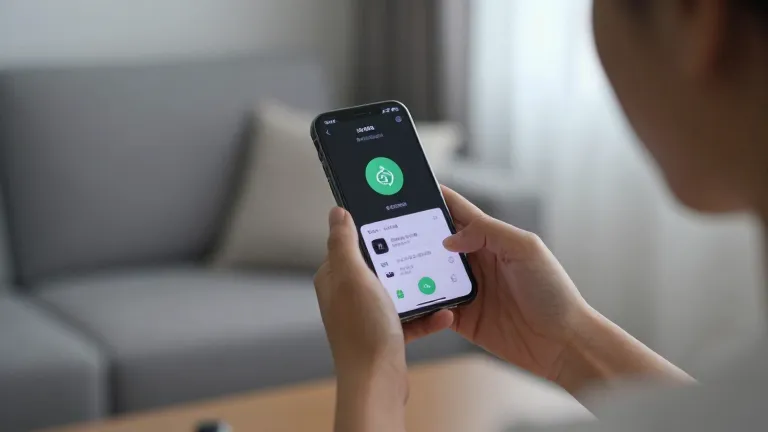
Ensure your iPhone is not in Airplane Mode. This mode disables all wireless connections, including cellular service, which can prevent your phone from receiving calls. To check, go to Settings > General > Airplane Mode and confirm it is turned off. If it is enabled, toggle it off and wait a few moments for your phone to reconnect to the network.
Verify Call Forwarding Settings
Verify that call forwarding settings are not active. Call forwarding can redirect incoming calls to another number, which might explain why you're not receiving them. To check, go to Settings > Phone > Call Forwarding and ensure the option is disabled. If it is enabled, disable it and test whether calls now reach your iPhone. If the issue persists, proceed to the next troubleshooting steps.
Restart Your iPhone and Carrier Settings
Restarting your iPhone and resetting network settings can often resolve call reception issues caused by temporary software glitches or misconfigured cellular settings. These steps are simple and effective for most users who are experiencing intermittent connectivity problems.
- Restart your iPhone to resolve temporary software glitches.
- Reset network settings to fix issues with cellular connection.
- Ensure that your carrier settings are up to date.
- Reboot your router or modem if the issue persists.
Restart Your iPhone to Resolve Temporary Issues
Restarting your iPhone can help clear temporary software glitches that may be preventing it from receiving calls. To do this, press and hold the power button until the 'Slide to Power Off' slider appears, then slide it. After a few seconds, press and hold the power button again to turn your iPhone back on. This process can often resolve minor issues that affect call reception.
Reset Network Settings to Fix Cellular Connection Problems
Resetting network settings can help fix persistent cellular connection problems. To do this, go to Settings > General > Reset > Reset Network Settings. This will erase saved Wi-Fi networks and passwords, as well as cellular settings. After resetting, you'll need to reconnect to your Wi-Fi and re-enter your carrier settings. This step is useful if your iPhone is having trouble connecting to cellular networks or if call reception is inconsistent.
Update Software and Check for Carrier Issues
Keeping your iPhone updated and ensuring your carrier service is functioning properly are essential steps in resolving call reception issues. Software updates often include critical fixes for connectivity problems, while carrier disruptions can directly affect call reception. By following these steps, you can address potential software and network-related causes of the issue.
Update Your iPhone to the Latest iOS Version
To ensure your iPhone is running the latest version of iOS, go to Settings > General > Software Update. If an update is available, download and install it. Software updates often include important bug fixes and improvements that can resolve connectivity problems. Make sure your iPhone is connected to a stable Wi-Fi network and has sufficient battery life before starting the update process.
Check for Carrier Service Disruptions
Next, contact your carrier to confirm there are no service disruptions in your area. Network outages can prevent calls from being received, and your carrier can provide updates on the status of their services. Additionally, check if your SIM card is properly inserted and active. If your SIM card is loose or damaged, it may affect cellular connectivity. Ensure your device is registered with the carrier by checking the account settings or contacting support for confirmation.
Check for Hardware Issues and Repair Options
If your iPhone continues to have issues receiving calls after basic troubleshooting, it may be due to physical damage or environmental factors. Inspecting the device for signs of wear and testing it in different locations can help identify hardware-related problems or interference that may be affecting call reception.
Inspect for Physical Damage or Antenna Issues
Carefully examine your iPhone for any visible signs of damage, such as cracks, dents, or water exposure, particularly around the antenna and ports. These areas are critical for maintaining a stable cellular connection. If you notice any damage, especially to the antenna or SIM card slot, it could be impairing your ability to receive calls. Additionally, check for loose or damaged cables inside the device, which might interfere with signal transmission.
Test Your iPhone in Different Locations
Take your iPhone to a different location to rule out environmental interference, such as being in an area with poor cellular coverage or near sources of electromagnetic interference. If you're indoors, try moving to a window or an open space to improve signal strength. If you're outdoors, test the device in areas with stronger network signals. If the issue resolves when you change locations, it may indicate a temporary environmental problem rather than a hardware fault.
Advanced Troubleshooting and Last Resort Fixes
If basic troubleshooting steps fail to resolve your iPhone's call reception issues, advanced methods may be required. These include restoring your device through DFU mode, resetting all settings, or reinstalling iOS. These steps are for more severe issues and should only be attempted after exhausting simpler solutions. If the problem persists, contacting Apple Support is the final step to ensure your device is properly diagnosed and repaired.
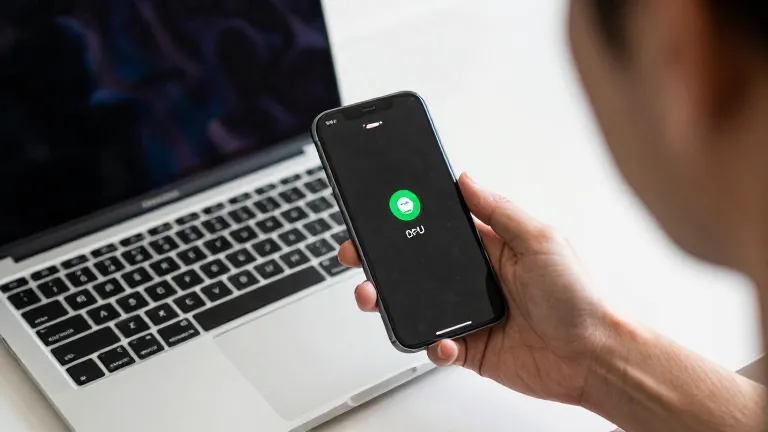
- Use DFU Mode to Restore Your iPhone
- Reset All Settings to Factory Defaults
- Reinstall the iOS Operating System
- Contact Apple Support for Further Assistance
Use DFU Mode to Restore Your iPhone
DFU mode allows you to restore your iPhone without using iTunes or a computer, bypassing any software conflicts. To enter DFU mode, connect your iPhone to a computer, open iTunes, and follow the on-screen instructions to force a restore. This method is useful if your iPhone is unresponsive or experiencing severe software issues that prevent it from receiving calls.
Before initiating a DFU restore, ensure you have a backup of your data, as this process will erase all information on your device. Once in DFU mode, iTunes will detect your iPhone and prompt you to restore or update the firmware. This can fix underlying system errors that may be interfering with call reception.
Reset All Settings to Factory Defaults
Resetting all settings to factory defaults will restore your iPhone’s default configuration while keeping your personal data intact. This can resolve issues caused by corrupted system settings or software conflicts. To do this, go to Settings > General > Reset > Reset All Settings. This option is ideal if your iPhone is experiencing persistent performance or connectivity problems.
After resetting all settings, your iPhone will restart and reconfigure itself. If call reception issues persist, you may need to reinstall iOS, which involves erasing all data and starting fresh. This is a more drastic measure and should only be considered if other troubleshooting steps have failed.
Frequently Asked Questions
Why is my iPhone not receiving calls even though it's connected to the network?
Your iPhone may not be receiving calls due to settings like Do Not Disturb or call forwarding. Check your network connection and ensure your carrier service is active.
How do I check if my iPhone is in airplane mode or silent mode?
Swipe up from the bottom of the screen to access Control Center. Look for the airplane mode icon or the silent mode switch. Alternatively, check Settings > General > Network.
What should I do if my iPhone keeps dropping calls?
Try restarting your iPhone or resetting network settings. If the issue persists, contact your carrier to check for service disruptions or schedule a hardware inspection.
Can a software update fix iPhone call reception issues?
Yes, updating your iPhone to the latest iOS version can resolve software-related call reception issues. Ensure your device is connected to a stable Wi-Fi network during the update.
Final Steps and Next Actions
iPhone call reception issues can often be resolved with basic troubleshooting steps such as checking settings, restarting the device, or updating the software. If these steps do not work, it may be necessary to inspect the hardware or consult with your carrier.
If you continue to experience call reception problems, consider using DFU mode for a factory reset or visiting an authorized service center for professional repair. Always back up your data before attempting any major fixes.