How to Fix iPhone Not Charging From Wall Adapter
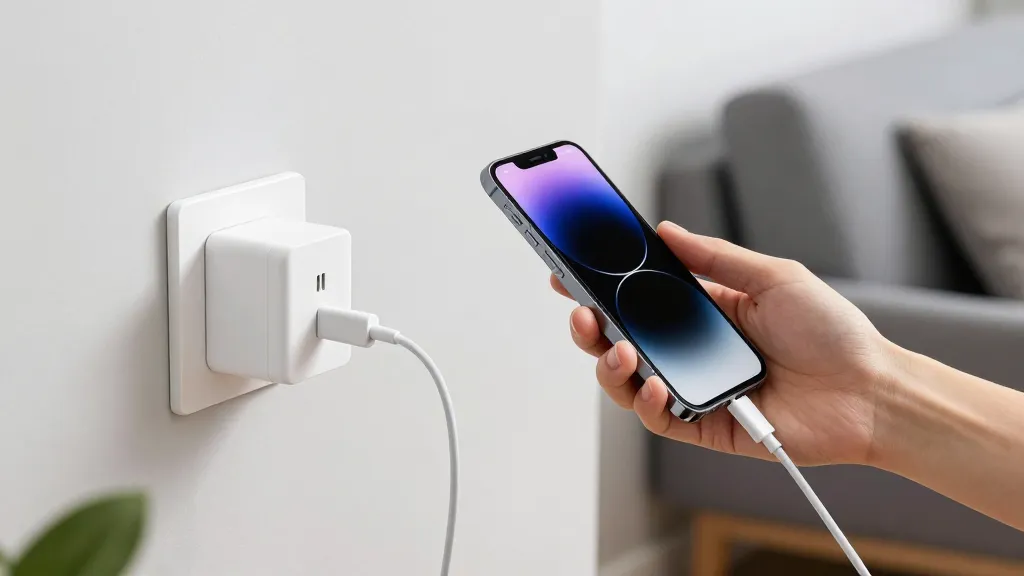
Your iPhone isn't charging from the wall adapter—this can be frustrating, especially when you're relying on your device for work or daily tasks. If your iPhone fails to charge through the wall adapter, the issue might stem from a faulty cable, an incompatible charger, or even a software glitch. The main keyword here is 'How to Fix iPhone Not Charging From Wall Adapter,' and this article will guide you through practical steps to resolve the problem. Whether you're at home or in the office, you can troubleshoot the issue without needing professional help. By following these steps, you can identify and fix the cause of the charging problem efficiently.
The first step is to check your charging cable and wall adapter for any signs of damage or incompatibility. A frayed cable or an adapter that doesn't meet Apple's specifications can prevent your iPhone from charging properly. Make sure the cable is securely connected to both the iPhone and the wall adapter, and consider trying a different cable or adapter if the issue persists.
Next, ensure that the charging port on your iPhone is clean and free from debris. Dust or lint can block the connection, leading to charging issues. If the port appears blocked, you can use a soft brush or compressed air to gently clean it. If these steps don't resolve the problem, it's time to explore other troubleshooting options, such as checking your iPhone's settings or testing it in a different environment.
Check the Charging Cable and Wall Adapter
The first step in troubleshooting an iPhone that isn't charging from a wall adapter is to examine the physical condition of both the charging cable and the adapter. Physical damage, such as frayed wires, broken connectors, or a cracked charging port, can prevent the device from receiving power. Additionally, using an incompatible or faulty wall adapter may also lead to charging issues. A simple inspection and testing with alternative accessories can often resolve these problems without requiring further intervention.
Inspect the Charging Cable for Damage
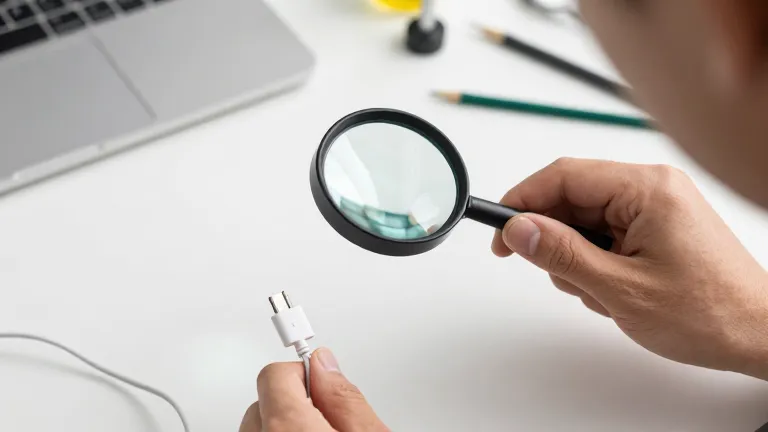
Inspect the charging cable for any visible signs of damage, including frayed wires, bent or broken connectors, and exposed copper. These issues can disrupt the flow of electricity and prevent your iPhone from charging. If the cable appears worn or damaged, replace it with a known working cable. It's also advisable to try a different cable altogether to isolate whether the problem lies with the cable or the device itself.
Verify the Wall Adapter Compatibility
Ensure the wall adapter is compatible with your iPhone model. While most modern iPhones use the same USB-C or Lightning port, the power output of the adapter can affect charging speed and stability. Check the adapter's specifications to confirm it provides the correct voltage and amperage for your device. If the adapter is not compatible, it may not charge your iPhone at all or may charge very slowly. Testing the adapter with another device can help determine if it's functioning correctly.
Confirm the Charging Port Is Clean and Secure
A dirty or blocked charging port can prevent your iPhone from charging properly, even if the wall adapter and cable are working. Regular maintenance of the charging port can help avoid this issue and ensure a stable connection. Here’s how to clean and secure the port effectively.
How to Clean the Charging Port Properly
To clean the charging port, use a soft brush, such as a toothbrush or a dedicated electronics brush, to gently remove dust and debris. Alternatively, compressed air can be used to blow out any particles stuck in the port. Avoid using excessive force or inserting objects into the port, as this could damage the delicate internal contacts.
What to Do If the Port Seems Blocked
If the port appears blocked, carefully inspect it for lint, hair, or other debris. Use a small, dry brush to sweep away any visible particles. If the port is still not clear, try using a cotton swab dipped in isopropyl alcohol to wipe the area. Ensure the swab is not too damp to avoid moisture damage. After cleaning, test the charging process again to see if the issue is resolved.
Troubleshoot the iPhone Settings and Battery
Software settings and battery status can significantly impact how your iPhone charges. Even if the wall adapter and cable are working, certain settings or battery conditions may prevent the phone from charging properly. Checking these elements can help identify and resolve the issue without needing to replace hardware.
Check for Software-Related Charging Issues
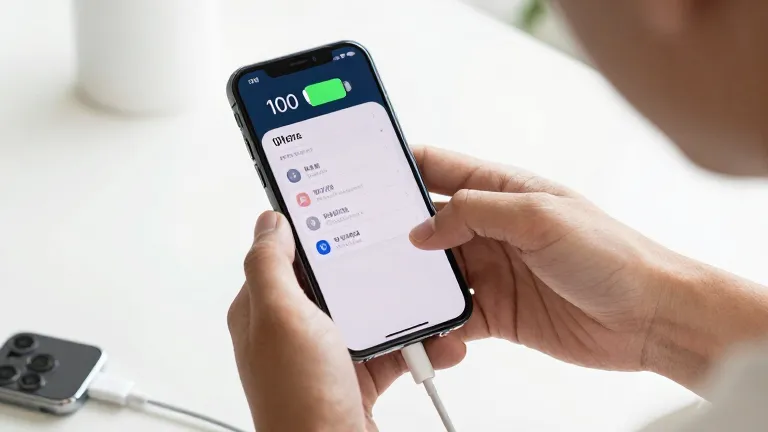
Some iPhone settings, such as Low Power Mode or specific restrictions, can interfere with charging. Go to Settings > Battery and check if Low Power Mode is enabled. If it is, disable it to allow the phone to charge normally. Additionally, ensure that your iPhone is not in a restricted mode due to a passcode or Apple ID verification. If you recently updated your iOS, there might be a temporary glitch that affects charging, which can often be resolved by restarting the device.
What to Do If the Battery Is at 100%
If your iPhone battery is at 100%, it may stop charging to prevent overcharging. This is a normal safety feature, but it can sometimes cause confusion. To check, go to Settings > Battery and look at the percentage. If it’s at 100%, the phone will not charge until it drops below that threshold. If the battery is fully charged and the phone is still not charging, try unplugging and replugging the cable. If the issue persists, consider calibrating the battery or checking for software updates that may address the problem.
Test the iPhone in Different Environments
Testing your iPhone in different environments can help identify if external factors are affecting its ability to charge. Environmental conditions, such as electrical fluctuations or interference from other devices, can sometimes disrupt the charging process. By moving your iPhone to a new location and using different power sources, you can isolate potential issues and determine if the problem is related to your current setup.
How to Test the iPhone in a Different Location
To test your iPhone in a different location, try plugging it into a power outlet that is not near other high-energy devices. Electrical interference from microwaves, Wi-Fi routers, or other appliances can occasionally cause charging problems. If possible, use a surge protector or a different wall socket to rule out power supply inconsistencies. This step helps determine whether the issue is with your environment or your iPhone itself.
What to Do If the Phone Overheats While Charging
If your iPhone overheats while charging, stop using it immediately and let it cool down. Overheating can damage the battery and prevent the phone from charging properly. Avoid using your iPhone for calls, gaming, or video streaming while it’s connected to a charger. If the phone continues to overheat, it may indicate a deeper hardware issue, and you should consider seeking professional assistance.
When to Seek Professional Help
If your iPhone still won’t charge after trying all troubleshooting steps, it’s time to consider professional help. Persistent charging issues can indicate deeper problems with the battery, internal hardware, or software that require expert attention.
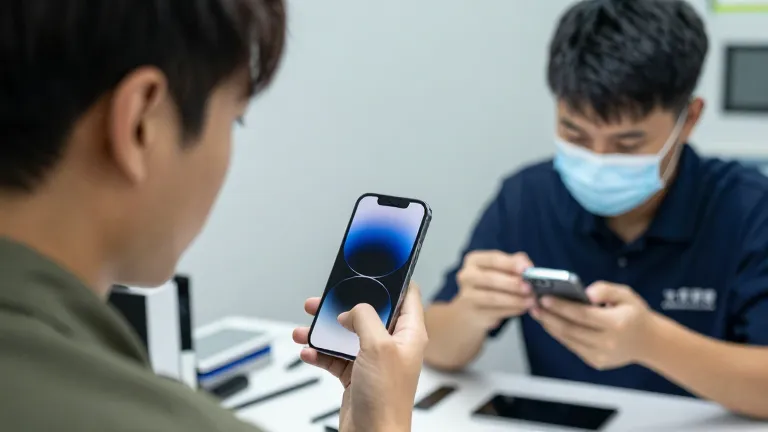
Signs That the iPhone Battery Needs Replacement
Signs That the iPhone Battery Needs Replacement include a significant drop in battery life, the phone not holding a charge for long periods, or the device shutting down unexpectedly even when the battery appears full. If your iPhone is older than three years, the battery may have degraded over time, making it less efficient at storing and delivering power. In such cases, replacing the battery can restore charging functionality and improve overall performance.
When to Contact Apple Support for Further Assistance
When to Contact Apple Support for Further Assistance depends on how critical the charging issue is to your daily use. If your iPhone frequently loses charge, fails to charge even after troubleshooting, or shows signs of hardware damage, reaching out to Apple Support is advisable. They can guide you through advanced diagnostics or recommend a repair or replacement service. For users who rely heavily on their iPhone for work or communication, professional assistance ensures the device remains reliable and functional.
Frequently Asked Questions
What should I do if my iPhone won't charge even when plugged in?
Start by checking the charging cable and wall adapter for damage. Ensure the charging port is clean and free of debris. If the issue persists, try using a different power source or cable.
Can a damaged charging cable cause my iPhone to not charge from a wall adapter?
Yes, a damaged cable can prevent your iPhone from charging. Inspect the cable for fraying, cuts, or loose connections. Replace it if necessary.
Why is my iPhone charging slowly from the wall adapter?
Slow charging can be due to a low-power wall adapter, a dirty charging port, or software issues. Try using a higher wattage adapter or cleaning the port.
Is it possible that the wall adapter is faulty and not charging my iPhone?
Yes, a faulty wall adapter can cause charging issues. Test the adapter with another device or try a different adapter to confirm.
Final Thoughts
If your iPhone isn't charging from a wall adapter, systematically check the cable, adapter, and charging port. Clean the port and try different power sources if needed. If the issue continues, consider professional assistance.
Ensure your iPhone is in a safe environment while charging and avoid overheating. Regular maintenance and timely troubleshooting can prevent many common charging problems.