How to Fix Android Phone Not Charging: Troubleshooting Guide
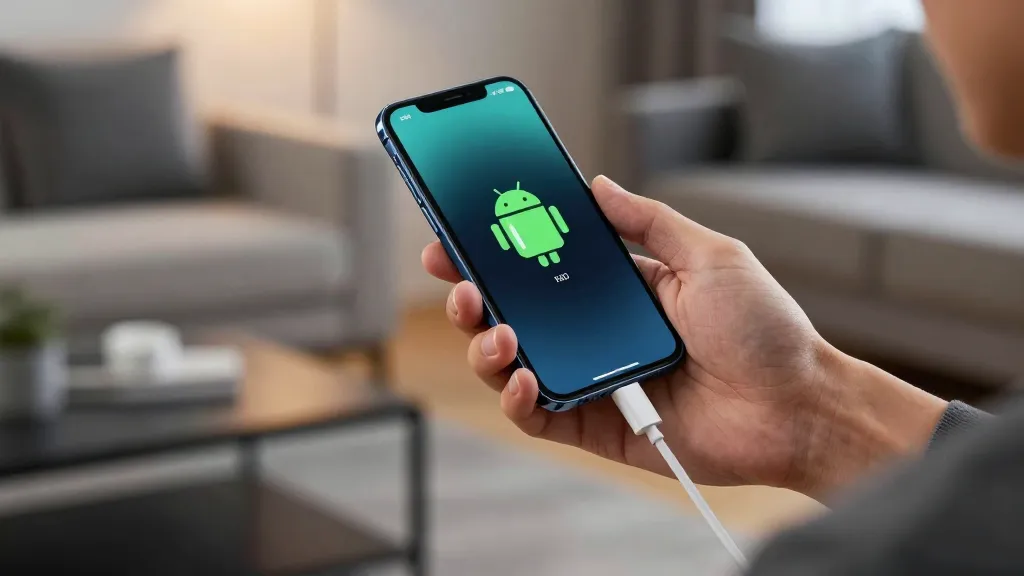
Your Android phone is essential for staying connected, whether you're at home or at work, but when it won't charge, it can be frustrating. If you're wondering How to Fix Android Phone Not Charging, you're not alone. Many users face this issue, and the good news is that there are several practical steps you can take to resolve it without replacing the battery. This guide will walk you through the most common causes of charging problems and provide clear, actionable solutions. From simple checks to advanced troubleshooting, we'll help you get your phone back to full power. Let's start by understanding why your device might be failing to charge.
Understanding Why Your Android Phone Is Not Charging
If your Android phone isn't charging, the issue could stem from a variety of factors, ranging from simple cable faults to more complex internal hardware or software problems. Understanding the root cause is the first step toward finding a solution. Whether it's a physical connection issue or a system-level error, identifying the nature of the problem can save time and prevent unnecessary frustration.
Common Causes of Charging Issues
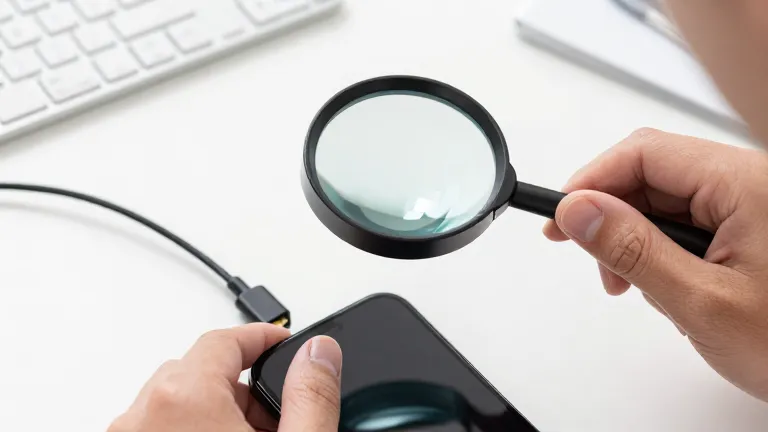
Common causes of charging issues include faulty cables, damaged adapters, or dirt in the charging port. A loose or frayed cable might not provide a stable connection, while a defective adapter could fail to deliver the correct voltage. Additionally, debris or dust buildup in the charging port can block the connection, preventing the phone from receiving power. These issues are often easy to fix with basic tools and minimal effort.
Hardware Vs. Software Problems
Distinguishing between hardware and software problems is key to effective troubleshooting. Hardware-related issues typically involve physical components such as the charging port, cable, or battery. For example, a damaged port may prevent the phone from recognizing the charger. On the other hand, software problems might manifest as charging errors, unexpected shutdowns, or system glitches. These can often be resolved by updating the operating system or performing a factory reset.
Basic Checks and Troubleshooting Steps
Before diving into more complex solutions, start with these basic checks to identify and resolve common charging issues. Most problems can be fixed with simple troubleshooting steps that don't require professional help or expensive replacements.
- Check the Charging Cable and Adapter
- Clean the Charging Port
- Restart the Phone
- Test with Another Device
Check the Charging Cable and Adapter
Verify the charging cable and adapter are working properly. Use a different cable and adapter to rule out faulty hardware. If your phone starts charging with a new cable or adapter, the original one is likely the issue. Avoid using third-party accessories that may not meet quality standards.
Clean the Charging Port
Check for dirt or debris in the charging port. Over time, dust and lint can accumulate in the port, preventing a secure connection. Use a soft brush or compressed air to gently clean the port. Avoid using sharp objects that could damage the delicate contacts inside.
Advanced Troubleshooting for Charging Issues
If basic checks don't resolve your Android phone's charging issues, it's time to move to more advanced troubleshooting. These steps can help identify whether the problem lies with the charger, cable, or software. By using a different power source and updating your system, you may resolve the issue without needing professional help.
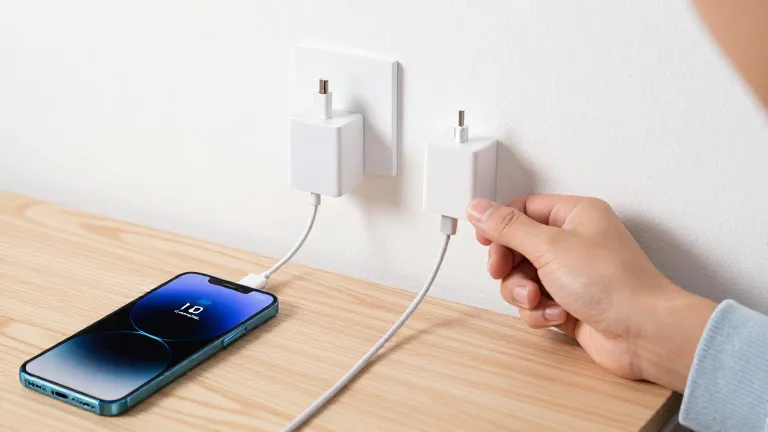
- Try a different charger and cable to rule out faulty hardware.
- Check for software updates to fix any bugs affecting charging.
- Reset your phone to factory settings if the issue persists.
- Use a certified charger to ensure compatibility with your device.
Use a Different Charger and Cable
Using a different charger and cable can help determine if the problem is with your current power source. Many Android devices charge through USB, and a faulty cable or low-quality charger can prevent the phone from receiving power. Test with a known working charger and cable to see if the phone charges properly. If it does, the original charger or cable may be the issue.
Update Your Phone's Software
Updating your phone's software can resolve charging issues caused by system bugs or outdated firmware. Manufacturers often release updates that fix hardware-related problems, including charging functionality. Go to Settings > System > System Update to check for available updates. If an update is available, install it and restart your phone to see if the issue is resolved.
When to Seek Professional Help
If your Android phone continues to have charging issues after trying basic and advanced troubleshooting steps, it may indicate deeper hardware problems. Recognizing the signs of a damaged charging port or a failing battery is crucial to deciding whether you should seek professional help.
Signs of a Damaged Charging Port
A damaged charging port can manifest in several ways. If your phone only charges intermittently or not at all, even with a working cable and adapter, the port may be loose, dirty, or physically damaged. Additionally, if you notice visible cracks, bends, or corrosion in the port, this is a clear sign that professional repair is needed. The port may also feel warm or emit a burning smell, indicating a more serious electrical issue.
When to Replace the Battery
Replacing the battery should be considered if your phone no longer holds a charge for extended periods, even after a full charge. If your phone frequently drains quickly or shows a battery percentage that doesn't match the actual usage, the battery might be degraded beyond repair. In some cases, the phone may also display a 'Battery Low' message even when the battery appears to be fully charged, which can indicate a faulty battery. Before replacing the battery yourself, ensure that it is a safe and compatible replacement to avoid further damage to your device.
Preventative Measures to Avoid Future Charging Problems
Preventing future charging issues on your Android phone starts with adopting simple yet effective habits. One of the most common mistakes users make is leaving their phone plugged in for extended periods, which can degrade the battery over time. To avoid overcharging, unplug your device once it reaches 80-90% charge and let it discharge slightly before recharging. This helps maintain battery health and prolongs its lifespan.
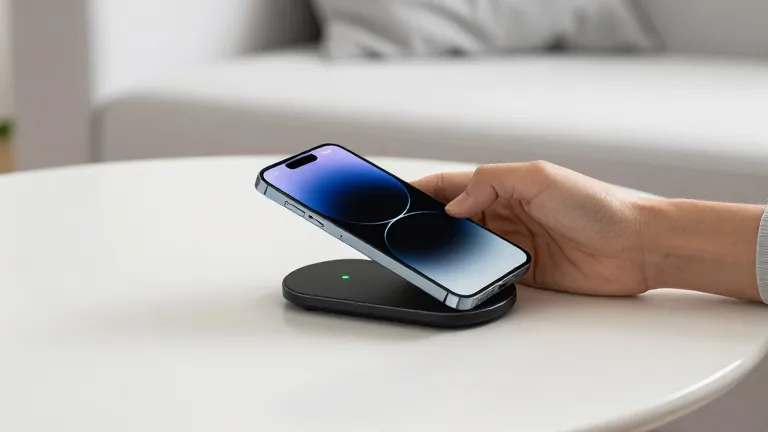
- Avoid overcharging your phone by unplugging it once it reaches 80-90% charge.
- Use certified charging accessories to ensure safety and compatibility.
- Keep your phone in a cool environment to prevent overheating and battery degradation.
- Regularly clean the charging port to remove dust and debris for a stable connection.
Using certified charging accessories is another crucial step in protecting your phone’s battery and overall performance. Cheap or counterfeit chargers may not meet safety standards and can cause overheating, slow charging, or even damage to your device. Always opt for chargers and cables that are approved by the phone manufacturer or recognized brands. This ensures compatibility and reduces the risk of electrical faults.
Environmental factors can also impact how well your phone charges. High temperatures, such as those found in direct sunlight or near heat sources, can cause the battery to degrade faster. To keep your phone in optimal condition, charge it in a cool, well-ventilated area. Avoid using your phone while it’s charging in hot environments, as this can lead to long-term battery damage.
Regular maintenance of the charging port is essential for ensuring a stable connection. Dust, debris, and lint can accumulate in the port over time, leading to intermittent charging or complete failure. Use a soft, dry brush or compressed air to clean the port periodically. If you notice any physical damage, such as bent pins or corrosion, it’s best to consult a professional to avoid further complications.
Frequently Asked Questions
What should I do if my Android phone isn't charging at all?
Start by checking the charging cable and adapter for damage. Ensure the charging port is clean and free from debris. If the issue persists, try a different charger and cable.
Can a faulty charging port cause my phone to not charge?
Yes, a damaged or dirty charging port can prevent the phone from receiving power. Inspect the port for physical damage and clean it with a soft brush or compressed air.
How can I tell if my Android phone's battery is faulty?
If your phone charges slowly or shuts off unexpectedly, the battery might be faulty. Use the built-in battery health tool or consult a professional for a more accurate assessment.
Is it safe to charge my Android phone overnight?
Modern Android phones are designed to handle overnight charging, but it's best to avoid overcharging. Use the original charger and avoid leaving the phone plugged in for extended periods.
Next Steps for Charging Issues
Fixing Android charging issues often begins with simple checks and troubleshooting steps. If these don't resolve the problem, it's important to consider hardware or software faults. Always ensure you're using compatible accessories and keeping your phone updated.
If your phone still won't charge after trying the above steps, it's time to seek professional help. A qualified technician can diagnose and repair more complex issues like a damaged charging port or battery.