How to Fix iPhone Not Responding to Touch: Troubleshooting Guide
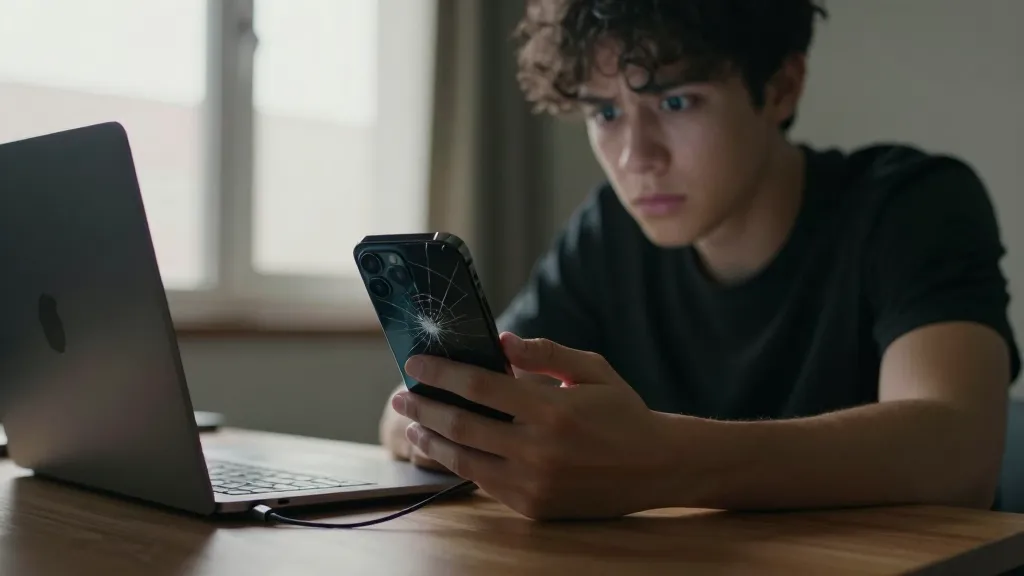
If your iPhone isn't responding to touch, it can be frustrating and disrupt your daily tasks. Whether it's a simple software glitch or a more serious hardware issue, there are steps you can take to resolve the problem. The main keyword, 'How to Fix iPhone Not Responding to Touch,' is at the heart of this guide, which will walk you through both basic and advanced troubleshooting techniques. You don't need to rely on professional help right away—many solutions can be done at home.
This article covers the common causes of touchscreen issues, such as software malfunctions or physical damage, and provides a clear path to identify and address them. From restarting your device to using Apple Diagnostics, you'll find practical steps that are easy to follow. We also explain when it's best to seek professional assistance, ensuring you know the right time to take action.
Whether you're dealing with a frozen screen or unresponsive buttons, this guide offers a structured approach to fixing iPhone touch problems. By following these steps, you can troubleshoot effectively and potentially save time and money. Stay informed and take control of your device's performance with reliable, actionable advice.
Understanding iPhone Touchscreen Issues
iPhone touchscreen issues can be frustrating, especially when you're unable to interact with your device. These problems can stem from either software glitches or hardware malfunctions, making it essential to identify the root cause. Understanding the potential reasons behind touch unresponsiveness can help you determine the best course of action without unnecessary delays.
What Causes an iPhone Not Responding to Touch?
Common causes of an iPhone not responding to touch include software bugs, corrupted system files, or conflicts with apps. Additionally, environmental factors such as moisture, dust, or a dirty screen can interfere with touch sensitivity. In some cases, a recent software update or a failed installation might also contribute to touch responsiveness issues. It's important to check for these possibilities before assuming a hardware problem.
When to Consider Hardware Vs. Software Issues
Determining whether the issue is software or hardware-related can guide your troubleshooting efforts. Software issues often resolve after restarting the device, updating iOS, or resetting settings. On the other hand, hardware problems, such as a faulty touchscreen or damaged internal components, may require more advanced steps or professional assistance. If your iPhone was dropped or exposed to water, it's more likely a hardware issue, but it's still worth trying basic troubleshooting before moving to more complex solutions.
Basic Troubleshooting Steps for iPhone Touch Issues
Basic troubleshooting steps can often resolve iPhone touch issues without requiring advanced technical knowledge. Start with simple actions like restarting your device, updating the operating system, and inspecting for physical damage. These steps address common causes of touch unresponsiveness and can restore normal functionality in many cases.
- Restart Your iPhone
- Update to the Latest iOS
- Check for Physical Damage
Restart Your iPhone
Restarting your iPhone can clear temporary software conflicts that may be preventing touch input from working correctly. To do this, press and hold the power button until the 'Slide to Power Off' slider appears, then slide it. Wait 30 seconds, then press the power button again to turn your iPhone back on. This process can resolve minor glitches that interfere with touchscreen responsiveness.
Update to the Latest iOS
Updating your iPhone to the latest iOS version ensures that any known bugs or issues related to touch input are addressed. Go to Settings > General > Software Update to check for available updates. If an update is available, download and install it. Apple often releases updates that fix touch-related problems, so keeping your device up to date is a crucial step in resolving touch unresponsiveness.
Check for Physical Damage
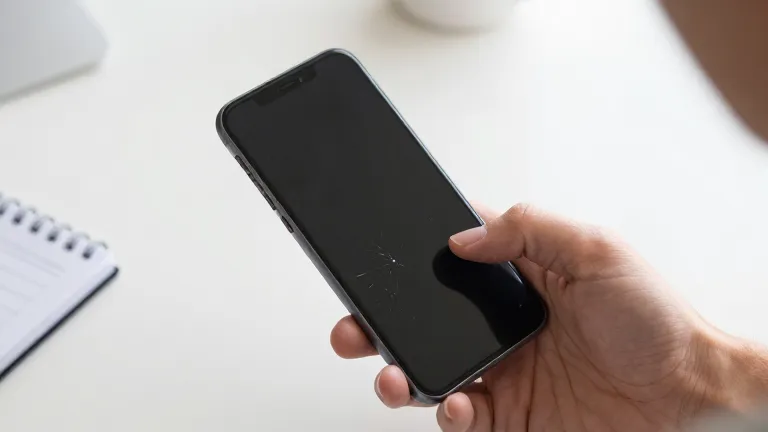
Physical damage, such as cracks or moisture, can affect how your iPhone responds to touch. Inspect the screen for visible cracks, scratches, or water stains. If the screen is damaged, touch sensitivity may be compromised. Avoid using your iPhone on surfaces that are too smooth or slippery, as this can also impact touch recognition. If you notice any physical damage, it may be necessary to seek professional repair services.
Software Solutions to Fix iPhone Touchscreen Problems
Software solutions can often resolve touchscreen issues without requiring hardware intervention. By using built-in tools, resetting settings, or restoring from a backup, you can address many common problems that may be causing your iPhone to ignore touch inputs.
Use Apple Diagnostics
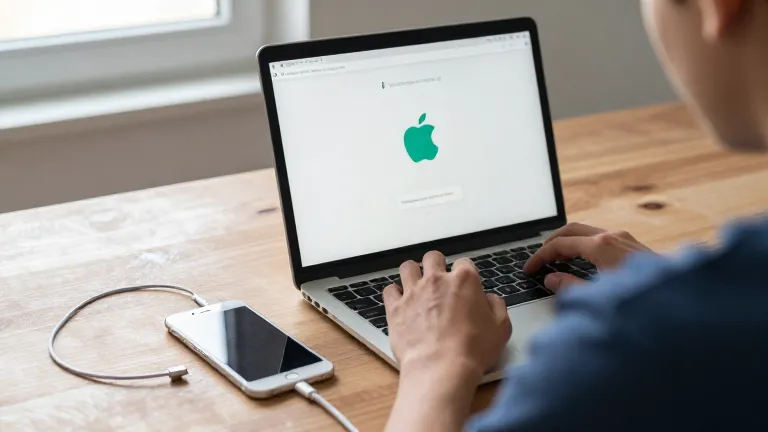
Use Apple Diagnostics to check for software-related touch issues. Connect your iPhone to a computer and use the Apple Diagnostics tool to run a comprehensive scan. This tool can identify problems with the operating system or other software conflicts that might be affecting touchscreen responsiveness.
Reset All Settings
Resetting all settings can restore default configurations and eliminate system conflicts. Go to Settings > General > Reset > Reset All Settings to clear customizations and reset the device to its original state. This process does not delete personal data but can resolve touch issues caused by misconfigurations.
Restore From Backup
If touch problems persist, restoring from a backup can fix deeper software issues. Connect your iPhone to a computer and use Finder to restore from a recent backup. This action reinstalls the operating system and reconfigures settings, potentially resolving touch input issues that were not fixed by previous steps.
Advanced Hardware Troubleshooting for iPhone Touch Issues
If your iPhone still isn’t responding to touch after trying basic and software solutions, the issue might be hardware-related. Advanced troubleshooting can help identify whether the problem lies with the touchscreen itself or external factors affecting its performance.
Test with a Stylus or Different Surface
One effective way to test if the touchscreen issue is device-specific is to try using a stylus or a different touch surface. A stylus can bypass some of the interference caused by finger contact, helping you determine if the problem is with the screen or the input method. If the stylus works while your fingers don’t, it suggests that the touchscreen may be damaged or unresponsive to natural touch. Testing with a different surface, such as a smooth glass panel or a clean screen, can also help isolate whether the issue is due to dirt, moisture, or surface irregularities.
Check for Interference From Accessories
Certain accessories, such as third-party cases or screen protectors, can interfere with touch input by adding layers between your fingers and the screen. These accessories might not be fully compatible with your iPhone’s touch sensors, leading to delayed or unresponsive input. Remove any cases or protectors and test the touchscreen directly to see if the issue improves. If the problem persists, try using a different case or protector to rule out compatibility issues. Additionally, check for any loose or damaged components on the device that might be affecting the touchscreen’s functionality.
When to Seek Professional Help for iPhone Touch Issues
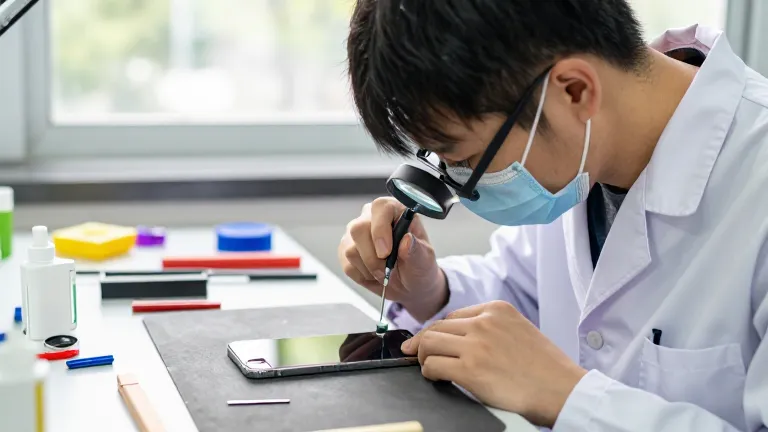
If your iPhone is completely unresponsive to touch and all software solutions have failed, it may indicate a hardware problem that requires professional repair. Continuing to use the device in this state can lead to further damage, so it's important to seek expert assistance to diagnose and fix the issue.
Signs That Your iPhone Needs Professional Repair
Signs that your iPhone needs professional repair include a touchscreen that remains unresponsive after trying all software fixes, such as restarting, updating iOS, or resetting settings. If the screen is cracked, swollen, or shows physical damage, this is also a strong indicator that hardware repair is necessary. Additionally, if the device is unable to detect touch input even when using a stylus or different surface, it's likely a hardware issue that requires expert attention.
Where to Take Your iPhone for Touchscreen Fixes
When seeking professional help, it's best to visit an Apple Store or an authorized service center. These locations have the proper tools, expertise, and access to genuine Apple parts to ensure a safe and effective repair. Avoid attempting DIY repairs, as they can cause additional damage, void your warranty, or result in improper fixes that don't resolve the issue. Always prioritize official repair options to maintain the integrity and functionality of your iPhone.
Frequently Asked Questions
What should I do if my iPhone screen is completely unresponsive?
If your iPhone screen is completely unresponsive, start by attempting a forced restart. If that doesn't work, try restoring from a backup or connecting to a computer for further troubleshooting.
Can a software update fix my iPhone's touch issues?
A software update may resolve touch issues caused by bugs or glitches. However, if the problem persists after updating, it could indicate a hardware issue requiring professional attention.
How can I tell if my iPhone's touchscreen is broken or just software-related?
Try basic troubleshooting steps first, such as restarting your device or updating iOS. If the issue remains, it might be a hardware problem, especially if the screen is cracked or unresponsive to touch in specific areas.
Should I use a third-party screen protector if my iPhone isn't responding to touch?
Avoid using third-party screen protectors, as they can cause touch sensitivity issues. Instead, use a high-quality, screen-protecting case to prevent damage and ensure optimal touch functionality.
Next Steps and Maintenance Tips
If your iPhone is not responding to touch, start with basic troubleshooting steps like restarting the device or updating iOS. If these don’t work, consider advanced software solutions or hardware checks.
If the issue persists, consult a professional for repairs. Maintaining your iPhone with proper care and updates can help prevent many touchscreen problems.