
How to Fix iPhone Stuck on Apple Logo After iOS Update
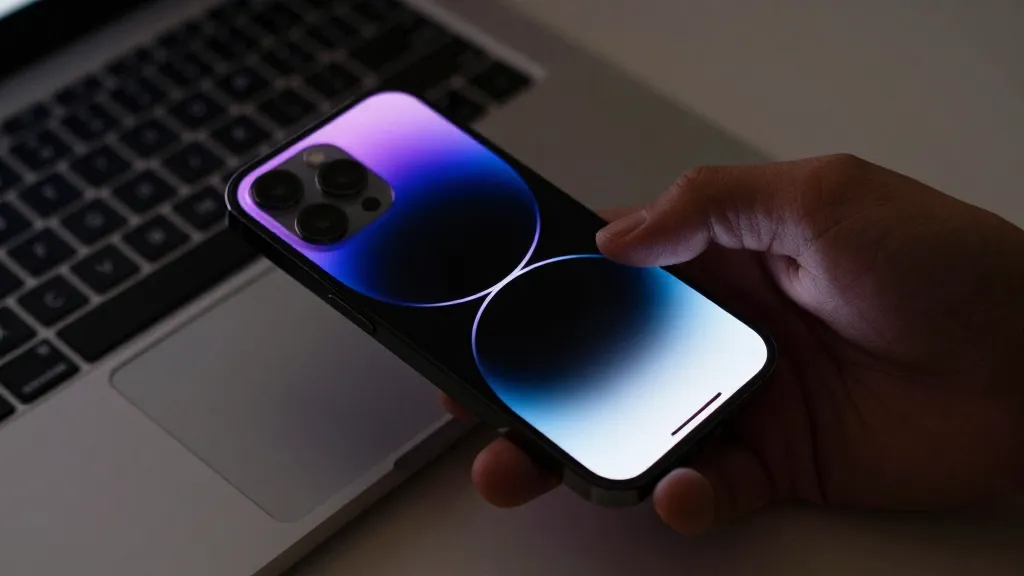
After an iOS update, it's not uncommon for your iPhone to get stuck on the Apple logo, leaving you unable to use your device. This issue can be frustrating, especially if you rely on your phone for work or daily tasks. The main keyword here is 'How to Fix iPhone Stuck on Apple Logo After iOS Update,' which is exactly what this guide will address. Whether you're a home user or an office worker, this article provides practical steps to resolve the problem without needing professional help.
The article covers the reasons behind the Apple logo issue, step-by-step solutions, and prevention tips to avoid similar problems in the future. You'll learn how to force restart your iPhone, use DFU mode for restoration, and even explore alternative fixes like recovery mode or reinstalling iOS from a backup. These methods are designed to be accessible and effective for most users.
If the issue persists despite your efforts, the article also explains when to seek professional assistance, helping you distinguish between software and hardware problems. By following this guide, you can take control of your iPhone's recovery process and minimize downtime caused by iOS update complications.
Understanding Why Your iPhone Is Stuck on the Apple Logo
The Apple logo appearing on your iPhone after an iOS update is a common indicator of a software issue. This problem can occur during or after an update, and it often signals that the device is unable to complete the installation process properly. Understanding the root cause is essential before attempting any fixes, as different issues may require different solutions.
Common Causes of the Apple Logo Issue
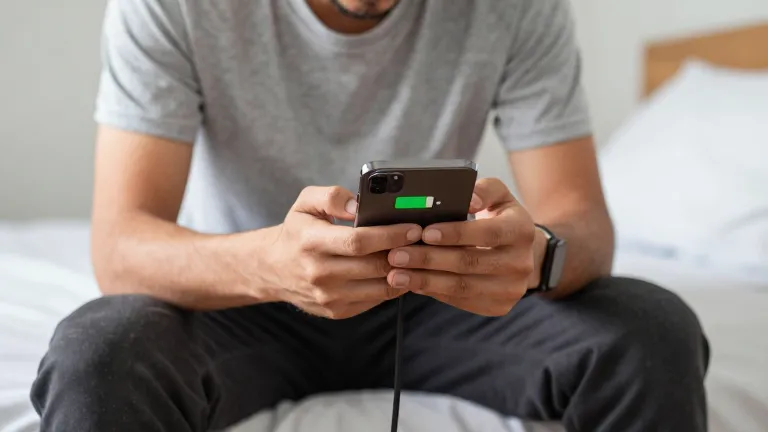
The most common causes of the Apple logo issue include corrupted system files, failed updates, and incomplete installation processes. These problems can occur if the update was interrupted during download or installation, or if there were issues with the device’s storage or connectivity. In some cases, software conflicts or bugs in the new iOS version can also trigger this problem. It’s important to rule out these factors before proceeding with more complex troubleshooting steps.
When to Seek Professional Help
You should consider seeking professional help if your iPhone remains stuck on the Apple logo after trying basic fixes. This could indicate a deeper issue, such as hardware failure or a more severe software corruption that cannot be resolved through standard methods. Professional assistance is also necessary if your device is unresponsive to force restarts or DFU mode attempts. Before contacting support, ensure you have tried all recommended troubleshooting steps to avoid unnecessary delays.
Step-by-Step Guide to Fix iPhone Stuck on Apple Logo
The first step in resolving an iPhone stuck on the Apple logo is to attempt a force restart, which can often resolve temporary software glitches caused by the iOS update. If this doesn't work, you'll need to enter DFU mode to restore the device, a more advanced method that bypasses the usual boot process. As a final option, third-party tools can be used, though they come with risks and are not recommended unless all other methods fail.
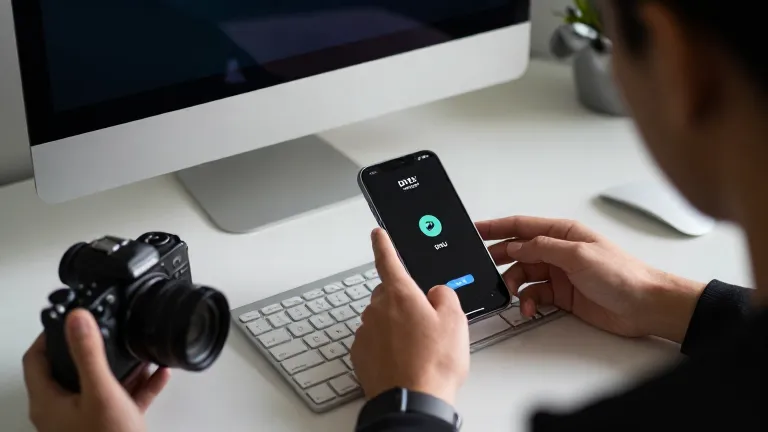
- Force restart your iPhone by pressing and holding the Power button until the Apple logo appears, then releasing it. This can clear minor software conflicts that may have occurred during the update.
- If the force restart doesn't resolve the issue, connect your iPhone to a computer and use DFU mode to restore the device. This process requires using iTunes or Finder and following specific button presses to enter the mode.
- If DFU mode fails, consider using a third-party tool to reinstall iOS. However, this method carries risks such as data loss or device damage, and it's typically a last resort.
- Always ensure your iPhone is charged sufficiently before attempting any recovery steps, as a low battery can prevent the process from completing successfully.
How to Force Restart Your iPhone
To force restart your iPhone, press and hold the Power button until the Apple logo appears, then release it. This action can help resolve temporary software issues that may have arisen during the iOS update. It's a simple and quick method that doesn't require any specialized tools or technical knowledge. If the device still shows the Apple logo after the restart, it's likely a more serious software or hardware issue.
Using DFU Mode to Restore Your iPhone
Entering DFU mode allows you to restore your iPhone without the device booting into the usual iOS interface. To do this, connect your iPhone to a computer and use iTunes or Finder to initiate the process. Follow the on-screen instructions carefully, as incorrect steps can lead to data loss or further complications. DFU mode is particularly useful when the device is unresponsive or stuck in a boot loop.
Prevention Tips to Avoid Future iOS Update Issues
Preventing future iOS update issues starts with careful preparation and routine maintenance. By ensuring your iPhone has enough battery, using a stable internet connection, and keeping your data backed up, you can significantly reduce the risk of encountering the Apple logo problem again.
Battery and Connection Best Practices
Before initiating an iOS update, always ensure your iPhone has at least 50% battery life. A low battery can cause the update to fail or the device to reboot unexpectedly, leading to the Apple logo issue. If your battery is below this threshold, connect your iPhone to a trusted power source to charge it fully before proceeding with the update.
Regular Data Backup Strategies
A stable Wi-Fi connection is crucial during the iOS update process. Weak or interrupted internet signals can result in incomplete downloads, which may cause your iPhone to get stuck on the Apple logo. Use a strong Wi-Fi network and avoid areas with poor signal strength. If possible, connect to a wired Ethernet connection for maximum reliability.
Regular data backup strategies are essential to protect your information in case of an update failure. Use iCloud or a computer to back up your iPhone data frequently. This ensures that even if your device becomes unresponsive, you can restore your data without significant loss. Make sure to verify that backups are working correctly and stored in a secure location.
Alternative Solutions for an iPhone Stuck on Apple Logo
If software solutions don't resolve the issue, alternative methods such as reinstalling iOS from a backup or using recovery mode can help restore your iPhone. These approaches are useful when the device is unresponsive and standard troubleshooting has failed.
- Reinstalling iOS from a backup can restore your device to working condition.
- Using recovery mode can help bypass software errors that prevent booting.
- Checking for hardware issues may be necessary if software solutions fail.
- Attempting a restore via iTunes or Finder can sometimes resolve persistent boot issues.
Reinstalling iOS From a Backup
Reinstalling iOS from a backup is a powerful method to restore your iPhone to a stable state. If you have a recent backup created via iCloud or iTunes, you can use it to reinstall the operating system and recover your data. This process effectively reinstalls the iOS version while preserving your personal files and settings, which can resolve issues caused by corrupted system files or failed updates.
Using Recovery Mode on iPhone
Using recovery mode allows you to connect your iPhone to a computer and attempt to restore it without the device booting normally. This mode is particularly useful when the device is stuck on the Apple logo and standard restarts don't work. By connecting your iPhone to a computer and following the prompts in iTunes or Finder, you can initiate a restore that bypasses software errors and reinstalls the iOS system, giving your device a fresh start.
When to Contact Apple Support or a Professional
If all software fixes fail to resolve the iPhone stuck on Apple logo issue, it may indicate a hardware problem that requires professional attention. Apple Support can guide you through advanced troubleshooting steps to determine whether the issue is software-related or hardware-related. In some cases, the device may need to be repaired or replaced by a qualified technician.
Recognizing Hardware Vs. Software Issues
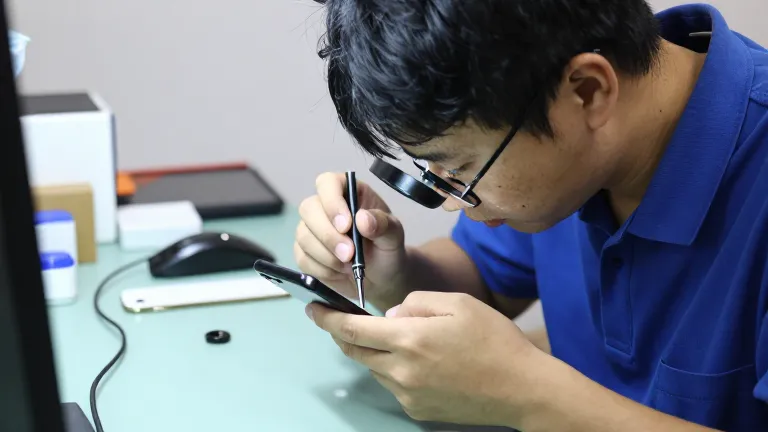
Recognizing hardware vs. software issues is crucial when deciding whether to seek professional help. If your iPhone remains stuck on the Apple logo after trying all software solutions, it could be a hardware problem such as a faulty battery, damaged logic board, or a malfunctioning charging port. Apple Support can help identify these issues through diagnostic tools or by asking specific questions about your device's behavior.
Options for Professional Repair or Replacement
If the device is determined to have a hardware issue, professional repair or replacement may be necessary. Apple offers repair services through Apple Stores, authorized service providers, and online support. In some cases, the device may need to be sent to a repair center for further diagnosis and repair. It is important to note that hardware repairs can be costly, and in extreme cases, a replacement device may be the best option to ensure reliability and functionality.
Frequently Asked Questions
What should I do if my iPhone is stuck on the Apple logo after an update?
If your iPhone is stuck on the Apple logo after an update, start by performing a force restart. If that doesn't work, try restoring your iPhone using DFU mode. If these steps fail, consider seeking professional help.
Can I fix my iPhone stuck on Apple logo without using DFU mode?
Yes, you can try a force restart first. If the issue persists, DFU mode is often necessary to restore your device. Other methods, like recovery mode, may also be effective.
What are the risks of using third-party tools to fix my iPhone?
Using third-party tools to fix your iPhone can pose risks such as data loss, security vulnerabilities, and potential damage to your device. Always prefer official Apple methods to avoid complications.
How do I know if my iPhone issue is software or hardware-related?
If your iPhone is stuck on the Apple logo after an update, it's likely a software issue. If the problem persists after trying software fixes, it may indicate a hardware issue that requires professional attention.
Next Steps and Support
Fixing an iPhone stuck on the Apple logo requires a combination of basic troubleshooting and advanced methods like DFU mode. Always ensure you have a backup and follow official Apple guidelines to avoid further complications.
If your iPhone remains unresponsive after trying all solutions, it's time to contact Apple support or a professional. Knowing the difference between software and hardware issues can help you decide the best course of action.





