
How to Fix Echo Dot Speaker Sound Crackling or Distorted
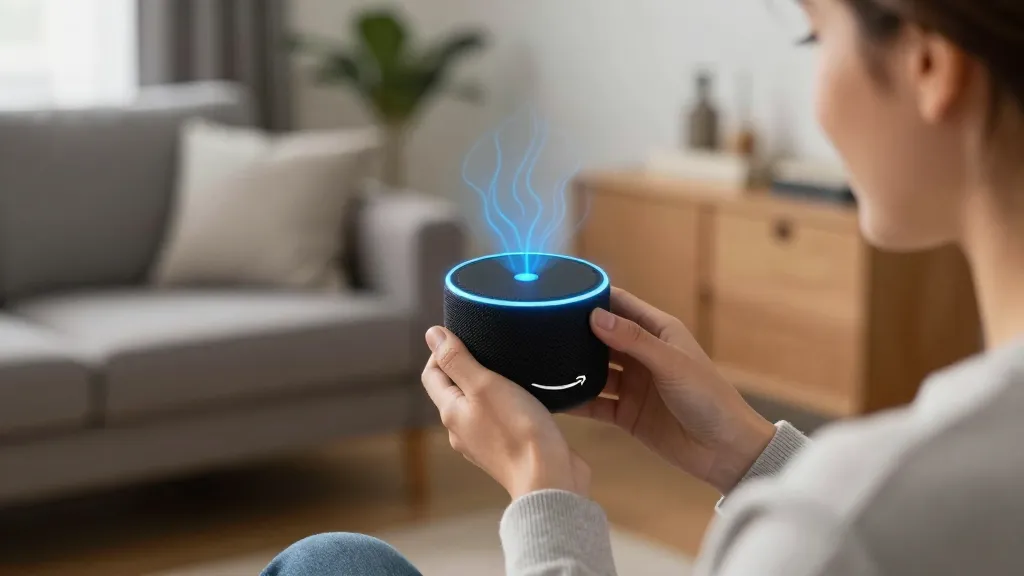
If your Echo Dot is producing crackling or distorted sound, it can disrupt your smart home experience and audio playback. Whether you're using it for music, alarms, or voice commands, poor audio quality can be frustrating. The main keyword for this article is 'How to Fix Echo Dot Speaker Sound Crackling or Distorted,' and we'll guide you through practical solutions to restore clear sound. This article is designed for home users and busy professionals who rely on their Echo Dot but are encountering audio issues. We'll cover simple checks, settings adjustments, and advanced troubleshooting steps to help you resolve the problem quickly and efficiently.
Check Basic Connections and Power
Before diving into complex troubleshooting steps, start by verifying the most basic elements that affect your Echo Dot’s audio quality. Ensuring proper power and stable Wi-Fi connectivity can often resolve crackling or distorted sound without requiring advanced interventions.
Verify Power and Charging
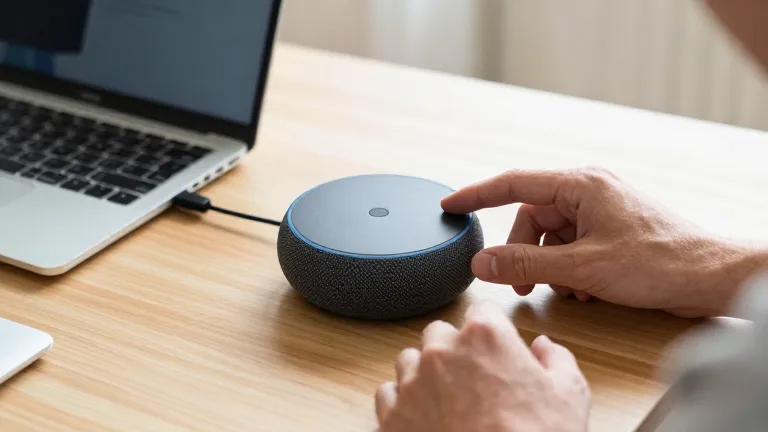
Ensure the Echo Dot is properly connected to a power source. Check that the USB cable is securely plugged into both the device and the power adapter. If using a power strip or surge protector, confirm it is functioning correctly. If the Echo Dot is not powering on, try using a different USB port or power outlet. A weak or unstable power supply can lead to intermittent audio issues.
Check Wi-Fi Connectivity
Verify that your Echo Dot is within range of your Wi-Fi network. The device requires a stable internet connection to function optimally, and a weak signal can cause audio distortions. Place the Echo Dot closer to your router or modem to improve connectivity. If you're using a 5GHz Wi-Fi network, ensure the Echo Dot is compatible, as some models may only support 2.4GHz. A strong and consistent Wi-Fi connection is essential for smooth audio playback and voice command responsiveness.
Troubleshoot Audio Quality and Settings
Troubleshooting audio quality issues on your Echo Dot starts with reviewing basic settings and environment. Adjusting volume levels, ensuring the speaker isn't muted, and identifying background interference can significantly improve sound clarity. These steps are simple but effective in resolving common audio distortions and crackling sounds.
Adjust Volume and Mute Settings
Start by adjusting the volume on your Echo Dot. If the sound is crackling or distorted, it might be due to the volume being too high. Lower the volume to a comfortable level to prevent overdriving the speaker. You can adjust the volume using the Alexa app or by speaking the command 'Alexa, volume down.' Ensure the speaker is not in a low-power mode, which can affect audio output quality.
Check for Interference and Background Noise
Check for background noise or interference that might be affecting audio clarity. Place the Echo Dot in a quiet area away from other electronic devices that could cause interference. If you're using multiple smart devices, they might be competing for bandwidth, leading to audio issues. You can also use the Alexa app to check for nearby Wi-Fi interference and adjust your network settings accordingly. If the problem persists, consider temporarily disabling other Bluetooth devices to see if it improves the audio quality.
Reset Your Amazon Echo Dot
Resetting your Amazon Echo Dot can resolve persistent sound issues and restore optimal performance. This process removes custom settings and reconnects the device to your network, ensuring a clean slate for audio and smart home functions.
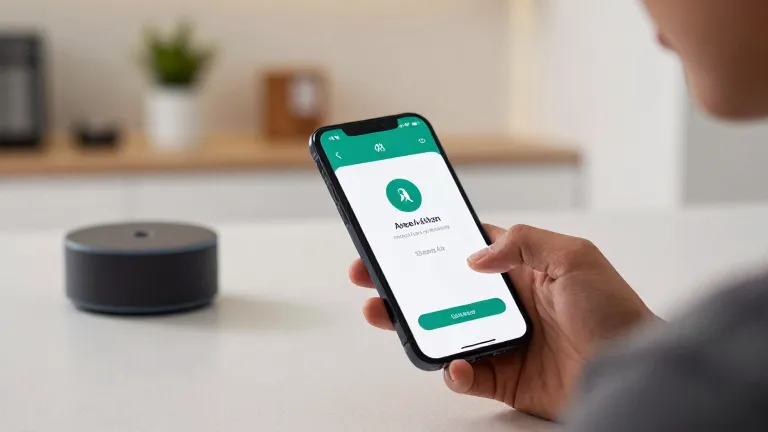
- Open the Alexa app and navigate to the Echo Dot device settings.
- Select 'Reset' and confirm the action to erase all data and settings.
- Wait for the Echo Dot to reboot and return to the setup mode.
- Reconnect the Echo Dot to your Wi-Fi network by following the on-screen prompts in the Alexa app.
Reset Through the Alexa App
Resetting your Echo Dot through the Alexa app is a straightforward way to eliminate configuration errors or software glitches that may be causing sound issues. This process ensures that all personal settings, including voice commands and smart home integrations, are removed, allowing the device to start fresh. It also clears any cached data that might interfere with audio playback or connectivity.
Re-pair with Wi-Fi
Re-pairing your Echo Dot with Wi-Fi is essential to ensure stable and high-quality audio transmission. During this process, the device will search for your Wi-Fi network and prompt you to enter the password. A strong and stable Wi-Fi connection is crucial for minimizing interference and maintaining clear sound output. If other devices are using the same network, they might cause bandwidth issues, so it's advisable to limit the number of active connections during setup.
Address Bluetooth and Multi-Device Interference
Bluetooth interference can significantly impact the audio quality of your Echo Dot, causing crackling or distorted sound. This section outlines steps to address Bluetooth-related issues by disabling unnecessary connections and reducing interference from nearby devices.
Disable Bluetooth Connections
To minimize Bluetooth interference, ensure no other Bluetooth devices are connected to your Echo Dot. Open the Alexa app, navigate to the Echo Dot's settings, and review the list of paired devices. Disconnect any unused Bluetooth accessories, such as headphones or speakers, to free up the wireless spectrum. This action can help prevent signal overlap and improve audio clarity.
Reduce Bluetooth Interference
If Bluetooth interference persists, move your Echo Dot away from other electronic devices that emit radio signals, such as routers, microwaves, or cordless phones. These devices can cause signal congestion and degrade the quality of your audio output. Additionally, try placing the Echo Dot in a central location within your home to ensure optimal signal reception and reduce the likelihood of interference from multiple sources.
Advanced Fix: Factory Reset and Reconfiguration
If basic troubleshooting steps fail to resolve persistent sound crackling or distortion on your Echo Dot, a factory reset and reconfiguration may be necessary. This process restores the device to its original settings and can help eliminate software or configuration issues that may be affecting audio quality.
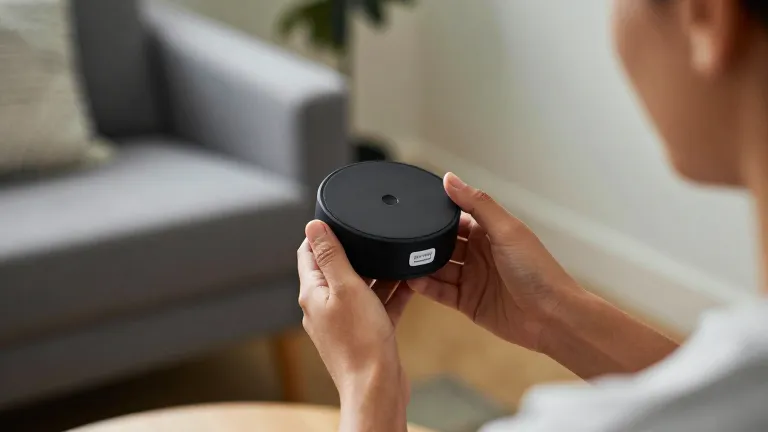
- Perform a factory reset through the Alexa app or by holding the action button for 20 seconds.
- Uninstall and reinstall the Alexa app to ensure a clean setup.
- Re-pair your Echo Dot with your Wi-Fi network to establish a stable connection.
- Update the Echo Dot’s firmware through the Alexa app to ensure compatibility with the latest software.
Factory Reset Procedure
To perform a factory reset, open the Alexa app, select your Echo Dot, and tap 'Reset.' Alternatively, press and hold the action button on the Echo Dot for 20 seconds until it restarts. This will erase all personal data, settings, and paired devices, returning the Echo Dot to its original factory state. After the reset, the device will be ready for reconfiguration.
Reinstall and Reconfigure Alexa
Reinstalling the Alexa app ensures that any corrupted settings or outdated features are removed. Once the app is reinstalled, follow the on-screen instructions to pair your Echo Dot with your Wi-Fi network. During setup, you may need to re-add smart home devices to ensure they are compatible with the updated system. Reconfiguring these devices can help eliminate any interference or connectivity issues that may be affecting audio quality.
Frequently Asked Questions
Why is my Echo Dot speaker crackling when playing music?
Crackling sounds can result from poor Wi-Fi connectivity, background noise, or interference. Check your network stability, reduce nearby electronic devices, and ensure the Echo Dot is properly connected.
How do I reset my Echo Dot if it's not responding?
To reset your Echo Dot, hold the action button for 20 seconds until it turns off. Then, press and hold it again to power it back on. If it still doesn't respond, try a factory reset through the Alexa app.
Can Bluetooth interference cause distorted sound on my Echo Dot?
Yes, Bluetooth interference from other devices can lead to distorted sound. Disable unnecessary Bluetooth connections and keep devices away from the Echo Dot to improve audio quality.
What should I do if my Echo Dot keeps reconnecting to the wrong Wi-Fi network?
Ensure your Wi-Fi password is correct and the network name is unique. If the Echo Dot keeps reconnecting, try re-pairing it with the correct network through the Alexa app.
Final Tips and Next Steps
Fixing Echo Dot speaker crackling or distorted sound involves checking connections, adjusting settings, and resolving interference. A factory reset can also help if the issue persists. Follow the outlined steps for a systematic solution.
If problems continue, contact Amazon support for further assistance. Regular maintenance and updates can prevent future audio issues.





