
How to Fix Double NAT Detected Error on Xbox and PlayStation

Encountering the 'Double NAT Detected' error on your Xbox or PlayStation can be frustrating, especially when it disrupts your online gaming experience. This error typically occurs when your console detects two Network Address Translators (NATs) in the connection path, which can lead to connectivity issues and reduced performance. If you're struggling to resolve this issue and want a straightforward solution, you're in the right place. This article provides clear, step-by-step guidance on how to fix the 'Double NAT Detected' error on both Xbox and PlayStation, without requiring advanced technical knowledge. Whether you're a casual gamer or a dedicated player, these practical tips will help you restore smooth online play. By following the methods outlined here, you can quickly eliminate the error and enjoy uninterrupted gaming sessions. Understanding the cause and applying the right fixes will make a significant difference in your console's network performance.
Understanding the Double NAT Detected Error
The Double NAT Detected error is a common issue that can disrupt online gaming on consoles like Xbox and PlayStation. It arises when two devices on your home network assign IP addresses to your console, leading to connectivity problems and degraded gaming experiences. Understanding the root causes and impact of this error is essential for resolving it effectively.
What Causes Double NAT?
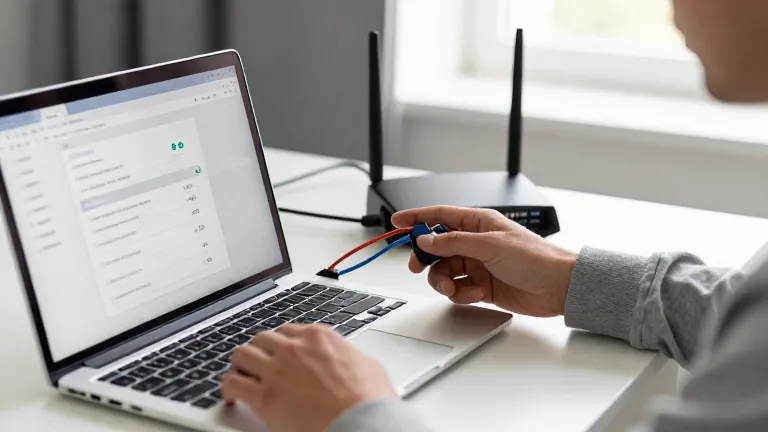
Double NAT occurs when both your router and modem act as Network Address Translation (NAT) devices. Typically, your internet service provider (ISP) provides a modem that connects to the internet, and your router connects to the modem to manage your local network. If your router is configured to assign IP addresses to devices, and your modem also does so, it creates a double NAT scenario. This duplication can confuse your console, making it difficult to establish a stable connection to online services.
Why It Affects Gaming
The presence of Double NAT can significantly affect your gaming experience. It often leads to increased latency, packet loss, and disconnections during online gameplay. These issues arise because the console struggles to communicate effectively with game servers and other players. Additionally, some online features, such as voice chat and matchmaking, may not function properly. While not always the root cause of connectivity problems, Double NAT can exacerbate existing network issues, making it a critical factor to address for optimal gaming performance.
How to Fix Double NAT Detected Error on Xbox
Fixing the Double NAT Detected Error on Xbox involves adjusting your network setup to ensure your console connects directly to your router, bypassing any intermediate devices that might cause the issue.
- Log in to your router's admin panel and check if your modem is acting as a router.
- Set your router to bridge mode to bypass the modem.
- Use the Xbox console to check your NAT type after adjustments.
Accessing Router Settings
To begin, you need to access your router's admin panel. This is typically done by entering the router's IP address into a web browser. The default IP address is often 192.168.0.1 or 192.163.1.1, but it can vary depending on your router model. Look for login credentials on the router's label or in the manual. Once logged in, check if your modem is functioning as a router. This can be identified if your router is connected to the modem and both are providing IP addresses.
Setting Up Bridge Mode
Setting your router to bridge mode will bypass the modem and prevent double NAT. Bridge mode essentially turns your router into a simple network extender, allowing your Xbox to connect directly to your ISP's network. To enable bridge mode, navigate to the router's advanced settings, locate the bridge mode option, and follow the on-screen instructions. This may vary depending on your router's firmware, so refer to the manufacturer's documentation for specific steps. After enabling bridge mode, restart your router and modem to apply the changes.
Once your router is in bridge mode, connect your Xbox to the network and check your NAT type. Open the Xbox console, go to Settings > Network > Test Network, and review the NAT type. A NAT type of 'Open' or 'Moderate' indicates a successful fix. If the NAT type remains 'Strict,' consider additional troubleshooting steps such as optimizing your router settings or switching to a wired connection.
How to Fix Double NAT Detected Error on PlayStation
Fixing the Double NAT Detected Error on PlayStation involves identifying and resolving the root cause of the network misconfiguration. This section outlines key steps to address the issue effectively, ensuring your console connects seamlessly to online services.
- Check your PlayStation network settings for NAT type issues.
- Ensure your router is not acting as a router.
- Restart your PlayStation and router to apply changes.
Checking NAT Type on PlayStation
To check your PlayStation network settings, navigate to Settings > Network > Test Internet Connection. This will display your NAT type, which should ideally be 'Open' or 'Moderate'. If it shows 'Strict' or 'Hard
, you may be experiencing a Double NAT issue. This occurs when two devices on the same network are both acting as routers, causing connectivity problems.
Restarting to Reset Connection
Restarting your PlayStation and router can help reset the network connection and resolve temporary issues. Turn off your console and router for at least 30 seconds, then power them back on. This process can clear any cached configurations that might be causing the Double NAT error. It is especially useful after making changes to your router settings.
Alternative Fixes for Double NAT Issues
Beyond basic troubleshooting, optimizing your network setup can significantly reduce or eliminate double NAT issues. Adjusting router settings and choosing the right connection type can enhance stability and performance, especially for online gaming.
Optimizing Router Settings
Using a gaming router with Quality of Service (QoS) settings can prioritize console traffic and reduce latency. These routers often include features like port forwarding, dynamic DNS, and bandwidth allocation that help maintain a stable connection. Enabling QoS ensures your console gets priority over other devices, which is crucial for smooth online gameplay.
Wired vs Wireless Connection
A wired Ethernet connection provides a more stable and faster link compared to Wi-Fi. It minimizes interference and latency, which is especially important for competitive gaming. If you're experiencing double NAT, switching to a wired connection can help bypass wireless-related issues. Additionally, using a high-quality Ethernet cable and ensuring your router has a Gigabit port will further improve performance.
Preventing Double NAT in the Future
Preventing double NAT issues requires proactive management of your network setup and regular maintenance. By simplifying your network and staying aware of your settings, you can avoid the complications of double NAT and ensure smoother online gaming experiences.
Simplifying Your Network Setup
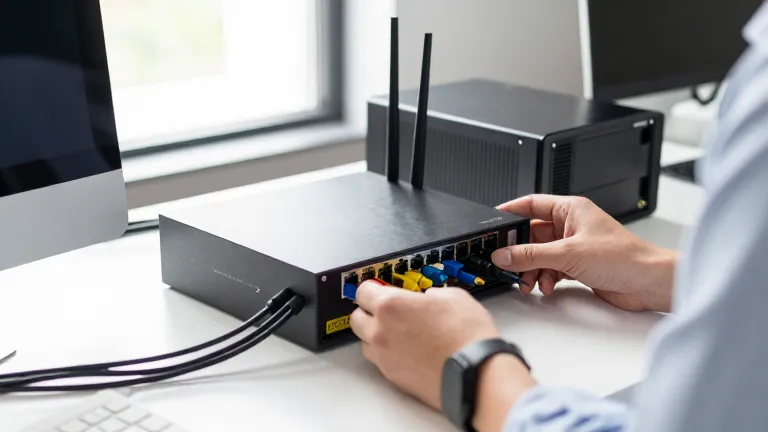
Avoid using multiple NAT devices in your network. A double NAT occurs when two devices on your network act as NAT gateways, such as a router and a modem. This can lead to connectivity problems and prevent your console from establishing a stable connection. To prevent this, use a single router or modem as your main network device. This ensures that all traffic passes through one gateway, reducing the risk of double NAT and improving overall performance.
Routine Maintenance Tips
Regularly check your network settings to detect any changes that may cause double NAT. Over time, updates or changes in your network configuration can inadvertently introduce multiple NAT devices. Review your router settings periodically, especially after firmware updates or when new devices are added to your network. This helps maintain a stable and optimized network, ensuring that your consoles can connect seamlessly without encountering double NAT errors.
Frequently Asked Questions
What is a NAT type and why does it matter for gaming?
NAT type determines how your console connects to online services. A restrictive NAT can limit multiplayer interactions, while an open NAT improves connectivity.
Can I fix Double NAT without changing my router settings?
Limited options exist without router changes. Port forwarding or UPnP may help, but bridge mode is often the most reliable solution.
How do I know if my router is causing Double NAT?
Check your console's NAT type. If it's 'Strict' or 'Moderate,' and you're using a router with a modem, you likely have a double NAT issue.
Is bridge mode the only way to fix Double NAT?
Bridge mode is the most common solution, but alternatives like port forwarding or using a gaming router can also help, though with varying success.
Next Steps for a Better Gaming Experience
Fixing Double NAT involves understanding your network setup and applying the right adjustments. Whether through bridge mode or alternative methods, ensuring your console has an open NAT type is key to optimal gaming performance.
To maintain a stable connection, regularly review your network configuration and consider simplifying your setup. Follow the steps outlined to resolve Double NAT and enjoy smoother online gaming.





