How to Fix Smart Home Devices Not Working with Alexa: Troubleshooting Guide
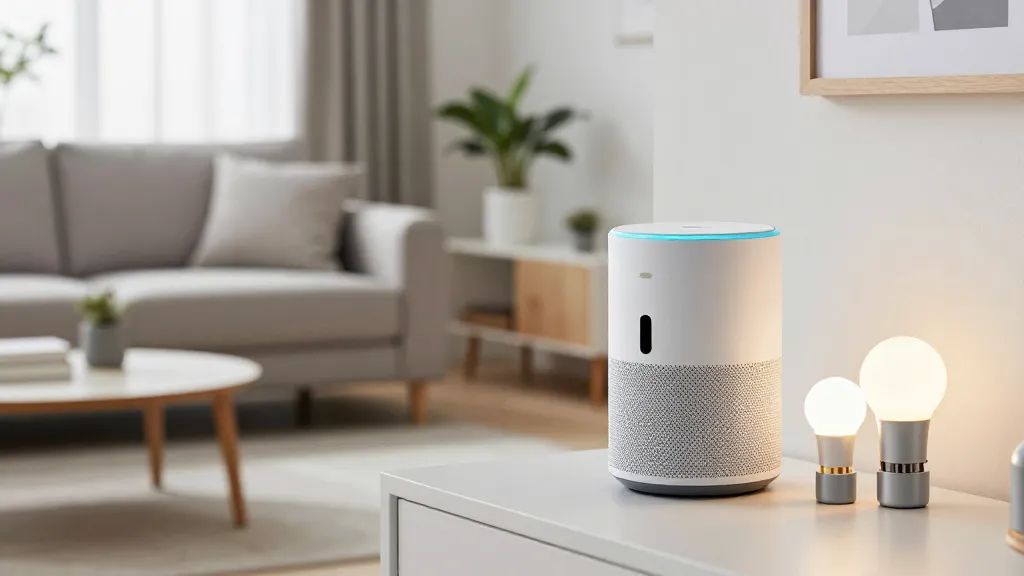
If your smart home devices are not working with Alexa, it can be frustrating, especially when you're relying on voice commands to control your home. Whether it's lights, thermostats, or security systems, the inability to integrate with Alexa can disrupt your smart home experience. This guide provides a step-by-step approach to help you resolve these issues and get your devices working seamlessly with Alexa. We'll cover everything from basic connectivity checks to advanced troubleshooting techniques, ensuring you can restore full functionality to your smart home setup.
The first step in fixing smart home devices not working with Alexa is to verify basic connectivity and setup. This includes checking that your devices are properly powered and within range of your Wi-Fi network. Also, ensure that your Alexa account is correctly set up and that your devices are registered under the right account. These fundamental checks often resolve many common compatibility issues.
As we move through the troubleshooting process, we'll explore how to update and reset your smart home devices, re-pair them with Alexa, and troubleshoot potential network or app-related problems. If you're still facing issues, we'll guide you on how to seek support from both the device manufacturer and Amazon. By following this guide, you can regain control of your smart home ecosystem and enjoy the convenience of voice-activated automation.
Check Basic Connectivity and Setup
Before diving into complex troubleshooting steps, start by verifying the most fundamental aspects of your smart home setup. Ensuring all devices are powered on and within range of your Alexa speaker is the first step in resolving connectivity issues. Additionally, confirming that Alexa is correctly set up and linked to the right account can eliminate many common problems. These basic checks often uncover simple solutions that prevent unnecessary complications later.
Ensure Proper Power and Range
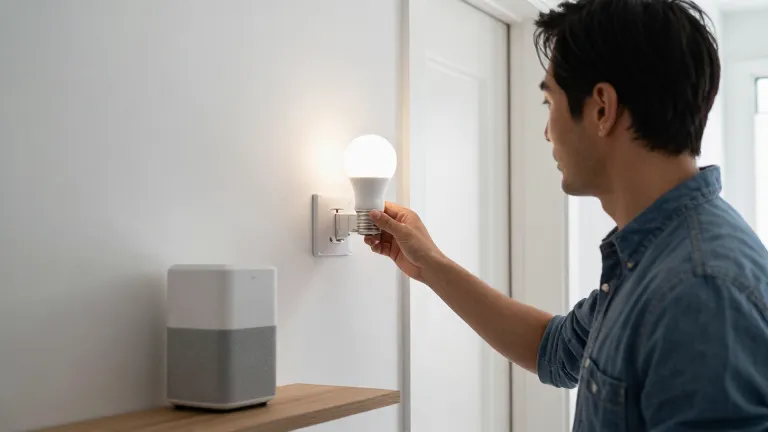
Ensure that all your smart home devices are fully powered on and within the optimal range of your Alexa speaker. Most devices require a stable power source, so check for any loose connections or tripped circuit breakers. If a device is out of range, move it closer to the Alexa speaker or use a Wi-Fi extender to improve signal strength. Some devices may also require a direct connection to the router for full functionality, so confirm that they are connected to the same network as your Alexa speaker.
Verify Alexa Account and Setup
Verify that your Alexa app is correctly linked to your Amazon account and that all devices are registered under the right profile. Open the Alexa app and navigate to the 'Devices' section to check for any missing or unregistered devices. If you have multiple Amazon accounts, ensure that you are logged into the correct one. Additionally, confirm that your Alexa speaker is set up properly and that it is the primary device for your smart home network. If you're using a new Alexa speaker, make sure it's properly paired with your account and that it's the main hub for all your smart home devices.
Update and Reset Your Smart Home Devices
Updating and resetting your smart home devices is a critical step in resolving compatibility issues with Alexa. Many devices have firmware updates that fix bugs or improve compatibility with voice assistants. Additionally, resetting a device can resolve connection problems and ensure it is properly registered with the correct Alexa app.
- Check for firmware updates on your smart home devices.
- Reset the device to factory settings and reconnect it to Alexa.
- Ensure the device is registered with the correct Alexa app.
Update Firmware and Settings
To update firmware, open the device's companion app and look for an update option. Many smart devices automatically check for updates, but it's good to manually check periodically. Firmware updates can resolve compatibility issues and improve performance, so ensure your devices are running the latest version.
Reset and Reconnect Smart Devices
To reset a device, locate the reset button, usually found on the back or bottom of the device. Hold it for 10-30 seconds until the device restarts. Once reset, reconnect the device to your Wi-Fi network and follow the setup instructions in the Alexa app. This process ensures the device is properly recognized and registered with your Alexa account.
After resetting, make sure the device is registered under the correct Alexa account. Some devices may be linked to multiple accounts, so check the device list in the Alexa app to confirm it is associated with your primary account.
Re-pair Smart Home Devices with Alexa
Re-pairing your smart home devices with Alexa can resolve connection issues and restore functionality. This process involves removing the device from your Alexa app and re-establishing the connection through the manufacturer’s pairing process. Careful adherence to these steps ensures a successful re-pair and helps identify any underlying problems.
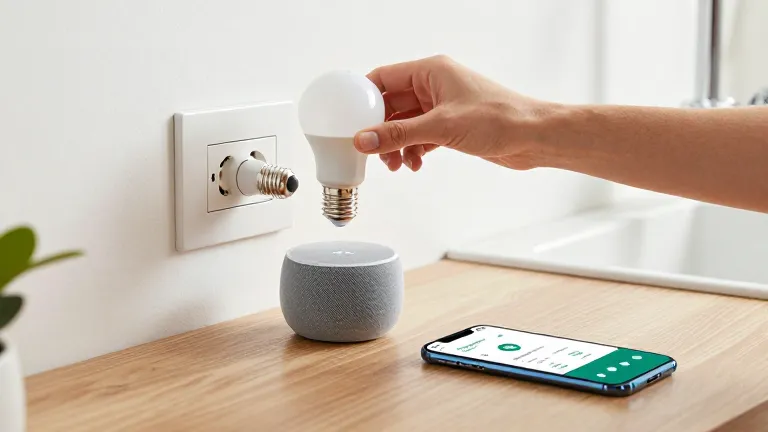
- Open the Alexa app and navigate to the 'Devices' section. Tap on the device you want to re-pair and select 'Remove Device' to delete it from your account.
- Power cycle the smart home device by unplugging it for 30 seconds and plugging it back in. This can refresh its internal state and prepare it for re-pairing.
- Follow the manufacturer’s pairing instructions to reconnect the device. This usually involves pressing a physical button on the device or using the app to initiate the pairing process.
- Once the device is re-paired, check its status in the Alexa app to confirm it is active and connected. If it still doesn’t work, repeat the process or move to advanced troubleshooting.
Remove and Re-pair Smart Devices
Before re-pairing, ensure the device is in pairing mode. This typically involves pressing a specific button or holding it for a few seconds. If unsure, refer to the manufacturer’s instructions for details. Re-pairing ensures the device is recognized by Alexa and can receive voice commands.
Test the Connection After Re-pairing
After re-pairing, test the device by issuing a voice command through Alexa. For example, say, 'Alexa, turn on the lights' if you’re using a smart bulb. If the device responds, the re-pairing was successful. If not, double-check the connection or try re-pairing again.
Troubleshoot Network and Alexa Issues
Network issues are a common cause of smart home devices not working with Alexa. Ensuring all devices are on the same Wi-Fi network and resolving any connectivity problems can significantly improve performance and reliability.
Ensure Same Wi-Fi Network
Verify that all smart home devices and Alexa are connected to the same Wi-Fi network. Some devices may connect to a different network, such as a guest network or a secondary router, which can prevent communication with Alexa. Check the device settings or the Alexa app to confirm the network name and ensure consistency across all devices. If a device is connected to a different network, remove it and reconnect it to the main Wi-Fi network.
Restart Router and Alexa Speaker
Restarting your router and Alexa speaker can refresh the connection and resolve temporary glitches. Turn off your router for about 30 seconds, then turn it back on to reset the network. After the router is back online, restart your Alexa speaker by unplugging it for 30 seconds and plugging it back in. This process can clear any cached data or connectivity issues that may be affecting the performance of your smart home setup.
Advanced Troubleshooting and Support
When basic troubleshooting steps fail to resolve issues with your smart home devices and Alexa, it's time to explore advanced options. These steps focus on using the Alexa app for detailed diagnostics and reaching out to support teams for specialized assistance.
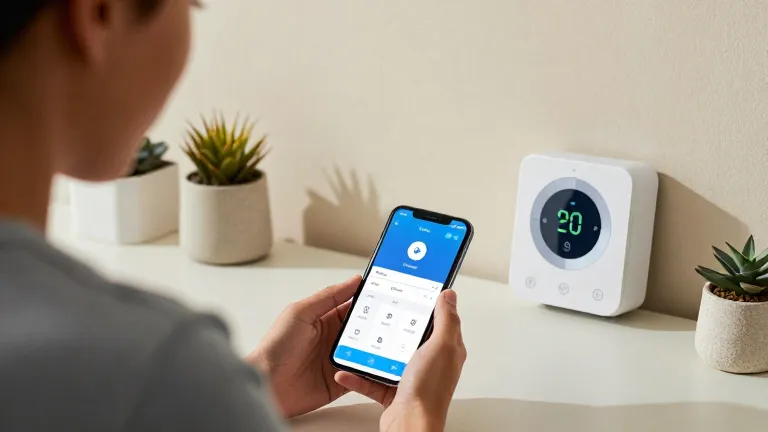
- Open the Alexa app and navigate to the 'Devices' section to review the status of your smart home devices.
- Look for any error messages or status indicators that might explain why a device isn't working with Alexa.
- If an error is displayed, follow the on-screen instructions or search for the error code online for additional guidance.
- Contact the manufacturer of the smart home device for device-specific troubleshooting and support.
Check Alexa App for Device Status
The Alexa app is a powerful tool for diagnosing issues with your smart home devices. Navigate to the 'Devices' section to see the status of each connected device. If a device shows an error or is marked as 'Offline', this can indicate a problem with the device's connection or configuration. Look for specific error messages or codes, as they can provide clues about the issue. If the app provides troubleshooting suggestions, follow them carefully to resolve the problem.
Contact Manufacturer and Amazon Support
If the issue persists, contacting the manufacturer's support team is a crucial next step. Each smart home device comes with its own set of features and potential issues, so manufacturer support can offer tailored solutions. Be prepared to provide details about the device model, the error messages you've encountered, and the steps you've already taken. This information will help support representatives quickly identify the problem. Additionally, reaching out to Amazon Support can be beneficial if the issue seems to be with Alexa itself, such as voice command recognition or app functionality.
Frequently Asked Questions
Why isn't my smart bulb working with Alexa?
Ensure your bulb is compatible with Alexa and is connected to the same Wi-Fi network. Check if it's properly paired in the Alexa app. If the bulb still doesn't respond, try resetting it and re-pairing it with Alexa.
How do I reconnect my smart lock to Alexa?
Remove the lock from the Alexa app and re-pair it using the manufacturer's app. Make sure the lock is within range of your Alexa speaker and connected to the same Wi-Fi network. Test the connection by asking Alexa to lock or unlock the door.
What should I do if my Alexa won't detect new devices?
Ensure your new device is compatible and connected to the same Wi-Fi network. Put the device in pairing mode and use the Alexa app to add it. If it still doesn't detect, restart your router and Alexa speaker.
Can I fix Alexa issues without contacting support?
Yes, many issues can be resolved by checking connectivity, updating firmware, and re-pairing devices. If these steps don't work, contacting Amazon or the manufacturer's support is the next step for further assistance.
Next Steps and Support
By following these steps, you can resolve most issues with Alexa and smart home devices. Ensure all devices are on the same network and up to date. If problems persist, reaching out to support is the best course of action.
Don't hesitate to consult the Alexa app for real-time device status. Regular maintenance and updates can prevent many common connectivity issues. With a systematic approach, most smart home devices can work seamlessly with Alexa.