
How to Fix Webcam Not Detected on Zoom or Microsoft Teams
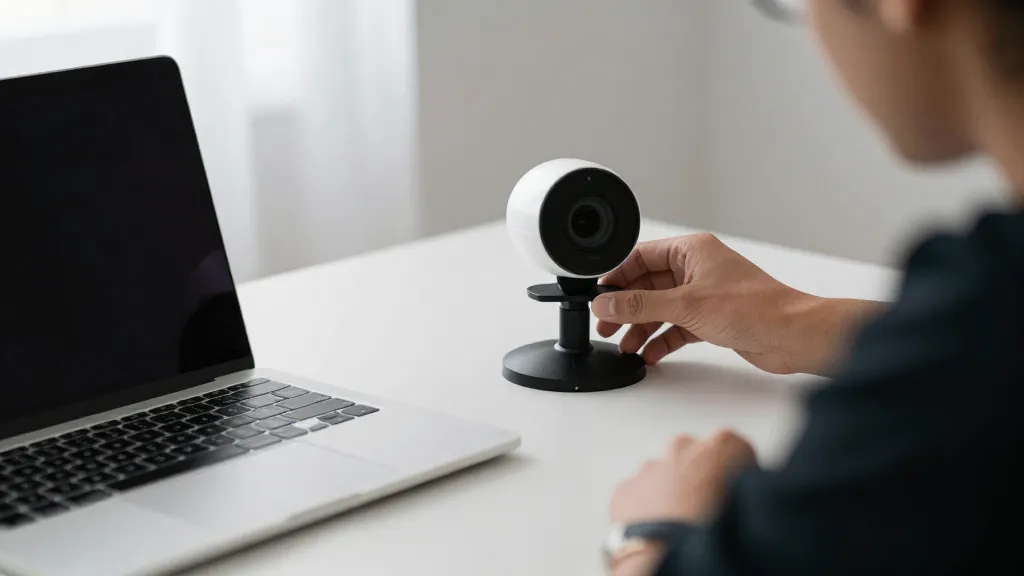
Many users face the frustrating issue of their webcam not being detected on Zoom or Microsoft Teams, disrupting important video calls. Whether you're working from home or collaborating with colleagues, a functional webcam is essential. This article provides clear, actionable steps to help you resolve the issue without needing professional assistance. By following these troubleshooting methods, you can quickly get your webcam recognized and ready for use.
The problem often stems from simple misconfigurations or outdated software. Before diving into complex solutions, it's important to start with basic checks. This includes ensuring your webcam is properly connected and that your operating system has the correct permissions set. These initial steps can often resolve the issue without requiring further intervention.
If the webcam still isn't detected, the next steps involve updating or reinstalling drivers and checking for system updates. Additionally, testing your webcam with alternative applications can help identify if the issue is specific to Zoom or Microsoft Teams. By systematically addressing each potential cause, you can effectively troubleshoot and restore your webcam functionality.
Check Basic Settings and Connections
Before diving into advanced troubleshooting, start with the basics. A simple connection or settings issue might be preventing your webcam from being detected. Ensuring your webcam is properly connected and enabled in your system settings is the first step toward resolving the problem.
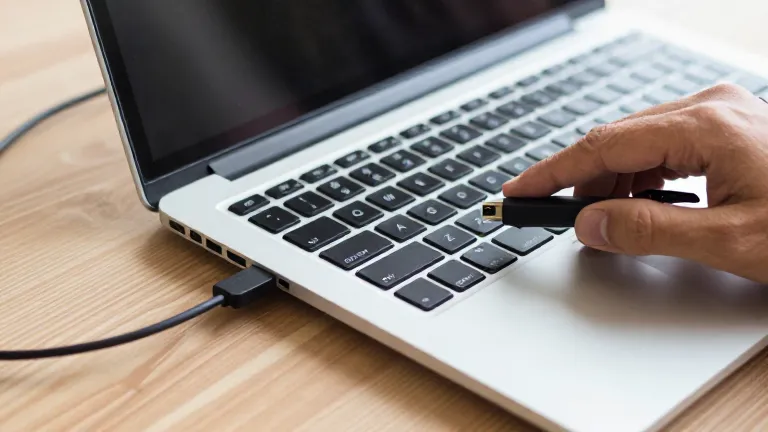
Confirm the Webcam Is Connected
Begin by checking that your webcam is physically connected to your device. If you're using a USB webcam, make sure it's plugged into an available port. For built-in webcams, ensure that the laptop or desktop is powered on and that the webcam is not covered or obstructed. If you're using a docking station or external hub, verify that all connections are secure and that the webcam is recognized by the system.
Enable the Webcam in Device Settings
Next, confirm that your webcam is enabled in your device settings. On Windows, open the Settings app, navigate to Privacy > Camera, and ensure that the toggle for 'Camera' is turned on. On macOS, go to System Settings > Privacy & Security > Camera, and check that the application (Zoom or Teams) has permission to access the camera. If the webcam is disabled, enabling it here can resolve detection issues. If the webcam still doesn't work, try restarting the application or your device to reset any temporary glitches.
Verify Application Permissions
Application permissions are a common cause of webcam detection issues on Zoom or Microsoft Teams. Ensuring that these applications have the correct access rights to your webcam is essential for resolving the problem. This section outlines how to verify and adjust camera permissions within both the specific applications and the operating system.
Allow Camera Access in Zoom or Teams
To allow camera access in Zoom, open the application and navigate to the settings. Look for the 'Video' section and ensure that the webcam is selected as the default camera. If it's not listed, check if the camera is properly connected and recognized by the system. In Teams, go to the settings menu, select 'Meetings', and verify that the camera is enabled and set to the correct device. If the webcam is still not detected, try restarting the application to apply the changes.
Check System-Wide Camera Permissions
System-wide camera permissions can also affect webcam functionality. On Windows, open the Settings app, go to 'Privacy', and select 'Camera'. Ensure that the toggle for camera access is turned on. Additionally, check the list of apps that have access to the camera and confirm that both Zoom and Teams are included. On macOS, open System Preferences, click 'Security & Privacy', and go to the 'Camera' tab. Verify that the camera access is enabled for both applications. If another app is using the camera, it may prevent Teams or Zoom from accessing it, so close any other apps that might be in use.
Update or Reinstall Webcam Drivers
Outdated or corrupted webcam drivers can prevent your camera from being detected by Zoom or Microsoft Teams. Updating or reinstalling these drivers can resolve compatibility issues and restore proper functionality.
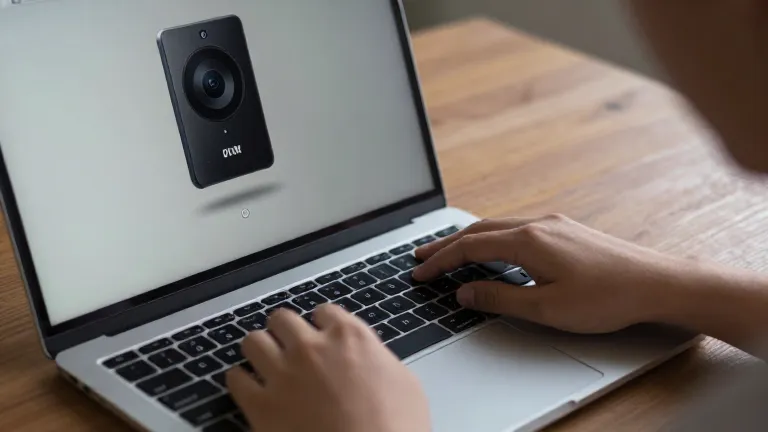
Update Webcam Drivers via Device Manager
To update your webcam drivers through Device Manager, open the Control Panel and navigate to Device Manager. Locate your webcam under the Imaging Devices or Cameras category, right-click it, and select 'Update driver.' Choose the option to search automatically for updated drivers. If an update is available, follow the on-screen prompts to install it. Restart your computer after the update to ensure the changes take effect.
Reinstall Webcam Drivers From Manufacturer
If updating through Device Manager doesn't work, consider reinstalling the webcam drivers from the manufacturer's website. Visit the official support page for your webcam model and download the latest drivers. Follow the installation instructions carefully, ensuring you disconnect the webcam before proceeding. After installation, reconnect the webcam and restart your system to verify if the issue is resolved. This method ensures you have the most up-to-date and compatible drivers for your specific hardware.
Troubleshoot Operating System Issues
Troubleshooting operating system issues can help resolve webcam detection problems on Zoom or Microsoft Teams. Ensuring your system is current with the latest updates and running diagnostics can address underlying software conflicts or bugs that affect webcam performance.
Update the Operating System
Ensure the operating system is up to date with the latest patches. Visit the official website of your operating system and check for available updates. Installing the latest updates can resolve compatibility issues or bugs that might be preventing the webcam from being detected. Some updates include improved support for hardware devices, including webcams.
Run System Diagnostics for Webcam Issues
Run system diagnostics to identify and resolve underlying issues. Most operating systems offer built-in diagnostic tools that can scan for hardware and software problems. For example, Windows users can use the 'Troubleshoot' feature in Settings to run diagnostics for camera or audio issues. These tools can detect and fix problems that may be affecting webcam functionality without requiring advanced technical knowledge.
Use Alternative Applications to Test Webcam
Testing your webcam with alternative applications can help identify if the issue is specific to Zoom or Microsoft Teams. By using different software or online tools, you can determine whether the problem lies with the application itself or the webcam hardware.
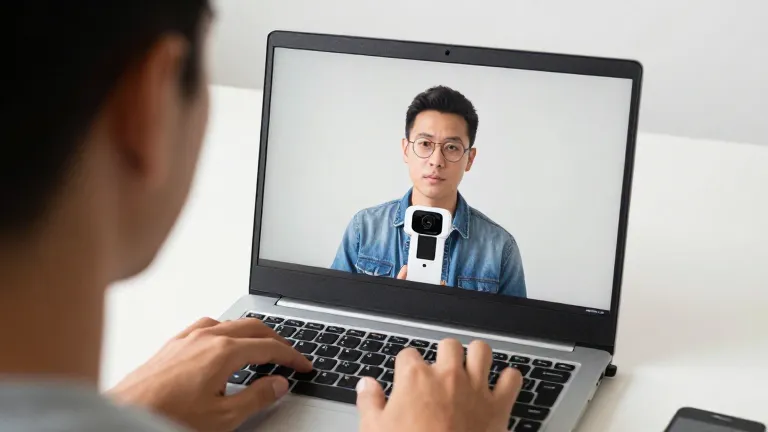
Test Webcam with Online Tools
Free online tools such as Zoom Test or Microsoft Teams Test can be used to check webcam functionality without installing additional software. These platforms typically prompt you to grant camera access and display a live video feed, allowing you to verify if the webcam is working correctly. If the webcam functions in these tests but not in Zoom or Teams, the issue may be related to application-specific settings or permissions.
Check Webcam in Other Applications
Before concluding that your webcam is faulty, try using it in other applications such as Skype, Discord, or even the built-in camera app on your device. If the webcam works in these programs but not in Zoom or Teams, the problem is likely limited to those applications. This step helps isolate the issue and ensures that the webcam itself is not the source of the problem. If the webcam fails to work in multiple applications, then it may be necessary to investigate further, such as checking drivers or hardware connections.
Frequently Asked Questions
Why is my webcam not showing up in Zoom?
Your webcam might not show up in Zoom if it's not connected, disabled, or not recognized by the software. Check the device settings and ensure the webcam is enabled. Also, verify that Zoom has permission to access your camera.
How do I enable my webcam on Windows 10 or 11?
To enable your webcam on Windows 10 or 11, go to Settings > Privacy > Camera, and turn on the 'Allow apps to access your camera' toggle. Ensure your webcam is connected and recognized in Device Manager.
What should I do if my webcam is not detected by Microsoft Teams?
If your webcam is not detected by Microsoft Teams, check your camera permissions, update your drivers, and ensure the webcam is connected and enabled. Try restarting Teams or your device to resolve the issue.
Can a virus or malware cause my webcam to not be detected?
Yes, a virus or malware can interfere with your webcam's functionality or prevent it from being detected. Run a full system scan with a trusted antivirus program to rule out malicious software.
Final Thoughts
To resolve webcam detection issues on Zoom or Microsoft Teams, start by checking basic settings, permissions, and drivers. If the problem persists, consider updating your operating system or testing the webcam with alternative applications.
If you're still experiencing issues, consult the troubleshooting steps provided or reach out to the software support team for further assistance.





