
How to Fix MacBook Won’t Connect to WiFi Network
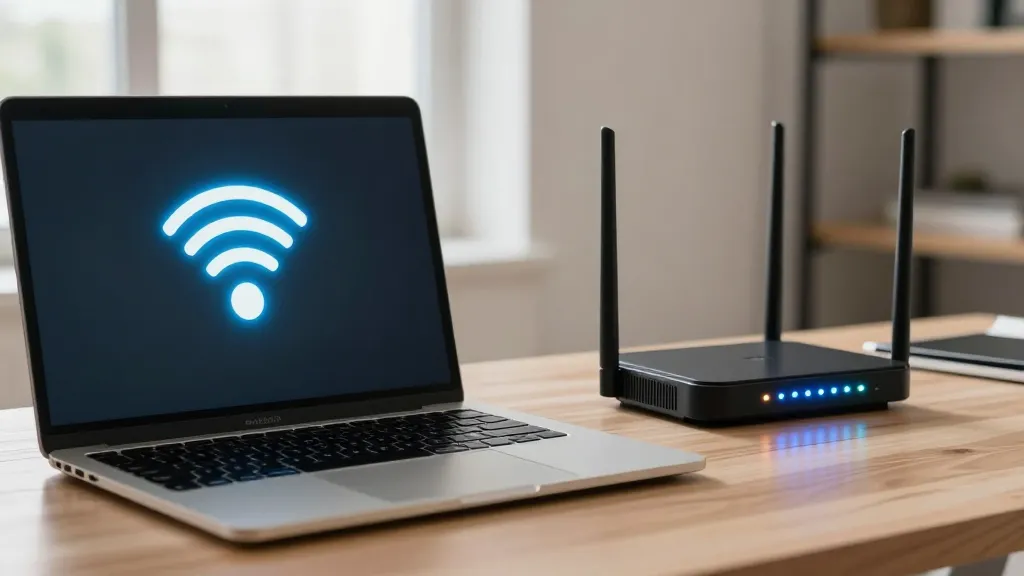
Your MacBook is a powerful tool, but when it fails to connect to a WiFi network, it can quickly become a source of frustration. Whether you're at home or in the office, losing internet access disrupts productivity and daily tasks. If your MacBook won't connect to WiFi, the solution may be simpler than you think. This article provides a clear, step-by-step guide to help you fix the issue and restore your internet connection.
From basic troubleshooting steps to advanced network repair options, we cover practical solutions that don't require technical expertise. You'll learn how to reset network settings, update your macOS, and even use command-line tools to resolve connectivity problems. Each step is explained in plain language, so you can follow along without confusion.
Whether your MacBook is struggling with a weak signal or failing to connect altogether, this guide offers actionable advice to get you back online. By following these steps, you can resolve common WiFi issues and ensure your device remains connected to the network. Let's get your MacBook back in sync with the internet.
Troubleshoot Basic Connectivity Issues
Before diving into more complex solutions, start with basic troubleshooting steps to identify if the issue is with your MacBook or the WiFi network itself. These simple checks can often resolve connectivity problems without requiring technical expertise.

Check for Other Devices on the Network
Check if other devices can connect to the same WiFi network. If other devices, such as smartphones or tablets, are able to access the network, the issue is likely with your MacBook. If no devices can connect, the problem may be with the router or the WiFi network itself. Ensure that the WiFi network is active and not in range of any interference, such as thick walls, metal objects, or other electronic devices that could disrupt the signal.
Restart Your MacBook and Router
Verify that your MacBook is not in airplane mode or power-saving mode, as these settings can restrict WiFi connectivity. You can check this by looking at the menu bar or navigating to System Settings. Restart both your MacBook and the router to refresh the connection. This can resolve temporary glitches or software conflicts that may be preventing your MacBook from connecting to the WiFi network.
Reset Network Settings on Your MacBook
Resetting network settings on your MacBook can resolve connectivity issues by clearing outdated configurations and restoring default settings. This process ensures that your device reconnects to the WiFi network properly and avoids conflicts with previous network profiles.
Reset Network Preferences
To reset network preferences, open System Settings and navigate to Network. Select the WiFi connection, then click 'Advanced' to access the settings. From here, click the '-' button to remove all saved networks. This action clears any corrupted or outdated profiles that may be preventing a stable connection. Once removed, restart your MacBook to apply the changes.
Remove and Re-Add the WiFi Network
After resetting network preferences, re-add the WiFi network by clicking the '+' button in the Network settings. Enter the network name and password carefully, ensuring that the correct security type is selected. This step ensures that your MacBook establishes a fresh connection with the router, which can resolve issues caused by incorrect or outdated configurations. If the network still doesn't connect, try forgetting the network and re-adding it to ensure proper setup.
Update macOS and WiFi Drivers
Updating macOS and WiFi drivers is a crucial step in resolving connectivity issues on your MacBook. Apple frequently releases updates that address bugs, improve performance, and enhance compatibility with wireless networks. Ensuring your system is up to date can resolve many underlying problems that might be preventing your device from connecting to WiFi.

Update macOS to the Latest Version
To update macOS, click the Apple menu and select 'System Settings' (or 'System Preferences' on older macOS versions). Navigate to 'Software Update' and check for available updates. If updates are found, install them immediately. These updates often include critical security patches and bug fixes that can improve WiFi stability. If automatic updates are disabled, manually check for updates through the App Store or Apple’s website.
Install WiFi Driver Updates
If the issue persists after updating macOS, check for WiFi driver updates. Apple typically includes WiFi drivers within macOS updates, but in some cases, third-party drivers may offer better performance or compatibility. Visit Apple’s support website or check the manufacturer’s website for any additional drivers specific to your MacBook model. Before installing any third-party driver, ensure it is compatible with your macOS version and comes from a trusted source. If the driver update does not resolve the issue, consider reinstalling the WiFi driver through the Terminal or contacting Apple Support for further assistance.
Check for Interference and Environmental Factors
Interference and environmental factors can significantly impact your MacBook's ability to connect to a WiFi network. Issues such as physical distance, obstacles, and electronic interference can weaken the signal or cause connectivity problems. Addressing these factors can help improve your WiFi performance without requiring advanced technical knowledge.
Reduce Physical Obstacles and Distance
Moving your MacBook closer to the router can help establish a stronger and more stable connection. Physical obstacles such as walls, furniture, or metal objects can block or weaken the WiFi signal. If possible, place your MacBook in an open area near the router to minimize signal degradation. Additionally, avoid positioning your MacBook in areas with high humidity or extreme temperatures, as these conditions can also affect signal quality.
Use WiFi Analyzer to Find the Best Channel
Using a WiFi analyzer app can help identify channel congestion and optimize your connection. These apps provide insights into which WiFi channels are heavily used by nearby networks, allowing you to switch to a less crowded channel. This can reduce interference and improve your MacBook's ability to connect to the network. While macOS does not include a built-in WiFi analyzer, third-party apps such as WiFi Analyzer or iStoleYourWiFi can be downloaded and used to scan and analyze your local WiFi environment.
Advanced Network Repair Options
Advanced Network Repair Options are typically reserved for situations where basic troubleshooting has failed to resolve WiFi connectivity issues. These steps involve deeper system-level interventions and can be effective for resolving persistent or complex network problems on your MacBook.

Use Terminal Commands for Network Repair
Using Terminal commands can help resolve network configuration issues that are not visible through standard system tools. One useful command is 'sudo killall -HUP mDNSResponder', which restarts the mDNSResponder service responsible for network discovery and DNS resolution. This can help refresh network settings and fix intermittent connectivity problems. Before running these commands, ensure you have administrative privileges and understand the potential impact on your system.
Reset PRAM or NVRAM
Resetting the PRAM or NVRAM can resolve hardware-related network issues by clearing stored system settings. To reset PRAM, shut down your MacBook, then press and hold the power button for 10 seconds before turning it on. For NVRAM, the process is similar but may require pressing specific keys during startup. This step is particularly useful if your MacBook is experiencing persistent boot-time or hardware-related network failures.
Frequently Asked Questions
Why is my MacBook not connecting to WiFi but other devices are?
If other devices connect successfully, the issue is likely with your MacBook. Check for software glitches, network settings, or hardware problems. Ensure your MacBook's WiFi is enabled and the network is within range.
What should I do if my MacBook keeps dropping WiFi connection?
A weak signal or interference could be the cause. Move closer to the router and reduce physical obstructions. Use a WiFi analyzer to find the best channel and improve stability.
How can I reset my MacBook's WiFi settings without losing data?
Resetting network settings can be done through System Preferences. Remove the network and re-add it to refresh the connection. This process does not delete personal data or files.
Is there a way to fix my MacBook's WiFi without restarting the router?
Yes, you can restart your MacBook, reset network settings, or update macOS. These steps often resolve connectivity issues without affecting your router.
Next Steps for a Stable WiFi Connection
Fixing WiFi issues on your MacBook involves a combination of basic troubleshooting and advanced techniques. Start with simple steps like restarting your device and router, then move to resetting network settings and updating your system. If problems persist, consider environmental factors and advanced repair options.
If you're still facing issues after following the steps, consult Apple support or a professional technician. Keeping your system updated and maintaining a stable network environment will help prevent future problems.





