
How to Fix Chromebook Won’t Turn On or Charge
If your Chromebook won't turn on or charge, it can be frustrating, especially when you rely on it for work or school. This guide provides practical steps to help you resolve the issue without needing professional assistance. Whether your device is completely unresponsive or not charging at all, there are several troubleshooting methods you can try. The main keyword in this article is 'How to Fix Chromebook Won't Turn On or Charge,' and we'll walk you through each solution carefully.
We'll start by checking the basics, such as the power source and charging port, to rule out simple issues. Next, you'll learn how to perform a hard reset, which can often resolve software-related problems. If the battery is suspected to be the issue, we'll guide you through checking for damage and safely charging a dead battery.
In cases where these steps don't work, we'll explain when it's best to seek professional help and how to find a reliable repair service. By following this guide, you can take control of the situation and potentially fix your Chromebook without unnecessary delays or costs.
Check for Basic Power Issues
Before attempting more advanced troubleshooting steps, it's essential to rule out simple power-related issues that could prevent your Chromebook from turning on or charging. Many problems can be resolved by checking the basics, such as the power source and charging port. Start by ensuring your Chromebook is connected to a functional power adapter and outlet, and then inspect the physical components for any signs of damage or wear.
Verify the Power Source
Ensure the Chromebook is connected to a working power source. Plug the power adapter into a reliable electrical outlet and confirm that the outlet is functioning by testing it with another device. If your Chromebook still doesn't respond, try using a different outlet to eliminate the possibility of a faulty power supply. It's also advisable to use the original power adapter and cable, as third-party alternatives may not provide the correct voltage or current required for your device.
Inspect the Charging Port
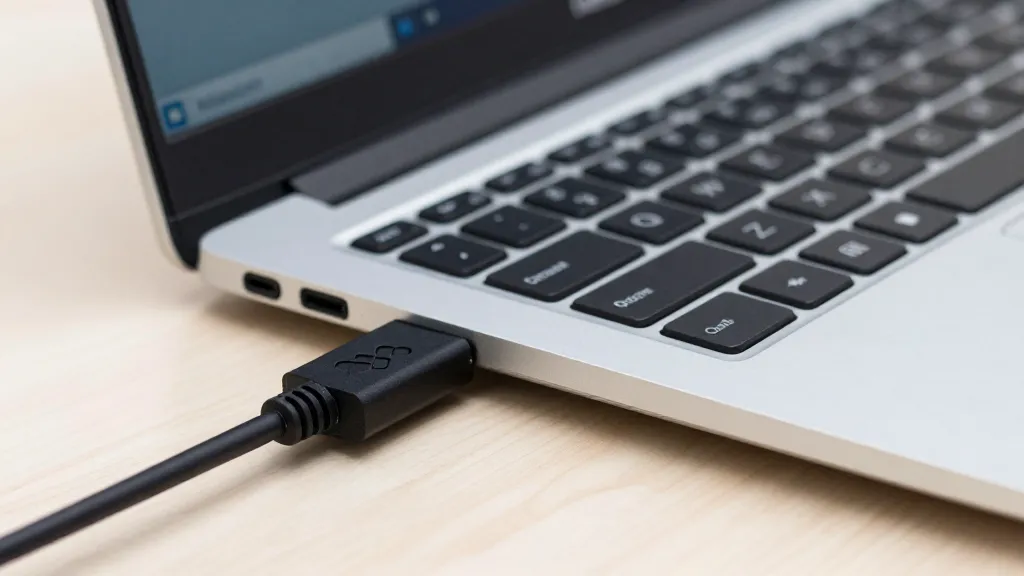
Inspect the charging port for any signs of damage or debris that could interfere with the connection. Look for bent pins, cracks, or physical obstructions that might prevent the cable from making a secure contact. If you notice any debris, gently clean the port using a soft brush or compressed air. Avoid using sharp objects that could damage the port further. A damaged charging port may require professional repair, so handle it with care.
Perform a Hard Reset
A hard reset can help resolve software issues that may be preventing your Chromebook from turning on. This process forces the device to restart its systems, which can sometimes fix glitches or temporary malfunctions that prevent normal operation.
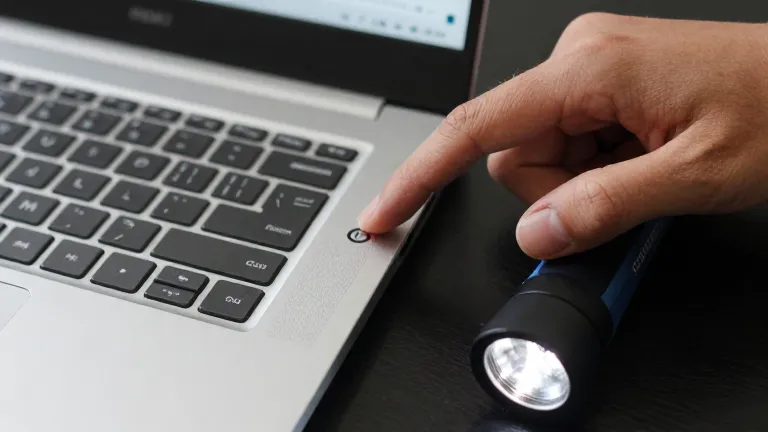
- Locate the power button on your Chromebook and press and hold it for about 15 seconds.
- While holding the power button, connect the Chromebook to a working power source using the original charger.
- Continue holding the power button for an additional 15 seconds after the charger is connected.
- Release the power button and wait for the device to power on. This may take a few minutes.
How to Do a Hard Reset
Performing a hard reset is a simple and effective way to address software-related issues. It ensures that all internal systems are restarted, which can clear temporary errors or conflicts that may be affecting the device's ability to power on.
What to Expect After a Hard Reset
After the hard reset, your Chromebook should power on normally. If it does not, repeat the process or try a different power source. If the issue persists, it may indicate a hardware problem that requires further troubleshooting or professional assistance.
Troubleshoot Battery Issues
A faulty or depleted battery can prevent your Chromebook from powering on, making it essential to check for battery issues. Even if the device appears to be receiving power, a damaged or swollen battery might be the root cause. Inspecting the battery and ensuring it is properly charged can help identify and resolve the problem without requiring advanced technical knowledge.
Check for Battery Damage
Inspect the battery for any signs of swelling, cracks, or physical damage. A swollen battery can cause internal pressure, leading to malfunction or even safety hazards. If you notice any of these issues, it is crucial to stop using the Chromebook immediately and seek professional assistance. A damaged battery may not hold a charge and could prevent the device from turning on.
How to Charge a Dead Battery
If the battery is completely dead, it may need to be charged for at least 30 minutes before attempting to power on the Chromebook. Connect the device to a compatible power adapter and let it charge for the recommended time. Even if the screen remains dark, the internal systems may still be receiving power. After charging, press and hold the power button for several seconds to try to turn on the device. If the Chromebook still does not respond, the battery may be beyond repair and require replacement.
Use External Power Sources
If your Chromebook still won’t turn on or charge after checking basic power issues, the next step is to ensure you're using the correct and compatible power source. A mismatched or faulty power adapter can prevent your device from receiving the necessary energy to operate. This section outlines how to verify your power adapter and test it with alternative power sources to identify potential issues.
Verify the Power Adapter Compatibility
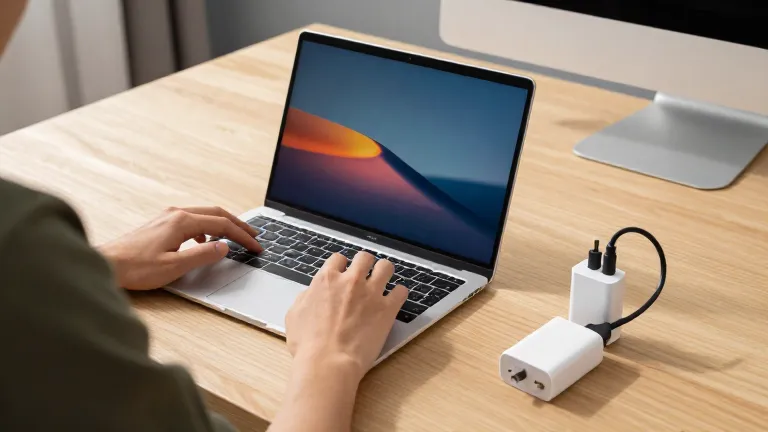
Before attempting to charge your Chromebook, confirm that the power adapter you're using is compatible with your specific model. Chromebooks require specific voltage and amperage ratings, and using an incompatible adapter can damage the device or prevent it from charging. Check the adapter’s label for details such as input voltage (e.g., 19V 3.42A) and compare it with your Chromebook’s specifications. If the adapter doesn’t match, it may not provide the required power, leading to charging failures.
Test with a Different Power Source
If your Chromebook still doesn’t charge, try plugging it into a different power outlet. Faulty or overloaded outlets can prevent the device from receiving power, even with a compatible adapter. Ensure the outlet is functional by testing it with another device. If you're using a power strip or extension cord, make sure they are in good condition and rated for the power requirements of your Chromebook. Avoid relying on power banks or unreliable extension cords unless they are specifically designed for charging laptops. These accessories may not deliver stable power, which could further complicate the charging process.
Seek Professional Help
If your Chromebook still won't turn on or charge after following all the troubleshooting steps, it may require professional repair. Attempting to fix it yourself without the proper knowledge can cause further damage. Always contact a qualified technician or the manufacturer for assistance.

When to Contact a Professional
You should contact a professional if your Chromebook continues to have power or charging issues despite your efforts. This could indicate a deeper problem with the internal battery, motherboard, or charging circuitry. Professional technicians have the tools and expertise to diagnose and repair these issues accurately.
How to Find a Reliable Repair Service
To find a reliable repair service, start by contacting the Chromebook manufacturer. They can provide information about authorized service centers or recommend certified repair technicians. You can also search online for local repair services with positive reviews and verified credentials. Always ensure the service provider is experienced with Chromebook repairs to avoid additional complications.
Frequently Asked Questions
What should I do if my Chromebook won't turn on even when plugged in?
If your Chromebook won't turn on even when plugged in, first check the power adapter and charging port for damage. Try using a different power source or adapter. If the device still doesn't power on, it may require a hard reset or professional repair.
Can a dead battery cause my Chromebook to not turn on?
A dead battery can prevent your Chromebook from turning on. If the battery is completely drained, it may not power on until it's charged. However, if the battery is physically damaged, the device may not charge at all.
How long should I press the power button during a hard reset?
During a hard reset, press and hold the power button for about 15 seconds. This will force the Chromebook to restart and may resolve minor software issues preventing it from turning on.
What if my Chromebook still won't charge after trying all the steps?
If your Chromebook still won't charge after trying all the troubleshooting steps, there may be a hardware issue. Contact a professional repair service to diagnose and fix the problem.
Final Steps and Next Actions
Troubleshooting a Chromebook that won't turn on or charge involves checking the power source, performing a hard reset, and inspecting the battery and charging port. If these steps don't resolve the issue, professional help is necessary.
Follow the steps outlined in this article to identify and address the most common causes of Chromebook power issues. If the problem persists, seek a qualified technician for further assistance.





