How to Fix Windows 11 Not Connecting to Smart Home Devices
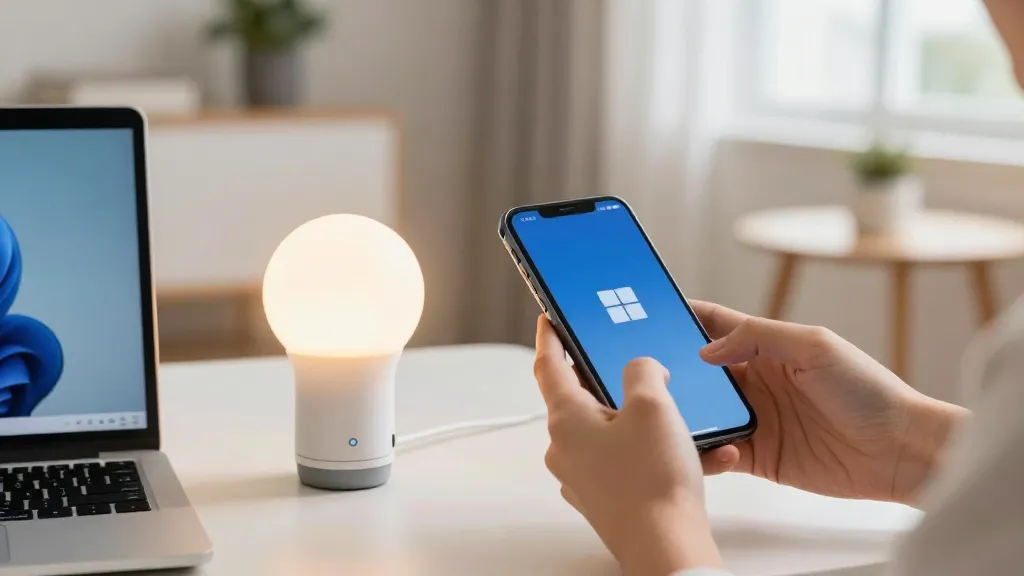
If your Windows 11 computer is struggling to connect to smart home devices, it can disrupt your home automation setup and reduce convenience. Whether you're trying to control lights, thermostats, or security systems, a failed connection can be frustrating. The main keyword here is how to fix Windows 11 not connecting to smart home devices, and this article will guide you through practical steps to resolve the issue. From checking basic connectivity requirements to updating firmware and resetting settings, we cover the essentials to get your smart home ecosystem working smoothly.
We start by verifying that your Wi-Fi network is compatible and free from interference, which are foundational for stable connections. Next, we explore how updating your Windows 11 system and smart home device firmware can address underlying software issues. If the problem persists, we'll walk you through reinstalling apps and drivers, which can often resolve connectivity glitches.
Finally, we cover advanced troubleshooting steps, including resetting network settings and restoring smart home devices to factory settings. These methods are designed to help you systematically identify and fix the root cause of the connectivity problem. By following this guide, you can regain control over your smart home devices and ensure seamless integration with your Windows 11 system.
Check Basic Connectivity Requirements
Before attempting advanced troubleshooting, ensure your smart home device is properly connected to your Wi-Fi network. Basic connectivity requirements often resolve many connection issues. Start by confirming the device is powered on and within range of your router. A weak or unstable signal can prevent the device from communicating with your Windows 11 system.
Verify Wi-Fi Network Compatibility
Verify that your smart home device is compatible with your Wi-Fi network's frequency. Most smart home devices operate on the 2.4 GHz band, which has a longer range and better penetration through walls. Some devices may also support 5 GHz, but ensure your router is set to the correct frequency. If your device only supports 2.4 GHz, avoid using the 5 GHz band for pairing or communication.
Check for Signal Interference
Check for signal interference that might be disrupting the connection. Other wireless devices, such as microwaves, cordless phones, and Bluetooth gadgets, can interfere with Wi-Fi signals. Also, physical obstacles like walls, metal objects, and large furniture can weaken the signal. Move your smart home device closer to the router or remove any potential obstructions to improve signal strength. If multiple devices are connected to the same network, consider reducing the number of active devices to minimize interference.
Update Windows 11 and Smart Home Device Firmware
Keeping your Windows 11 system and smart home devices up to date is crucial for ensuring compatibility and resolving connectivity issues. Regular updates often include bug fixes, security patches, and improved device support, which can help restore proper communication between your system and smart home devices.
Update Windows 11 to the Latest Version
To update Windows 11, open the Start menu and navigate to Settings > Update & Security > Windows Update. Click 'Check for updates' to scan for available updates. If updates are found, follow the on-screen instructions to download and install them. It is recommended to connect your device to a stable power source and a reliable Wi-Fi network during this process to avoid interruptions.
Check for Smart Home Device Firmware Updates
For smart home devices, check for firmware updates using the manufacturer's dedicated app or website. Open the app, navigate to the device settings, and look for an option like 'Check for Updates' or 'Firmware Update'. If an update is available, follow the prompts to download and install it. Some devices may require a restart or reconnection to the Wi-Fi network after the update is complete. Ensure that your smart home device is within range of your router and that no other devices are interfering with the connection during the update process.
Reinstall Smart Home Device App or Driver
If your Windows 11 device is having trouble connecting to smart home devices, reinstalling the smart home app or updating drivers can resolve the issue. This process ensures that any corrupted files or outdated components are replaced, improving compatibility and performance. Follow these steps to address potential app or driver-related problems effectively.
- Uninstall the smart home device app from your Windows 11 device and reinstall it from the official source.
- Ensure that your Windows 11 device is running a supported operating system version.
- Check for any missing or outdated drivers that may be affecting connectivity.
- Restart your device after reinstalling the app or updating drivers.
Uninstall and Reinstall the Smart Home App
To uninstall the smart home device app, go to Settings > Apps > Apps & features, find the app, and select Uninstall. After removal, visit the official website or app store to download the latest version of the app. Install it following the on-screen instructions to ensure a clean installation without residual files that might cause issues.
Update or Reinstall Necessary Drivers
For drivers, open Device Manager and look for any devices with a yellow exclamation mark. Right-click these devices and select Update driver. If the driver is not available, visit the manufacturer’s website to download and install the latest version. This ensures that your hardware is compatible with Windows 11 and can communicate properly with smart home devices.
Troubleshoot Smart Home Device Pairing
Troubleshooting smart home device pairing involves ensuring that the device is in the correct mode to connect to your Windows 11 system. Proper setup and attention to device-specific instructions can resolve most pairing issues.
Put Smart Home Device Into Pairing Mode
To initiate pairing, place your smart home device in pairing mode as instructed by the manufacturer. This typically involves pressing a button, holding it for a few seconds, or using a mobile app to trigger the process. Each device has unique steps, so consult the user manual or manufacturer's website for accurate guidance. Ensure that the device is not already connected to another account or network, as this may prevent successful pairing with Windows 11.
Check for Pairing Errors or Prompts
During the pairing process, watch for any error messages or prompts that appear on your Windows 11 device or the smart home device itself. These messages can indicate issues like incorrect passwords, network conflicts, or failed authentication. If an error occurs, note the specific message and refer to the device's troubleshooting guide or support resources. If the pairing fails repeatedly, try restarting both the device and your Windows 11 system to reset the connection process.
Reset Network and Smart Home Device Settings
Resetting network and smart home device settings can resolve persistent connectivity issues. This process removes outdated configurations and restores default settings, which can improve compatibility and stability.
- Reset Wi-Fi Network Settings on Windows 11
- Reset Smart Home Device to Factory Settings
- Reconnect Smart Home Device to Wi-Fi Network
- Test Connectivity Again
Reset Wi-Fi Network Settings on Windows 11
To reset Wi-Fi network settings on Windows 11, open Settings, navigate to Network & Internet > Wi-Fi, and select Manage known networks. Choose the network you're connected to, click Forget, and then reconnect. This action clears stored network credentials and removes potential conflicts that may prevent the smart home device from connecting.
Reset Smart Home Device to Factory Settings
To reset a smart home device to factory settings, use the manufacturer's app or follow the instructions provided with the device. Typically, this involves holding a specific button for a few seconds or using an app feature to reset the device. This step ensures the device starts with default settings, which can resolve configuration errors or conflicts with your network.
Frequently Asked Questions
What should I do if my Windows 11 device still won't connect to my smart home device after trying the basic steps?
If your Windows 11 device still won't connect to your smart home device after trying the basic steps, consider more advanced troubleshooting methods like resetting network settings or checking for firmware updates. You can also try connecting the device to another network or contact the manufacturer's support for further assistance.
Can I use a 5 GHz Wi-Fi network with my smart home devices?
Some smart home devices may not support 5 GHz Wi-Fi and might only work with 2.4 GHz networks. Check the device's specifications to confirm compatibility. If your device only supports 2.4 GHz, ensure your router is set to broadcast both frequencies.
How do I know if my smart home device is compatible with Windows 11?
To determine if your smart home device is compatible with Windows 11, check the manufacturer's website or product specifications. Most modern smart home devices support Windows 11, but it's best to verify before purchasing or setting up.
What should I do if my smart home device is not showing up in the app after pairing?
If your smart home device is not showing up in the app after pairing, try restarting both the device and the app. Ensure that the device is in pairing mode and that your Windows 11 device is within range. If the issue persists, reset the device and attempt pairing again.
Final Steps for Resolution
Windows 11 users may face challenges in connecting to smart home devices due to various factors like network issues, outdated software, or compatibility problems. Following the outlined troubleshooting steps can help resolve most connectivity issues.
If you continue to experience problems, consider reaching out to the device manufacturer for further support. Keeping your system and devices updated is essential for smooth operation and compatibility.