
How to Fix Smart Home Devices Not Connecting to WiFi
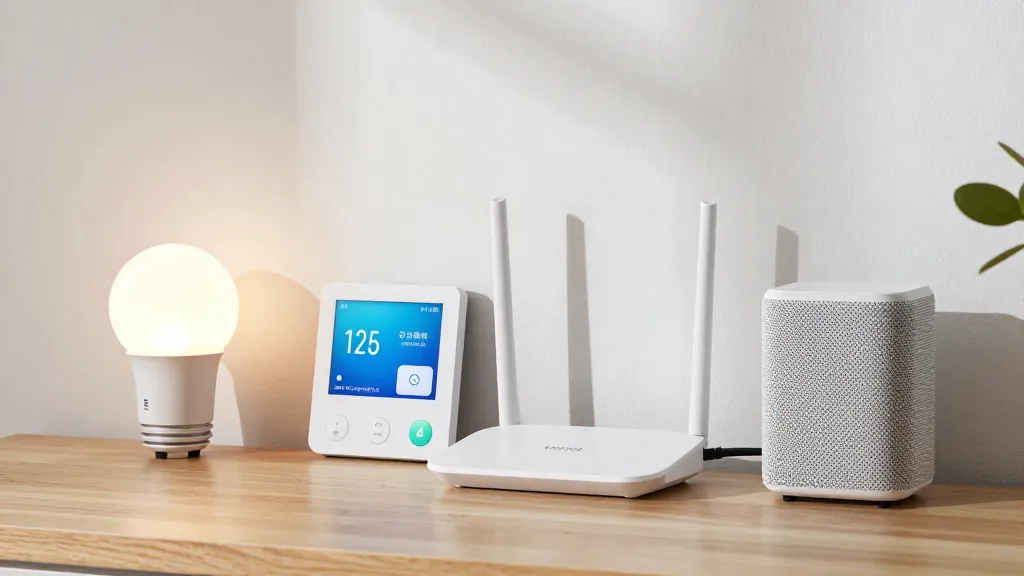
Smart home devices are a convenience, but when they fail to connect to WiFi, it can disrupt your routine. Whether you're trying to control lights, locks, or thermostats, a connectivity issue can be frustrating. If your smart home devices are not connecting to WiFi, you're not alone. This article provides clear, actionable steps to help you resolve the problem and restore your smart devices' connection. From checking your WiFi settings to updating firmware, we cover all the essentials to get your network back in order.
Before diving into complex troubleshooting, start with the basics. Ensure your WiFi network is active and functioning properly, and double-check that you're using the correct password and network name. These simple steps can often resolve the issue without requiring advanced technical knowledge. If your devices still can't connect, moving on to more detailed solutions will help you pinpoint the exact cause of the problem.
Smart home connectivity issues can stem from a variety of factors, including outdated firmware, interference, or incorrect settings. By following the steps outlined in this article, you can systematically address each potential cause and restore your devices' ability to connect. Whether you're a homeowner or a tech-savvy user, these solutions are designed to be practical and easy to follow, helping you regain control over your smart home setup.
Check Your WiFi Network Settings
Before attempting more complex troubleshooting steps, start by verifying that your WiFi network is active and functioning properly. Many smart home devices fail to connect because the router is not working correctly, or the network is down. Begin by checking if other devices on the same network can access the internet. If they cannot, the issue may lie with your router or internet service provider, not your smart devices.
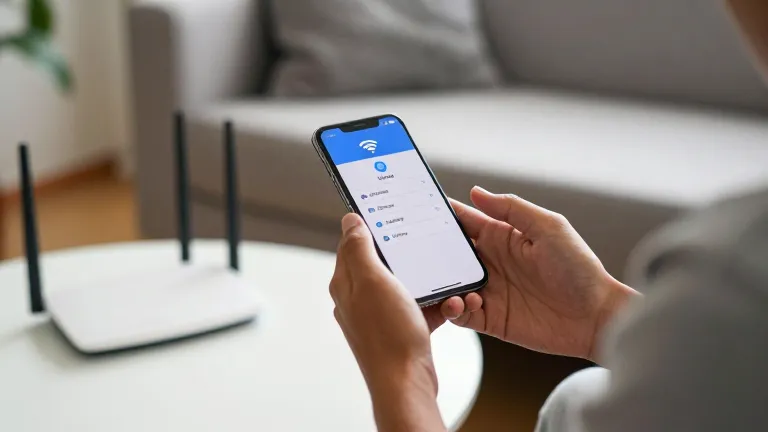
Confirm Your WiFi Is Working
Ensure your smart devices are within range of your WiFi router. If a device is too far from the router or behind walls, it may lose signal strength or fail to connect altogether. Move the device closer to the router and test the connection. If the problem persists, consider using a WiFi extender to boost the signal in weak areas.
Verify the Correct Password and SSID
Double-check that you are using the correct WiFi password for your network. It is common for users to change their password without updating the settings on their smart devices. If the password has been recently changed, update it on all devices manually. Also, confirm that the network name (SSID) has not been altered. Some devices may fail to connect if they are trying to join a network with a different SSID than what is currently active.
Restart Your Router and Smart Devices
Restarting your router and smart devices is a simple yet effective way to resolve connectivity issues. A power cycle can refresh your network and clear temporary glitches that may be preventing your smart devices from connecting to WiFi. This step is often the first troubleshooting action to take when facing connectivity problems.
- Unplug your router for 30 seconds and plug it back in to power cycle the network.
- Remove the power source from your smart devices for 30 seconds and then reconnect it to restart the device.
- Restart your phone or computer to refresh the WiFi connection and resolve any local network issues.
- Wait a few minutes after restarting to allow the network to stabilize and for devices to re-establish connections.
Restart Your WiFi Router
Unplugging your router for 30 seconds allows it to fully power down and reset. This process clears any temporary errors in the router's memory and can resolve issues such as IP address conflicts or failed authentication. After plugging it back in, wait for the router to fully boot up before checking if your smart devices reconnect.
Restart Your Smart Devices
Restarting your smart devices by disconnecting their power source for 30 seconds ensures a complete reboot. This can help resolve software glitches or connectivity errors that may be preventing the device from accessing the WiFi network. Once powered back on, the device should attempt to reconnect to the network automatically.
Update Your Smart Device Firmware
Updating your smart device firmware is a critical step in resolving connectivity issues. Many devices rely on firmware to communicate with your WiFi network, and outdated versions can lead to compatibility problems. Checking for updates through the device’s app or settings ensures that you are running the latest software, which often includes bug fixes and performance improvements.
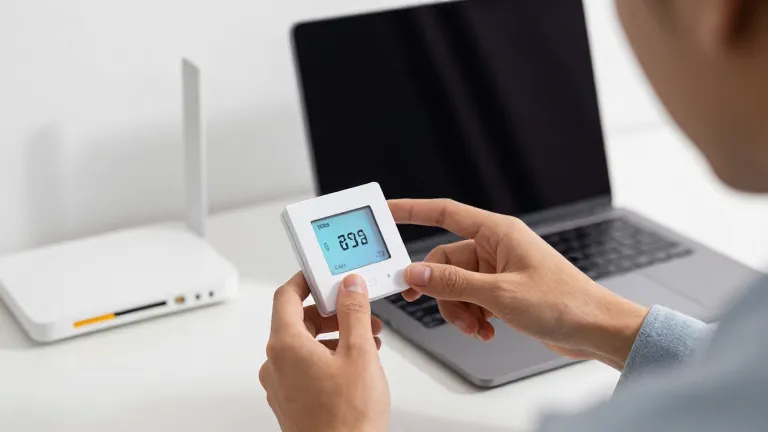
Check for Firmware Updates on Your Smart Device
To check for firmware updates on your smart device, open the corresponding app or access the device’s settings menu. Look for an option labeled 'Firmware Update,' 'Software Update,' or 'System Update.' If an update is available, follow the on-screen instructions to download and install it. Some devices may require a restart after the update to apply changes.
Update Your Router Firmware
In addition to updating your smart device, ensure your router’s firmware is up to date. Outdated router firmware can cause compatibility issues with newer smart devices. Access your router’s admin panel by entering its IP address in a web browser. Log in with the admin credentials and navigate to the firmware update section. If an update is available, download and install it following the manufacturer’s instructions. After updating, restart your router to apply the changes and improve network stability.
Reset Smart Device WiFi Settings
Resetting your smart device's WiFi settings can resolve persistent connectivity issues. A factory reset restores the device to its original state, erasing custom settings and potential conflicts. This process is typically straightforward, but it’s important to follow the manufacturer’s instructions carefully to avoid data loss.
- Locate the factory reset button on your smart device, which is often found on the back or bottom of the unit.
- Hold the reset button for 10 to 30 seconds until the device reboots and returns to its default settings.
- After the reset, your device will likely search for available WiFi networks. Select your network from the list.
- Enter the correct WiFi password and complete the setup process as guided by the device’s interface.
How to Factory Reset Your Smart Device
Factory resetting your smart device is a common troubleshooting step when WiFi connectivity fails. The reset process varies depending on the device type, but most devices have a physical button or a combination of button presses to initiate the reset. This action clears any corrupted settings and ensures the device starts fresh. Be aware that this will delete any saved WiFi networks and user preferences, so it’s best to perform this step when you’re ready to reconfigure the device from scratch.
Reconnect After Reset
Once your device has restarted, it will automatically search for nearby WiFi networks. Choose your network from the list and enter the password carefully. If your network is hidden, you may need to type the SSID manually. After connecting, test the device’s functionality to ensure it can access the internet and communicate with other smart devices. If the connection fails, double-check the password and try reconnecting. Some devices may require additional setup steps, such as pairing with a hub or configuring specific settings, so refer to the user manual for guidance.
Troubleshoot Advanced WiFi Issues
Advanced WiFi issues can often be resolved by addressing interference and optimizing your network settings. If your smart home devices continue to have connectivity problems, it's important to check for IP address conflicts and adjust your WiFi channel. These steps can help improve network stability and ensure your devices remain connected.
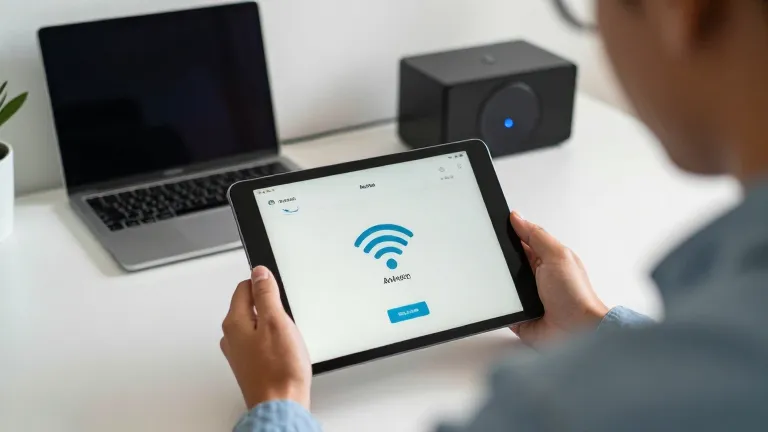
Change WiFi Channel to Reduce Interference
IP address conflicts can occur when multiple devices on your network are assigned the same IP address, causing connectivity issues. To prevent this, assign static IPs to critical devices like your router and smart home hub. This ensures they always have a unique address and reduces the chance of conflicts. If you're unsure how to set static IPs, consult your router's manual or contact your ISP for guidance.
Use a WiFi Analyzer App
Changing your WiFi channel can significantly reduce interference from other devices, such as microwaves, cordless phones, and neighboring networks. Most routers operate on channels 1-11 in the 2.4 GHz band, and some overlap, leading to congestion. By switching to a less crowded channel, you can improve signal strength and reliability for your smart devices. If you're using a dual-band router, consider connecting your devices to the 5 GHz band for faster and more stable connections.
A WiFi analyzer app can help you find the best channel for your network by scanning for nearby networks and showing which channels are busy. Apps like WiFi Analyzer or InSSIDer can provide real-time data on channel usage, signal strength, and potential interference. Once you identify the optimal channel, log in to your router's admin panel and change the WiFi channel settings accordingly. This simple adjustment can make a big difference in your smart home device connectivity.
Frequently Asked Questions
Why is my smart home device not connecting to WiFi?
Your smart home device may not connect to WiFi due to incorrect network settings, password issues, or interference. Ensure your WiFi is active and the password is correct. If problems persist, try restarting both your router and the device.
How do I reset my smart device's WiFi settings?
To reset your smart device's WiFi settings, locate the factory reset button on the device and hold it for 10-30 seconds until it reboots. Once reset, reconnect the device to your WiFi network through the app or settings menu.
Can a router update fix smart device connectivity issues?
Updating your router firmware can resolve compatibility issues and improve performance. Check the manufacturer’s website for updates and install them to ensure your smart devices can connect and communicate effectively.
What should I do if my smart device keeps disconnecting from WiFi?
If your smart device keeps disconnecting from WiFi, try changing the WiFi channel to reduce interference or use a WiFi analyzer app to identify and resolve signal issues. Also, ensure your router and device firmware are up to date.
Final Steps for a Stable Smart Home Connection
To ensure your smart home devices connect and stay connected, regularly check your WiFi settings, update firmware, and minimize interference. If issues persist, consider advanced troubleshooting steps like changing WiFi channels.
Next, verify your WiFi network is stable and your smart devices are properly configured. If problems continue, contact your device manufacturer for further support.





