
How to Fix WiFi Keeps Disconnecting on Windows 11
If your Windows 11 computer keeps disconnecting from WiFi, it can be frustrating, especially when you're relying on a stable internet connection for work or home use. This issue can stem from a variety of causes, including outdated software, interference from nearby devices, or misconfigured network settings. How to Fix WiFi Keeps Disconnecting on Windows 11 is the focus of this guide, which walks you through practical, step-by-step solutions to restore your connection without needing professional help. Whether you're a home user or an office worker, these methods are designed to help you identify and resolve the problem efficiently.
The article begins by explaining how to check for software updates, including both Windows 11 and your WiFi adapter drivers, which are essential for maintaining a stable connection. Next, it covers troubleshooting WiFi settings, such as ensuring your WiFi is enabled and verifying network connection preferences. These steps can often resolve simple configuration issues that lead to disconnections.
For more persistent problems, the guide also includes advice on scanning for interference, resetting the network adapter, and running advanced diagnostics. By following these steps, you can systematically address potential causes of WiFi disconnections and regain a reliable internet connection on your Windows 11 device.
Check for Software Updates
Keeping your Windows 11 system updated is a critical step in resolving WiFi disconnection issues. Microsoft regularly releases updates that address bugs, security vulnerabilities, and compatibility problems, which can indirectly affect your network performance. Ensuring your system is current helps eliminate potential software conflicts that might be causing the disconnections.
Update Windows 11
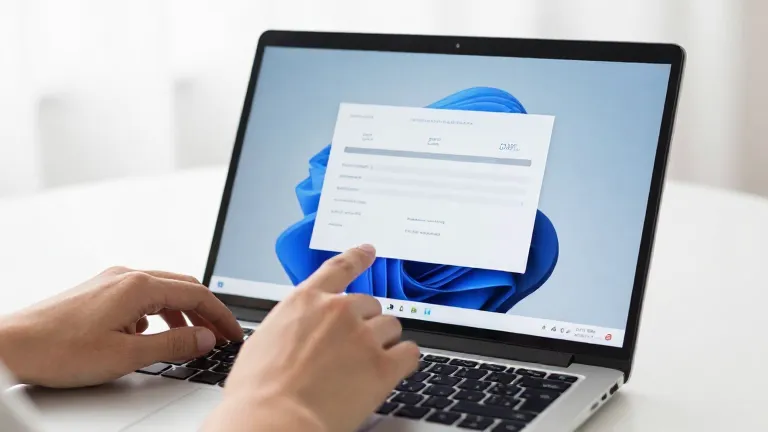
To update Windows 11, open the Start menu and select 'Settings' > 'Windows Update'. Check for updates and install any available patches. If automatic updates are disabled, enable them to ensure your system stays protected and optimized. Regular updates can fix underlying issues that may interfere with your WiFi connection.
Update WiFi Adapter Drivers
Outdated WiFi adapter drivers can lead to instability and disconnections. Right-click the Start menu, select 'Device Manager', and expand the 'Network adapters' section. Right-click your WiFi adapter and choose 'Update driver' to install the latest version from Windows Update. If no update is available, visit the manufacturer’s website to download the latest driver manually. Keeping your drivers updated ensures compatibility with the latest Windows features and network protocols.
Troubleshoot WiFi Settings
Before diving into advanced troubleshooting, start by ensuring your WiFi settings are correctly configured. Simple adjustments can often resolve disconnection issues without requiring technical expertise.
Verify WiFi Is Enabled
First, confirm that WiFi is enabled on your Windows 11 device. Open the Start menu, click the network icon, and ensure the WiFi toggle is turned on. If it's off, switch it on and see if the connection stabilizes. Some laptops have a physical switch or function key that may need to be activated separately.
Check Network Connection Settings
Next, verify that your device is connected to the correct network. Click the network icon again and select the desired WiFi network from the list. If the network is listed but not connected, click it to establish the link. Ensure the connection is secure by checking if the network is marked as 'Secure' and that the password is correctly entered. If the connection keeps dropping, try reconnecting or forgetting the network and rejoining to refresh the settings.
Scan for Interference
Interference can significantly impact WiFi stability, causing frequent disconnections. Identifying and reducing sources of interference can help improve your connection. Common culprits include microwaves, cordless phones, and other electronic devices that operate on the same 2.4 GHz frequency. By addressing these issues and adjusting your WiFi settings, you can achieve a more reliable connection.
Identify Sources of Interference
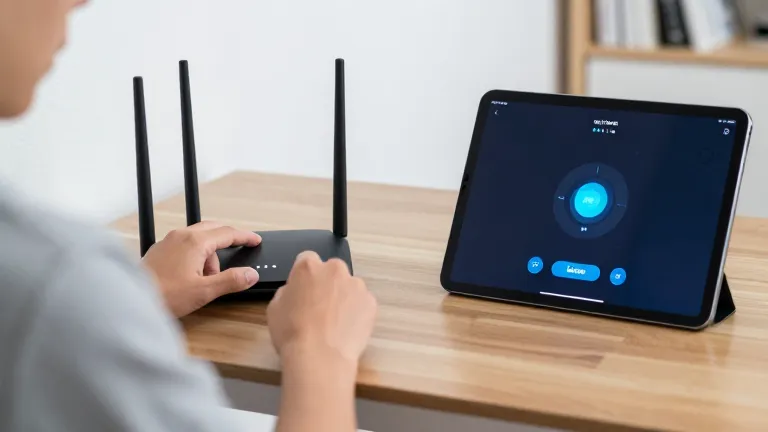
To reduce interference, start by identifying nearby devices that might be using the same frequency as your WiFi network. Microwaves, cordless phones, and Bluetooth devices often operate on the 2.4 GHz band, which can cause signal degradation. If you have a microwave or cordless phone, try moving them away from your router or switching to a different frequency if possible. Additionally, check for other electronic devices, such as wireless cameras or printers, that might be interfering with your signal.
Change WiFi Channel
Changing your WiFi channel can also help reduce interference from other networks. Most routers automatically select a channel, but manually choosing one with less congestion can improve performance. Use your router's settings to scan for nearby networks and select a less crowded channel, typically in the 2.4 GHz range (channels 1–11) or 5 GHz range (channels 36–165). If your router supports it, switching to the 5 GHz band can offer faster speeds and less interference. Ensure your device is also set to connect to the same channel for optimal performance.
Reset Network Adapter
Resetting the network adapter can resolve persistent WiFi disconnection issues by restoring default settings and eliminating software conflicts. This section outlines steps to reset the network using built-in tools and reinstalling drivers for better stability.
- Use the Network Reset Tool
- Uninstall and reinstall the WiFi adapter driver
- Restart the router and your computer
Use the Network Reset Tool
The Network Reset Tool in Windows 11 is a built-in utility that resets all network settings, including IP configurations and DNS settings. To use it, open Settings, go to Network & Internet > Status > Network Reset, and select 'Reset now.' This action will remove all network profiles and restart the network services, which can help fix connectivity issues caused by corrupted settings.
Reinstall WiFi Adapter Driver
If the Network Reset Tool doesn’t resolve the issue, try reinstalling the WiFi adapter driver. Open Device Manager, expand the Network adapters section, right-click the WiFi adapter, and select 'Uninstall device.' Restart your computer to allow Windows to reinstall the driver automatically. This step can fix driver conflicts or bugs that cause intermittent disconnections.
Advanced Troubleshooting
Advanced troubleshooting steps can help resolve persistent WiFi disconnection issues by identifying hidden system conflicts or configuration errors. These methods are ideal when basic solutions have failed and require more in-depth analysis of network settings and system health.

Run Network Diagnostics
Use the Network Diagnostics tool to automatically detect and resolve common WiFi issues. Open the Settings app, navigate to Network & Internet > Status > Network diagnostics, and select the option to run the tool. This utility scans for problems such as IP address conflicts, DNS errors, and connection timeouts, and attempts to fix them without user intervention. If the tool identifies issues, follow its recommendations to restore stable connectivity.
Check for Malware
Malware can interfere with WiFi operations by altering network settings or consuming bandwidth. Run a full system scan using Windows Defender or a trusted third-party antivirus program to check for malicious software. Ensure that real-time protection is enabled and scan all drives for potential threats. If malware is detected, remove it immediately and restart the computer to apply changes. Additionally, consider disabling unnecessary background applications that may be affecting network performance.
Frequently Asked Questions
What should I do if my WiFi keeps dropping on Windows 11?
Start by checking for software updates and ensuring your WiFi adapter drivers are up to date. If the issue persists, scan for interference and consider resetting your network adapter.
How can I prevent my WiFi from disconnecting frequently?
Regularly update your system and drivers, avoid interference sources, and use network diagnostics to identify and resolve underlying issues.
Can updating my WiFi driver fix connection issues?
Updating your WiFi driver can resolve compatibility issues and improve performance, but it's often best to combine this with other troubleshooting steps.
What if my WiFi works on other devices but not on my Windows 11 computer?
This suggests a problem specific to your Windows 11 setup. Check for driver issues, network settings, or malware, and consider resetting your network adapter.
Final Thoughts
Fixing WiFi disconnections on Windows 11 often involves a combination of software updates, driver maintenance, and network settings adjustments. By methodically addressing these areas, most connectivity issues can be resolved.
If problems persist, advanced diagnostics or professional assistance may be needed. Stay proactive by regularly updating your system and maintaining a clean network environment.





