
Why Windows 11 Is So Slow and How to Fix It
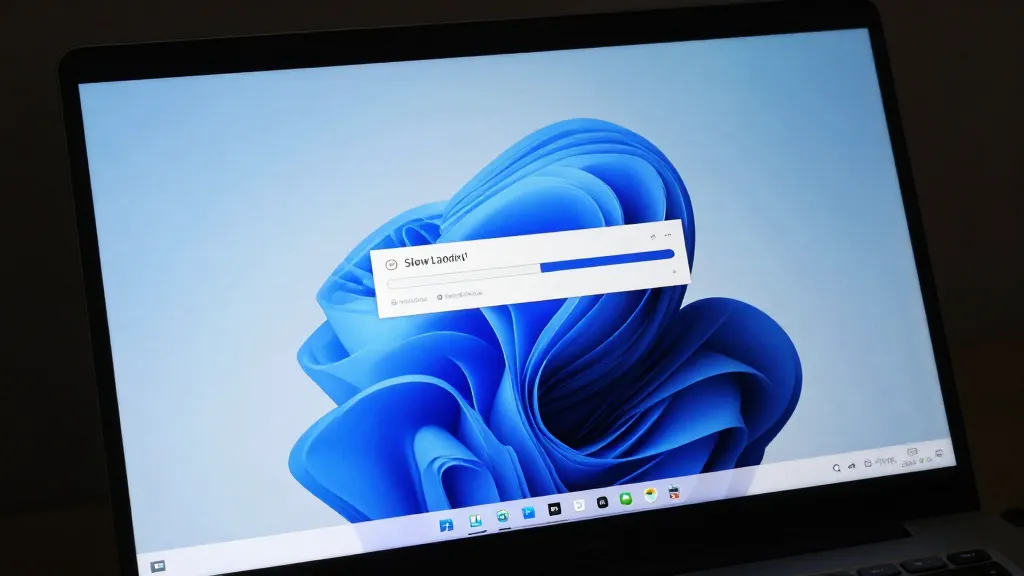
If you're wondering why Windows 11 is so slow, you're not alone. Many users report sluggish performance, whether they're running basic tasks or more demanding applications. This can be frustrating, especially when trying to stay productive at home or work. The issue often stems from a mix of hardware limitations, software conflicts, and misconfigured system settings. Understanding the root causes is the first step toward improving your system's speed and responsiveness.
This article explores the common reasons behind Windows 11's slowness, including outdated hardware, background processes, and software incompatibilities. We'll provide clear, actionable steps to diagnose and fix performance issues without requiring advanced technical knowledge. From updating drivers to managing startup programs, we cover practical solutions tailored for everyday users.
If simple fixes don't resolve the problem, we also discuss more advanced troubleshooting techniques, such as repairing system files and checking for disk errors. In some cases, upgrading hardware or reinstalling Windows may be the best long-term solution. By following these steps, you can regain control of your system and enjoy a smoother, faster Windows 11 experience.
Common Causes of Windows 11 Slowness
Understanding why Windows 11 is so slow begins with identifying whether the issue stems from hardware limitations, software conflicts, or background processes. These factors often interact, making it essential to isolate the root cause for effective troubleshooting.
Hardware Limitations and Their Impact
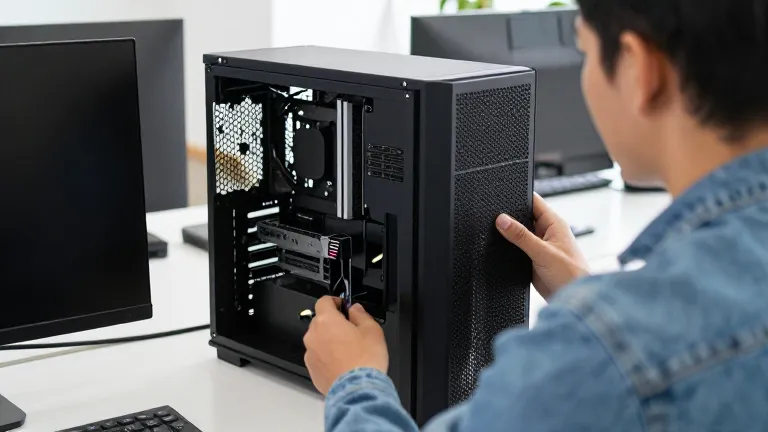
Hardware limitations can significantly impact Windows 11 performance. Insufficient RAM, an aging CPU, or a slow hard drive can hinder system responsiveness. For instance, systems with less than 8GB of RAM may struggle with multitasking, while traditional HDDs can introduce noticeable delays compared to SSDs. Evaluating these components can help determine if hardware upgrades are necessary.
Software Conflicts and Background Processes
Software conflicts and background processes are common culprits behind sluggish performance. Applications running in the background, such as cloud sync services or antivirus software, can consume valuable system resources. Additionally, incompatible or outdated drivers may cause instability and slow down operations. Monitoring Task Manager for resource-heavy processes can highlight these conflicts and guide users toward resolving them.
Step-by-Step Guide to Fix Windows 11 Performance Issues
Fixing performance issues in Windows 11 starts with ensuring your system is up to date and free from outdated software that could be slowing things down. Regular updates and proper driver management can significantly improve stability and speed.
- Check for outdated drivers and update them to improve system stability.
- Use the built-in Windows 11 Performance Monitor to track resource usage.
- Adjust power settings to prioritize performance over battery savings.
Updating Drivers and System Software
Outdated drivers can lead to system instability and reduced performance. Navigate to Device Manager in the Start menu and look for any devices with a yellow exclamation mark. Right-click on these devices and select 'Update driver' to install the latest versions. Some drivers may require visiting the manufacturer's website for the most recent updates, especially for graphics cards or network adapters.
Managing Background Applications and Services
Managing background applications and services can free up system resources and improve responsiveness. Open Task Manager by pressing Ctrl + Shift + Esc, then go to the 'Startup' tab to disable unnecessary programs that launch automatically. Additionally, in the 'Performance' tab, you can identify and close resource-heavy processes that are using excessive CPU, memory, or disk resources. Regularly reviewing these settings ensures your system runs more smoothly.
Optimizing System Settings for Better Performance
Optimizing system settings can significantly improve the performance of your Windows 11 computer. By fine-tuning power and visual effects, as well as managing startup programs and services, you can reduce unnecessary resource consumption and enhance overall responsiveness.

Customizing Power and Visual Effects
Customizing power and visual effects can help reduce the load on your GPU and CPU. Navigate to the Start menu, select Settings, then System, and click on Power & sleep. Choose a high-performance power plan to ensure your system operates at peak efficiency. Additionally, go to System > Display and adjust visual effects to 'Enhanced' or 'None' to minimize graphical overhead, especially on lower-end hardware.
Managing Startup Programs and Services
Managing startup programs and services is another effective way to free up system resources. Press Ctrl + Shift + Esc to open Task Manager, then go to the Startup tab. Disable any non-essential programs that launch automatically, as they can consume memory and processing power. For deeper customization, use the Microsoft Management Console (MMC) to manage services, ensuring only critical services are running at startup.
Troubleshooting System Files and Disk Issues
Troubleshooting system files and disk issues can resolve underlying problems that cause Windows 11 to run slowly. Corrupted system files or disk errors can significantly impact performance, so using built-in tools like System File Checker, DISM, and Check Disk can help restore stability and speed.
- Open Command Prompt as an administrator and run 'sfc /scannow' to scan for and repair corrupted system files.
- Use DISM to repair Windows image issues by running 'DISM /Online /Cleanup-Image /RestoreHealth' before or after SFC.
- Run Check Disk to identify and fix file system errors by opening Command Prompt and typing 'chkdsk /f /r'.
- Reboot the system after completing these steps to apply the changes and see if performance improves.
Running System File Checker and DISM
Running System File Checker (SFC) and DISM helps repair critical system files that may have become corrupted. These tools are designed to scan and replace damaged files with correct versions from the Windows installation. It is recommended to run SFC first, followed by DISM, as DISM can address deeper system image issues that SFC might not resolve on its own.
To use SFC, open Command Prompt as an administrator and type 'sfc /scannow'. This command initiates a full system scan and repairs any issues found. If SFC fails to resolve the problem, DISM can be used to restore the Windows image. Running DISM may take longer but is more thorough in fixing system-level corruption.
Using Check Disk to Fix Disk Errors
Using Check Disk (chkdsk) helps identify and fix disk errors that could be causing performance issues. This utility scans the disk for bad sectors and file system errors, which can lead to slow system responses or data corruption. To run Check Disk, open Command Prompt as an administrator and enter 'chkdsk /f /r'. The /f option fixes file system errors, while /r repairs bad sectors.
If the disk is in use, the system will schedule the check to run the next time the computer starts. After the scan completes, reboot the system to apply the changes. This process ensures that any disk-related issues are addressed, potentially improving the overall speed and reliability of Windows 11.
When to Consider Hardware Upgrades or Reinstallation
When performance issues persist despite software optimizations, it's time to consider hardware upgrades or a clean Windows 11 installation. These options can significantly improve speed and responsiveness, especially if the system is outdated or heavily customized.
Assessing the Need for Hardware Upgrades
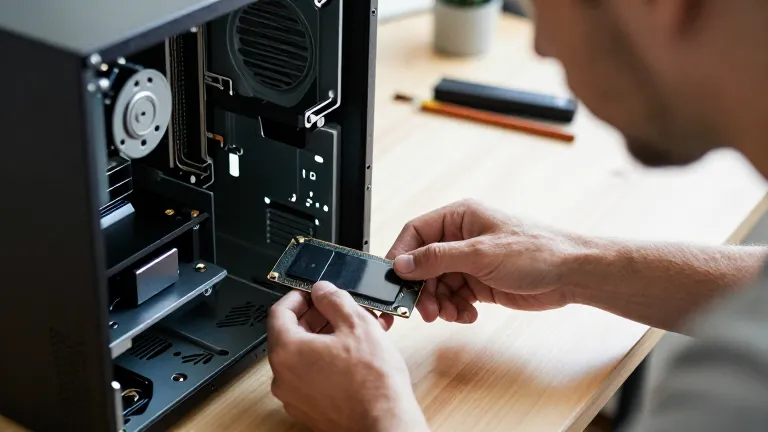
Assessing the need for hardware upgrades involves checking if your system meets the minimum requirements for Windows 11. If your computer has less than 4GB of RAM or an older processor, upgrading these components can enhance performance. Additionally, a solid-state drive (SSD) can drastically reduce boot times and improve overall system responsiveness. Before investing in hardware, ensure that the current system is not already running at optimal capacity due to software or configuration issues.
Reinstalling Windows 11 for a Fresh Start
Reinstalling Windows 11 can resolve persistent performance issues, particularly if the system has accumulated too many customizations and software conflicts. A clean install removes unnecessary files, settings, and background processes that may be slowing down the system. However, this approach requires backing up important data and reinstalling necessary applications. It's ideal for users who have exhausted all software-based solutions and are looking for a more thorough reset of their system.
Frequently Asked Questions
What should I do if Windows 11 is slow even after cleaning up the system?
If Windows 11 remains slow after cleanup, consider checking for driver updates, disabling unnecessary startup programs, and running System File Checker. If these steps don't resolve the issue, a hardware upgrade or reinstallation may be necessary.
Can a virus or malware cause Windows 11 to run slowly?
Yes, malware can significantly impact performance by consuming system resources. Running a full system scan with a trusted antivirus program can help identify and remove malicious software.
Is it better to upgrade hardware or reinstall Windows 11 for performance?
Upgrading hardware can provide immediate performance improvements, while reinstallation offers a fresh start. Choose based on the specific issue and the cost-benefit of each option.
How can I tell if my Windows 11 is running slow due to software conflicts?
Look for signs like unexpected crashes, high CPU usage, or frequent freezes. Use Task Manager to identify resource-heavy processes and disable unnecessary background apps.
Final Thoughts
Windows 11 performance issues can often be resolved by addressing common causes like hardware limitations and software conflicts. Simple steps such as updating drivers and managing startup programs can significantly improve speed.
If these measures don't resolve the problem, consider hardware upgrades or a clean reinstallation. Prioritize solutions that offer the best balance between cost and performance gain.





