
How to Troubleshoot Laptop Issues
If your laptop is acting up, it can disrupt your work or personal tasks. Whether it's a frozen screen, strange noises, or unexpected shutdowns, knowing how to troubleshoot laptop issues can save you time and frustration. Many common problems can be resolved with simple steps you can do at home. This article guides you through identifying common laptop problems, performing basic checks, and fixing both hardware and software issues without professional help. You'll also learn advanced troubleshooting techniques and what to do if your laptop is beyond repair. By following these steps, you can regain control of your device and keep your workflow running smoothly.
Identify Common Laptop Problems
Understanding the nature of your laptop problem is the first step in effective troubleshooting. Whether it's a hardware or software issue, knowing the common problems and how to distinguish them can save time and prevent unnecessary stress. By recognizing the symptoms and their potential causes, you can take the right steps to resolve the issue without needing professional help.
Common Hardware Issues
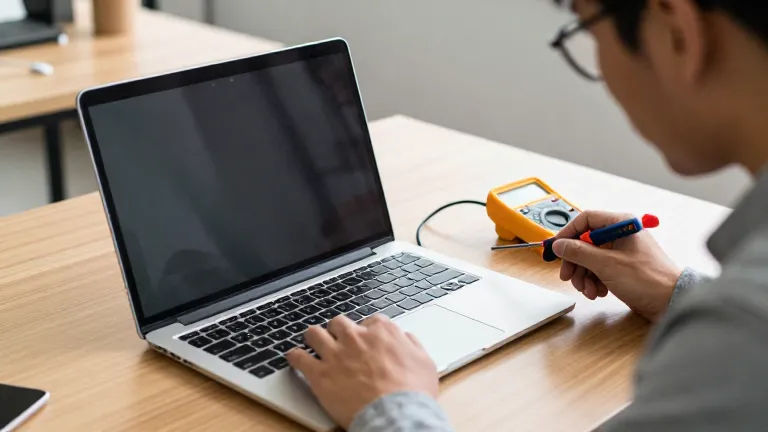
Common hardware issues often involve physical components such as the keyboard, screen, battery, or internal drives. For example, a laptop that won't power on could be due to a faulty battery or power adapter. Similarly, a flickering screen or unresponsive touchpad might indicate a problem with the display or input devices. If the issue is related to hardware, it usually manifests through physical symptoms like unusual noises, heat, or visual glitches.
Common Software Issues
Software problems, on the other hand, typically involve the operating system, applications, or settings. Slow performance, frequent crashes, or error messages are common signs of software-related issues. These can be caused by outdated drivers, corrupted system files, or conflicts between programs. Unlike hardware issues, software problems often show up through behavior changes, such as unexpected shutdowns or difficulty accessing files. By analyzing these symptoms, you can determine whether the problem lies in the physical components or the digital environment.
Basic Checks and Initial Fixes
Before diving into complex troubleshooting, start with simple steps that can resolve many minor laptop issues. These initial checks often address common problems without requiring advanced technical knowledge.
- Check all physical connections and power sources.
- Ensure the laptop is properly charged or connected to a power source.
- Verify that all peripherals are securely connected.
- Update the operating system and installed software.
Power and Connection Checks
Begin by confirming that your laptop is properly powered. Ensure the power adapter is firmly connected to both the laptop and a working power outlet. If using a battery, check that it is fully charged or try plugging in the laptop to see if it powers on. Also, verify that all external devices, such as USB drives or mice, are securely connected to prevent intermittent connectivity issues.
Software and System Updates
Keeping your system updated is crucial for stability and security. Go to the operating system settings and check for available updates for both the OS and installed applications. Enable automatic updates to ensure your laptop remains protected against vulnerabilities. Additionally, review system settings like display brightness, network connections, and power management to ensure they are configured correctly for your current use.
Troubleshoot Hardware Problems
Troubleshooting hardware problems on a laptop requires a systematic approach to identify and resolve issues with physical components. Start by examining the most commonly affected parts, such as the keyboard, touchpad, and display, to determine if they are functioning correctly. If these components fail to respond or behave unexpectedly, it could indicate a hardware malfunction or misconfiguration.
Testing Input Devices
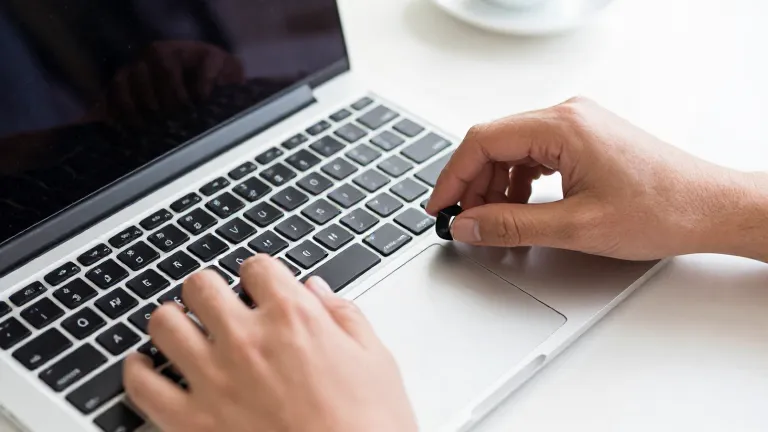
To test input devices, begin by checking the keyboard for unresponsive keys, sticky keys, or incorrect character input. Use the on-screen keyboard or a different application to verify if the issue is software-related or hardware-based. For the touchpad, ensure that it is enabled in the settings and test its sensitivity, scrolling, and tap-to-click functionality. If the touchpad is not working, try connecting an external mouse to isolate the problem.
Checking for Physical Damage
Inspect the laptop for physical damage, such as cracks, dents, or loose components, which can affect performance and durability. Look for signs of overheating, such as unusual fan noise or a hot bottom panel, which may indicate a blocked vent or failing cooling system. If the laptop has been dropped or exposed to moisture, consider professional inspection to avoid further damage. Use diagnostic tools provided by the manufacturer or third-party software to scan for hardware issues and receive detailed reports on faulty components.
Fix Software and System Errors
Fixing software and system errors is crucial for restoring laptop performance and stability. These issues often stem from corrupted files, conflicting applications, or outdated system settings. By following structured troubleshooting steps, users can isolate and resolve the root cause without needing professional assistance.
- Run system diagnostics and check for software conflicts
- Perform a clean boot to identify background processes
- Reset settings or perform a system restore if needed
System Diagnostics and Clean Boot
Running system diagnostics involves using built-in tools to scan for software conflicts and system errors. On Windows, the 'Check for Problems' feature in the System Settings can detect and fix common issues. Mac users can use the 'Apple Diagnostics' tool to identify hardware and software problems. These tools help pinpoint the source of the error, such as driver issues or corrupted system files.
Checking for software conflicts requires identifying recently installed programs or updates that might be causing instability. Reviewing the list of running processes in Task Manager (Windows) or Activity Monitor (Mac) can highlight applications consuming excessive resources. Uninstalling or disabling suspected software can often resolve the issue, especially if it's interfering with essential system functions.
Resetting Settings and Restoring System
Performing a clean boot starts the system with a minimal set of drivers and startup programs, helping to identify background processes that may be causing problems. On Windows, this can be done by enabling the 'Selective startup' option in System Configuration and disabling non-essential services. This approach isolates the issue and allows users to determine if third-party software is the cause.
Resetting settings or performing a system restore is a more advanced step for resolving persistent software errors. Resetting settings can fix issues related to user preferences or corrupted configurations, while a system restore reverts the laptop to a previous state without affecting personal files. Both methods are useful when other troubleshooting steps fail, offering a way to restore stability without data loss.
Advanced Troubleshooting and Recovery
Advanced Troubleshooting and Recovery involves using specialized tools and methods to resolve persistent issues that standard fixes cannot address. This stage is typically reserved for users who have already tried basic solutions and are facing complex system or hardware failures.
Advanced System Tools
Advanced System Tools can help diagnose and fix deeper system issues. Command-line utilities such as 'sfc /scannow' or 'DISM' can repair corrupted system files, while disk checking tools like 'chkdsk' can identify and resolve file system errors. For Windows users, running the System File Checker or using the built-in Disk Management tool can help detect and fix disk-related problems. These tools are powerful but require careful use to avoid unintended changes.
Data Recovery and Final Decisions
Before attempting major repairs, consider data recovery options to prevent losing important files. External hard drives, cloud backups, or specialized recovery software can help retrieve data from failing drives. If the laptop's hard drive is not responding, connecting it to another computer as an external drive may allow for data extraction. Data recovery should always be prioritized to avoid irreversible loss.
Frequently Asked Questions
What should I do if my laptop won't turn on?
Check if the power adapter is properly connected and the power outlet is working. Ensure the battery is charged or try using a different power source. If the laptop still doesn't power on, check for physical damage or a faulty power button.
How can I tell if my laptop's keyboard is faulty?
Try typing on different surfaces or using an external keyboard to see if the issue persists. Check for visible damage or stuck keys. Use on-screen keyboard or accessibility tools to test functionality.
What steps can I take if my laptop is overheating?
Ensure the laptop's vents are clean and free from dust. Use a cooling pad if necessary. Avoid using the laptop on soft surfaces that block airflow. Check for background processes that may be causing high CPU usage.
How do I fix my laptop if it's stuck on the startup screen?
Try a clean boot to disable startup programs. Use the recovery environment to repair or reset the system. If all else fails, consider backing up data and performing a factory reset.
Final Thoughts
Troubleshooting laptop issues often involves a combination of hardware checks and software solutions. Start with basic diagnostics and move to more advanced steps if needed. If you're unsure about a problem, consult a professional technician to avoid further damage.
Regular maintenance and updates can help prevent many common laptop issues. Keep your system clean, monitor hardware health, and stay informed about best practices for laptop care. When in doubt, seek expert help to resolve the issue efficiently.





