
Why Windows 11 Keeps Restarting: How to Fix It
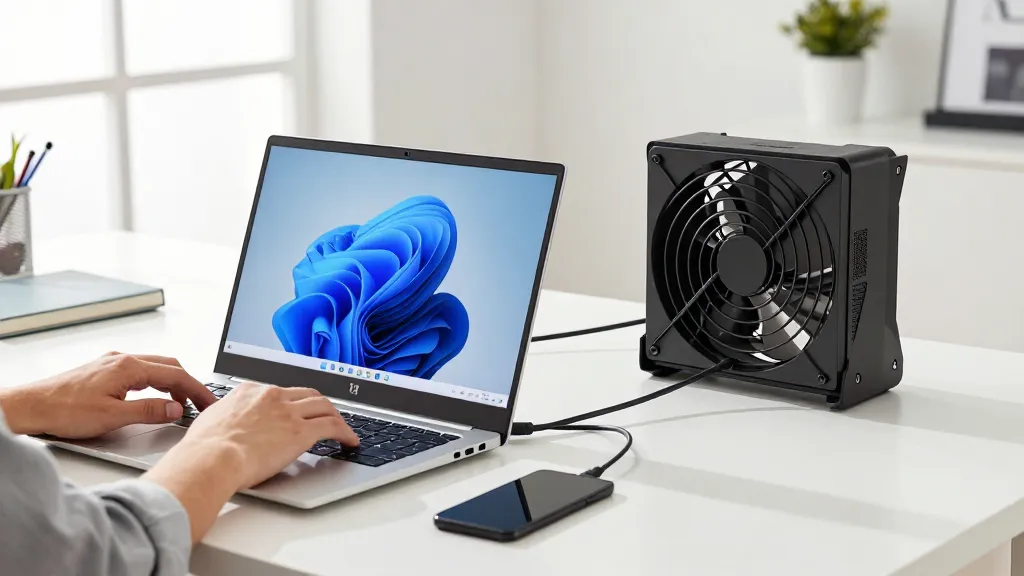
If your Windows 11 computer keeps restarting unexpectedly, it can be frustrating and disrupt your work or personal tasks. The issue may stem from software glitches, outdated drivers, or even hardware problems. Understanding why Windows 11 keeps restarting is the first step toward finding a solution. This article provides practical, step-by-step guidance to help you identify and resolve the root cause of the problem without requiring advanced technical skills.
We’ll start by exploring common causes such as software conflicts, driver issues, and system file corruption. Then, we’ll walk you through how to update drivers, scan for file damage, and check for overheating. These methods are designed to be simple and effective for home users and office workers who want to fix their computer issues on their own.
If basic troubleshooting doesn’t resolve the issue, we’ll also guide you on when to seek professional help. Whether you’re dealing with a sudden system crash or frequent restarts, this article equips you with the tools to take control of your Windows 11 experience.
Understanding Why Windows 11 Keeps Restarting
Windows 11 may restart unexpectedly due to a range of issues, from software conflicts to hardware malfunctions. Understanding the root cause is key to resolving the problem and preventing it from happening again.
Common Causes of Windows 11 Restarting
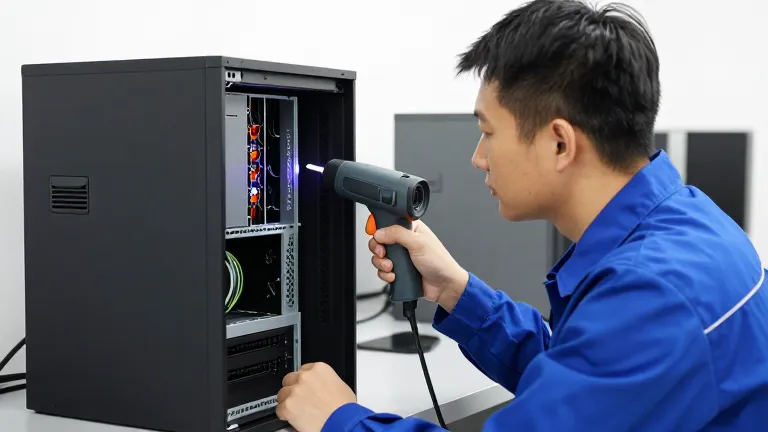
Common causes for Windows 11 restarting include outdated or incompatible drivers, corrupted system files, overheating components, and problematic software updates. These issues can interfere with the operating system's stability, leading to unexpected restarts. For example, a faulty graphics driver might cause the system to crash, while a corrupted system file can trigger an automatic restart to prevent data loss.
When to Seek Professional Help
If basic troubleshooting steps do not resolve the issue, it may be necessary to seek professional help. Persistent restarts could indicate deeper problems such as hardware failure, malware infection, or complex software conflicts that are difficult to diagnose without specialized tools. A technician can perform advanced diagnostics and repairs to ensure your system runs smoothly and reliably.
Check for Software and Driver Issues
Outdated or corrupted drivers can cause system instability and unexpected restarts. Keeping your drivers up to date ensures compatibility with the operating system and prevents conflicts that might lead to crashes or reboots. Windows 11 provides tools to easily update drivers, which can resolve many of these issues.
- Open Device Manager and check for driver updates.
- Use Windows Update to install the latest drivers.
- Visit manufacturer websites for the latest chipset and graphics card drivers.
- Restart your computer after installing new drivers to apply changes.
How to Update Drivers in Windows 11
To update drivers in Windows 11, open the Start menu, type 'Device Manager', and select it from the search results. In the Device Manager window, expand the category for the device you want to update, right-click on the device, and choose 'Update driver'. Windows will automatically search for the latest driver and install it if available. This process is straightforward and helps ensure your hardware functions smoothly with the operating system.
What to Do If Driver Updates Fail
If driver updates fail or do not resolve the issue, consider manually downloading the latest drivers from the manufacturer's website. Visit the support or download section of the manufacturer's site, locate the correct driver for your hardware model, and download it. Once downloaded, run the installer and follow the on-screen instructions to install the driver. After installation, restart your computer to ensure the new driver is properly recognized and functioning. If the problem persists, you may need to roll back to a previous driver version or contact the manufacturer for further assistance.
Scan for System File Corruption
Corrupted system files can lead to crashes and restarts, making it essential to scan and repair them using built-in tools. Windows 11 provides two primary methods for addressing file corruption: the System File Checker (SFC) and the DISM command. These tools can help identify and fix issues that may be causing instability in your system.
How to Use the System File Checker Tool
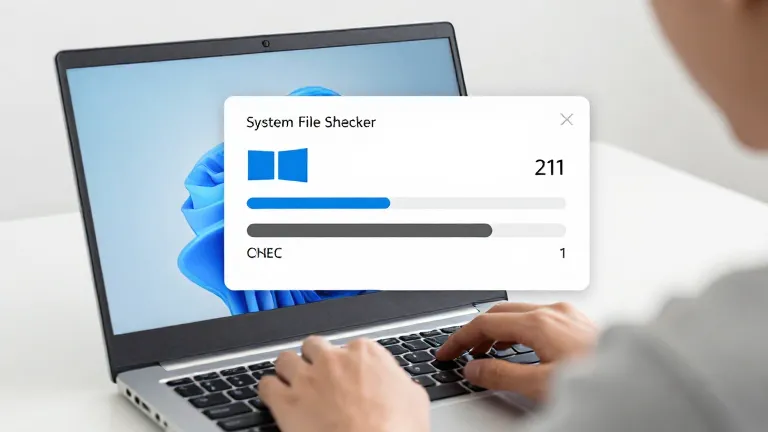
To use the System File Checker tool, open the Command Prompt as an administrator and type `sfc /scannow`. This command scans all protected system files and replaces any corrupted files with correct versions from the Windows installation. The process may take some time, and it's important to avoid interrupting it. Once completed, restart your computer to apply the changes.
Running DISM to Repair System Files
If the SFC tool does not resolve the issue, you can use the DISM command to repair system files. Open the Command Prompt as an administrator and run `DISM /Online /Cleanup-Image /RestoreHealth`. This command checks the health of the Windows image and repairs any issues found. It is a more advanced step and may require internet access to download necessary files. After DISM completes, run SFC again to ensure all issues are resolved.
Check for Overheating and Hardware Problems
Overheating is a common cause of unexpected restarts in Windows 11. When internal components like the CPU or GPU exceed safe temperatures, the system may shut down or restart to prevent damage. Ensuring proper airflow and using temperature monitoring tools can help identify and resolve overheating issues.
- Use monitoring tools to check CPU and GPU temperatures during use.
- Ensure that the computer's vents are clean and free from dust.
- Close unnecessary background applications to reduce heat generation.
- Check for overheating during high-load tasks like gaming or video editing.
How to Monitor System Temperatures
Monitoring system temperatures is essential for diagnosing overheating issues. Tools like HWMonitor, Core Temp, or Open Hardware Monitor can provide real-time data on CPU and GPU temperatures. These tools help identify if components are running hotter than normal, especially during resource-intensive tasks.
Pay attention to temperature thresholds. Most CPUs operate safely between 30°C and 80°C, while GPUs typically range from 35°C to 90°C. If temperatures consistently exceed these ranges, it may indicate a cooling issue that requires further investigation.
Steps to Clean and Cool Your Computer
Keeping vents and fans clean is a simple yet effective way to improve airflow and prevent overheating. Dust buildup can block airflow, forcing the system to work harder and generate more heat. Use compressed air or a soft brush to remove dust from vents, fans, and internal components.
For desktops, ensure that the case has adequate airflow by positioning intake and exhaust fans correctly. For laptops, clean the vents regularly and avoid placing them on soft surfaces that can block airflow. If overheating persists, consider using a cooling pad or improving room ventilation.
Troubleshoot System Updates and Settings
System updates in Windows 11 are designed to improve performance, security, and compatibility, but they can occasionally lead to instability or conflicts with existing software. If your system keeps restarting, it may be related to recent updates. Carefully managing updates and troubleshooting update-related issues can help resolve the problem without requiring advanced technical skills.
How to Manage Windows 11 Updates
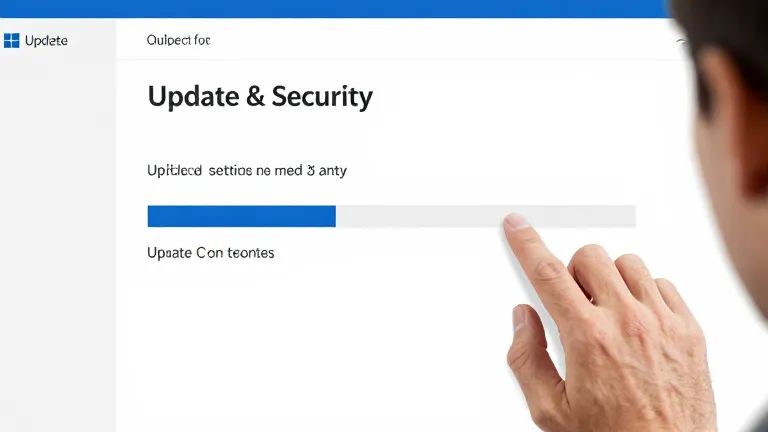
To manage Windows 11 updates, open the Settings app and navigate to 'Windows Update' to check for pending updates. It's important to install critical updates, especially security patches, but avoid installing major updates immediately if you're experiencing instability. If you're unsure, you can pause updates for up to 35 days by adjusting the update schedule. Always ensure your system has enough storage space and a stable power source before initiating an update.
Using the Windows Update Troubleshooter
If updates are causing issues, the Windows Update troubleshooter can help resolve the problem. To access it, go to the Settings app, select 'Windows Update', then click 'Troubleshoot' under the 'Advanced options' section. This tool will automatically scan for and fix common update-related problems such as corrupted files or misconfigured settings. If the troubleshooter doesn't resolve the issue, consider running the 'SFC /scannow' command in an elevated Command Prompt to repair system files that may be affected by update conflicts.
Frequently Asked Questions
What should I do if my Windows 11 keeps restarting after an update?
If your Windows 11 keeps restarting after an update, try rolling back the update through the Settings menu or using the System Restore tool. If that fails, consider performing a clean install of Windows 11.
Can a virus or malware cause Windows 11 to restart unexpectedly?
Yes, malware can cause unexpected restarts by corrupting system files or triggering harmful processes. Run a full system scan with Windows Defender or a trusted antivirus program to check for threats.
How do I check if my Windows 11 is overheating?
Use software like HWMonitor or Core Temp to check your system temperatures. If temperatures are consistently high, clean the internal components and ensure proper airflow.
What if none of the troubleshooting steps work to stop Windows 11 from restarting?
If all steps fail, consider resetting Windows 11 or performing a factory reset. These actions can resolve deep-seated issues that are difficult to diagnose through standard troubleshooting.
Final Steps for a Stable Windows 11
Windows 11 restarting can often be resolved by checking for software updates, driver issues, and system file corruption. Addressing overheating and hardware problems is also crucial for stable performance.
If the issue persists, consider advanced troubleshooting steps like resetting Windows or seeking professional help. Ensuring your system is up-to-date and free from malware can prevent future restarts.





