
Why Windows 11 Update Is Not Downloading and How to Fix It
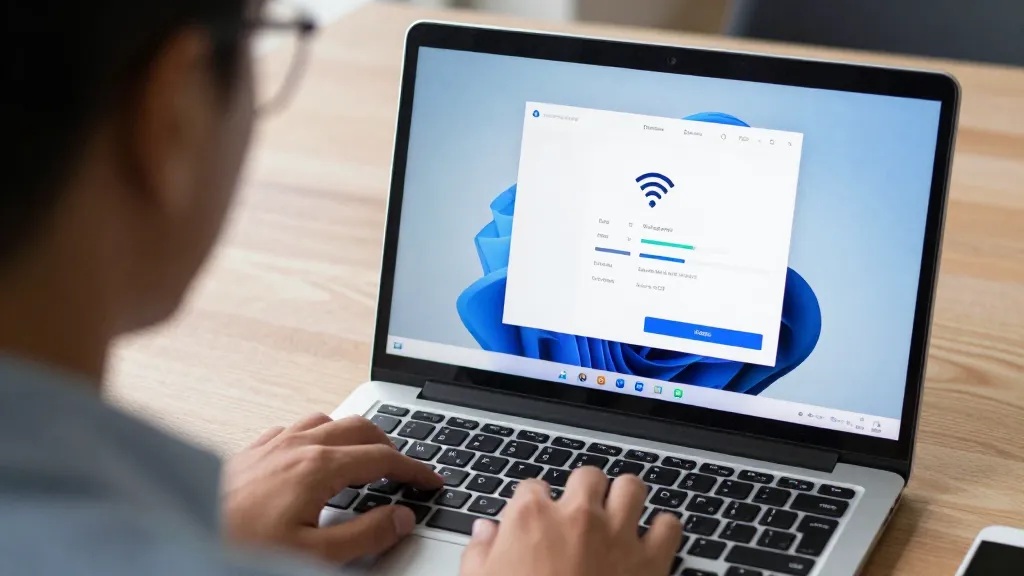
If you're facing issues with why Windows 11 update is not downloading, it can be frustrating, especially when you need the latest security patches or features. Many users encounter this problem due to connectivity issues, corrupted system files, or outdated update services. Understanding the root cause is the first step toward finding a solution. This article provides a clear guide to help you identify and resolve common update download problems on Windows 11.
We'll explore the most frequent reasons behind the update failure, such as internet connection problems or misconfigured proxy settings. You'll also learn how to use built-in tools like the Windows Update Troubleshooter to fix the issue without needing technical expertise. For more complex cases, we’ll cover advanced methods like manually downloading updates or resetting Windows Update components.
To prevent future update issues, we’ll share practical tips on maintaining a stable internet connection and keeping your system files up to date. If all else fails, we’ll guide you on when to seek professional help, ensuring your Windows 11 experience remains smooth and secure.
Common Causes for Windows 11 Update Not Downloading
If your Windows 11 update is not downloading, several underlying issues may be responsible. Understanding these common causes can help you troubleshoot effectively without needing professional assistance. By addressing factors like internet connectivity, system services, and software conflicts, you can often resolve the problem and ensure your system stays secure and up to date.
Internet Connection and Proxy Settings
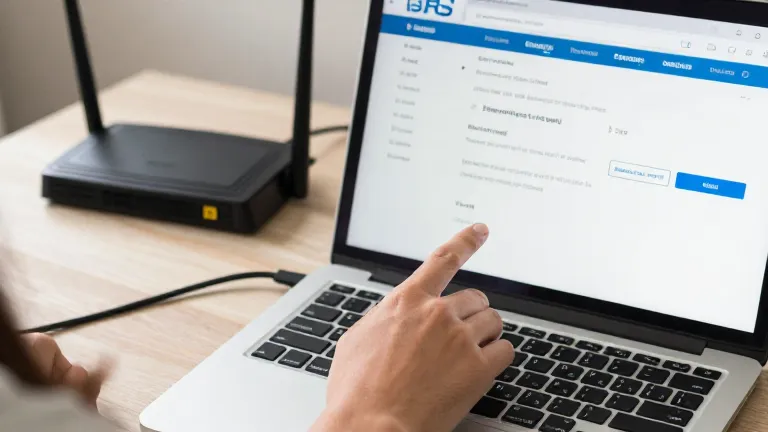
A stable internet connection is essential for downloading Windows 11 updates. If your connection is slow, unstable, or interrupted, the update process may fail or stall. Additionally, proxy settings that are misconfigured or not set up correctly can also prevent updates from downloading. Ensure your network is active and that no firewall or router settings are blocking the update process. You can test your connection by visiting a reliable website or using the built-in network diagnostic tools.
Windows Update Service Issues
The Windows Update service is a critical component that manages the download and installation of updates. If this service is disabled or corrupted, your system may not be able to access the latest updates. You can check the status of the service through the Services app in Windows. If the service is not running, start it manually. If it's running but still not functioning correctly, you may need to reset or re-register the service to restore its proper operation.
How to Fix Windows 11 Update Not Downloading
To resolve issues where Windows 11 updates are not downloading, start by addressing basic connectivity and system health. A stable internet connection and proper system configuration are essential for updates to function correctly. Follow these steps to identify and fix common problems affecting the update process.
- Check your internet connection and reset it if needed.
- Run the Windows Update Troubleshooter.
- Use the DISM and SFC commands to repair system files.
- Restart the Windows Update service.
- Ensure there is enough free disk space.
Fix Internet Connection Problems
A stable internet connection is crucial for downloading Windows updates. If your connection is weak or intermittent, it can prevent updates from downloading. To fix this, restart your router or modem, and ensure your Wi-Fi or Ethernet connection is strong. You can also try switching to a different network or using a wired connection for better reliability.
Use Windows Update Troubleshooter
The Windows Update Troubleshooter is a built-in tool that can automatically detect and fix common update issues. To run it, go to Settings > Update & Security > Troubleshoot, and select 'Windows Update'. Follow the on-screen instructions to let the troubleshooter identify and resolve any problems. This tool can address issues such as corrupted files or misconfigured settings that may be blocking updates.
Advanced Fixes for Windows 11 Update Download Issues
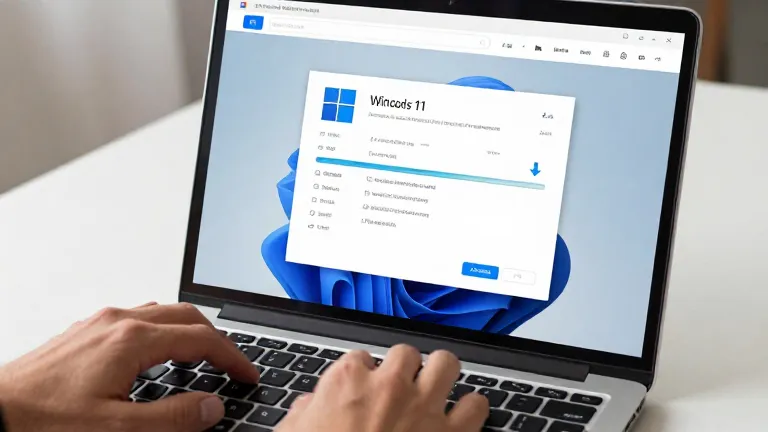
For persistent Windows 11 update download issues, advanced troubleshooting steps can help resolve underlying system or configuration problems.
- Manually download updates through the Microsoft Update Catalog.
- Reset Windows Update components to restore normal functionality.
- Check for and disable third-party firewall or antivirus software.
- Perform a system file check with DISM and SFC.
- Ensure the system is up to date with all previous patches.
Manually Download Updates
Manually downloading updates can bypass issues with the Windows Update service. Visit the Microsoft Update Catalog website and search for the specific update you need. Download and install it manually to ensure your system receives the latest patches. This method is useful when automatic updates are not working correctly.
Reset Windows Update Components
Resetting Windows Update components can resolve conflicts or corruption in the update process. Open Command Prompt as an administrator and run the commands: net stop wuauserv, net stop bits, and net stop cryptSvc. Then delete the SoftwareDistribution and Download folders. Afterward, restart the services to see if the update process resumes normally.
When to Seek Professional Help for Windows 11 Updates
If all standard fixes fail to resolve the issue, it may be time to seek professional assistance. Microsoft Support can provide expert guidance for complex or persistent update problems, especially if the system is severely corrupted or the update process is failing repeatedly.
Contact Microsoft Support
Contacting Microsoft Support is a viable option when the update issue persists despite trying all recommended troubleshooting steps. Support specialists can offer in-depth diagnostics and may provide specific solutions tailored to your system's configuration. They can also assist with advanced recovery options that are not accessible through standard tools.
Use System Restore or Reinstall Windows
In extreme cases where the system is unresponsive or the update process is completely blocked, System Restore or a full reinstallation of Windows may be necessary. System Restore can revert the system to a previous state before the update issue began, while a reinstallation is a more drastic measure that ensures a clean operating environment. Always back up important data before attempting these major fixes to prevent data loss.
Prevent Windows 11 Update Issues in the Future
Preventing Windows 11 update issues requires proactive maintenance and awareness of system requirements. By following simple yet effective practices, users can minimize the risk of update failures and ensure their system remains secure and functional.
Maintain Good Internet Connectivity
Maintaining good internet connectivity is crucial for successful updates. Ensure your Wi-Fi or Ethernet connection is stable and fast enough to handle large update files. Avoid using public or unreliable networks during updates, as they can cause interruptions or incomplete downloads. Regularly test your connection speed and consider upgrading your plan if needed.
Keep System Files Updated
Keeping system files updated helps prevent compatibility issues and ensures your Windows 11 installation remains secure. Enable automatic updates in Settings to receive the latest patches and features promptly. Additionally, schedule regular maintenance tasks such as disk cleanup and defragmentation (for HDDs) to optimize performance. Monitoring system health through built-in tools like Windows Defender and Event Viewer can also help identify potential problems before they escalate.
Frequently Asked Questions
What should I do if my Windows 11 update is not downloading?
Check your internet connection and ensure no proxy settings are blocking updates. Use the Windows Update Troubleshooter to identify and resolve issues. If problems persist, manually download updates or reset Windows Update components.
How can I fix the error 0x80070002 when downloading Windows 11 updates?
This error often relates to internet connectivity or corrupted system files. Run the Windows Update Troubleshooter and ensure your firewall or antivirus isn't blocking the update. Resetting Windows Update components may also help.
Can a firewall block Windows 11 updates, and how do I fix it?
Yes, a firewall or antivirus can block updates. Temporarily disable these tools to test if they are the cause. Add Windows Update to the firewall's allowed list if necessary.
What can I do if Windows 11 update keeps failing to start?
Ensure your internet connection is stable and your system files are up to date. Use the Windows Update Troubleshooter or manually download updates. Resetting Windows Update components may resolve persistent issues.
Next Steps for a Smooth Update Experience
Regularly checking your internet connection and system settings can prevent many update issues. If problems persist, advanced troubleshooting or professional help may be needed.
Maintaining good connectivity and keeping your system updated can help avoid future update problems. If you're experiencing persistent issues, consider seeking assistance from Microsoft Support.





