
How to Put Your iPhone in Recovery Mode
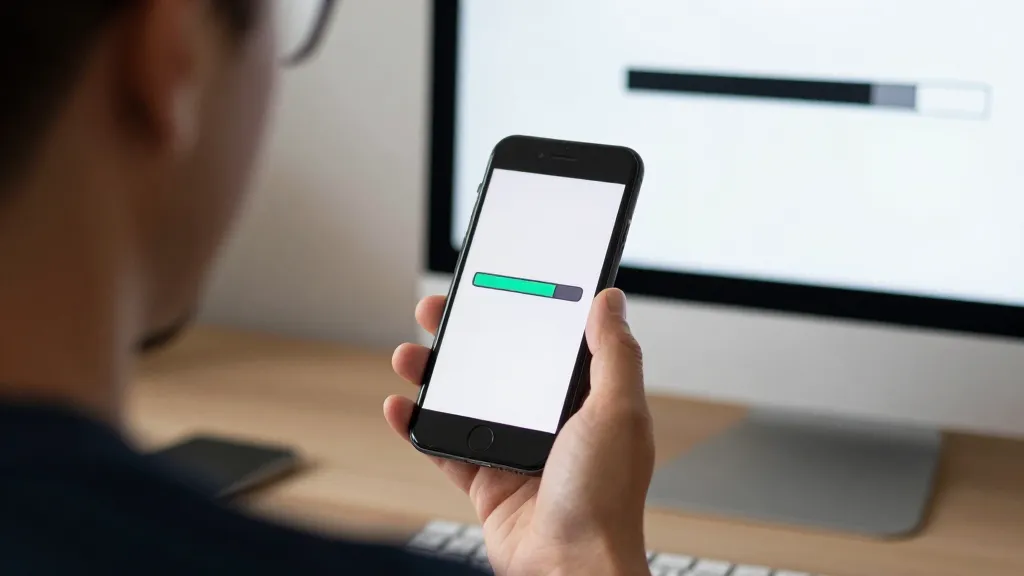
If your iPhone is experiencing software issues like freezing, unresponsive buttons, or failure to charge, recovery mode can be a powerful tool to fix the problem. Knowing how to put your iPhone in recovery mode can save you time and frustration, especially if you're not comfortable with professional help. This article walks you through the process of entering and exiting recovery mode, helping you resolve common software issues without losing your data. Whether you're a home user or a busy professional, understanding the steps involved in this process can empower you to handle unexpected problems confidently.
We'll start by explaining why you might need to use recovery mode, including situations where it's preferable to a factory reset. Next, you'll find out what you need to prepare before attempting the process, such as backup options and the right tools. The step-by-step guide will walk you through connecting your iPhone to a computer and entering recovery mode on different models, ensuring clarity for all users.
Once in recovery mode, you'll learn how to exit it and choose between restoring or updating your iPhone. We also cover troubleshooting tips and best practices to help you avoid future issues. By the end of this article, you'll have a clear understanding of how to put your iPhone in recovery mode and how to use it effectively to resolve software problems.
Why You Might Need to Put Your iPhone in Recovery Mode
Putting your iPhone in recovery mode is a critical troubleshooting step for resolving persistent software issues. It provides a way to restore or update your device when standard methods fail, offering a last-resort solution for serious glitches. Understanding when and why to use recovery mode can help you avoid unnecessary data loss and ensure your iPhone returns to normal operation.

Common iPhone Software Issues That Require Recovery Mode
Common iPhone software issues that require recovery mode include frozen screens, unresponsive apps, and boot loops. These problems often occur when the operating system becomes corrupted or when the device fails to load properly. Recovery mode allows you to bypass the usual startup process and access tools to repair or reset your iPhone. It is particularly useful when the device is stuck in a loop or when apps are not responding to standard troubleshooting steps.
When to Use Recovery Mode Instead of a Factory Reset
Recovery mode should be used instead of a factory reset when the issue is deeply rooted in the system software. A factory reset can erase all data and settings, making it a less desirable option if you want to retain your information. Recovery mode provides an alternative that allows you to restore your iPhone without losing your data, provided you have a backup. It is also a better choice when the device is unresponsive or when you need to install a specific iOS version to fix compatibility issues.
What You Need Before Putting Your iPhone in Recovery Mode
Before putting your iPhone in recovery mode, it's essential to prepare properly to avoid data loss and ensure the process goes smoothly. Taking the right steps beforehand can prevent complications and help you recover your device effectively.
- Charge your iPhone to at least 50% to prevent power issues during the recovery process.
- Ensure you have a backup of your data using iCloud or iTunes.
- Have your Apple ID ready, as it may be required during recovery.
- Keep your computer updated with the latest version of iTunes or Finder.
Preparing Your iPhone for Recovery Mode
Preparing your iPhone for recovery mode involves ensuring it has enough battery life and is connected to a stable power source. A low battery can cause the recovery process to fail, leading to potential data loss or a bricked device. Make sure your iPhone is charged to at least 50% before starting the recovery process to avoid interruptions.
Additionally, it's important to have your Apple ID ready, as it may be required to authenticate your device during recovery. This is especially true if you're restoring from a backup or if your device is locked. Having your Apple ID on hand can help streamline the recovery process and prevent additional delays.
Backup Options: iCloud vs iTunes
When choosing between iCloud and iTunes for backing up your iPhone, consider the type of data you need to preserve. iCloud backups are convenient for syncing across devices and automatically updating with new data, but they require a stable internet connection and may take longer to complete. iTunes backups, on the other hand, are faster and do not depend on an internet connection, making them ideal for users who prefer a local backup solution.
It's also important to note that iCloud backups include your apps, settings, and media, while iTunes backups may exclude certain data like iMessage conversations. To ensure a complete backup, you can use both methods, but be mindful of the storage limits associated with iCloud and the potential for large backup files with iTunes.
Step-by-Step Guide to Put Your iPhone in Recovery Mode
Putting your iPhone in recovery mode is a critical step for resolving software issues. This guide provides a clear, step-by-step approach to help you enter recovery mode safely and effectively.
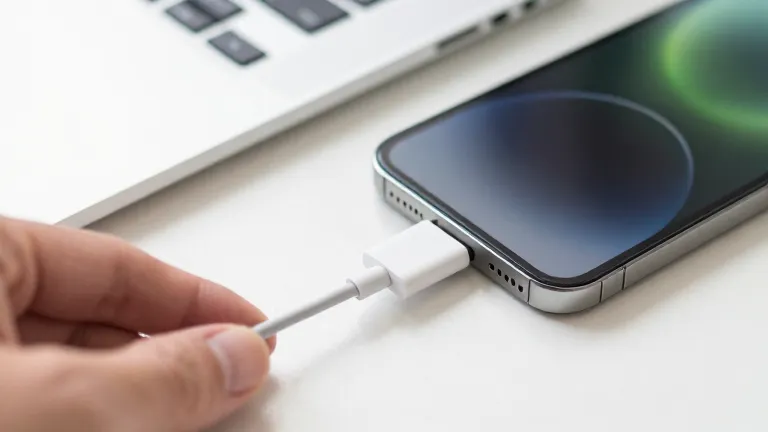
- Connect your iPhone to a computer using a USB cable.
- Open iTunes or Finder (for macOS Catalina and later).
- Follow the on-screen instructions to enter recovery mode.
- Confirm that your iPhone is in recovery mode by checking the status screen.
Connecting Your iPhone to a Computer
Before entering recovery mode, ensure your iPhone is connected to a computer using a USB cable. The computer must run the latest version of macOS or Windows, and iTunes or Finder must be installed. A stable connection is essential to avoid interruptions during the process.
Entering Recovery Mode on Different iPhone Models
To enter recovery mode, follow the on-screen instructions provided by iTunes or Finder. For iPhone 8 and earlier, press and hold the Sleep/Wake and Home buttons simultaneously until the recovery mode screen appears. For iPhone X and later, press and hold the Sleep/Wake and Volume Down buttons until the recovery mode screen appears. Each model has a slightly different process, so it's important to follow the correct steps for your specific device.
How to Exit Recovery Mode and Restore Your iPhone
Once your iPhone is in recovery mode, you can proceed to restore or update the device. This step is critical for resolving software issues and ensuring your iPhone functions correctly after the process.
Choosing to Restore or Update Your iPhone
When in recovery mode, connect your iPhone to a computer and open iTunes (or Finder on macOS Catalina or later). You'll see a prompt asking if you want to restore or update your iPhone. Selecting 'Restore' will erase all data and settings, then reinstall the latest iOS version. If you choose 'Update,' your iPhone will install the latest iOS without erasing your data. Be aware that updating may not fix all software issues, so restoring is often the preferred option for a clean setup.
What to Do After Exiting Recovery Mode
After selecting restore or update, the process will begin. This may take several minutes, and it's crucial not to interrupt the process. Your iPhone will restart multiple times during the restoration. Once complete, you'll be prompted to set up your iPhone again. Follow the on-screen instructions to choose between setting it up as a new device or restoring from a backup. If you're restoring from a backup, ensure the backup is recent and compatible with your iPhone's iOS version. After setup, test your iPhone by checking basic functions, connectivity, and any specific apps or features you rely on.
Troubleshooting Tips for Recovery Mode Issues
Troubleshooting recovery mode issues can save time and prevent unnecessary complications. If your iPhone doesn't respond as expected, following these steps and best practices can help resolve common errors and avoid future problems.

- If your iPhone doesn’t enter recovery mode, try a different USB port or cable.
- Ensure your computer meets the minimum system requirements for iTunes or Finder.
- If you encounter an error during recovery, restart the process and double-check connections.
- Avoid using third-party software that may interfere with the recovery process.
Common Recovery Mode Errors and Fixes
Common recovery mode errors often stem from hardware or software mismatches. If your iPhone fails to enter recovery mode, start by checking your USB connection. Try a different cable or port, as faulty cables or ports can prevent proper communication. If the issue persists, verify that your computer meets the minimum requirements for iTunes or Finder. Older systems or incompatible versions may not support the latest recovery processes.
Best Practices to Prevent Future Issues
To prevent future recovery mode issues, maintain regular backups and keep your software updated. Use iCloud or iTunes to ensure your data is safe in case of unexpected problems. Avoid third-party tools that may compromise your device's integrity during recovery. Additionally, familiarize yourself with the specific recovery steps for your iPhone model to reduce confusion when troubleshooting.
Frequently Asked Questions
What happens if my iPhone doesn’t enter recovery mode?
If your iPhone doesn’t enter recovery mode, it may indicate a hardware or software issue. Try restarting your iPhone and repeating the steps. If it still doesn’t work, check your USB cable and try a different computer.
Can I use recovery mode to update my iPhone to a new iOS version?
Recovery mode is used to restore or update your iPhone, but it may not always work for the latest iOS versions. Ensure your iPhone is compatible with the iOS version you want to install and follow the correct steps.
What should I do if my iPhone gets stuck in recovery mode?
If your iPhone gets stuck in recovery mode, try disconnecting and reconnecting it to your computer. If that doesn’t work, force restart your iPhone and attempt the process again.
Is recovery mode the same as a factory reset?
Recovery mode is not the same as a factory reset. Recovery mode allows you to restore or update your iPhone, while a factory reset erases all data and settings. Choose the option that best fits your needs.
Final Thoughts
Putting your iPhone in recovery mode is a powerful tool for resolving software issues. Understanding when and how to use it can prevent data loss and restore functionality.
If you're experiencing issues with your iPhone, consider recovery mode as a troubleshooting option. Always ensure you have a backup before proceeding.





