
How to Mirror Your iPhone to a TV
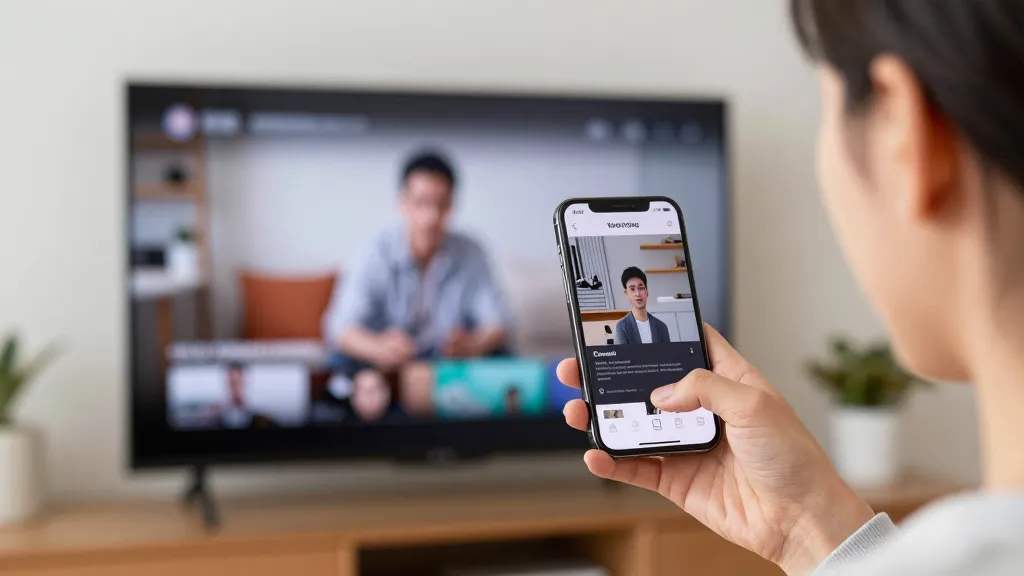
If you're looking for how to iphone mirror to tv without complicated setups, you're not alone. Many users want to show photos, videos, or presentations on a larger screen, whether at home or in the office. Mirroring your iPhone to a TV is a simple way to share content, but it can be confusing if you're not familiar with the right steps. This article will guide you through the easiest methods to achieve this, including using AirPlay and other alternatives. You'll learn how to connect your iPhone to a smart TV, troubleshoot common issues, and get tips for a seamless experience. Whether you're giving a presentation or watching a movie, we've got you covered.
Screen mirroring allows your iPhone to display its content on a TV, making it perfect for sharing with others. Most modern smart TVs support AirPlay, which is Apple's built-in wireless mirroring technology. However, not all TVs are compatible, and some users may need to use a streaming device or HDMI cable instead. Understanding the different methods and how to set them up is key to getting the most out of your iPhone's capabilities. We'll walk you through each option step by step, ensuring you can enjoy a clear and stable connection.
Whether you're a home user or an office worker, knowing how to mirror your iPhone to a TV can enhance your productivity and entertainment. This guide covers the essentials, from enabling AirPlay to using alternative methods when needed. We also address common problems like devices not connecting or the screen freezing, so you can resolve them quickly. With the right approach, you can enjoy a seamless experience and make the most of your iPhone's screen mirroring features.
Understanding iPhone Screen Mirroring to a TV
Screen mirroring is a convenient way to display your iPhone's screen on a TV, making it easy to share content, watch videos, or present information. This feature is especially useful for home users and office workers who want to show content from their iPhone on a larger screen without needing technical expertise. Most modern TVs support this functionality through AirPlay, but some may require additional setup or apps for compatibility.
What Is Screen Mirroring?
Screen mirroring allows your iPhone to replicate its display on a TV, providing a seamless way to view content on a larger screen. This feature works by sending the iPhone's screen output to the TV, ensuring that everything you see on your phone is also visible on the TV. It is particularly useful for watching videos, viewing photos, or presenting slides during meetings. The process typically requires both the iPhone and the TV to support the same mirroring technology, such as AirPlay.
Why Mirror Your iPhone to a TV?
Mirroring your iPhone to a TV can serve multiple purposes, from entertainment to productivity. For instance, you can watch videos or movies on a larger screen, making the experience more immersive. It is also beneficial for presentations, allowing you to share slides or documents with colleagues or friends without needing to switch devices. Additionally, it can be useful for gaming, as it enables you to play mobile games on a bigger screen. These practical uses make screen mirroring a valuable feature for everyday use.
Using AirPlay to Mirror Your iPhone to a TV
Using AirPlay is the simplest way to mirror your iPhone to a compatible TV. This method requires both your iPhone and TV to be on the same Wi-Fi network, and it works with most modern smart TVs that support AirPlay. Follow these steps to connect your iPhone to your TV seamlessly.
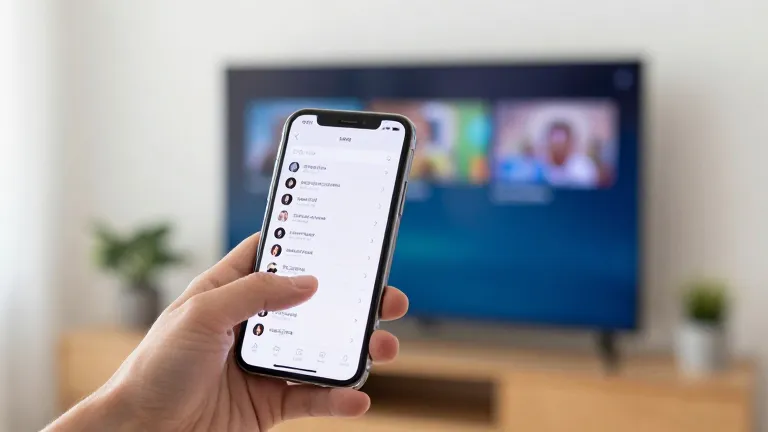
- Make sure your iPhone and TV are connected to the same Wi-Fi network.
- Open the Control Center and tap the Screen Mirroring icon.
- Select your TV from the list of available devices.
- If your TV is not detected, check your TV settings or confirm it is AirPlay compatible.
How to Enable AirPlay on Your iPhone
Before you start mirroring, ensure that your iPhone and TV are connected to the same Wi-Fi network. This is essential for AirPlay to function properly. If your TV is not on the same network, your iPhone will not be able to detect it. You can check your Wi-Fi settings on your iPhone to confirm the connection.
Connecting Your iPhone to a Smart TV
Once your iPhone is connected to the same Wi-Fi network as your TV, open the Control Center by swiping down from the top-right corner of your screen. Tap the Screen Mirroring icon, which looks like a rectangle with a triangle pointing up. A list of available devices will appear, and you should select your TV from this list. If your TV is not listed, check its settings for AirPlay options or ensure it is compatible with the feature.
Alternative Methods to Mirror Your iPhone to a TV
If your TV doesn't support AirPlay, there are alternative methods to mirror your iPhone. These include using a streaming device, connecting via HDMI, or employing third-party apps. Each method has its own setup process and limitations, so choosing the right one depends on your equipment and preferences.
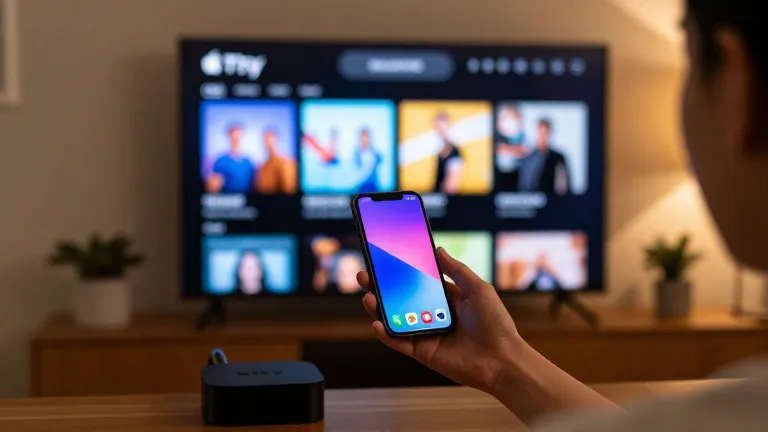
- Use a streaming device like Apple TV or Roku to mirror your iPhone.
- Connect your iPhone to the TV using an HDMI adapter.
- Try third-party apps like AirParrot or Reflector for screen mirroring.
- Ensure your TV and iPhone are on the same Wi-Fi network for smoother performance.
Using a Streaming Device
Using a streaming device such as Apple TV or Roku is a reliable alternative for mirroring your iPhone to a TV. These devices act as a bridge between your iPhone and the TV, allowing you to cast content wirelessly. To use this method, connect the streaming device to your TV and ensure both your iPhone and the device are on the same Wi-Fi network. Then, open the streaming app on your iPhone and select the device to mirror your screen.
Connecting via HDMI
Connecting your iPhone to a TV via HDMI is another option, especially for older TVs that lack AirPlay support. You'll need an HDMI adapter that fits your iPhone's port, such as the Lightning to HDMI adapter. Once connected, the TV should detect your iPhone and display the mirrored screen. This method provides a stable connection but requires physical setup and may not support all features like touch controls or gestures.
Troubleshooting Common Issues When Mirroring
When mirroring your iPhone to a TV, technical issues can disrupt the experience. Common problems include the TV not being detected, connection drops, or freezing. Addressing these issues requires a methodical approach, starting with basic checks and moving to more advanced troubleshooting steps.
TV Not Detected by iPhone
If your TV is not detected by your iPhone, begin by verifying that both devices are connected to the same Wi-Fi network. AirPlay requires a stable and compatible network to establish a connection. Ensure your TV is set to the correct input source, such as HDMI or AirPlay, as the wrong setting can prevent detection. If you're using a smart TV, check the settings menu for AirPlay options and ensure it's enabled.
Connection Drops or Freezes
Connection drops or freezes can be frustrating, especially during presentations or entertainment. A weak Wi-Fi signal or interference from other devices can cause instability. Move closer to the router or reduce the number of connected devices to improve signal strength. Additionally, restarting both your iPhone and TV can reset the connection and resolve temporary glitches. If the issue persists, check for software updates on both devices, as firmware or OS updates often include bug fixes and performance improvements.
Tips for a Smooth iPhone to TV Mirroring Experience
A strong and stable Wi-Fi network is crucial for a seamless mirroring experience. Ensure your TV and iPhone are connected to the same network, and avoid interference from other devices. If you're using AirPlay, a weak signal can cause lag or disconnections, so position your router close to both devices for optimal performance.
- Use a strong and stable Wi-Fi network for better performance.
- Keep your iPhone and TV updated to the latest software.
- Avoid using too many apps or background processes during mirroring.
- Use a high-quality HDMI cable if connecting via cable.
Keeping your iPhone and TV updated to the latest software ensures compatibility and fixes potential bugs that could disrupt mirroring. Check for updates regularly in the Settings app on your iPhone and update your TV's firmware if available. Software updates often improve connectivity and performance, especially with newer features like AirPlay 2.
Avoid running multiple apps or background processes on your iPhone while mirroring, as this can strain the device's resources and affect the quality of the mirrored content. Close unnecessary apps and disable features like Bluetooth or GPS if they're not needed. A lighter load on your iPhone helps maintain a smoother and more responsive mirror.
If you're connecting via HDMI, use a high-quality cable to ensure a stable and clear signal. Low-quality cables can cause issues like pixelation, lag, or even a complete loss of connection. Choose a cable that is rated for high-speed data transfer and is compatible with your TV's ports. A reliable HDMI connection is especially important for watching videos or playing games in full HD.
Frequently Asked Questions
What if my TV is not showing up when I try to mirror my iPhone?
If your TV doesn't appear, ensure both devices are on the same Wi-Fi network. Check that your TV supports AirPlay or has the correct app installed. Restart both devices and try again.
Can I mirror my iPhone to a non-smart TV?
Yes, use an HDMI cable and an Apple TV or a streaming device to mirror your iPhone to a non-smart TV. This method works with any TV that has HDMI input.
How do I make sure my iPhone and TV are on the same network?
Connect both devices to the same Wi-Fi network. On your iPhone, go to Settings > Wi-Fi and confirm the network. On your TV, check the network settings in its menu.
What should I do if my iPhone screen keeps freezing when mirroring?
Close any background apps on your iPhone. Reduce screen brightness and disable unnecessary features like animations. Ensure both devices are updated to the latest software.
Final Thoughts
To mirror your iPhone to a TV, use AirPlay for smart TVs or a streaming device for non-smart TVs. Ensure both devices are on the same network and follow the setup steps carefully.
With the right setup, you can enjoy your iPhone content on a larger screen. Test your connection and troubleshoot any issues to ensure a seamless experience.





