
How to Enable Touchpad on Windows 11 Laptop
If your Windows 11 laptop's touchpad is disabled or not working, it can disrupt your workflow, especially if you rely on it for daily tasks. Whether you're working from home or in the office, a non-functional touchpad can be frustrating. This article provides a clear guide on how to enable touchpad on Windows 11 laptop, covering common causes, step-by-step solutions, and troubleshooting tips. Whether the touchpad is accidentally turned off, malfunctioning, or needs driver updates, you'll find actionable advice to restore its functionality.
Before diving into fixes, it's important to understand why your touchpad might be disabled. Common causes include accidental toggling, physical switches on the laptop, or system settings that override touchpad input. Some laptops have a dedicated button or switch to disable the touchpad when using an external mouse, so checking these is a good first step.
Once you've ruled out simple causes, the article walks you through enabling the touchpad via the Settings app, using keyboard shortcuts, and even exploring third-party tools for advanced customization. Additionally, we cover troubleshooting methods like system updates, driver reinstalls, and best practices to prevent future issues. With these steps, you can quickly regain control of your touchpad and maintain a smooth computing experience.
Why Your Touchpad Might Be Disabled
Understanding why your touchpad might be disabled is the first step in resolving the issue. Whether it's a simple misconfiguration or a more complex system problem, identifying the root cause can save you time and frustration.
Common Causes of a Disabled Touchpad
Touchpad disablement can occur after a system update or due to an accidental keyboard shortcut. Windows 11 updates sometimes change touchpad settings or introduce new features that may inadvertently disable the touchpad. Additionally, users might unintentionally press a key combination that toggles the touchpad off, especially if they're not familiar with the shortcuts. This is common when using external keyboards or during system configuration changes.
When to Check Physical Switches or Buttons
Some laptops have a physical switch or button to disable the touchpad, often located near the keyboard or on the side panel. This feature is typically used to prevent accidental touches while typing, especially on laptops with smaller touchpads. If your laptop has this switch, make sure it's in the correct position. It's also worth checking the function keys on your keyboard, as some models use a combination of a function key and a touchpad toggle key to enable or disable the touchpad.
Step-by-Step Guide to Enable Touchpad on Windows 11
Enabling the touchpad on a Windows 11 laptop is a straightforward process that can be done through the Settings app or using a keyboard shortcut. Whether you're dealing with a disabled touchpad or simply want to ensure it's active, following these steps will help you restore functionality quickly and efficiently.
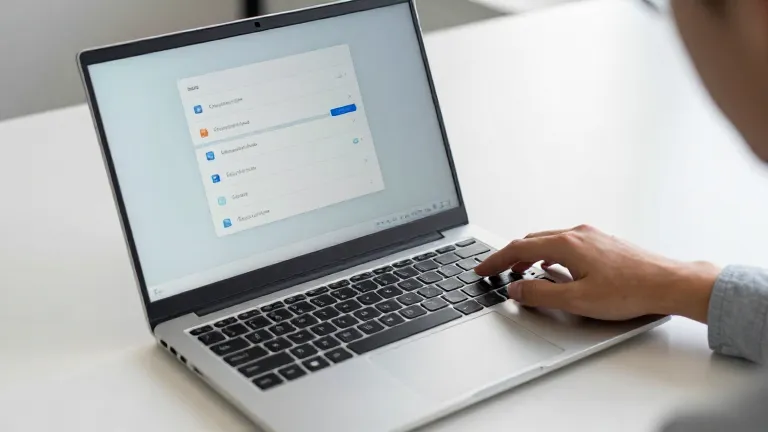
- Open the Settings app by clicking the Start menu and selecting the gear icon, or by searching for 'Settings' in the Start menu search bar.
- Navigate to the Devices section by clicking on 'System' and then selecting 'Devices' from the left-hand menu.
- Locate the Touchpad toggle under the 'Touchpad' heading and ensure it is set to 'On'.
- Use the keyboard shortcut 'Ctrl + F3' to toggle the touchpad on or off, providing a quick way to activate it without navigating through settings.
Using the Settings App to Enable the Touchpad
To enable the touchpad using the Settings app, start by opening the Settings interface. From there, go to the Devices section, which is found under the System category in the left-hand menu. Within Devices, scroll down to the Touchpad section, where you'll see a toggle switch labeled 'Touchpad'. If it's disabled, simply click it to turn it on. This method ensures that the touchpad is activated through the system settings, providing a reliable way to restore functionality.
Keyboard Shortcuts for Quick Touchpad Toggle
For a quicker way to toggle the touchpad, use the keyboard shortcut 'Ctrl + F3'. This shortcut is designed to switch the touchpad on or off without needing to navigate through the Settings app. It's especially useful when you're in the middle of a task and need to enable the touchpad rapidly. However, it's important to note that this shortcut may not work if the touchpad is currently disabled or if there are driver issues preventing it from functioning properly.
Troubleshooting Touchpad Issues
If your touchpad remains unresponsive after basic enablement steps, troubleshooting is essential. A combination of software and hardware checks can help identify the root cause, from temporary glitches to outdated drivers or physical malfunctions.
Basic Restart and System Update Checks
Begin by restarting your laptop, as temporary software glitches can often disable the touchpad. A simple reboot can refresh system resources and resolve minor conflicts. If the issue persists, check for pending system updates through Windows Update, as newer updates may include bug fixes or driver improvements that restore touchpad functionality.
Updating or Reinstalling Touchpad Drivers
If the touchpad still doesn't work, use Device Manager to update or reinstall its drivers. Right-click on the Start menu, select 'Device Manager,' locate the touchpad under 'Human Interface Devices' or 'Mouse and other pointing devices,' and right-click to choose 'Update driver' or 'Uninstall device.' Restart your laptop afterward to allow Windows to reinstall the driver automatically. This process can fix compatibility issues or corrupted files causing the touchpad to malfunction.
Alternative Methods to Enable Touchpad
In addition to built-in options, users can explore alternative methods to enable and optimize their touchpad. Third-party utilities and system settings offer greater control over touchpad behavior, allowing for advanced customization and troubleshooting.
Using Third-Party Touchpad Utilities
Third-party touchpad utility software can provide enhanced control over touchpad settings. Tools like Touchpad++ or Synaptics Pointing Device Manager offer advanced options such as sensitivity adjustments, gesture customization, and touchpad calibration. These utilities are especially useful for users who want more detailed control than the built-in settings allow. However, it is important to download these tools from trusted sources to avoid malware or compatibility issues.
Customizing Touchpad Settings for Better Performance
Customizing touchpad settings through device properties can improve both functionality and user experience. Right-clicking the touchpad and selecting 'Properties' opens the device settings, where users can adjust sensitivity, disable certain gestures, or enable advanced features like tap-to-click. This method is ideal for users who prefer a more granular approach to touchpad customization. Additionally, system-wide settings, such as those found in accessibility options, might inadvertently disable the touchpad. Checking these settings ensures that no unintended configuration is preventing the touchpad from working properly.
Preventing Touchpad Issues in the Future
Preventing touchpad issues in the future involves adopting good habits and maintaining your system to ensure reliable performance. By following simple guidelines, you can reduce the likelihood of unexpected problems and extend the life of your laptop's touchpad.
Best Practices for Touchpad Usage
Avoid using the touchpad when connected to an external mouse. Many laptops have a feature that disables the touchpad when an external mouse is detected, which helps prevent accidental movements. However, if you frequently use an external mouse, consider using a physical switch or settings to disable the touchpad entirely when it's not needed. This minimizes wear and tear on the touchpad and avoids potential conflicts between input devices.
Maintaining System Stability and Touchpad Functionality
Keep your system updated to prevent compatibility issues. Windows 11 regularly receives updates that address bugs, improve performance, and ensure hardware works correctly. Enabling automatic updates ensures your system stays current with the latest patches and drivers. Additionally, check for updates from your laptop manufacturer, as they often release firmware or driver updates that enhance touchpad functionality. Regular maintenance helps prevent unexpected malfunctions and ensures your touchpad remains responsive and reliable.
Frequently Asked Questions
What should I do if my touchpad is completely unresponsive?
First, try restarting your laptop. If that doesn't work, check for driver updates or reinstall the touchpad drivers. If the issue persists, consider using a USB mouse as a temporary solution while you troubleshoot.
How can I enable the touchpad if it’s disabled by a keyboard shortcut?
Press the key combination that toggles the touchpad, which is often Fn + F6 or Fn + F7. If you're unsure, check your laptop's manual or look for a touchpad icon in the taskbar.
Can I use a USB mouse as a temporary solution while fixing the touchpad?
Yes, connecting a USB mouse is a simple and effective way to navigate your laptop while you resolve touchpad issues. This allows you to continue working without interruption.
What if my touchpad still doesn’t work after following all the steps?
If the touchpad remains unresponsive, it may be a hardware issue. In such cases, consider contacting the laptop manufacturer for further assistance or repair options.
Final Thoughts
Enabling and maintaining your touchpad on Windows 11 is essential for seamless navigation. By following the outlined steps and best practices, you can resolve most touchpad issues effectively.
If you continue experiencing problems, consider reaching out to technical support for further guidance. Keeping your system updated and using proper maintenance techniques can help prevent future touchpad issues.





