How to Fix Windows 11 Not Connecting to Printer
If your Windows 11 computer isn't connecting to your printer, you're not alone. Many users face this issue, especially when trying to print documents or manage print jobs. The main keyword, how to fix Windows 11 not connecting to printer, is a common search query for those seeking practical solutions. This article provides a step-by-step guide to help you resolve the issue without needing professional assistance. We'll walk you through basic checks, network settings, driver updates, and alternative connection methods to restore your printer functionality. Whether you're at home or in the office, these troubleshooting tips can help you get back to printing quickly and efficiently.
Check Basic Printer and Connection Setup
Before diving into advanced troubleshooting, it's essential to verify the most basic aspects of your printer setup. A simple issue like a disconnected cable or a powered-off printer can prevent connectivity, so start by checking the physical connections and ensuring the device is operational.
Verify Printer Power and Physical Connections
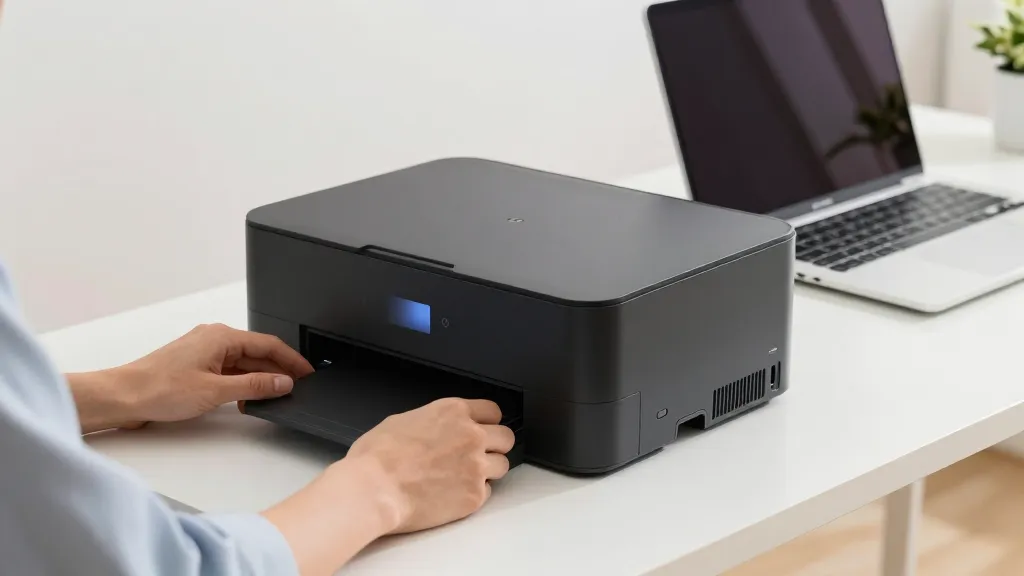
Ensure the printer is turned on and properly connected to the network or USB port. If using a wired connection, check that the USB cable is securely plugged into both the printer and the Windows 11 device. For wireless printers, confirm that the printer is connected to the same Wi-Fi network as your computer. If the printer is not on the same network, it may not be recognized by the system.
Confirm Network and Paper Status
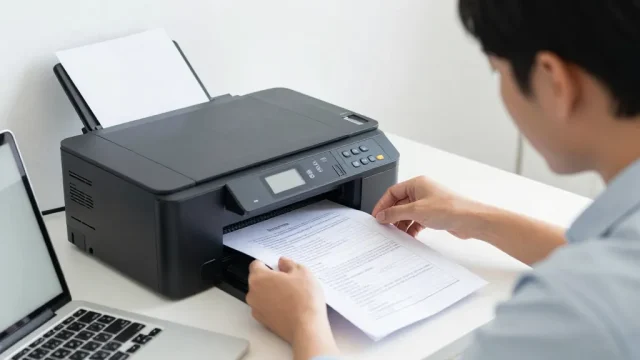
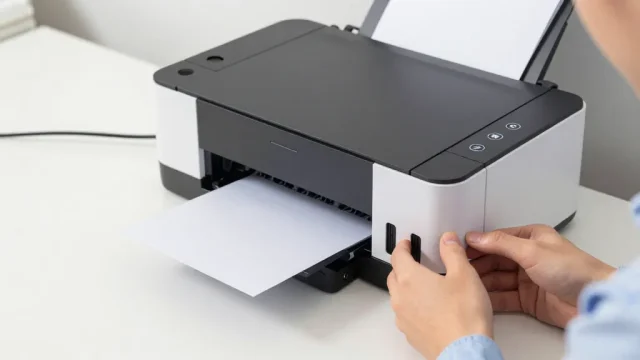
Verify that the printer has paper loaded and is not jammed. A paper jam or empty paper tray can cause the printer to malfunction or fail to respond to print commands. Open the printer's cover and check for any obstructions or low paper levels. If the printer is not working correctly, it may not be able to communicate with your Windows 11 device, leading to connectivity issues. If you're using a network printer, also ensure that the printer is set to the correct IP address and that no error messages are displayed on the printer's screen.
Ensure Printer Is Shared on the Network
Ensuring your printer is shared on the network is a critical step in resolving connectivity issues on Windows 11. Sharing the printer allows multiple devices to access it over the same local network, which is essential for office or home environments. This section covers how to configure printer sharing in Windows 11 and how to confirm that the printer is visible and accessible to other devices.
How to Share a Printer on Windows 11
To share your printer on Windows 11, open the Settings app and navigate to 'Devices' > 'Printers & Scanners'. Select your printer from the list, then click 'Manage' to access its properties. Under the 'Sharing' tab, click 'Share' to make the printer available to other devices on the network. Ensure the printer is set to 'Available' and that the 'Use as a printer' option is enabled. If the printer is not already shared, this step will activate the sharing feature.
Verify Printer Sharing on the Network
Once the printer is shared, verify its availability on the network by checking other devices connected to the same Wi-Fi or Ethernet network. On another computer, open the Control Panel and go to 'Network and Internet' > 'Network and Sharing Center' > 'Change advanced sharing settings'. Ensure that network discovery and file sharing are turned on. Then, search for the shared printer using the 'Devices and Printers' section in the Control Panel. If the printer appears, it is successfully shared and accessible. If not, double-check the sharing settings on the Windows 11 device and ensure the network is properly configured.
Update Printer Drivers and Windows 11
Updating printer drivers and Windows 11 is essential for resolving connectivity issues. Outdated software can lead to compatibility problems, so ensuring both are up to date can improve performance and fix known bugs.
How to Download and Install Printer Drivers
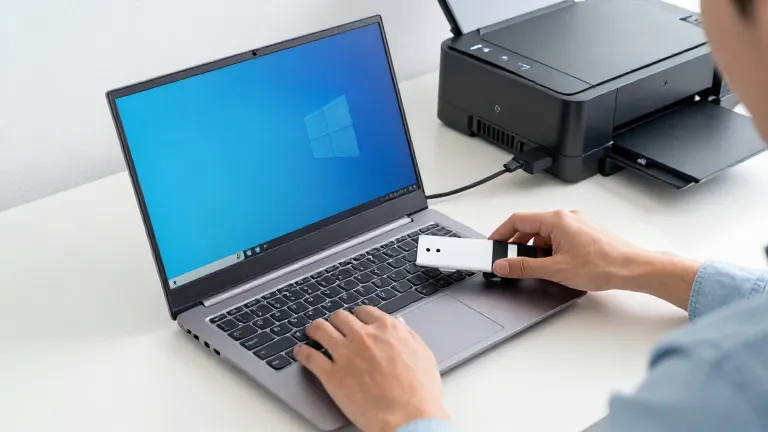
To update printer drivers, visit the manufacturer’s official website and search for your specific printer model. Download the latest driver package, then install it by following the on-screen instructions. Make sure your printer is connected to the same network or connected via USB during the installation process to avoid errors.
Check for Windows 11 Updates
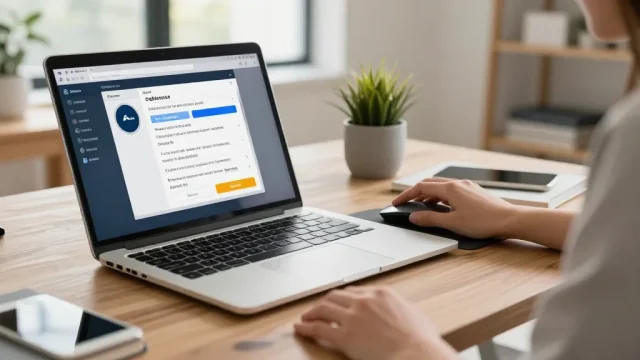
Open the Settings app on Windows 11 and navigate to 'Windows Update' to check for system updates. Click 'Check for updates' and install any available updates. Restart your computer after the update to ensure all changes take effect. If the issue persists, repeat the process to confirm the system is fully updated.
Troubleshoot Printer Connection Issues
Troubleshooting printer connection issues on Windows 11 often requires a combination of built-in tools and manual resets. The Windows 11 Printer Troubleshooter is a powerful tool that can automatically detect and resolve common connectivity problems. Additionally, restarting both the printer and the device can help reset temporary glitches that may be preventing the connection from working.
Use the Windows 11 Printer Troubleshooter
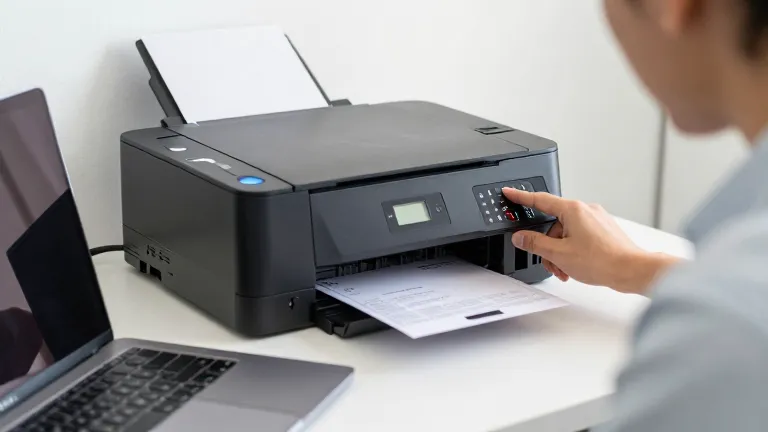
To use the Windows 11 Printer Troubleshooter, open the Settings app, navigate to Devices > Printers & scanners, and select Troubleshoot printer issues. This tool will scan for potential problems such as driver conflicts, network errors, or incorrect printer settings. If an issue is found, follow the on-screen instructions to resolve it. If no issues are detected, proceed to the next step to ensure the problem is not related to the printer itself.
Restart Printer and Device to Reset Connection
Restarting the printer and the Windows 11 device is a simple yet effective way to resolve connectivity problems. Turn off the printer and wait for 30 seconds before turning it back on. This allows the printer to reset its internal systems and re-establish a connection. Similarly, restart your Windows 11 device by selecting the Start menu, clicking the power icon, and choosing Restart. After the device has restarted, check if the printer is recognized and able to connect properly.
Alternative Printer Connection Methods
If your Windows 11 device is having trouble connecting to a printer over the network, trying a direct USB connection can bypass many common connectivity issues. Additionally, third-party printer management tools can offer more advanced control and troubleshooting options. Setting up the printer as a local network printer may also help if it's not responding to standard network commands.
Connect Printer via USB Cable
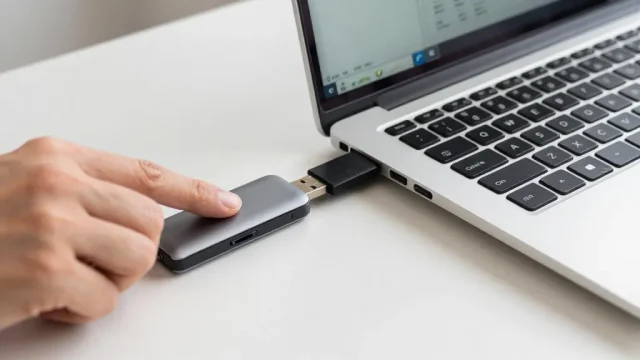
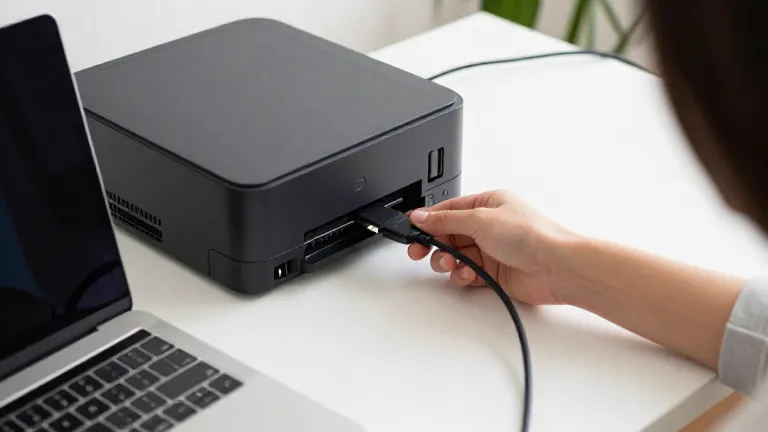
Connecting your printer via USB cable is a straightforward way to bypass network-related issues. Plug the USB cable into both the printer and your Windows 11 device, then wait for the system to detect the device. If the printer is not automatically recognized, open the Devices app, search for the printer, and follow the on-screen instructions to install the necessary drivers. This method is particularly useful for printers that do not support wireless connectivity or for troubleshooting network-specific problems.
Use Third-Party Printer Tools
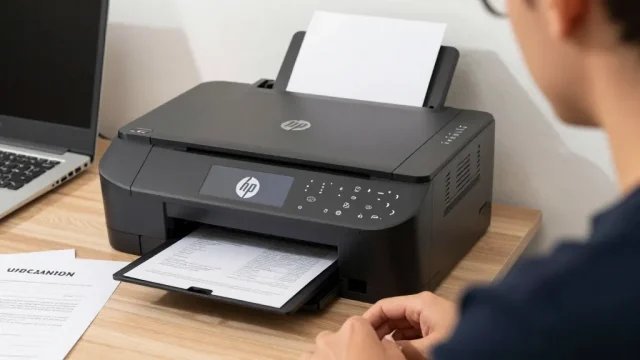
If built-in Windows tools fail to resolve the issue, consider using third-party printer management software. These tools often provide more detailed diagnostics, driver updates, and configuration options tailored to specific printer models. Popular options include tools from manufacturers like HP, Canon, and Epson, which can streamline the setup process and improve compatibility. Ensure that any third-party software you use is from a trusted source to avoid security risks.
Frequently Asked Questions
Why is my Windows 11 device not detecting the printer?
Your Windows 11 device may not detect the printer due to incorrect network settings, faulty connections, or outdated drivers. Check the printer's power and physical connections, ensure it is properly shared on the network, and update its drivers.
How do I share a printer on Windows 11?
To share a printer on Windows 11, open the Settings app, go to Devices > Printers & Scanners, select your printer, and click 'Manage' > 'Printer Properties'. Navigate to the Sharing tab and enable printer sharing.
What should I do if my printer isn't responding to Windows 11?
If your printer isn't responding, try using the built-in Windows 11 Printer Troubleshooter, restarting both the printer and your device, or reinstalling the printer drivers. Ensure the printer is properly shared on the network.
Can I connect my printer to Windows 11 over Wi-Fi without a USB cable?
Yes, you can connect your printer to Windows 11 over Wi-Fi by ensuring it is shared on the network and properly configured. Some printers may also require a USB connection for initial setup or driver installation.
Final Steps for Printer Connectivity
To resolve Windows 11 printer connection issues, ensure your printer is properly shared, connected, and updated. Use the built-in troubleshooter and consider alternative connection methods such as USB or Wi-Fi.
If the problem persists, reinstalling the printer drivers or contacting the printer manufacturer may be necessary. Always verify your printer settings and network configuration for optimal performance.