
How to Transfer Photos From iPhone to PC Without Cable
If you're looking for how to transfer photos from iPhone to pc without cable, you're not alone. Many users prefer a wireless approach to avoid the hassle of tangled cables and the inconvenience of physical connections. Whether you're at home or in the office, moving photos from your iPhone to a PC without a USB cable can be done in several efficient ways. This article explores practical methods that allow you to transfer your photos wirelessly, ensuring a smooth and secure process.
We'll start with iCloud, a built-in solution that makes photo transfers simple and reliable. Then, we'll cover AirDrop as a quick Wi-Fi-based option, followed by third-party apps that offer additional flexibility. For those who need more options, we'll also explore cloud storage services and Bluetooth as alternative methods.
Finally, we'll address common issues that may arise during the transfer process and provide troubleshooting tips to help you overcome them. By the end of this guide, you'll have a clear understanding of the best wireless methods to move your photos from iPhone to PC without needing a cable.
Using iCloud to Transfer Photos From iPhone to PC
Using iCloud is a reliable method to transfer photos from your iPhone to PC without a cable. By backing up your photos to iCloud, you can access them from any device with an internet connection, making it a convenient option for home users and office workers.

Set Up iCloud for Photo Backup
To set up iCloud for photo backup, open the Settings app on your iPhone and tap your name. Select 'iCloud' and then 'Photos'. Toggle on 'iCloud Photos' to start uploading your photos to the cloud. Ensure your iPhone is connected to Wi-Fi and has enough storage space to avoid interruptions during the backup process.
Access iCloud Photos on Your PC
Accessing your iCloud photos on a PC is simple. Open a web browser and go to iCloud.com. Sign in with your Apple ID and password. Once logged in, you'll see your photos and videos in the 'Photos' section. You can browse through your library, view albums, or search for specific images using the search bar.
Download Photos From iCloud to Your PC
To download photos from iCloud to your PC, click the 'Download' button next to the photo or album you want. You can also select multiple items by holding the Ctrl key (Windows) or Command key (Mac) and clicking each photo. After downloading, the files will be saved to your PC's default download folder. For a more organized approach, consider using the iCloud app for Windows, which allows you to sync and manage your photos directly on your PC.
Transferring Photos via Wi-Fi with AirDrop
Transferring photos via Wi-Fi with AirDrop is a quick and secure way to move files between your iPhone and PC, but it requires both devices to be on the same network. While AirDrop is primarily designed for Apple devices, some PCs with compatible software can also receive files. This method is ideal for users who want to avoid cables and benefit from fast wireless transfers.
Check Your Wi-Fi Connection
Before using AirDrop, make sure your iPhone and PC are connected to the same Wi-Fi network. Both devices should have a stable internet connection to ensure smooth file transfers. If your PC is not an Apple device, you may need to install additional software to enable AirDrop compatibility. Check that your Wi-Fi settings are correctly configured and that no firewalls or network restrictions are blocking the connection.
Enable AirDrop on Your iPhone
To enable AirDrop on your iPhone, open the Photos app and tap the Share icon. Choose AirDrop from the options, and ensure that your PC is visible in the list of available devices. If your PC is not showing up, double-check that it is connected to the same Wi-Fi network. You can also adjust the AirDrop settings in your iPhone's Settings app to make it easier to find your PC during transfers.
Send Photos From iPhone to PC with AirDrop
Once your PC is visible, select it from the AirDrop list to send photos. Tap the photo you want to transfer, then choose the Send via AirDrop option. Your PC should receive the file automatically, depending on the software installed. Note that AirDrop works best with Apple devices, and while some PCs can receive files, the experience may vary. If your PC is not receiving the file, try restarting both devices or switching to an alternative method like cloud storage or third-party apps.
Using Third-Party Apps for Wireless Transfer
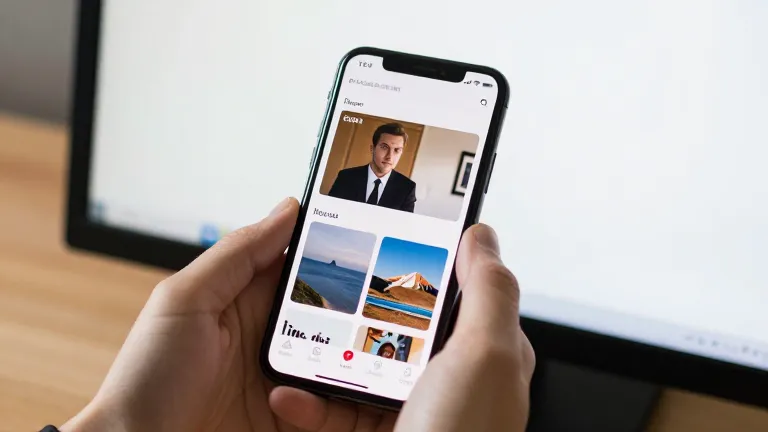
Using third-party apps can offer a convenient and user-friendly way to transfer photos from your iPhone to PC without a cable. These apps are designed to simplify the process, often requiring minimal technical knowledge and providing seamless wireless connectivity.
- Select a Trusted Third-Party App
- Connect Your iPhone to Your PC
- Transfer Photos Using the App
Select a Trusted Third-Party App
Selecting a reliable third-party app is the first step in ensuring a smooth transfer process. Look for apps that are well-reviewed, have a good reputation, and are compatible with both your iPhone and PC. Popular options include apps like Phone Transfer, iMazing, and AnyTrans, which offer intuitive interfaces and robust features for wireless file transfers.
Connect Your iPhone to Your PC
Once you've selected an app, download and install it on your PC. Most apps will guide you through the setup process, which typically involves launching the app and following on-screen instructions. For some apps, you may need to enable specific permissions on your iPhone, such as access to photos or files, to ensure the app can interact with your device.
Transfer Photos Using the App
After connecting your iPhone to your PC, the app will usually display your photos and allow you to select and transfer them to your computer. The process is typically straightforward, with options to transfer individual photos, entire albums, or even videos. Many apps also offer additional features like file management, backup options, and syncing capabilities, making them versatile tools for managing your media.
Alternative Methods for Wireless File Transfer
In addition to using iCloud and AirDrop, you can transfer photos from your iPhone to PC wirelessly by leveraging cloud storage services, Bluetooth, or online photo platforms. These methods are especially useful when you're in a location without a stable Wi-Fi connection or when you need to share photos quickly without setting up an account.
Transfer Photos Using Cloud Storage Services
Cloud storage services like Google Drive or Dropbox allow you to upload photos from your iPhone and download them to your PC later. To use this method, open the respective app on your iPhone, select the photos you want to transfer, and upload them to your cloud account. Once uploaded, log in to the same service on your PC and download the files to your desired location. This method is reliable and works across multiple devices, though it requires an internet connection and some storage space.
Send Photos via Bluetooth
If both your iPhone and PC support Bluetooth, you can send photos directly between devices. On your iPhone, go to Settings > Bluetooth and ensure it’s turned on. Then, on your PC, enable Bluetooth and search for nearby devices. Once your iPhone appears, select it and send the photos you want to transfer. Keep in mind that Bluetooth transfer speeds are generally slower than Wi-Fi, and not all PCs have built-in Bluetooth support.
Use Google Photos for Quick Access
Google Photos is an excellent option for quick access and backup. Simply open the Google Photos app on your iPhone, select the photos you want to transfer, and tap the 'Share' button. Choose 'Copy to Google Photos' to upload them to your account. On your PC, visit photos.google.com and download the photos to your device. Google Photos offers high-quality storage and easy access, though it requires a Google account and an internet connection.
Troubleshooting Common Issues During Transfer
When transferring photos from your iPhone to PC without a cable, technical issues can disrupt the process. Ensuring that all steps are followed correctly is essential, but troubleshooting common problems can help resolve delays or errors. A stable internet connection, compatible networks, and functional apps or services are key to a seamless transfer.
Ensure a Stable Internet Connection
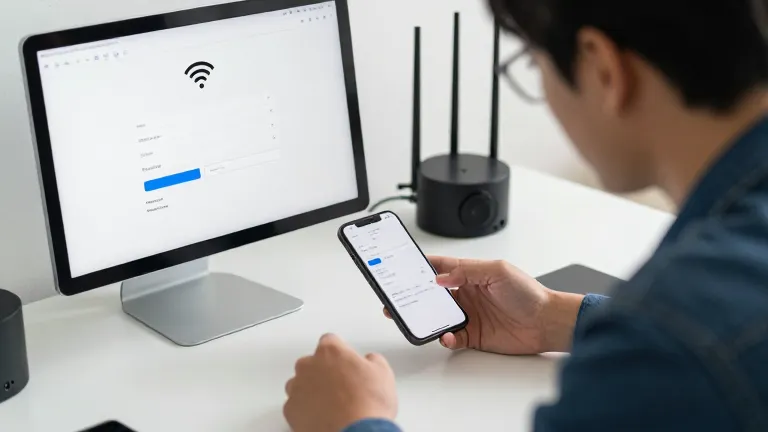
A stable internet connection is crucial for wireless transfers. Both your iPhone and PC should be connected to the same Wi-Fi network, and the signal strength should be sufficient to avoid interruptions. If your connection is weak or unstable, try moving closer to your router or switching to a different network.
Check for Network Compatibility
Network compatibility is another critical factor. Ensure that both your iPhone and PC are connected to the same Wi-Fi network, and that your router supports the necessary protocols for wireless file sharing. Some older routers may not support modern Wi-Fi standards, which can cause connectivity issues. If you're using a public Wi-Fi network, it might restrict certain types of data transfers.
Verify App or Service Functionality
Verify that your cloud service or app is functioning correctly. Some apps or services may experience technical glitches or temporary outages. Check the app’s settings and confirm that it is properly linked to your account. If you're using iCloud, ensure that your account is active and that photo syncing is enabled. If problems persist, try restarting the app or your devices to resolve any software conflicts.
Frequently Asked Questions
Can I transfer photos from my iPhone to PC without using Wi-Fi?
Yes, you can transfer photos from your iPhone to PC without Wi-Fi by using iCloud, third-party apps, or Bluetooth. These methods rely on cloud storage or direct device connections instead of a Wi-Fi network.
How do I access my iPhone photos on my PC without a cable?
You can access your iPhone photos on your PC without a cable by using iCloud or third-party apps. Both methods allow you to view and download your photos directly from your PC.
What are the best apps for transferring photos from iPhone to PC wirelessly?
The best apps for transferring photos from iPhone to PC wirelessly include tools like Google Photos, Dropbox, and third-party options like iMazing or AnyTrans. These apps provide reliable and user-friendly wireless transfer experiences.
Why won’t my iPhone connect to my PC via AirDrop?
Your iPhone may not connect to your PC via AirDrop if the devices are not on the same Wi-Fi network, AirDrop is not enabled, or the PC is not compatible with AirDrop. Ensure both devices are connected and AirDrop is activated on your iPhone.
Final Thoughts
Choosing the right method for transferring photos from your iPhone to PC without a cable depends on your preferred tools and connectivity. Whether you use iCloud, AirDrop, or third-party apps, each offers a reliable way to manage your photos efficiently.
To get started, select a method that suits your needs and follow the steps outlined in this guide. Once you have your photos on your PC, you can organize, back up, or share them with ease.





