
How to Fix Android Phone Stuck in Boot Loop
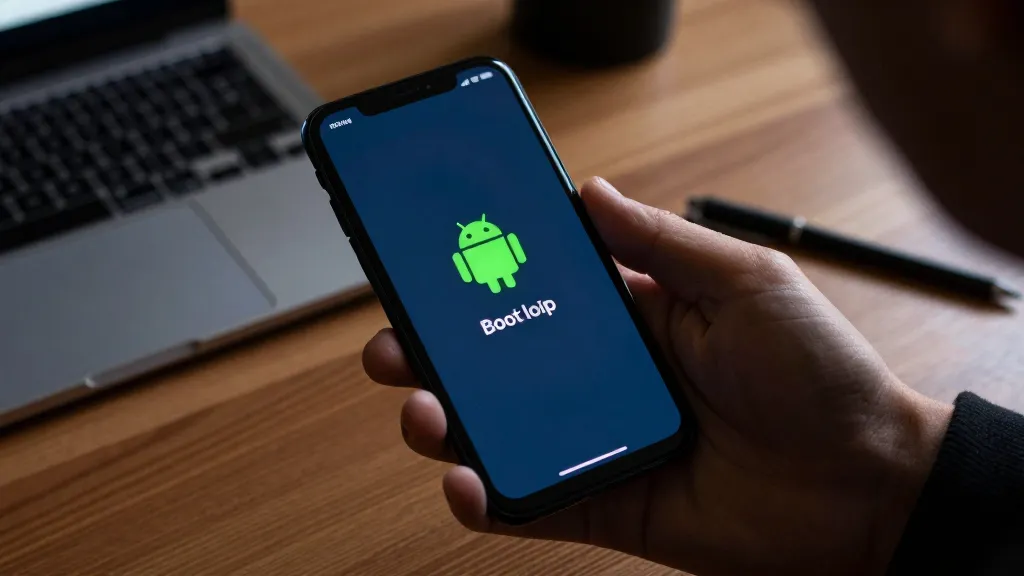
Your Android phone is stuck in a boot loop, and you're frustrated trying to get it back to normal. This common issue can disrupt your daily routine, especially if you rely on your device for work or family tasks. The main keyword here is How to Fix Android Phone Stuck in Boot Loop, and this guide is designed to help you resolve the problem without needing professional assistance. Whether it's a software glitch or a hardware issue, we'll walk you through practical solutions step by step.
This article explains the causes of a boot loop and provides straightforward troubleshooting methods to help you regain control of your device. We'll cover basic fixes, advanced recovery options, and preventive measures to avoid future problems. No technical jargon, just clear instructions that you can follow with confidence.
Whether you're dealing with a factory reset, a custom recovery, or need to seek professional help, we've got you covered. By the end of this guide, you'll have the knowledge and tools to fix your Android phone's boot loop and keep it running smoothly.
Understanding Why Your Android Phone Gets Stuck in a Boot Loop
A boot loop is a frustrating issue where your Android phone continuously restarts without ever reaching the home screen. This problem can disrupt your daily routine, especially for busy families and office workers who rely on their devices for communication and productivity. Understanding the underlying causes of a boot loop is essential to choosing the right solution and preventing future occurrences.
What Is a Boot Loop and Why It Happens
A boot loop occurs when your Android device fails to load the operating system correctly and repeatedly restarts. This cycle typically happens during the boot process, which is the phase when the phone initializes hardware and loads the system software. If the system files become corrupted or if there’s a conflict with the firmware, the phone may get stuck in a loop, trying to boot without success.
Common Causes of Android Boot Loop Issues
Common causes of a boot loop include software corruption, failed system updates, or hardware issues. Software corruption can occur due to interrupted updates, incompatible apps, or corrupted system files. Failed system updates often result in a partial installation that prevents the phone from booting properly. Hardware problems, such as a faulty battery or damaged motherboard, can also trigger a boot loop by disrupting the power supply or system stability. Identifying the root cause is crucial for selecting the most effective fix.
Basic Troubleshooting Steps for a Boot Loop
Before diving into more complex solutions, it’s essential to start with the basics. A simple restart can sometimes resolve minor software glitches that cause a boot loop. If your phone is stuck in a loop, try holding the power button for 10–15 seconds to force a restart. If the device doesn’t respond, check for any physical damage, such as a cracked screen or water exposure, which could be the root cause.
- Try a simple restart and check for any physical damage.
- Ensure your phone is fully charged before attempting a restart.
- Avoid using your phone during the boot loop to prevent further damage.
- Check for any recent software updates or incompatible apps that may have triggered the loop.
Ensure your phone is fully charged before attempting a restart. A low battery can prevent the device from booting properly, exacerbating the issue. Connect your phone to a charger using the original cable and adapter, and wait for at least 30 minutes. If the phone still doesn’t respond, try using a different power source to rule out any issues with the charging setup.
Avoid using your phone during a boot loop, as this can lead to further complications. Continued usage may cause additional software conflicts or hardware stress, making the problem worse. If you need to access your device, do so only if absolutely necessary, and avoid downloading or installing new apps while in a boot loop.
How to Recover Your Android Phone From a Boot Loop
Recovery mode is the primary method for fixing a boot loop, allowing you to access system tools to resolve software conflicts or corrupted files. Since different Android devices have slightly different ways to enter recovery mode, it's important to identify your device model first. Always ensure you have a backup or know your device's exact model before proceeding, as incorrect steps may lead to data loss or further issues.
Accessing Recovery Mode on Different Android Devices
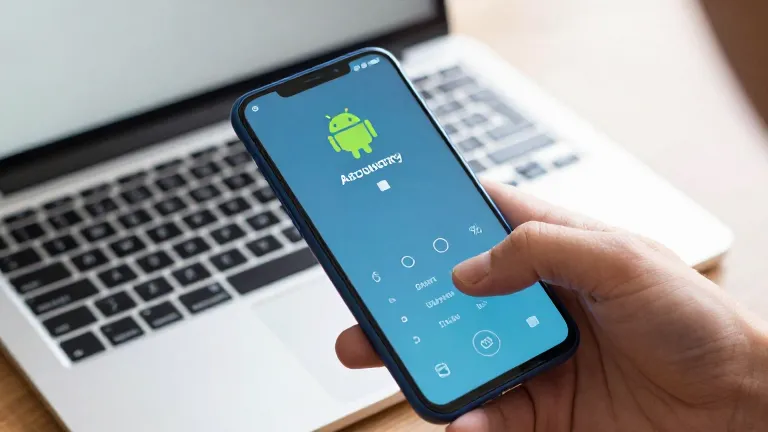
To access recovery mode, you typically need to power off your device and then press specific key combinations. For example, on Samsung devices, you might need to press and hold the Volume Up + Power buttons simultaneously, while on Xiaomi phones, the Volume Down + Power combination is often used. Some devices, like Google Pixel phones, require pressing and holding the Power button until the 'Power Off' option appears, then tapping it again to enter recovery mode. The exact method can vary, so checking your device's manual or searching online for your specific model is recommended.
Performing a Factory Reset or Data Wipe
Once in recovery mode, you can perform a factory reset or data wipe to eliminate software conflicts causing the boot loop. This process will erase all personal data, so it's crucial to have a backup or know your device model to avoid accidental data loss. Select the 'Wipe Data' or 'Factory Reset' option, confirm the action, and wait for the process to complete. After the reset, your device should reboot normally, though you may need to reinstall apps or restore data from a backup.
Advanced Fixes for Persistent Boot Loop Issues
If basic troubleshooting fails to resolve a persistent boot loop, advanced methods like custom recovery or flashing a new ROM may be required. These techniques are more complex and carry risks, so it's crucial to proceed with caution and thorough research.
Flashing a Custom ROM or Using a Custom Recovery
Flashing a custom ROM or using a custom recovery can bypass software corruption or system glitches causing the boot loop. This process involves downloading a compatible ROM for your device and using tools like TWRP to install it. However, flashing a ROM requires technical knowledge and may void your warranty, so it's essential to verify compatibility and follow detailed guides.
When to Seek Professional Help
If all else fails and your phone remains stuck in a boot loop, it may be time to seek professional help. A technician can diagnose hardware issues, such as faulty memory or damaged components, that might not be resolved through software methods. They may also have access to specialized tools and can provide a more permanent solution, especially if the problem is hardware-related.
Preventing Future Boot Loop Issues on Your Android Phone
Preventing future boot loop issues starts with regular data backups. Use cloud services like Google Drive or physical storage like an external drive to save your photos, messages, and files. This ensures you won’t lose important data if you ever need to perform a factory reset or recovery. Make it a routine to back up your phone at least once a week, especially before major software updates.

Keeping your Android device updated is another key step in avoiding boot loops. Manufacturers often release system updates to fix bugs and security vulnerabilities that could lead to instability. Enable automatic updates in your phone’s settings or check for updates manually through the Settings app. Regular updates also help maintain compatibility with new apps and features, reducing the risk of unexpected system crashes.
Avoiding untrusted apps and system modifications is crucial for long-term stability. Download apps only from official stores like the Google Play Store to minimize the chance of malware or poorly coded software causing conflicts. Refrain from installing custom ROMs or rooting your device unless you have technical expertise, as these actions can introduce instability or compatibility issues with your phone’s hardware and software.
Finally, be cautious with system settings and third-party tools. Some apps or tweaks can interfere with your phone’s boot process, leading to a loop. If you’re unsure about an app or modification, research its reputation and reviews before installing. A stable, well-maintained system is less likely to experience boot loop issues, giving you peace of mind and uninterrupted use.
Frequently Asked Questions
What should I do if my Android phone keeps rebooting and not booting up?
If your Android phone keeps rebooting and not booting up, start by trying a forced restart. If that doesn’t work, access recovery mode and perform a factory reset. If the issue persists, consider advanced fixes like flashing a custom ROM or seeking professional help.
Can I fix a boot loop without losing my data?
Fixing a boot loop without losing your data is challenging, as most recovery methods require a factory reset. However, you can try clearing cache partitions or using backup tools to preserve your data. If these fail, data loss is likely.
What is the best way to recover my Android phone from a boot loop?
The best way to recover your Android phone from a boot loop is to access recovery mode and perform a factory reset. This can resolve software conflicts. For persistent issues, flashing a custom ROM or seeking professional help may be necessary.
Is it safe to flash a custom ROM on my Android device?
Flashing a custom ROM can be safe if done correctly, but it carries risks like data loss and potential hardware damage. Ensure you backup your data, use a trusted ROM, and follow reliable guides to minimize risks.
Final Thoughts
Fixing an Android boot loop requires a systematic approach, starting with basic troubleshooting and progressing to advanced solutions. Prioritize data backups and understand the risks involved in each step.
If your phone remains unresponsive, consider seeking professional help. Taking preventive measures, like regular updates and avoiding incompatible apps, can help avoid future boot loop issues.





