
How to Fix Liquid Detected in Lightning or USB-C Connector on iPhone
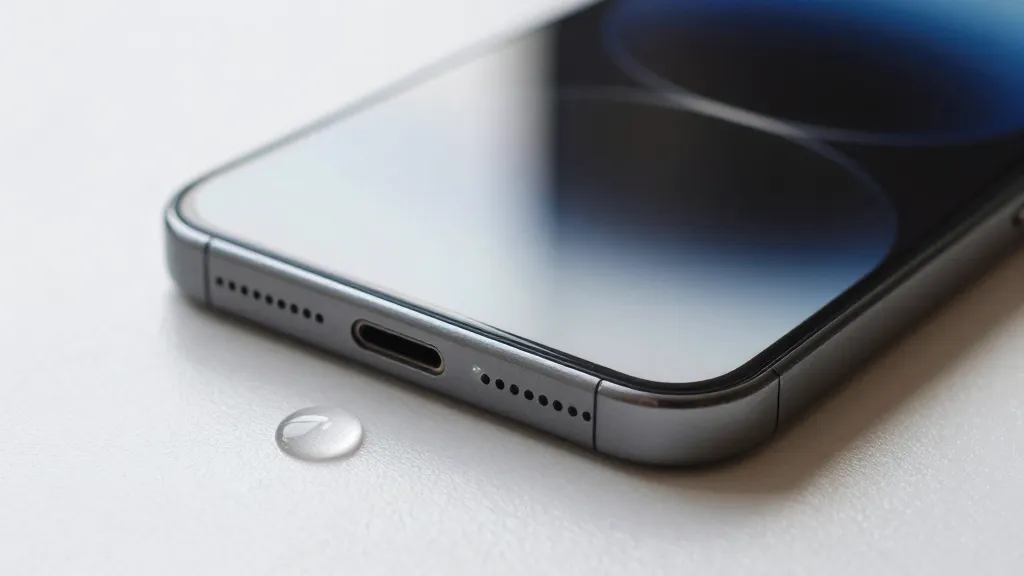
If your iPhone displays the error message 'Liquid Detected in Lightning or USB-C Connector,' you're not alone. This issue often arises after accidental water exposure, such as a spilled drink or rain. The error can prevent your device from charging, leaving you frustrated and unsure of how to proceed. This article provides a clear, step-by-step guide to help you fix the 'Liquid Detected in Lightning or USB-C Connector' error on your iPhone without professional assistance. We’ll walk you through understanding the error, safely drying your device, and preventing future damage. Whether you're dealing with a minor spill or a more serious moisture issue, these practical solutions can help you restore your iPhone’s functionality.
The first step is to understand what causes the error and why your iPhone stops charging when moisture is detected. Moisture can interfere with the internal components of your device, triggering the built-in water resistance sensors. These sensors are designed to protect your iPhone, but they can sometimes lead to false readings or temporary malfunctions. Knowing how the error works is the first step toward resolving it effectively.
Once you understand the issue, you can take action to dry your iPhone safely. While some methods, like using a dryer or rice, are commonly suggested, they come with risks and limitations. This article will guide you through the best practices for drying your device, testing its functionality, and taking preventive measures to avoid future water damage. By following these steps, you can restore your iPhone’s charging capabilities and protect it from similar issues in the future.
Understanding the Liquid Detected Error
The 'Liquid Detected in Lightning or USB-C Connector' error is a common issue that arises when your iPhone detects moisture in its charging port. This error is triggered by accidental water exposure, such as using the phone in the rain or submerging it in water. The iPhone is designed to prevent further damage by halting charging or displaying a charging alert until the port is completely dry.
What Causes the Liquid Detected Error?
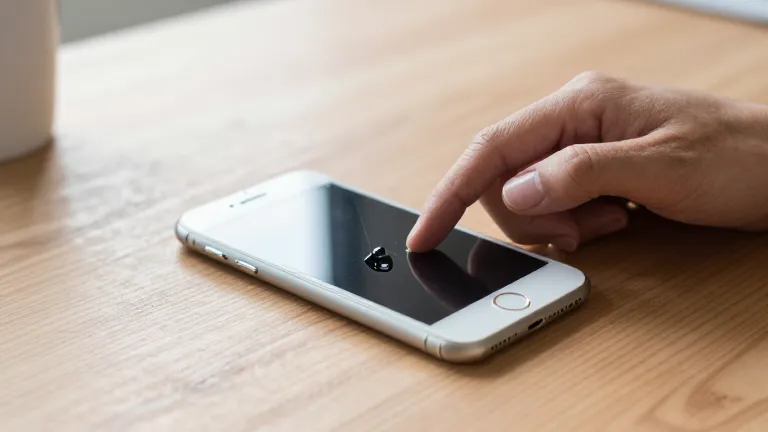
This error can occur after any incident involving liquid contact with the Lightning or USB-C port. Common scenarios include dropping the phone in water, using it near a pool or ocean, or even exposing it to high humidity. Even a small amount of moisture can trigger the error, as the iPhone's sensors are highly sensitive to any trace of liquid. The port is a critical connection point, and any moisture can compromise the integrity of the internal components.
Why Does the iPhone Stop Charging When Moisture Is Detected?
When the iPhone detects moisture in the charging port, it stops charging as a safety measure. This is because water can conduct electricity, increasing the risk of short circuits and damaging the internal circuitry. The device may also show a charging alert, indicating that the port needs to be dry before it can resume normal operation. Acting quickly is essential to prevent permanent damage, as prolonged exposure to moisture can lead to corrosion and reduced functionality.
Immediate Steps to Address the Error
After your iPhone detects liquid in the Lightning or USB-C connector, the first priority is to act quickly to prevent further damage. Immediate steps can significantly increase the chances of recovering full functionality. Avoid rushing into solutions that could worsen the situation, and follow a methodical approach to drying and troubleshooting.
- Turn off your iPhone immediately to prevent further damage.
- Remove any visible water or debris from the port using a dry, lint-free cloth.
- Avoid using heat sources like hairdryers, as they can damage internal components.
- Place the iPhone in a dry, well-ventilated area to allow natural evaporation.
- Wait at least 24–48 hours before attempting to charge it again.
How to Safely Dry Your iPhone After Water Exposure
To safely dry your iPhone after water exposure, start by turning it off immediately. Powering down the device stops the charging process and prevents any electrical short circuits. Once it's off, gently wipe the exterior with a dry, lint-free cloth to remove surface moisture. Avoid pressing any buttons or moving the device unnecessarily, as this could push water deeper into the internal components.
Should You Use Heat to Dry the Charging Port?
Using heat to dry the charging port is generally not recommended. Heat sources like hairdryers or direct sunlight can cause thermal stress on delicate internal parts, potentially leading to permanent damage. Instead, rely on natural evaporation by placing the iPhone in a well-ventilated area. If you're in a hurry, consider using a desiccant like silica gel packets, which can absorb moisture without applying heat.
Using a Dryer or Rice Method (Optional)
The rice method is a widely used, albeit debated, technique for drying moisture from an iPhone’s Lightning or USB-C port. While it can help in some cases, its effectiveness varies, and improper use may lead to further complications.
Is the Rice Method Effective for Drying iPhone Ports?
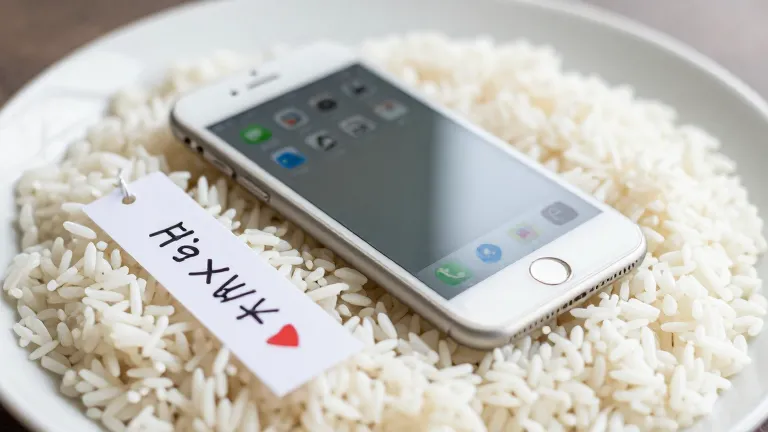
Placing the iPhone in an airtight container with uncooked rice is a common approach to absorb moisture from the charging port. The rice is believed to draw out water through desiccation, which may help in minor cases. However, this method is not guaranteed to work, and it may take up to 24–48 hours for the phone to dry completely. Some users report success, while others find that the port remains damp or develops issues afterward.
Why Is the Rice Method Controversial?
The rice method is controversial because it can potentially damage the iPhone’s internal components. Rice particles may enter the port and cause further moisture retention or mechanical issues. Additionally, the process of drying with rice is not scientifically proven, and some experts advise against it due to the risk of harm. It is also important to note that the rice method should never be used if the phone is already damaged or if the port is visibly wet. Always prioritize caution and consider professional repair options if the problem persists.
Testing and Recharging the iPhone
Once your iPhone has been dried, it's important to test its functionality and ensure the charging port is completely dry before attempting to charge it. This helps prevent further damage and ensures the device can resume normal operation.
- Wait at least 24 to 48 hours after drying before attempting to charge your iPhone.
- Use a known working USB-C or Lightning cable and a reliable power source to test charging.
- If the iPhone still shows the liquid detected error, it may require professional repair.
- Avoid using the phone until it is fully dry and charging is working properly.
How to Test If the iPhone Is Fully Dry
To test if your iPhone is fully dry, wait at least 24 to 48 hours after drying. During this time, avoid using the device or exposing it to any moisture. You can also use a soft, lint-free cloth to gently wipe the exterior, but avoid the charging port. If the port feels dry to the touch and there are no visible signs of water, it may be safe to proceed with charging.
What to Do If the Error Persists After Drying
If the liquid detected error persists after drying, it could indicate that moisture is still present in the charging port or that there is internal damage. In such cases, it is advisable to stop using the device and seek professional servicing. Continuing to charge the phone while moisture is present can lead to permanent damage or safety hazards. If the error returns after drying, it is likely that the iPhone has suffered irreversible damage and requires repair by an authorized service provider.
Preventing Future Water Damage
Preventing future water damage is crucial to avoid the 'Liquid Detected' error and protect your iPhone's functionality. By adopting simple, proactive measures, you can significantly reduce the risk of moisture-related issues.
How to Protect Your iPhone From Water Damage
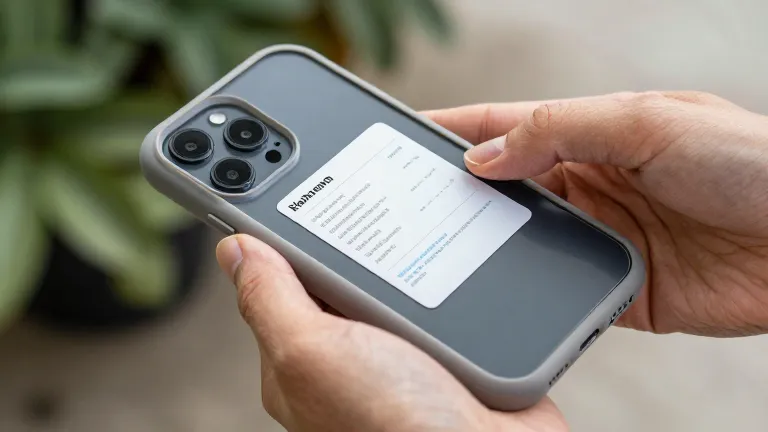
Avoid using your iPhone in wet or humid environments, such as near water sources, during rain, or in high humidity areas. If you must use your phone in such conditions, ensure it is fully dry before handling it. Always keep the device in a secure, waterproof case or cover when exposed to potential water risks. This is especially important for the Lightning or USB-C port, which is more vulnerable to moisture.
What to Do If You Notice Moisture in the Port
If you notice moisture in the port, take immediate action to dry it. Use a soft, lint-free cloth to gently wipe the area, and avoid using heat sources like hairdryers, which can damage internal components. Instead, place the iPhone in a dry, well-ventilated area or use a desiccant like silica gel packets to absorb excess moisture. Regularly inspect the port for debris or buildup, and clean it with a dry, soft brush to maintain its integrity and prevent future issues.
Frequently Asked Questions
Can I charge my iPhone if the Liquid Detected error is showing?
No, the iPhone will not charge if the Liquid Detected error is active. This is a safety feature to prevent further damage. You must address the moisture issue before attempting to charge.
How long should I wait before trying to charge my iPhone after water exposure?
Wait at least 24 to 48 hours after water exposure before attempting to charge. This allows time for natural evaporation. Avoid using heat sources to speed up the drying process.
Is the rice method safe for drying my iPhone’s charging port?
The rice method is commonly used but not scientifically proven to be effective. It may help in some cases but can pose risks like rice particles getting stuck in the port. Use it cautiously.
What should I do if the error persists even after drying the port?
If the error persists, avoid charging the iPhone and consult an authorized service provider. Persistent moisture issues may require professional cleaning or repair to prevent long-term damage.
Final Thoughts
Properly drying your iPhone after water exposure is essential to avoid permanent damage. Follow safe drying methods and allow sufficient time for moisture to evaporate. If the error persists, seek professional help to ensure your device remains functional.
Always prioritize caution when dealing with water damage. Avoid using heat sources or risky methods like rice. Regular maintenance and protective measures can help prevent future issues and extend your iPhone’s lifespan.





