
How to Fix Apple TV Remote Touchpad Not Responding
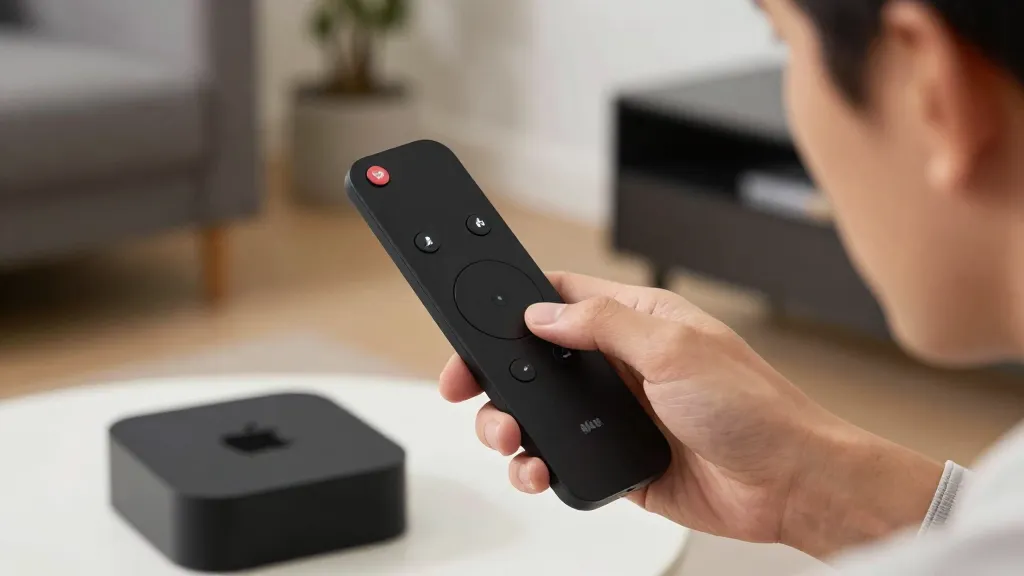
If your Apple TV remote's touchpad isn't responding, it can be frustrating, especially when you're trying to navigate your favorite shows or apps. The How to Fix Apple TV Remote Touchpad Not Responding guide is designed to help you resolve this issue without needing professional assistance. Whether you're a home user or a tech-savvy individual, this article provides clear, step-by-step solutions to get your remote working again. We'll walk you through simple checks, restarts, and advanced troubleshooting techniques to restore functionality to your Apple TV remote.
Check Basic Functionality of the Apple TV Remote
Before diving into complex troubleshooting steps, it's essential to verify the basic functionality of your Apple TV remote. A non-responsive touchpad could be due to simple issues like low battery, improper pairing, or environmental interference. Start by checking if the remote is powered on and has sufficient charge, as a low battery can cause erratic behavior. If the remote is not working, ensure it is properly paired with your Apple TV and test it in a different location to rule out interference from other devices.
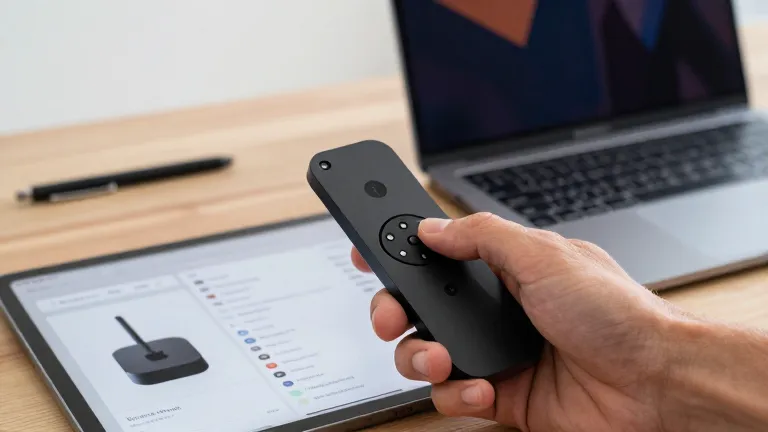
Verify Remote Power and Charge
To verify if your Apple TV remote has power and is properly charged, locate the charging port at the bottom of the remote. Connect the remote to a power source using the official Apple TV remote cable and check for the LED light indicating charging. If the remote is not charging, try a different power outlet or cable. If it still doesn't charge, consider replacing the battery or using a third-party charger with compatible specifications. A fully charged remote should function smoothly without unexpected shutdowns or lag.
Test Remote with Another Device
Testing the remote with another device helps determine if the issue is with the remote itself or the Apple TV. Use the remote with a compatible device such as an iPhone, iPad, or Mac to see if the touchpad responds correctly. If the remote works with another device, the problem may lie with the Apple TV or its settings. If the remote still doesn’t respond, move it to a different location away from potential sources of interference, such as Wi-Fi routers or Bluetooth devices. This helps eliminate environmental factors that might be affecting the remote’s performance.
Restart the Apple TV Remote
Restarting the Apple TV Remote can resolve touchpad responsiveness issues by resetting its internal systems and re-establishing a stable connection with the Apple TV. A hard reset is a simple yet effective method to address temporary glitches or software conflicts.
How to Hard Reset the Siri Remote
To perform a hard reset on the Siri Remote, press and hold the Menu and Home buttons simultaneously for 10 seconds. The remote will enter a reset mode, and the light ring will turn off. This process clears any temporary software errors and resets the remote’s internal state. Ensure the remote is charged sufficiently before initiating the reset to avoid interruptions.
Re-Pairing the Remote with Apple TV
After the hard reset, place the remote in pairing mode by holding the Home button until the light ring turns white. This indicates the remote is ready to be paired with your Apple TV. Once in pairing mode, open the Apple TV settings on your TV and navigate to the Remote & Accessories section. Select the remote from the list of available devices to complete the re-pairing process. Avoid using third-party apps or settings that might interfere with the pairing, as they can cause connectivity issues.
Troubleshoot Apple TV Remote Touchpad Issues
If your Apple TV remote's touchpad is unresponsive, physical obstruction or dirt may be the root cause. A simple cleaning can restore functionality by removing debris that interferes with touchpad sensitivity. Additionally, outdated firmware or low battery levels can contribute to touchpad issues, so addressing these factors is essential for a thorough troubleshooting process.
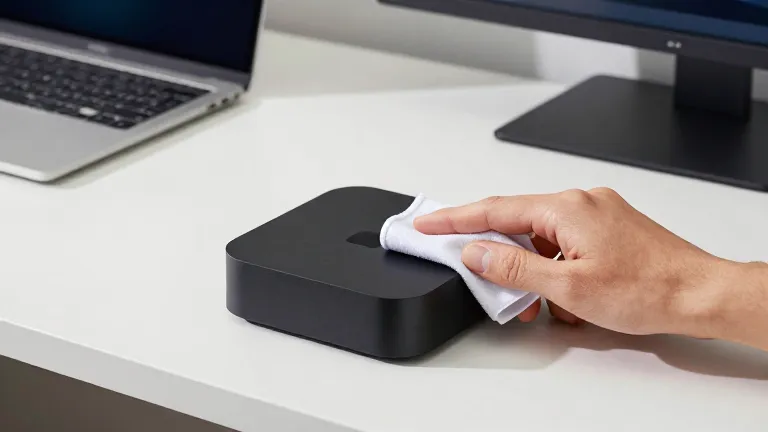
Clean the Touchpad and Internal Contacts
Start by gently cleaning the touchpad area with a soft, lint-free cloth to remove any dust, fingerprints, or residue that may be affecting its responsiveness. Avoid using abrasive materials or excessive pressure, as this could damage the surface. Next, inspect the internal contacts of the remote, which are often hidden beneath the touchpad. Use a soft brush or compressed air to dislodge any accumulated dust or particles, ensuring proper electrical contact.
Check for Firmware Updates
Ensure your Apple TV and remote are running the latest firmware, as updates often include bug fixes and performance improvements. To check for updates, open the Settings app on your Apple TV, navigate to System, and select Software Updates. If an update is available, follow the on-screen instructions to install it. Similarly, the remote may receive updates via the Apple TV app on your iOS device. Open the app, go to Remotes & Devices, select your remote, and check for available firmware updates to ensure compatibility and optimal performance.
Replace or Charge the Apple TV Remote
If your Apple TV Remote's touchpad is unresponsive, it may be due to low battery or charging issues. Before attempting more advanced troubleshooting, ensure the remote is properly charged and consider replacing the battery if it's old or damaged. Using the correct charging method and checking for warranty coverage can help resolve touchpad problems without requiring technical expertise.
Charge the Remote Using the Official Cable
To charge the remote, use the official Apple charging cable that came with your device. Connect the cable to a USB port on your computer or a power adapter. If the remote isn't charging, try a different USB port or cable, as third-party options may not provide sufficient power. Ensure the USB port is functional by testing it with another device.
Replace the Remote Battery If Needed
If the remote is older or the battery appears swollen, consider replacing the battery. Apple TV Remotes use a rechargeable lithium-ion battery, and over time, this can degrade or fail. Replacement batteries are available from authorized Apple service providers or third-party retailers, but always ensure compatibility. If the remote is still under warranty, contact Apple Support for a free replacement instead of attempting DIY battery changes.
Advanced Fixes for Apple TV Remote Touchpad Problems
Advanced fixes for Apple TV remote touchpad problems often require resetting the system and checking for software conflicts. These steps can resolve deeper issues that basic troubleshooting might miss, especially if the touchpad remains unresponsive after simpler solutions.
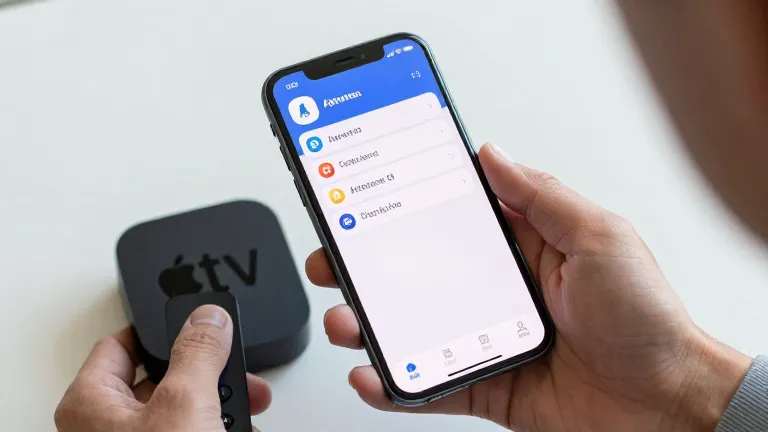
Reset Apple TV and Re-Pair the Remote
To reset the Apple TV and re-pair the remote, start by going to Settings > System > Reset > Reset All Settings. This process will restore the device to its factory state, which can eliminate configuration errors or corrupted settings that may affect the remote’s performance. After resetting, turn off the Apple TV and then re-pair the remote by going to Settings > Remotes and Devices > Add Remote > Apple TV Remote. Follow the on-screen instructions to complete the pairing process.
Use Apple TV Remote App for Troubleshooting
The Apple TV Remote app on your iPhone or iPad can help troubleshoot pairing issues. Open the app and go to the Remote tab, then select 'Troubleshoot' to check for any connection problems. If the app detects an issue, it may suggest steps to re-pair the remote or reset the system. This tool is particularly useful for identifying software conflicts or misconfigurations that could be causing the touchpad to stop working.
Frequently Asked Questions
What should I do if my Apple TV remote touchpad is completely unresponsive?
If your Apple TV remote touchpad is unresponsive, start by checking the battery level and charging it. If the issue persists, try a hard reset or re-pairing the remote with your Apple TV. If these steps don’t work, consider replacing the remote.
Can I use third-party apps to fix touchpad issues on the Apple TV remote?
Third-party apps are not officially supported for fixing Apple TV remote touchpad issues. It's recommended to use Apple's built-in troubleshooting tools or contact Apple Support for assistance.
How do I know if the Apple TV remote is charging properly?
The Apple TV remote has an LED indicator that lights up when charging. If it doesn't light up, check the charging cable and port for damage. You can also use the Apple TV Remote app to check the battery status.
What if none of the fixes work for my Apple TV remote touchpad?
If all troubleshooting steps fail, the remote may be faulty. In this case, contact Apple Support or visit an Apple Store for further assistance and potential replacement.
Next Steps for Touchpad Issues
To resolve touchpad issues, start with basic checks like charging and re-pairing. If the problem continues, advanced steps such as resetting the Apple TV or using the Remote app can help. If all else fails, replacing the remote is the best option.
If you're experiencing touchpad issues with your Apple TV remote, follow these steps to troubleshoot and fix the problem. If you're unsure, contact Apple Support for guidance.





