
How to Fix Smart TV Apps Crashing or Freezing on Startup
Smart TV apps crashing or freezing on startup can disrupt your viewing experience and frustrate users. Whether you're streaming your favorite shows or using productivity apps for work, these glitches can be annoying and hard to resolve without proper guidance. This article provides clear, actionable steps to help you fix smart TV apps crashing or freezing on startup without needing professional support. From simple fixes like restarting your TV to more advanced troubleshooting options, we cover all the essentials to get your apps running smoothly again.
Many users overlook basic troubleshooting steps before diving into more complex solutions. Restarting your smart TV, updating the system and apps, and checking your internet connection are often the first and most effective measures to take. These actions can resolve common issues that cause apps to malfunction during startup, saving you time and effort.
If simple fixes don't work, the article guides you through clearing app caches, performing a cold boot, and reinstalling or resetting apps. For persistent problems, advanced options like resetting your TV to factory settings are also discussed. By following these steps, you can troubleshoot and resolve smart TV app issues confidently, ensuring a better and more reliable experience.
Check for Simple Fixes Before Deep Troubleshooting
Before diving into complex troubleshooting steps, it's often effective to start with basic solutions that can resolve many common issues. Simple actions like restarting your smart TV, updating software, and checking your internet connection can address temporary glitches and improve app performance.
Restarting Your Smart TV
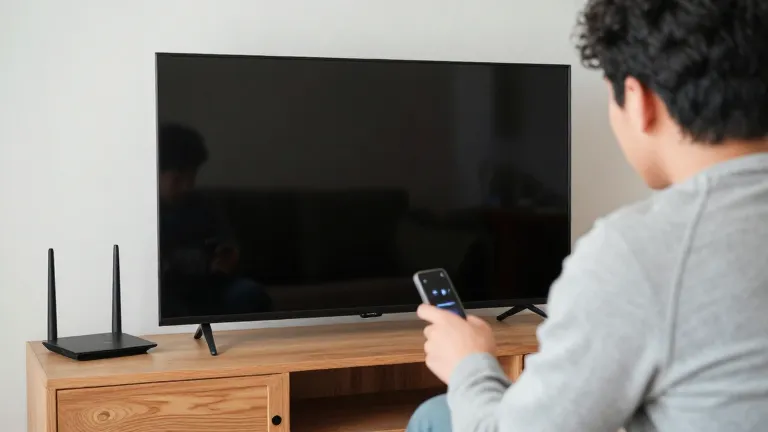
Restarting your smart TV can clear temporary glitches that may be causing app crashes or freezes. To do this, press the power button on your TV to turn it off, wait for 30 seconds, and then turn it back on. This process allows the TV to reset its internal systems and may resolve minor software conflicts.
Updating Your Smart TV and App
Keeping your smart TV and apps updated is crucial for maintaining stability and security. Go to the TV's settings menu, navigate to the software update section, and check for available firmware updates. Similarly, open the app store or the specific app settings to look for updates. Installing the latest version can fix bugs and improve compatibility with other devices.
Testing Your Internet Connection
A stable internet connection is essential for smart TV apps to function properly. Use the TV's built-in network settings to check your Wi-Fi or Ethernet connection. If you're using Wi-Fi, ensure you're connected to the correct network and that it's not experiencing interference. You can also test your connection by visiting a website or using a speed test tool to confirm it's working as expected.
Clear the App Cache to Resolve Freezing or Crashing
Clearing the app cache is a simple yet effective way to resolve freezing or crashing issues on smart TVs. Over time, cached data can become corrupted, leading to instability in app performance. By clearing the cache, you remove outdated or damaged files that may be causing the problem.
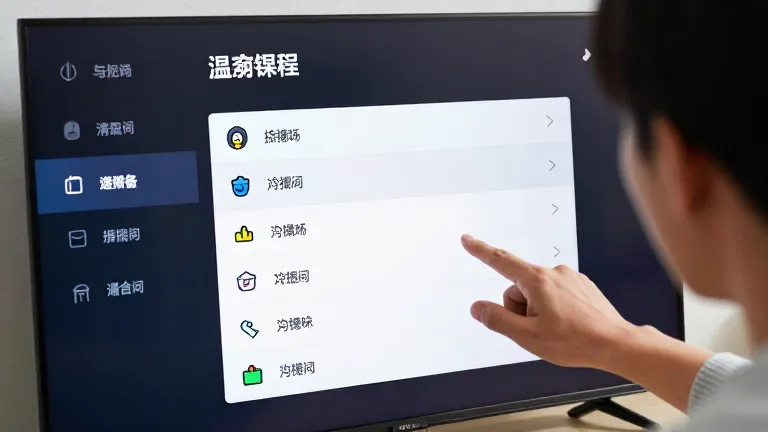
- Navigate to your smart TV's settings menu and locate the 'Applications' or 'Apps' section.
- Select the specific app that is crashing or freezing and choose the option to 'Clear Cache'.
- If the app continues to malfunction, repeat the process for all installed apps to ensure no corrupted data remains.
- After clearing the cache, restart your smart TV to apply the changes and verify if the issue is resolved.
How to Clear App Cache on Your Smart TV
To clear the cache for a specific app, start by accessing your smart TV's settings menu. Look for the 'Applications' or 'Apps' section, which typically lists all installed apps. Select the problematic app and look for an option such as 'Clear Cache' or 'Delete Cache'. This action removes only the cached data, preserving your app settings and login information.
Clearing Cache for All Installed Apps
If the issue persists across multiple apps, clearing the cache for all installed apps may be necessary. In the settings menu, navigate to the 'Applications' section and look for an option like 'Clear All Cache' or 'Reset All Apps'. This process removes cached data from every app, which can help resolve widespread performance issues. Be aware that this might temporarily affect app functionality until the cache is rebuilt.
Perform a Cold Boot to Reset Startup Issues
A cold boot can reset the TV's system and resolve startup app issues. This method forces the TV to reboot from a completely powered-down state, which can clear temporary glitches or corrupted data that might be causing the app to crash or freeze.
What Is a Cold Boot for a Smart TV?
A cold boot for a Smart TV is a process that involves unplugging the TV from its power source and waiting for a short period before reconnecting it. Unlike a regular restart, which is initiated through the TV's menu, a cold boot ensures that all internal memory and temporary data are cleared. This can be particularly effective in resolving persistent startup issues that aren't addressed by a standard reboot.
How to Do a Cold Boot Correctly
To perform a cold boot correctly, unplug the TV from the power outlet and wait for at least 30 seconds. This allows the TV's internal capacitors to discharge, which can help reset any unstable system states. After the wait, plug the TV back in and allow it to boot up completely. If the app still crashes or freezes, repeat the cold boot process. This method is a simple yet effective way to address startup issues without needing to access advanced settings or troubleshoot further.
Reinstall or Reset the App for Persistent Issues
If the app continues to crash or freeze, reinstalling it can often resolve issues caused by corrupted files or outdated configurations. This process removes the existing app data and reinstalls the latest version from the app store, which may fix the problem. However, some apps may require a deeper reset of the TV settings to fully restore functionality.
- Open the Smart TV app store and locate the problematic app.
- Select the app and choose the uninstall option to remove it completely.
- Restart the Smart TV to ensure all changes take effect.
- Return to the app store and reinstall the app to download the latest version.
- Verify that the app is compatible with your TV model and firmware version before installation.
How to Uninstall and Reinstall a Smart TV App
Uninstalling an app from your Smart TV is similar to removing apps from a smartphone. Navigate to the app store, find the app, and select the uninstall option. This removes the app and its associated data, which can help resolve crashes caused by corrupted files. After uninstalling, restart the TV to clear any temporary processes and ensure a clean slate for the reinstallation.
Resetting Smart TV Settings for App Recovery
Resetting your Smart TV settings can help restore app functionality if the issue persists after reinstallation. This process resets the TV to its default configuration, which can resolve conflicts with system settings or firmware. However, resetting the TV will erase all custom settings, so it's important to back up any important data before proceeding. This step is especially useful if the app is not working correctly after reinstallation.
Advanced Options for Persistent App Crashes
If basic troubleshooting steps fail to resolve persistent app crashes, consider more advanced options. Resetting your smart TV to factory settings or reaching out to manufacturer support can help address deeper system issues or software bugs.
Resetting Your Smart TV to Factory Settings
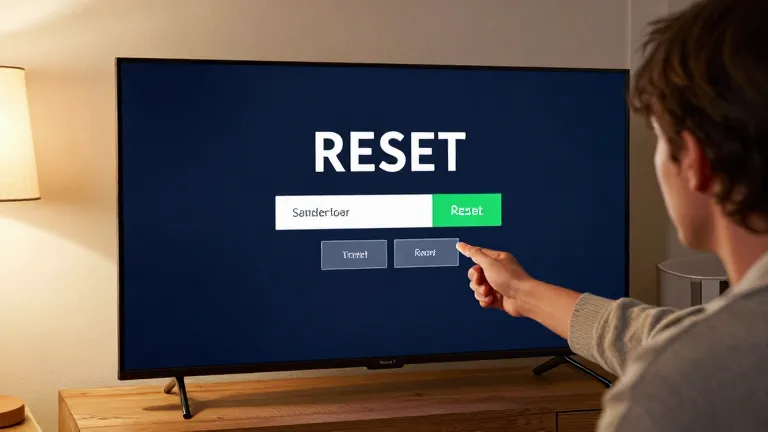
Resetting your smart TV to factory settings will restore the device to its original state, which can resolve software conflicts or corrupted system files causing app crashes. Before proceeding, ensure you back up any important data, such as personal settings, bookmarks, or media files, as this process will erase all user data and installed apps. Refer to your TV’s user manual or manufacturer website for specific instructions on how to perform a factory reset, as the process may vary between models.
Contacting Manufacturer Support for Help
If resetting your TV doesn’t resolve the issue, contacting manufacturer support is the next step. Support teams can provide guidance on advanced diagnostics, firmware updates, or specific troubleshooting steps tailored to your TV model. Be prepared to describe the issue in detail, including the app names, error messages, and any steps you’ve already taken. Some manufacturers also offer online forums or live chat support where you can get real-time assistance. If the problem persists, it may indicate a hardware issue, and the manufacturer may recommend professional repair or replacement.
Frequently Asked Questions
What should I do if my smart TV app keeps crashing after a cold boot?
If the app continues to crash after a cold boot, try reinstalling the app or resetting your TV settings. If these steps don't resolve the issue, consider a factory reset or contacting the manufacturer's support.
Can clearing the app cache fix a smart TV app that won't open?
Clearing the app cache may resolve minor issues preventing the app from opening. However, if the problem persists, it might indicate a deeper issue requiring further troubleshooting or app reinstallation.
How do I know if my smart, TV needs a factory reset?
A factory reset should be considered if basic troubleshooting fails. This step will erase all data and settings, so it's best used as a last resort when other methods don't work.
What if my smart TV app freezes on startup but works fine on a different device?
This suggests the issue is likely with your TV's settings or software. Check for updates, clear the cache, or try a cold boot. If the problem continues, consider a factory reset.
Final Steps and Maintenance Tips
By following these steps, you can effectively address smart TV app crashes and freezes. Start with simple fixes like restarting your TV and updating software, then move to clearing caches or performing a cold boot. If issues persist, consider more advanced options like reinstalling apps or resetting your TV.
If you're still experiencing problems, contacting the manufacturer's support can provide tailored assistance. Regular maintenance and updates can help prevent future app issues.





