
How to Fix AirPods One Side Not Working or Charging in Case
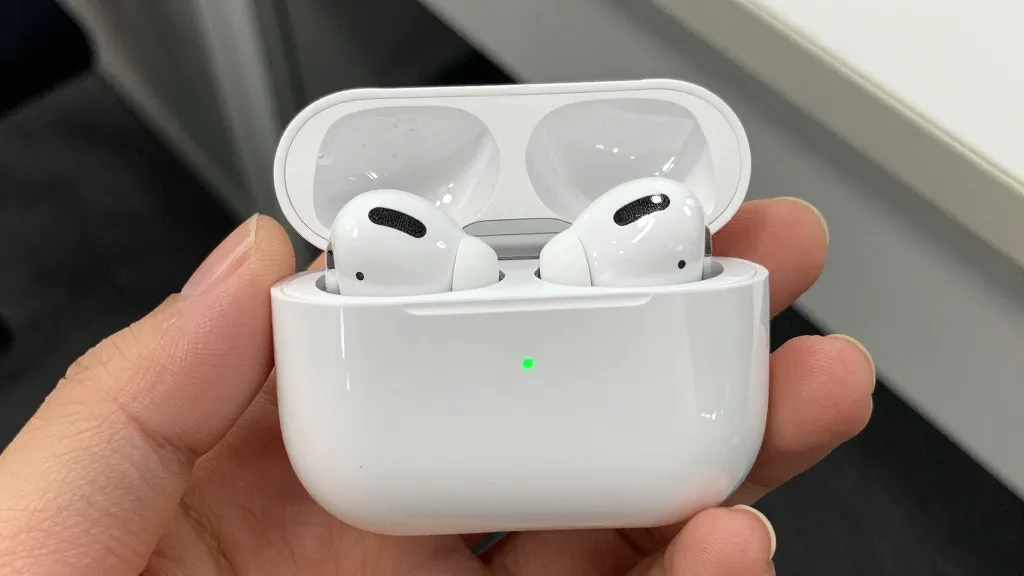
If your AirPods are only working on one side or not charging properly, it can be frustrating, especially when you're relying on them for calls, music, or meetings. This issue can arise from a variety of causes, such as a dead battery, a faulty connection, or a software glitch. The main keyword here is 'How to Fix AirPods One Side Not Working or Charging in Case.' In this article, we’ll guide you through practical steps to identify and resolve these common problems without needing to contact a professional. Whether you’re at home or in the office, these solutions are designed to help you get your AirPods back to full functionality quickly and efficiently.
Identify the Problem with Your AirPods
Before attempting any fixes, it's crucial to accurately identify the root cause of the issue with your AirPods. Determining whether the problem is with one AirPod, both, or related to charging or audio output will help you narrow down potential solutions and avoid unnecessary troubleshooting steps.
Check If One AirPod Is Dead
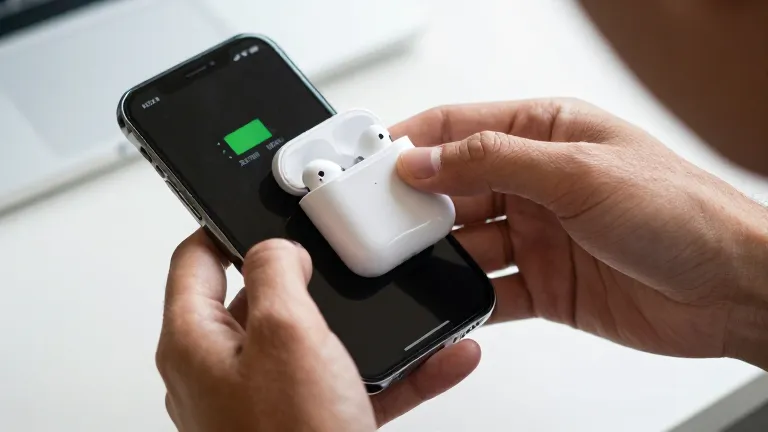
Start by checking whether the issue is isolated to one AirPod or affects both. If only one AirPod is not working, it may be a hardware issue with that specific earbud. Try using each AirPod individually by removing the other from the charging case and testing it on your device. If one AirPod works while the other doesn't, the faulty one is likely damaged or has a connectivity issue.
Verify AirPods Charging Status
Next, verify the charging status of your AirPods. If the issue is with charging, the AirPods may not power on or may charge slowly. Check the battery level on your iPhone or iPad by opening the Settings app, selecting Bluetooth, and looking for the AirPods entry. If the battery level is low, charge them for at least 15 minutes and test again. If they still don’t charge, the problem may be with the charging case or the charging cable.
Confirm Audio Output Issues
Finally, confirm whether the issue is related to audio output. If you're experiencing one-sided audio, try playing a test sound or video and observe if only one earbud produces sound. If both AirPods are working but only one is producing audio, the issue may be with the audio settings on your device or a software glitch. If the problem persists across multiple devices, it could indicate a deeper hardware issue with the AirPods themselves.
Clean the AirPods and Charging Case
Cleaning your AirPods and charging case is a simple yet effective step in resolving issues like one-sided audio or charging problems. Dust, earwax, and debris can accumulate in the speaker grilles and charging ports, leading to connectivity or power issues. A quick clean can restore optimal performance and extend the lifespan of your device.
- Use a soft, dry cloth to gently wipe the exterior of the AirPods and charging case.
- Inspect the speaker grilles and charging ports for debris, and use a small, dry brush or compressed air to remove any buildup.
- Avoid using water or harsh chemicals, as they can damage the delicate components of your AirPods.
- Ensure the charging case is fully dry before placing the AirPods back inside.
How to Clean AirPods Properly
To clean the AirPods properly, start by using a soft, dry cloth to wipe down the exterior surfaces. This helps remove fingerprints, oils, and light dust without risking damage to the delicate electronics. If there is visible debris in the speaker grilles, use a small, dry brush or compressed air to gently clear it. Avoid pressing too hard to prevent scratches or damage to the speaker components.
How to Clean the Charging Case
Cleaning the charging case involves similar steps. Use a soft, dry cloth to wipe the exterior, paying special attention to the area around the charging port. If there is dirt or debris in the port, use a dry brush or compressed air to carefully remove it. Make sure the case is completely dry before placing the AirPods back inside to avoid any moisture-related issues.
Reset Your AirPods to Fix Issues
Resetting your AirPods can often resolve connectivity and charging issues by clearing temporary glitches in the pairing or system settings. This process can be done either through your iPhone or using the charging case itself, depending on your situation. After resetting, it’s important to test the functionality to ensure the problem has been resolved.
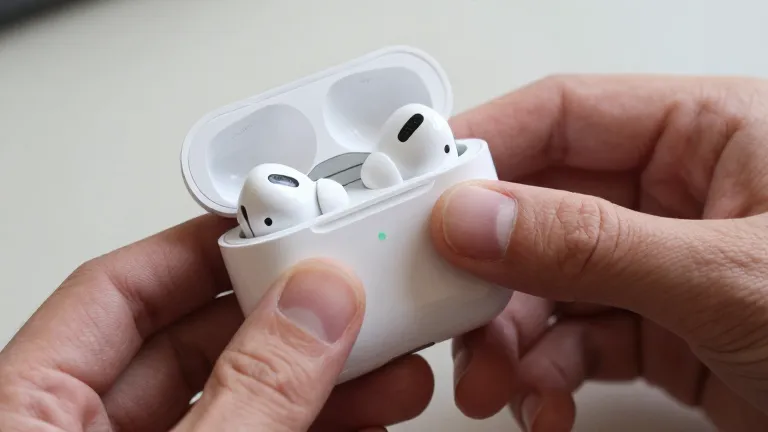
- Open the AirPods charging case and press and hold the setup button for at least 15 seconds until the status light flashes white.
- If using an iPhone, go to Settings > Bluetooth, tap the info icon next to your AirPods, and select 'Forget This Device.' Then, reconnect them by placing them in the case and opening the lid.
- After resetting, place the AirPods back in the case and close the lid for a few seconds to let them reconnect.
- Check if both AirPods are working correctly by playing audio and testing the charging status through the case’s light.
How to Reset AirPods via the iPhone
Resetting your AirPods via the iPhone is a straightforward method that clears any cached connections or software conflicts. This method is particularly useful if your AirPods are not pairing properly or if one side is not working. By forgetting the device and reconnecting, you ensure that your AirPods are re-paired with the correct settings.
How to Reset AirPods Without an iPhone
If you don’t have an iPhone handy, you can still reset your AirPods by using the charging case. This method is ideal if your AirPods are not responding to the iPhone or if you’re away from your phone. Pressing and holding the setup button on the case forces a reset, which can help resolve issues with both audio and charging.
Troubleshoot Common Charging and Audio Problems
Troubleshooting charging and audio problems with AirPods often starts with verifying their battery levels and ensuring they're connected to a reliable power source. If one side isn't working or charging, it's crucial to assess both the AirPods and the case to identify the root cause.
- Check the battery level of your AirPods and case
- Test charging with a different cable or port
- Verify that the charging case is properly connected
- Ensure the AirPods are fully seated in the case
How to Check AirPods Battery Level
To check the battery level of your AirPods, open the charging case and tap the status light. A green light indicates the case is charging, while a white light means the AirPods are charging. If the light doesn't appear, the case might not be connected to a power source. You can also check the battery level by opening the case near your iPhone and looking at the battery percentage displayed on the screen.
How to Test Charging with a Different Cable
If your AirPods aren't charging properly, try using a different charging cable and port. A damaged or faulty cable can prevent the case from charging, which in turn affects the AirPods. Plug the cable into a different USB port or power adapter to rule out any issues with the current setup. If the case still doesn't charge, the problem might be with the case itself, and you may need to reset or replace it.
When to Seek Professional Help
If you've tried all the basic troubleshooting steps and your AirPods still aren't working properly, it's time to consider professional help. While many issues can be resolved with simple fixes, some problems require specialized tools or expertise that you might not have at home.
Signs That Your AirPods Need Professional Repair
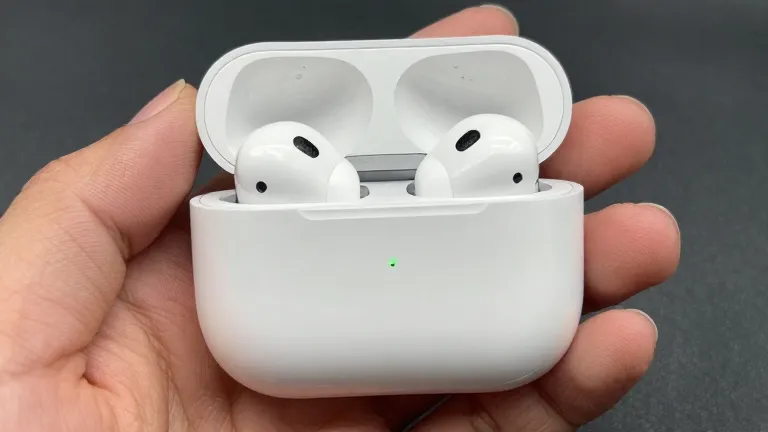
There are several signs that indicate your AirPods may need professional repair. If one side remains unresponsive even after cleaning, resetting, and checking the battery, it could be a hardware issue. Persistent charging problems, such as the case not charging at all or the AirPods not holding a charge, may also point to internal damage. Additionally, if you notice physical damage, such as cracks or water exposure, it's best to avoid further use and seek professional assistance.
How to Contact Apple Support
To contact Apple Support, visit the official Apple website and use the support chat or schedule a Genius Bar appointment at an Apple Store. If you prefer phone support, you can call Apple's customer service line. For users outside the US, Apple provides localized support options. If your AirPods are still under warranty, repairs are often free or at a reduced cost. If not, Apple may offer paid repair services through authorized service providers.
Frequently Asked Questions
What should I do if one AirPod is dead?
First, check if the AirPod is fully charged by placing it in the charging case. If it still doesn't work, try resetting the AirPods. If the issue persists, clean the AirPods and the case, or seek professional help.
How do I clean the AirPods case properly?
Use a soft, dry cloth to wipe the exterior of the case. For the charging ports, gently remove debris with a dry brush. Avoid liquid or abrasive materials to prevent damage.
Can I reset my AirPods without an iPhone?
Yes, you can reset your AirPods by holding the setup button on the back of the case for at least 15 seconds. This will remove them from your device and reset the settings.
When should I stop troubleshooting and get professional help?
If cleaning, resetting, and checking charging don't resolve the issue, it's time to seek professional help. Signs like persistent audio issues, charging problems, or physical damage suggest internal damage requiring repair.
Final Steps for AirPods Troubleshooting
Regular maintenance and troubleshooting can resolve most AirPods issues. If problems persist, professional help is essential. Always ensure proper cleaning and charging to extend device life.
Take action today by checking your AirPods' charging and connectivity. If issues remain, contact Apple Support for further assistance.





