
How to Fix Bose SoundLink Speaker Won’t Turn On or Charge
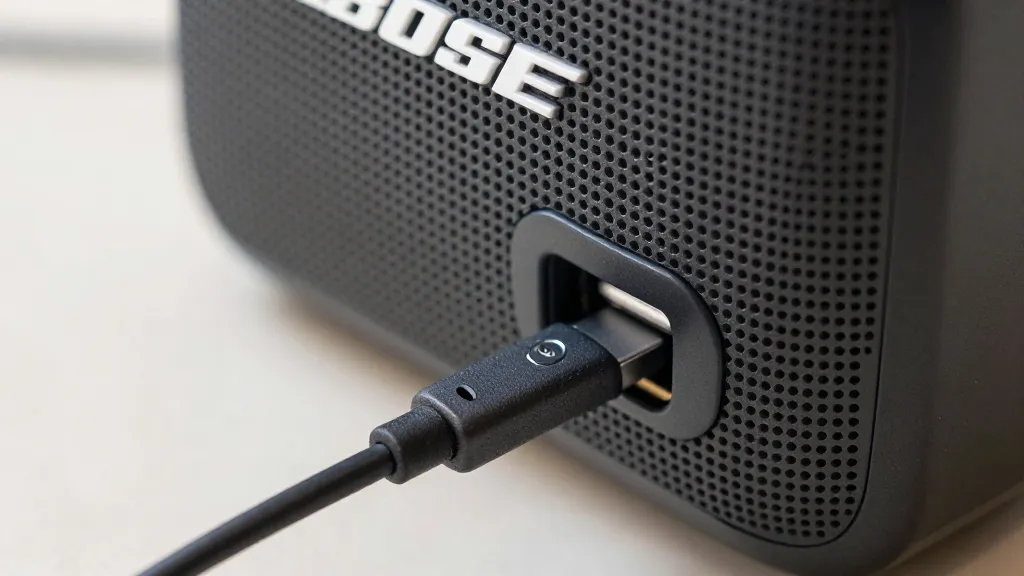
If your Bose SoundLink speaker won't turn on or charge, it can be frustrating, especially when you're relying on it for music or calls. This guide will walk you through step-by-step solutions to help restore power and functionality to your device. Whether you're at home or in the office, these practical fixes can save you time and hassle. The main focus of this article is to address the issue of 'How to Fix Bose SoundLink Speaker Won't Turn On or Charge' by covering essential troubleshooting methods. By following the outlined steps, you can identify and resolve common power and connectivity problems effectively. We'll start by checking physical connections and power sources, then move on to more advanced solutions. Let's get your speaker back in working order.
Check Physical Connections and Power Sources
Before attempting more complex solutions, start by checking the physical connections and power sources for your Bose SoundLink speaker. A simple issue like a faulty cable or a loose connection can prevent the speaker from turning on or charging. Ensure that the speaker is properly connected to a reliable power source and that all cables are securely plugged in.
Verify Charging Cable and Adapter
Verify that the speaker is connected to a working power source using the original charging cable and adapter. If you're using a different power outlet or adapter, ensure it provides the correct voltage and amperage for the speaker. A weak or incompatible power source can prevent the speaker from charging or powering on. If possible, try using the original cable and adapter to rule out any issues with third-party accessories.
Clean the Charging Port
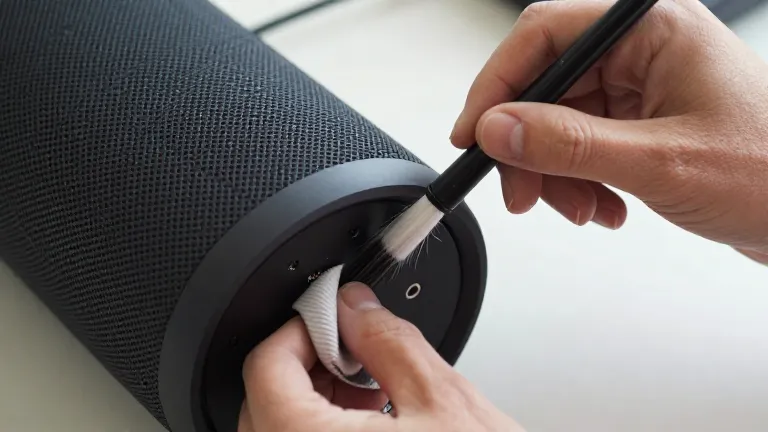
Inspect the charging port on the speaker for any signs of dirt, dust, or debris that may be blocking the connection. Use a soft, dry cloth or a compressed air canister to gently clean the port. Avoid using sharp objects that could damage the delicate contacts inside. A clean charging port ensures a stable and efficient connection, which is essential for the speaker to charge and power on correctly.
Reset the Speaker to Default Settings
Resetting your Bose SoundLink speaker to factory settings can resolve persistent power or connectivity issues. A ship mode reset is a reliable method to restore the speaker to its original configuration, which may help it power on or charge properly.
- Locate the reset button on the back of the speaker.
- Hold the reset button for 15 seconds until the LED light turns off.
- Release the button and wait for the speaker to reboot.
- Check if the speaker powers on and charges normally after the reset.
How to Perform a Ship Mode Reset
To perform a ship mode reset, locate the small reset button on the back of the speaker. This button is typically hidden under a flap or cover. Use a paperclip or similar tool to press and hold the button for 15 seconds. During this time, the speaker’s LED light will turn off, indicating that the reset process has begun.
What to Expect After Resetting
After releasing the reset button, the speaker will reboot and may take a few minutes to restart. Once it powers on, it should be in its default settings, with all previous configurations and settings removed. If the speaker still does not power on or charge, it may indicate a hardware issue or a deeper software problem that requires further troubleshooting or professional assistance.
Update Bose Speaker Firmware
Updating the firmware on your Bose SoundLink speaker can resolve power and connectivity issues. A stable Wi-Fi connection is required to access firmware updates through the Bose Connect app. Following the correct steps ensures the update process is smooth and effective.
How to Update Bose Firmware
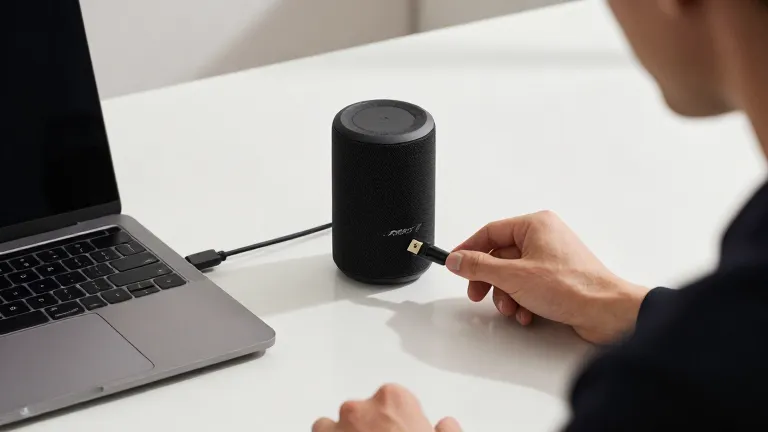
To update the firmware, open the Bose Connect app on your smartphone or tablet. Ensure your speaker is connected to the same Wi-Fi network. The app will check for available firmware updates and prompt you to install them. Follow the on-screen instructions carefully to complete the update process.
Troubleshooting Firmware Update Issues
If the firmware update fails, check your Wi-Fi connection and restart the app. A weak or unstable signal can prevent the update from completing. Also, ensure the speaker is fully charged before starting the update. If issues persist, try reconnecting the speaker to the network or restart your router. In some cases, a reset of the speaker may help resolve firmware update problems.
Troubleshoot Common Issues That Prevent Power On
If your Bose SoundLink speaker won't turn on or charge, physical damage or charging issues could be the root cause. Inspect the speaker for any visible signs of damage, and ensure it's receiving power properly. A thorough check of both the device and the charging process can help identify and resolve the problem.
- Inspect the speaker for cracks, water damage, or loose components that might prevent it from powering on.
- Use a high-quality USB cable and a reliable power source to charge the speaker for at least 30 minutes before trying to turn it on.
- Ensure the speaker is not in a low-battery state or stuck in power-saving mode by holding the power button for a few seconds to attempt a reset.
- Check that the charging port is free from dust or debris, which could interfere with the charging process.
Check for Physical Damage
Physical damage to the Bose SoundLink speaker can prevent it from turning on or charging. Look for cracks, water damage, or any loose parts that might affect its functionality. If the speaker has been dropped or exposed to moisture, it may need to be repaired or replaced.
Charging Troubleshooting Tips
Charging issues are a common cause of power problems with the Bose SoundLink speaker. If the speaker doesn't turn on, try charging it for at least 30 minutes using a reliable power source and a high-quality USB cable. If it still doesn't power on, the battery may be faulty or the charging port could be damaged.
Contact Bose Support for Further Assistance
If all troubleshooting steps fail to resolve the issue with your Bose SoundLink speaker, it's time to reach out to Bose Support for further assistance. Bose offers dedicated customer support through phone, email, and online chat, ensuring you receive timely help. When contacting support, be prepared to describe the problem in detail, including when the issue first occurred and any error messages you've noticed. This information helps the support team quickly identify potential causes and provide targeted solutions.
Bose Support may ask you to perform additional diagnostic steps or confirm specific details about your speaker model and its current status. They can also guide you through advanced troubleshooting options or recommend professional repair services if needed. It's important to follow their instructions carefully, as they are trained to handle a wide range of issues specific to Bose products.
If your speaker is under warranty, Bose may offer repair or replacement options at no cost. Be sure to mention your purchase date and warranty status during the support call, as this can affect the available solutions. In some cases, the support team may request photos or videos of the issue to better assess the situation.
Bose Support is a reliable resource for resolving complex or persistent issues that cannot be addressed through basic troubleshooting. By providing clear and detailed information, you increase the chances of a swift and effective resolution. Always keep your contact details handy and follow up if you don't receive a prompt response.
Frequently Asked Questions
What should I do if my Bose SoundLink speaker is not charging?
First, check the charging cable and adapter for damage. Ensure the port is clean and try a different power source. If the speaker still doesn't charge, it may require a reset or firmware update.
How do I reset my Bose SoundLink speaker to factory settings?
To reset, hold the power button for 20 seconds until the speaker enters ship mode. This will restore default settings and can resolve many connectivity or power issues.
Can I update the firmware of my Bose SoundLink speaker without a Wi-Fi connection?
Yes, you can update firmware via the Bose Connect app using a Wi-Fi connection, or by connecting the speaker directly to a computer via USB. Ensure the speaker is fully charged before starting.
What should I do if my Bose speaker won't turn on after a reset?
If the speaker still won't power on, check for physical damage or a faulty battery. Try using a different charging cable and adapter. If the problem persists, contact Bose support for further assistance.
Next Steps and Maintenance Tips
Fixing a Bose SoundLink speaker that won't turn on or charge involves checking physical connections, resetting the device, updating firmware, and addressing potential hardware issues. If these steps don’t resolve the issue, contacting Bose support is the best next step.
Regular maintenance and timely firmware updates can prevent many common issues. Always ensure your speaker is charged and properly connected before attempting to use it.





