
How to Fix Hulu Playback Failure Error on Smart TV
Encountering a Hulu playback failure error on your smart TV can be frustrating, especially when you're looking to stream your favorite shows without interruptions. Whether you're a home user or a busy professional, knowing how to fix this issue quickly can save you time and hassle. This article provides practical solutions to resolve the Hulu playback failure error, guiding you through troubleshooting steps that you can perform yourself. From clearing cache to updating firmware, we cover the essentials to get Hulu running smoothly on your smart TV.
Hulu playback failures on smart TVs often stem from a variety of factors, including outdated software, network issues, or app malfunctions. Understanding the common causes behind these errors helps you identify the right solution faster. By following the steps outlined in this article, you can address potential problems without needing to call a technician. Each section is designed to be clear and actionable, ensuring you can resolve the issue efficiently.
From clearing cache and updating firmware to checking your network connection and reinstalling the Hulu app, this guide covers all the key troubleshooting steps. You'll find detailed instructions tailored to different smart TV brands, making it easy to follow along regardless of your device. With these methods, you can restore Hulu playback on your smart TV and enjoy uninterrupted streaming without any technical setbacks.
Why Hulu Playback Fails on Smart TV
Hulu playback failure on a smart TV can be frustrating, but it often stems from a few common issues. Whether the problem is related to outdated software, network instability, or incorrect settings, understanding the root cause can help you resolve the issue quickly.
Common Causes of Hulu Playback Failure
Common causes of Hulu playback failure include outdated app versions or firmware on the smart TV. If the Hulu app or the TV's operating system is not up to date, it can lead to compatibility issues or bugs that disrupt video playback. Additionally, corrupted cache files or incomplete app installations can prevent Hulu from loading content properly. These issues are often resolved by updating the app or clearing the cache, which can be done through the TV's settings or the app itself.
How TV Firmware and App Updates Affect Playback
TV firmware and app updates play a critical role in ensuring smooth Hulu playback. Firmware updates often include bug fixes and performance improvements that address compatibility problems with streaming services. Similarly, updating the Hulu app ensures that you have the latest features and security patches. If these updates are delayed or skipped, the app may not function correctly, leading to playback errors. Regularly checking for and installing updates can significantly reduce the chances of encountering playback issues on your smart TV.
How to Clear Hulu Cache on Smart TV
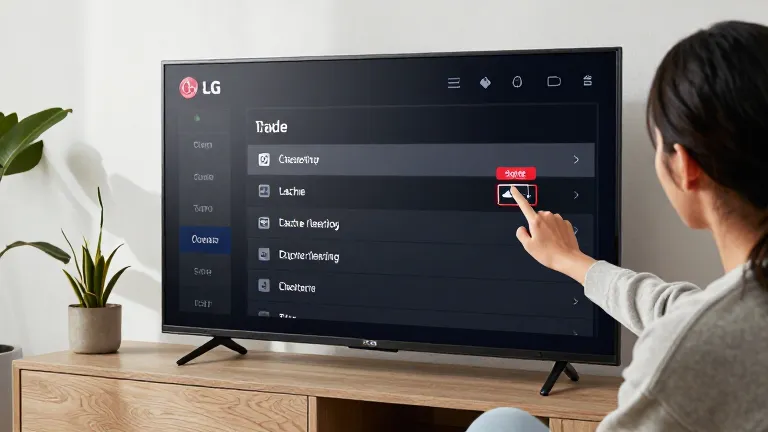
Clearing the Hulu cache on your smart TV is a simple yet effective way to resolve playback issues. Corrupt or outdated cache files can interfere with the app's performance, leading to errors during playback. Different smart TV brands have unique methods for clearing cache, so it's important to follow the correct steps for your device. Restarting your TV after clearing the cache can also help ensure that all changes take effect and any lingering issues are resolved.
- Navigate to the Smart Hub or Home Screen on your Samsung Smart TV and locate the Hulu app.
- Press the Smart Hub button on your remote to access the app settings, then select 'App Settings' for Hulu.
- Choose 'Clear Cache' to remove the app's temporary files, then confirm the action.
- After clearing the cache, restart your TV to apply the changes and test Hulu playback.
Steps to Clear Hulu Cache on Samsung Smart TV
Samsung Smart TVs require a specific process to clear the Hulu cache. Start by accessing the Smart Hub or Home Screen, then look for the Hulu app. Press the Smart Hub button on your remote to open the app settings, where you can find the 'Clear Cache' option. This action removes temporary files that may be causing playback errors. Once the cache is cleared, restart your TV to ensure the changes are applied and the app functions correctly.
Clearing Hulu Cache on LG and Sony Smart TVs
LG and Sony Smart TVs have different methods for clearing the Hulu cache. On LG TVs, go to the Settings menu, select 'Apps', then choose 'Hulu' from the list. Tap 'Storage' and select 'Clear Cache' to remove the app's temporary data. For Sony TVs, navigate to the Settings menu, choose 'Applications', then select 'Hulu' and tap 'Clear Cache'. After clearing the cache, restart your TV to ensure that the app reloads properly and any playback issues are resolved.
How to Update Smart TV Firmware
Updating your smart TV's firmware ensures it has the latest features, security patches, and bug fixes that can resolve playback issues with apps like Hulu. Outdated firmware may lead to compatibility problems, causing apps to malfunction or fail to load. Following brand-specific steps for firmware updates is essential to maintain optimal performance and stability.
- Access the TV's settings menu to locate the firmware update option.
- Check for available updates and download them if they are present.
- Wait for the update to install and avoid turning off the TV during the process.
- Restart the TV after the update completes to apply changes.
Checking for Firmware Updates on Samsung Smart TV
On Samsung Smart TVs, navigate to Settings > Support > Software Update to check for firmware updates. The TV will automatically search for available updates and prompt you to download and install them. It is important to ensure the TV is connected to a stable Wi-Fi network or Ethernet during this process to avoid interruptions.
Updating Firmware on LG and Sony Smart TVs
LG and Sony Smart TVs require similar steps to update firmware, though the exact path may vary slightly. For LG, go to Settings > Support > About > Software Update, and for Sony, navigate to Settings > System > System Software Update. Follow the on-screen instructions to download and install the update, and make sure the TV remains connected to the internet throughout the process to ensure a successful update.
How to Fix Network Issues for Hulu
Network issues are a common cause of Hulu playback failure on smart TVs. A slow or unstable internet connection can lead to buffering, lag, or complete playback failure. Ensuring your network is optimized for streaming is essential for a smooth Hulu experience.
Testing Your Internet Speed for Hulu
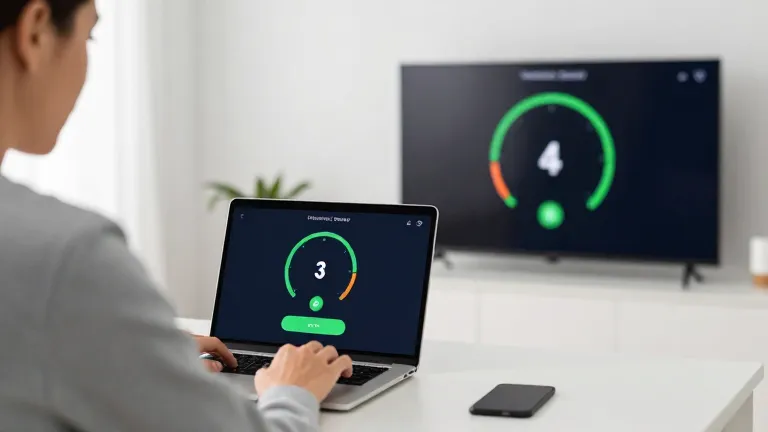
To test your internet speed for Hulu, use a dedicated speed test tool to check download and upload speeds. Hulu recommends a minimum of 5 Mbps for HD streaming and 25 Mbps for 4K. If your speed is below these thresholds, consider upgrading your internet plan or contacting your ISP. Restarting your router and smart TV can also temporarily improve connectivity.
Checking for IP Address Conflicts
IP address conflicts can disrupt Hulu's ability to connect to the internet. Check for duplicate IP addresses on your network by accessing your router's settings and ensuring each device has a unique IP. Additionally, some firewalls or router settings may block Hulu's traffic. Temporarily disabling the firewall or adjusting port forwarding settings can help resolve these restrictions. If the issue persists, consult your network administrator for further troubleshooting.
How to Reinstall or Reset the Hulu App
Reinstalling or resetting the Hulu app on your smart TV can resolve persistent playback errors caused by corrupted data or misconfigured settings. These steps provide a straightforward way to refresh the app’s functionality and ensure compatibility with your TV’s system.
- Navigate to your smart TV’s app store or settings menu to locate the Hulu app.
- Select the option to uninstall Hulu, confirming the action when prompted.
- Restart your TV to ensure all changes take effect before reinstalling the app.
- Search for Hulu in the app store and install the latest version available.
- Launch the Hulu app and sign in with your account to restore your preferences.
- If issues persist, go to the TV’s settings and look for an option to reset app settings specifically for Hulu.
Steps to Uninstall and Reinstall Hulu on Smart TV
Uninstalling and reinstalling the Hulu app can fix bugs or corrupted data that may be causing playback failures. This process ensures that the app is restored to its original state, removing any outdated or conflicting files that might interfere with its operation. It is particularly useful if the app has been updated or if there are known issues with the current version.
How to Reset Hulu App Settings
Resetting Hulu app settings can restore default configurations that may have been altered over time. This option is useful if specific settings, such as playback preferences or network configurations, are causing the playback error. Resetting the app settings will not delete your account or subscription, but it will remove any custom settings you have applied.
Frequently Asked Questions
What should I do if Hulu keeps buffering on my smart TV?
Hulu buffering on a smart TV can be caused by slow internet speeds or network issues. Test your connection speed and ensure it meets Hulu's minimum requirements. Also, check for IP address conflicts and restart your router to improve streaming performance.
How often should I update my smart TV firmware?
Smart TV firmware updates are typically released periodically to improve performance and fix bugs. Check for updates every few weeks or when new features are available. Keeping your firmware up to date can prevent playback issues and enhance overall TV performance.
Can clearing the Hulu cache fix error code 1001?
Error code 1001 is often related to Hulu playback failure and may be resolved by clearing the Hulu cache. This action removes corrupted data that could be causing the error. If the issue persists, further troubleshooting steps like reinstalling the app may be needed.
What if none of the troubleshooting steps work for Hulu playback failure?
If all troubleshooting steps fail, consider contacting Hulu support for further assistance. They may have specific solutions for your issue. Alternatively, you can try using a different device or network to see if the problem is isolated to your smart TV.
Final Steps for Smooth Hulu Streaming
Hulu playback failure on a smart TV can often be resolved by clearing the cache, updating firmware, and checking network settings. These steps help eliminate common causes of playback errors and improve streaming performance.
If issues persist, contact Hulu support for further assistance. Regular maintenance of your smart TV and the Hulu app can prevent future playback problems and ensure a smoother streaming experience.





