
How to Fix Android Phone Not Charging When Plugged In
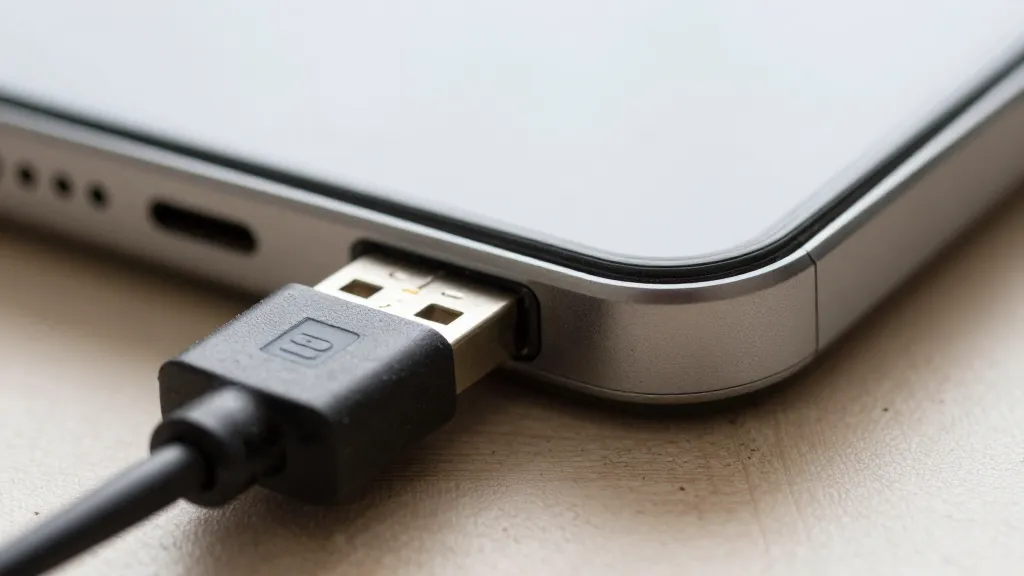
Your Android phone not charging when plugged in can be frustrating, especially when you need it to stay powered for work or personal use. Whether you're at home or on the go, knowing how to fix this issue quickly can save you from unnecessary stress. This article provides a step-by-step guide to help you troubleshoot and resolve the problem without needing professional assistance. We'll cover common causes, simple fixes, and when to seek further help, making it easy for both home users and working professionals to get their devices back to full charge.
Identify the Root Cause of the Charging Issue
Before attempting advanced troubleshooting, it's essential to identify the root cause of your Android phone's charging issue. Simple factors like a faulty power source, damaged cable, or physical damage can often prevent your phone from charging. By systematically checking these areas, you can often resolve the issue without needing technical expertise.
Check the Power Source and Cable
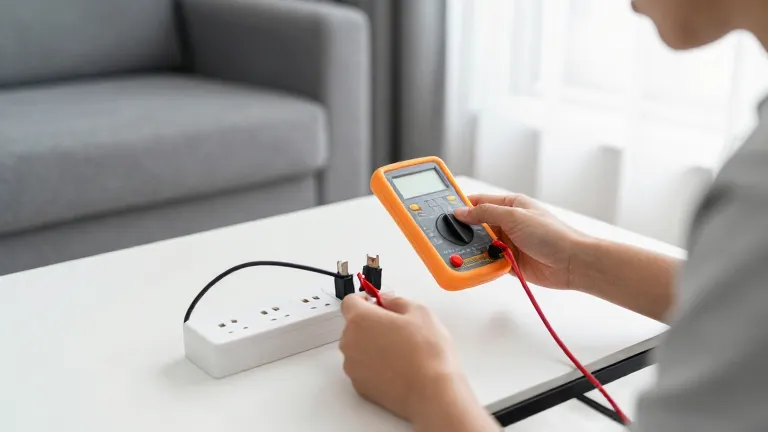
Start by verifying that your power source is functioning correctly. Plug the wall adapter into a working electrical outlet and ensure the outlet is providing power. If you're using a USB port on a computer, confirm that the port is operational by testing it with another device. Next, inspect the charging cable for any visible damage, such as frayed wires or broken connectors. A damaged cable can prevent your phone from receiving power, so replacing it with a known working cable may resolve the issue.
Look for Physical Damage
Inspect the charging port on your Android phone for signs of physical damage, such as bent pins, debris buildup, or corrosion. These issues can prevent a secure connection between the phone and the cable. Use a flashlight to examine the port closely, and gently remove any dirt or dust with a soft brush or compressed air. If the port appears damaged or if the cable shows signs of wear, it may be necessary to replace the cable or seek professional repair. Physical damage is a common cause of charging problems and should be ruled out early in the troubleshooting process.
Try Basic Troubleshooting Steps
Basic troubleshooting steps can often resolve Android phone charging issues without requiring advanced technical knowledge. These simple actions help eliminate temporary glitches or misconfigurations that might be preventing your device from charging properly.
- Restart Your Android Phone
- Remove and Reinsert the Charging Cable
- Use a Different Charger or Cable
- Check for Software Updates
Restart Your Android Phone
Restarting your Android phone can resolve temporary software glitches that might be interfering with the charging process. Power off your device, wait for about 30 seconds, and then turn it back on. This action can refresh the system and restore normal charging functionality.
Use a Different Charger or Cable
Using a different charger or cable is a straightforward way to determine if the issue lies with the hardware. Plug your phone into a different power source and a new cable to see if it charges. If it does, the original charger or cable may be faulty or damaged.
Clean the Charging Port and Cable
Cleaning the charging port and cable is a simple yet effective way to resolve charging issues. Dust, lint, and debris can accumulate in the port, preventing a proper connection. Regular maintenance can prevent these blockages and ensure your phone charges efficiently.
Clean the Charging Port
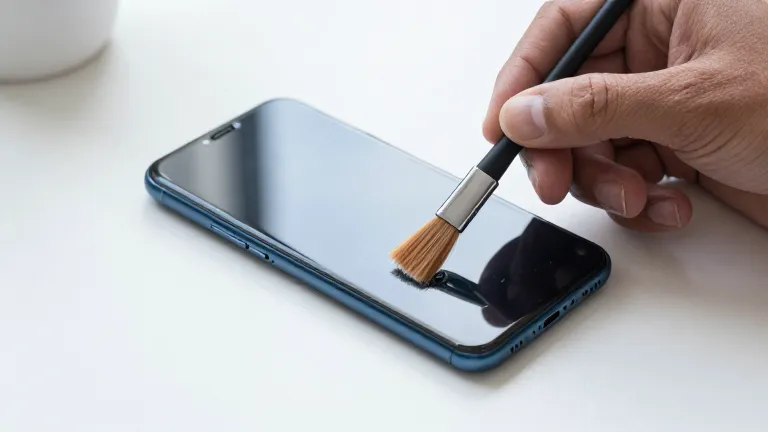
Use a soft brush, such as a makeup brush or a dry paintbrush, to gently remove any dirt or debris from the charging port. If the port is particularly dirty, you can use compressed air to blow out the particles. Avoid using your fingers or any sharp objects, as they can damage the delicate contacts inside the port. Clean the port at least once every few weeks to keep it free from buildup.
Inspect the Charging Cable
Inspect the charging cable for signs of wear, such as fraying, kinks, or exposed wires. A damaged cable can prevent your phone from receiving power, even if the port is clean. If you notice any damage, replace the cable immediately with a high-quality, compatible one. Additionally, check for any loose connections or bends in the cable that might affect its performance. A well-maintained cable ensures a stable and reliable charging experience.
Check for Software or System Issues
Software or system issues can often interfere with your Android phone's ability to charge properly. By addressing these potential problems, you can resolve the issue without needing to replace hardware. Start by checking if your phone's settings are limiting charging, then move on to recalibrating the battery and removing apps that may be causing conflicts.
- Check if your phone is in power-saving mode, which can restrict charging.
- Fully discharge and recharge your phone to recalibrate the battery.
- Uninstall recently installed apps that may interfere with charging.
- Reset network settings if the issue persists after other troubleshooting steps.
Check Battery Calibration
Battery calibration issues can lead to inaccurate charge level readings and prevent your phone from charging properly. To recalibrate, fully discharge your phone until it turns off, then charge it to 100% without interruption. This process helps reset the battery's internal sensors and can resolve charging inconsistencies.
Uninstall Problematic Apps
Some apps, especially those related to battery management or system optimization, can conflict with the charging process. Review recently installed apps and uninstall any that might be causing the issue. Focus on apps with high permissions or those that run in the background, as they are more likely to interfere with system functions.
When to Seek Professional Help
If basic troubleshooting steps fail to resolve the charging issue, it may indicate a deeper problem such as a damaged charging port or internal hardware failure. Physical damage to the port, like bent pins or debris buildup, can prevent the phone from drawing power even when connected. In such cases, attempting to clean the port or use a different cable may not be sufficient to restore functionality. If the phone still refuses to charge after trying all basic solutions, it's time to consider more advanced repairs.
Replacing the charging port or cable can be a cost-effective solution if these components show visible signs of wear, such as frayed wires, broken connectors, or a loose fit. However, if the phone continues to experience charging issues after replacing these parts, the problem may lie within the internal hardware, such as the battery or motherboard. Internal damage often requires specialized tools and expertise to diagnose and fix, making it unsuitable for DIY attempts.
When internal hardware failure is suspected, it's best to take the phone to a certified repair center or contact the manufacturer's support team. Certified technicians have the necessary equipment and knowledge to safely repair or replace faulty components without causing additional damage. Avoid using non-original accessories, as they may lack the quality and safety standards required for reliable performance and could lead to long-term issues. Always prioritize professional assistance for complex or persistent charging problems.
Frequently Asked Questions
What should I do if my Android phone isn’t charging even when plugged in?
Start by checking the power source and cable. If they’re working, try cleaning the charging port and using a different charger. If the issue persists, consider software problems or hardware damage.
Can a damaged charging port cause my Android phone to stop charging?
Yes, a damaged charging port can prevent your phone from charging properly. Inspect the port for debris, bends, or corrosion. If you notice physical damage, you may need professional repair.
How do I clean the charging port on my Android phone?
Use a soft, dry brush or compressed air to remove debris from the port. Avoid using liquid or abrasive materials. If the port is stuck, gently use a toothpick or a small, flat object to clear the blockage.
Should I use a third-party USB-C cable to charge my Android phone?
It’s generally safe to use a third-party USB-C cable, but ensure it’s from a reputable brand. Avoid cheap or counterfeit cables, as they may not provide stable power and could damage your phone.
Final Thoughts
Addressing Android charging issues often starts with simple checks like power source, cable, and port cleanliness. If the problem continues, software or hardware issues may be the cause. Always use quality accessories to avoid further damage.
If basic troubleshooting doesn’t work, consider professional help. Keeping your phone updated and avoiding cheap cables can prevent many charging problems. Regular maintenance of the charging port can also help keep your device running smoothly.





