
How to Fix iPhone Touch Screen Not Responding or Frozen
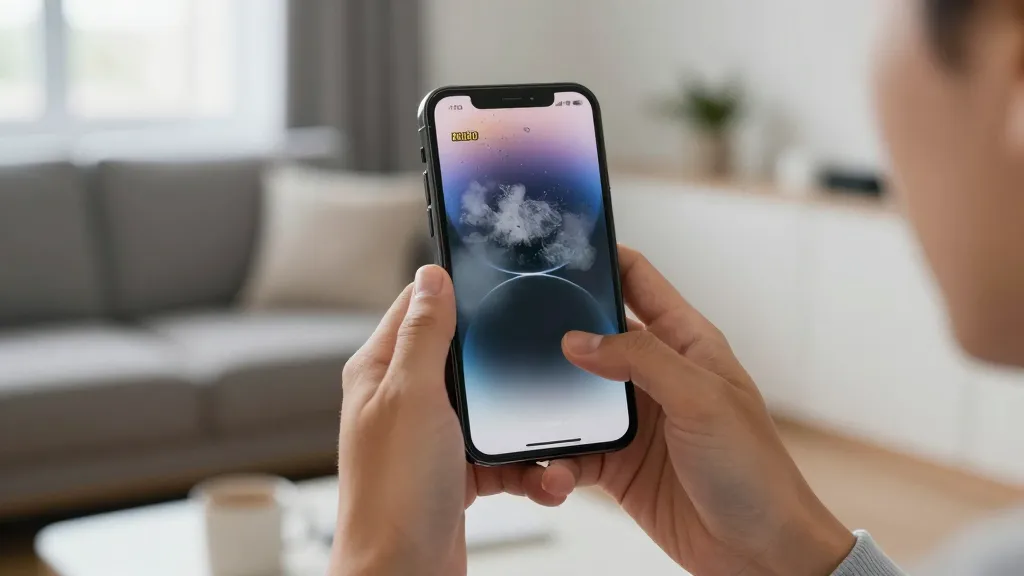
If your iPhone's touch screen is frozen or not responding, it can be frustrating, especially when you rely on your device for daily tasks. Whether it's after an update or due to a software glitch, there are several practical steps you can take to resolve the issue. This article focuses on How to Fix iPhone Touch Screen Not Responding or Frozen and provides clear, actionable solutions to help you restore your device's functionality. From basic troubleshooting to more advanced fixes, we'll guide you through the process step by step. If you're experiencing touch screen problems, continue reading to find the right solution for your situation.
Check for Basic Fixes First
Before diving into complex troubleshooting steps, it's essential to start with the simplest solutions. Many touch screen issues can be resolved by checking the battery level and performing a forced restart, which can clear temporary system glitches and restore normal functionality.
Verify Battery Level
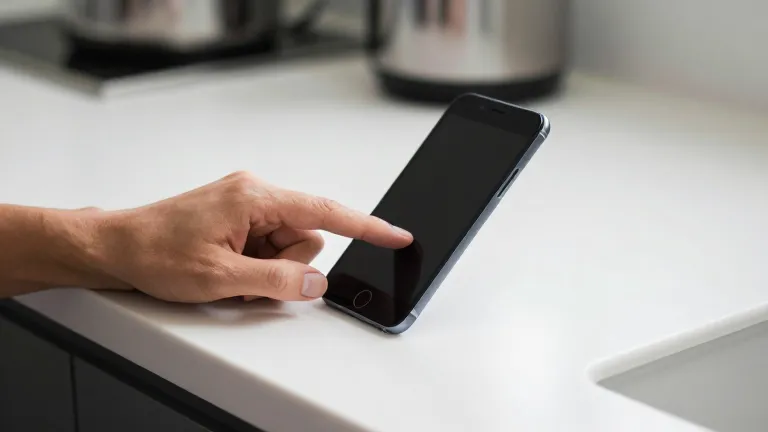
Ensure your iPhone is adequately charged before attempting any fixes. A low battery can cause the device to behave unpredictably, including touch screen malfunctions. If your iPhone is at less than 20% battery, connect it to a charger and wait for it to reach a stable level before proceeding.
Perform a Forced Restart
A forced restart can often resolve software glitches that interfere with touch screen responsiveness. To do this, press and quickly release the Volume Up button, then press and quickly release the Volume Down button. Finally, press and hold the Side button until the Apple logo appears. This process clears temporary memory and can restore touch functionality.
Troubleshoot Software Issues
Software issues are a common cause of iPhone touch screen problems. Ensuring your device is running the latest iOS version or restoring it to a stable state can often resolve these issues. If your iPhone is unresponsive, following these steps can help restore normal functionality.
Update or Restore iOS
Begin by checking for pending iOS updates. Go to Settings > General > Software Update to see if an update is available. Installing the latest version can fix bugs that may be causing the screen to freeze. If the update is not available, consider restoring your iPhone to a previous iOS version through iTunes or Finder, though this may result in data loss.
Use Recovery Mode for Advanced Fixes
If the issue persists, placing your iPhone in Recovery Mode can reinstall the operating system. Connect your device to a computer and press and hold the Side button until the Recovery Mode screen appears. Follow the prompts to restore or update your iPhone, which can resolve deeper software conflicts. This process will erase all data, so ensure you have backups before proceeding.
Examine Physical Damage or Liquid Exposure
Physical damage or liquid exposure can significantly impact the functionality of your iPhone's touch screen. Before proceeding with software or hardware solutions, it's essential to assess whether the issue stems from physical trauma or moisture exposure.
Inspect for Physical Damage
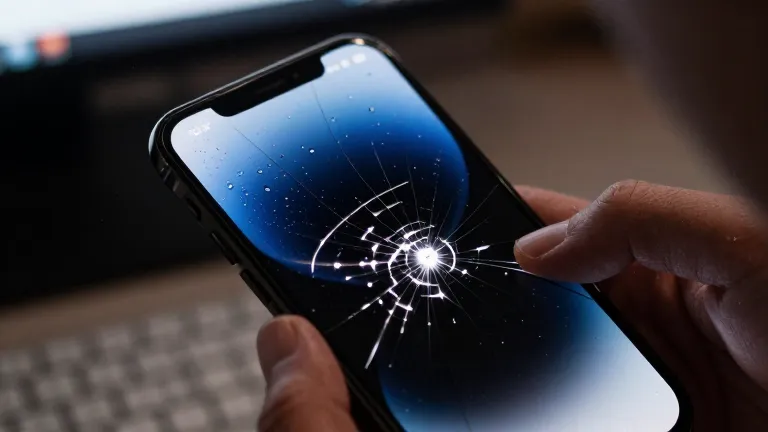
Inspect the screen for cracks, scratches, or any visible physical damage that might interfere with touch input. Even minor cracks or deep scratches can disrupt the touch sensor's ability to register gestures accurately. If the screen shows signs of impact, such as dents or broken glass, it may be necessary to replace the display. Physical damage can also cause internal components to shift, leading to erratic behavior or complete unresponsiveness.
Check for Liquid Damage
Check for signs of liquid damage, such as a water mark or corrosion. If your iPhone has been exposed to water or moisture, it may show a white or greenish discoloration near the Lightning port, which indicates liquid damage. Additionally, look for corrosion on the internal components or around the charging port. Avoid using the device if it has been exposed to water or moisture, as this can lead to permanent damage. If you suspect liquid exposure, it's best to seek professional repair services to prevent further complications.
Try Hardware Repair or Replacement
If the iPhone touch screen remains unresponsive after trying all software-based solutions, the issue may stem from hardware. This could include a damaged digitizer, faulty internal connections, or a malfunctioning touchscreen sensor. Determining whether the problem is hardware-related requires careful inspection and testing to isolate the exact cause.
Identify Hardware Issues
To identify potential hardware issues, observe whether the problem is localized to specific areas of the screen. For instance, if only a portion of the screen is unresponsive or if the issue occurs after physical impact, it could indicate a damaged digitizer or touchscreen. Additionally, check for signs of liquid damage, such as corrosion or discoloration, which may affect the internal components. If the screen is cracked or the device has been dropped, it's likely that the hardware is compromised and requires professional attention.
Seek Professional Repair Services
When hardware issues are suspected, it's best to seek professional repair services. Attempting to repair the screen yourself can lead to further damage, especially if you're not experienced with disassembling an iPhone. Certified technicians have the tools and expertise to diagnose and replace faulty components like the digitizer or touchscreen without voiding the warranty. If the device is still under Apple’s warranty or covered by an AppleCare+ plan, contacting an authorized service provider is the most reliable option for a safe and effective repair.
Prevent Future Touch Screen Problems
Preventing future touch screen problems on your iPhone involves adopting good habits and proactive maintenance. By following simple guidelines, you can minimize the risk of damage and ensure optimal performance over time.
Maintain Proper Usage Habits
Maintain Proper Usage Habits involves avoiding extreme temperatures and protecting your iPhone from physical stress. Exposure to very cold or hot environments can cause the screen to malfunction or become unresponsive. Always keep your iPhone in a moderate temperature range, such as between 0°C and 35°C (32°F and 95°F), to ensure reliable performance. Additionally, avoid dropping your iPhone or subjecting it to impacts, as these can lead to internal damage that affects touch sensitivity.
Keep the Screen Clean and Protected
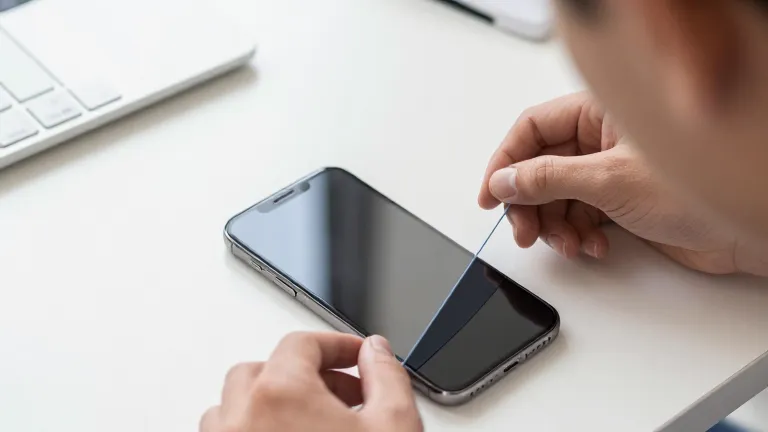
Keep the Screen Clean and Protected by regularly wiping it with a soft, lint-free cloth. Dust, smudges, and fingerprints can interfere with touch recognition and reduce the screen's responsiveness. Use a microfiber cloth to gently clean the surface, and avoid harsh chemicals or abrasive materials that may scratch the display. Applying a screen protector can also provide an extra layer of defense against scratches and minor impacts, helping to preserve the touch screen's integrity over time.
Frequently Asked Questions
What should I do if my iPhone screen is frozen and won't respond?
If your iPhone screen is frozen, start by performing a forced restart. If that doesn't work, try connecting it to a computer and using Recovery Mode. If all else fails, seek professional help.
Can a software update fix my iPhone touch screen problem?
A software update can resolve touch screen issues caused by bugs or glitches. Ensure your iPhone is updated to the latest iOS version. If the problem persists, consider restoring the device.
What if my iPhone screen is unresponsive after a drop?
A drop might cause physical damage or internal issues. Check for cracks or liquid damage first. If the screen remains unresponsive, it's likely a hardware problem requiring professional repair.
How do I know if my iPhone touch screen is hardware or software related?
Try basic fixes like a restart or software update first. If the issue remains, it's likely hardware-related. Signs of hardware damage include unresponsiveness after physical trauma or liquid exposure.
Final Thoughts
Addressing an unresponsive iPhone touch screen requires a methodical approach. Start with basic fixes, then move to software and hardware troubleshooting. If the problem persists, professional assistance is the best option.
Maintaining your iPhone's health can prevent many touch screen issues. Avoid extreme conditions and keep the screen clean. Regular updates and proper care help ensure smooth performance.





