
How to Fix Gaming Headset Mic Picking Up Background Static Noise

If you're a gamer struggling with static noise coming through your headset mic during voice chats or gameplay, you're not alone. This issue can disrupt communication and ruin the immersion of your gaming experience. The main keyword here is How to Fix Gaming Headset Mic Picking Up Background Static Noise, and this article provides clear, actionable steps to resolve it. Whether you're using a wired or wireless headset, static interference can be frustrating, but there are practical solutions to eliminate it. From adjusting settings to checking cables and updating drivers, we’ll walk you through each option to help you achieve clear, uninterrupted audio. Let’s dive into the first step: checking your headset settings for noise suppression.
Check Your Headset Settings for Noise Suppression
Before troubleshooting hardware or software issues, start by checking your headset's built-in settings. Many modern gaming headsets offer noise suppression or voice cancellation features designed to filter out background static. These settings can often be accessed through the manufacturer's software or control panel, and enabling them can significantly improve your microphone's performance.
Enable Noise Suppression in Headset Software
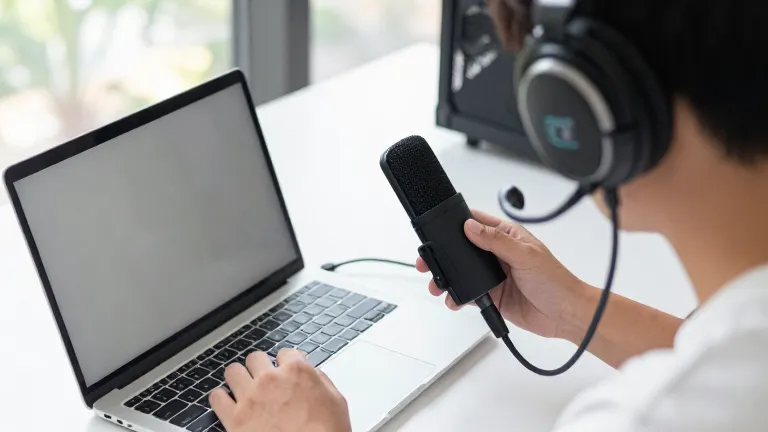
To enable noise suppression, open the software provided by your headset's manufacturer. Look for options related to noise cancellation, voice isolation, or background noise reduction. These features use algorithms to filter out unwanted sounds while preserving your voice clarity. If your headset lacks dedicated software, check the operating system's sound settings for similar options.
Adjust Microphone Sensitivity and Gain
Adjusting microphone sensitivity and gain levels can also help reduce background noise. In the headset software or system settings, locate the microphone settings and lower the sensitivity if it's too high. This prevents the mic from picking up distant sounds. Additionally, fine-tune the gain to ensure your voice is clear without distortion. Avoid over-amplifying the input, as this can amplify background noise instead of reducing it.
Inspect the Physical Connection and Cables
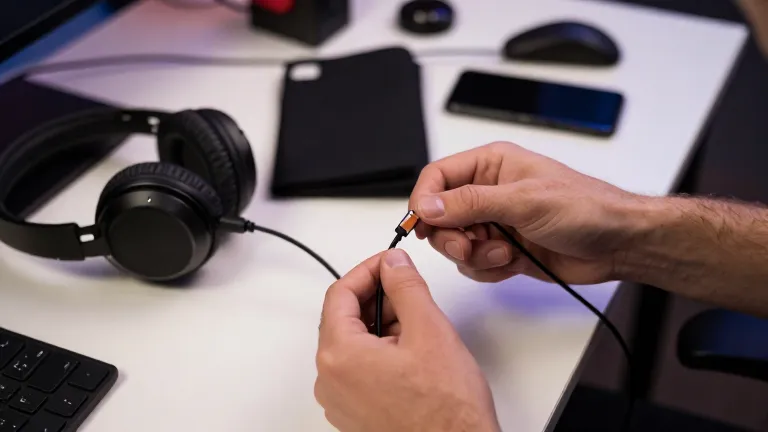
Inspecting the physical connection and cables is a crucial step in troubleshooting static noise from your gaming headset mic. Issues such as loose connections, damaged cables, or faulty splitters can introduce unwanted background noise. By systematically checking these elements, you can often identify and resolve the problem without needing advanced tools or technical expertise.
- Ensure the headset is properly connected to the audio source.
- Check for damaged or loose cables, especially with 3.5mm splitter devices.
- Try using a different port or USB hub if the issue persists.
Check for Damaged Cables or Splitter Issues
Begin by ensuring that your headset is securely connected to the audio source. Loose connections can lead to intermittent static or complete audio dropouts. If you're using a 3.5mm splitter, inspect both the splitter and the cables for any signs of damage, such as frayed wires or broken connectors. A faulty splitter can introduce noise by disrupting the signal path.
Try a Different Port or USB Hub
If the static persists after verifying the physical connections, try plugging the headset into a different port. Some ports may have power delivery issues or be damaged, which can affect audio quality. If you're using a USB hub, consider plugging the headset directly into the computer’s USB port instead. USB hubs can sometimes cause power fluctuations or signal degradation, leading to static noise in the microphone.
Update or Reinstall Audio Drivers
Outdated or corrupted audio drivers can lead to microphone issues, including background static noise. To address this, start by checking for updates through your operating system’s settings. On Windows, navigate to Device Manager, locate the audio input device, and right-click to select 'Update driver.' This process ensures your system has the latest fixes and features for your headset’s microphone.
If updating doesn’t resolve the issue, consider uninstalling and reinstalling the audio drivers. Visit the manufacturer’s website to download the latest version compatible with your system. Before uninstalling, disable any background processes that might interfere with the installation. Reinstalling drivers can refresh the software and eliminate conflicts that may be causing the static noise.
For users who prefer automation, driver updater tools can scan your system for missing or outdated drivers. These tools often provide a simple interface to download and install the necessary updates. However, be cautious with third-party tools, as they may not always be reliable or secure. Stick to official sources to avoid potential compatibility issues or malware risks.
After updating or reinstalling drivers, restart your computer to apply the changes fully. Test your headset microphone again to see if the static noise has reduced or disappeared. If the problem persists, move on to the next troubleshooting step, such as testing the headset on a different device or using external microphone solutions.
Test Your Headset on a Different Device
Testing your gaming headset on a different device is a crucial step in determining whether the issue lies with the headset itself or the original device you're using. Begin by connecting your headset to another computer, laptop, or gaming console. If the background static noise disappears, it suggests the problem may be related to the initial device's audio settings, drivers, or hardware. This method helps you isolate the source and rule out potential software conflicts or hardware malfunctions.
- Connect your headset to a different computer or gaming console and check for static noise.
- Use a different microphone or audio input method to see if the issue persists.
- Verify if the problem occurs with other applications or only during specific tasks.
- Ensure the new device is free from software conflicts or outdated drivers.
Use External Microphone or Software Solutions
If built-in microphone options fail to eliminate background static, consider alternative solutions such as external microphones or third-party software. These tools can offer more control over audio quality and noise suppression, ensuring clearer communication during gaming or streaming.
Use an External Microphone for Better Sound
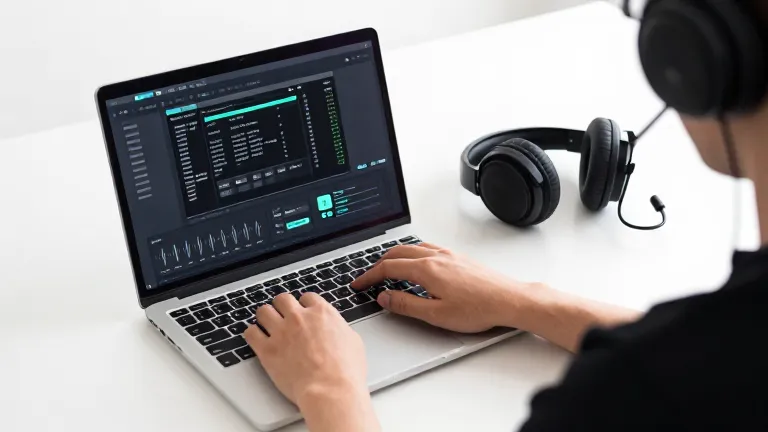
An external microphone can significantly improve audio clarity by capturing voice more accurately and reducing background noise. Look for USB microphones with noise-cancelling features or directional pickup patterns to minimize interference. Using a dedicated mic also allows you to bypass the built-in microphone entirely, giving you more flexibility in setup and sound quality.
Try VoiceMeeter or Similar Software for Noise Filtering
VoiceMeeter and Voicemeeter Banana are popular software tools that provide advanced noise filtering and audio routing options. These programs allow you to apply noise suppression algorithms, adjust microphone levels, and route audio through virtual cables for improved clarity. They are particularly useful for streamers and gamers who require precise control over their audio environment. Additionally, noise-cancelling apps can be used in conjunction with these tools to further refine microphone input and reduce unwanted sounds.
Frequently Asked Questions
Why is my gaming headset mic still picking up static even after adjusting settings?
Static can persist due to hardware issues or external interference. Ensure all settings are correctly configured and test the headset on another device. If the problem continues, consider replacing the headset or using an external microphone.
Can a 3.5mm splitter cause static noise in my headset microphone?
Yes, a faulty or low-quality 3.5mm splitter can introduce static noise. Try using a different splitter or connect the headset directly to the device to see if the issue resolves.
What should I do if my headset mic is still making static noise after trying all the steps?
If all steps have been followed and the issue remains, it could be a hardware defect. Check for warranty coverage or consider replacing the headset. External microphones or noise-canceling software may also help.
Are there any software tools that can help reduce static noise in my headset mic?
Yes, tools like VoiceMeeter or noise-canceling software can help filter out background noise. These options can improve audio quality if hardware limitations persist.
Final Thoughts
Fixing static noise in a gaming headset mic involves checking settings, connections, and drivers. If the problem persists, external solutions or hardware replacement may be necessary. Prioritize quality equipment and software tools for optimal performance.
To ensure clear communication, regularly update your audio drivers and test your headset on different devices. If static remains, consider using an external microphone or noise-canceling software for a better experience.





