
How to Fix NAS Drive (Synology) Beeping Constantly
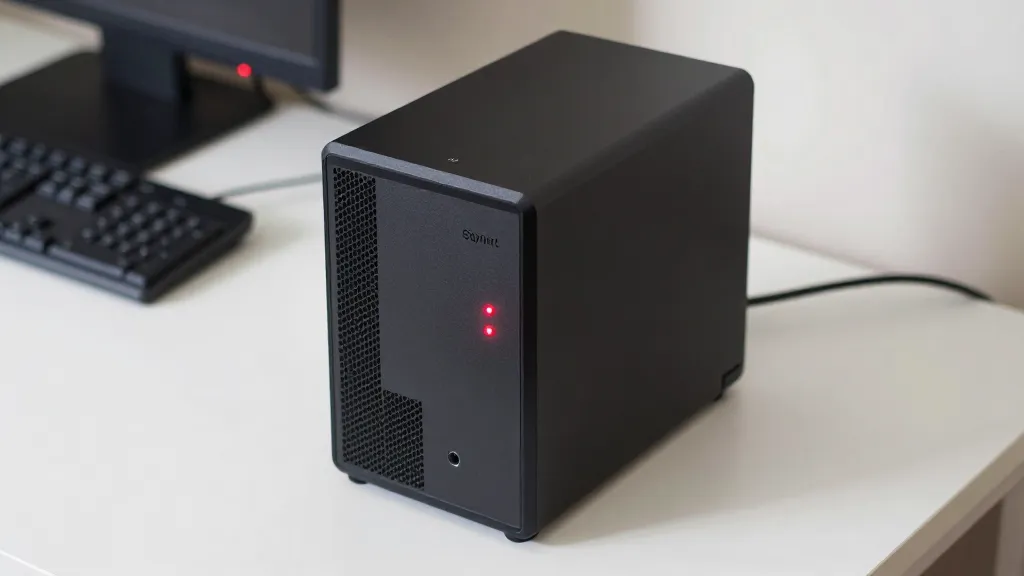
If your Synology NAS is beeping constantly, it can be a frustrating and confusing experience. This persistent sound is often a signal that something is wrong with your system, and knowing how to fix NAS drive beeping is essential to prevent data loss or hardware damage. Whether you're a home user or a small business owner, understanding the causes of the beeping and learning how to address them can help you resolve the issue quickly and efficiently. This article will guide you through the steps to identify and fix the source of the beeping sound on your Synology NAS.
The beeping sound from your NAS drive is usually an alert from the system, indicating a potential problem with your storage pool, hardware, or software configuration. By following a structured troubleshooting process, you can determine whether the issue is related to a degraded storage pool, a faulty drive, or an active alert in the system settings. Understanding the different types of alerts and how to interpret them is crucial for resolving the issue effectively.
This guide covers everything you need to know about how to fix NAS drive beeping, from checking the NAS interface for alerts to reviewing system logs and events. You'll also learn how to disable the beeping sound or adjust system alerts to suit your preferences. If the problem persists, we'll show you when it's time to seek professional help to ensure your data and hardware remain safe.
Understanding the Causes of NAS Beeping
NAS beeping is a critical indicator that something is wrong with your Synology device. This sound is often a sign of hardware or software issues that require immediate attention. Understanding the causes of the beeping is essential to prevent data loss or system failure.
What Does NAS Beeping Mean?
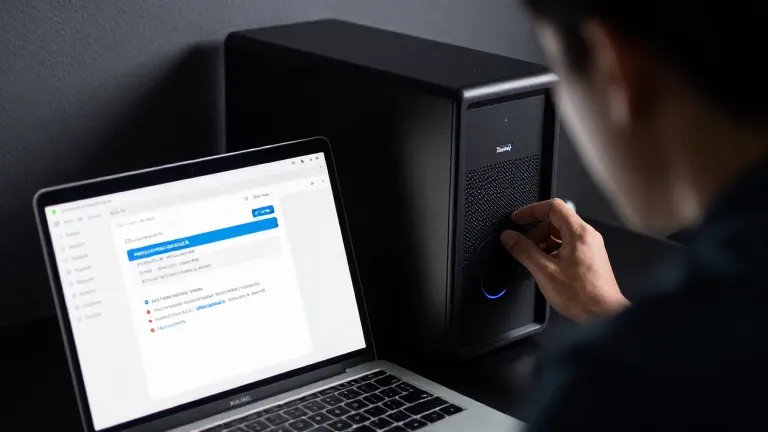
NAS beeping is a built-in alert mechanism designed to notify users of potential issues with their Synology device. The beeping sound typically indicates that a critical error or warning has occurred, such as a system alert, hardware malfunction, or a storage pool issue. This sound is meant to draw attention to the problem so that users can take corrective action before the situation worsens.
Common Causes of NAS Beeping
Common causes of NAS beeping include degraded storage pools, overheating, or system alerts. A degraded storage pool occurs when one or more drives in the RAID configuration are failing or not functioning properly, which can lead to data loss if not addressed. Overheating is another frequent cause, especially if the NAS is placed in an environment with poor ventilation or if the cooling system is malfunctioning. System alerts, such as low disk space or failed tasks, can also trigger the beeping sound as a notification to the user.
Step-by-Step Guide to Troubleshoot NAS Beeping
Troubleshooting a Synology NAS that is beeping constantly starts with identifying the source of the sound. The NAS interface and physical indicators can provide valuable clues about the underlying issue. By systematically checking for system alerts and reviewing the event log, you can pinpoint the cause of the beeping and take appropriate action.
- Check the NAS interface for alerts by logging into the DSM (DiskStation Manager) web interface. Navigate to the 'Control Panel' and then to 'System' to review any active alerts or warnings. These notifications can indicate issues such as storage pool degradation, overheating, or hardware failures.
- Review the system event log by accessing the 'Control Panel' > 'Task Scheduler' > 'Event Log'. Look for recent entries related to hardware status, temperature readings, or storage pool errors. This log can help identify patterns or recurring issues causing the beeping.
- Ensure the NAS is not overheating by checking the temperature settings in the 'System' section of the DSM. If the temperature exceeds the recommended range, improve ventilation by ensuring the NAS is placed in a well-ventilated area and not obstructed.
- Perform a hardware health check through the 'DiskStation Manager' by going to 'Control Panel' > 'System' > 'Hardware Health'. This tool provides detailed information about the status of internal components, which can help identify any failing hardware contributing to the beeping.
How to Check the NAS Interface for Alerts
Accessing the NAS interface allows you to monitor real-time alerts and system status. The DSM provides a centralized location to check for any active warnings or errors that may be causing the beeping. It's important to review these alerts regularly to maintain the NAS's optimal performance and prevent potential issues from escalating.
Reviewing System Logs and Events
The system event log is a critical resource for diagnosing the root cause of the beeping. By analyzing the log entries, you can identify specific events or errors that occurred around the time the beeping started. This information can guide you in taking corrective actions, such as updating firmware or replacing faulty hardware.
Fixing Degraded Storage Pool Issues
A degraded storage pool is a common cause of beeping on Synology NAS devices. When a storage pool becomes degraded, it means one or more drives in the array are failing, leading to potential data loss and system instability. Identifying and resolving this issue promptly is crucial to maintaining the reliability of your NAS.
How to Check Storage Pool Status
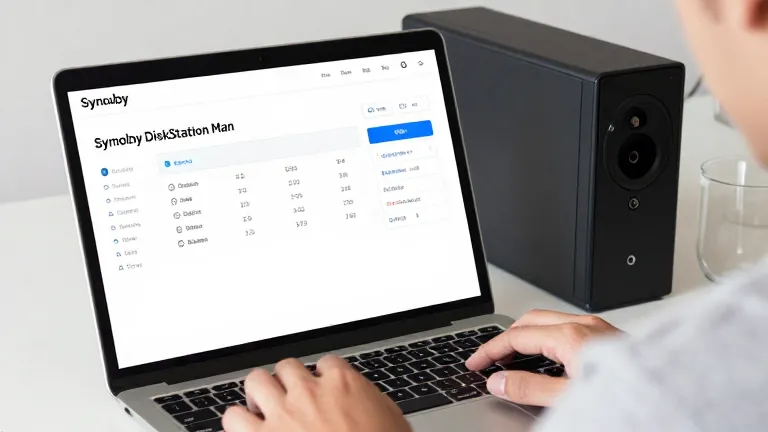
To check the status of your storage pool, open the DiskStation Manager and navigate to the 'Storage Console' section. Select the storage pool you want to inspect, and look for any alerts or warnings related to drive status. A degraded pool will typically be marked with a warning icon or highlighted in red. This section will also show which drives are online, offline, or in a degraded state, helping you pinpoint the source of the problem.
Rebuilding a Degraded Storage Pool
Once you've identified a failed or degraded drive, the next step is to replace it and rebuild the storage pool. Insert the new drive into an available slot and ensure it is recognized by the system. Next, go to the 'Storage Console' and select the degraded pool. Click on the 'Rebuild' option to initiate the process. Rebuilding will restore redundancy and ensure data integrity. It's important to monitor the progress and avoid interrupting the rebuild to prevent further issues.
How to Mute or Disable the NAS Alarm
If the persistent beeping from your Synology NAS is determined to be a false alarm, you can disable the beep sound through the NAS settings. This is particularly useful if the beeping is not related to hardware issues or critical system alerts. Disabling the beep sound can help reduce unnecessary noise and improve the user experience.
Disabling the NAS Beep Sound
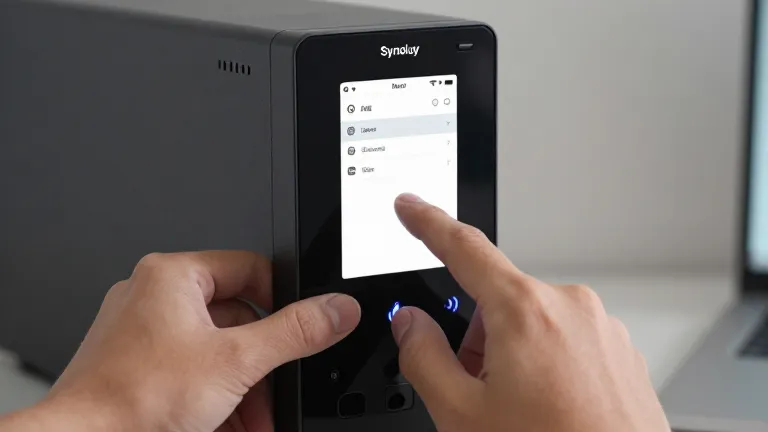
To disable the NAS beep sound, log in to the DSM (DiskStation Manager) web interface and navigate to the 'Control Panel' section. From there, select 'System' and then 'Alarm Settings'. Under the 'Beep Sound' option, you can toggle the setting to 'Off' to mute the beeping. This change will take effect immediately and will prevent the NAS from emitting beeps for any reason.
Adjusting System Alerts and Notifications
In addition to disabling the beep sound, you can adjust system alerts and notifications to further minimize unwanted beeping. Within the same 'Alarm Settings' menu, you can customize which events trigger system alerts. For example, you can disable alerts for non-critical events such as disk space warnings or scheduled tasks. This helps ensure that only essential alerts are displayed, reducing the likelihood of false alarms. However, it is important to maintain a balance between reducing noise and ensuring that critical system alerts are not suppressed.
When to Seek Professional Help
If the NAS beeping continues after thorough troubleshooting, it may signal a more serious issue such as hardware failure. Persistent beeping can indicate problems with internal components, which could compromise data integrity and system stability. It is crucial to identify these signs early to prevent potential data loss or system downtime.
Recognizing Signs of Hardware Failure
Signs of hardware failure include unusual noises from the drive bay, overheating, unexpected shutdowns, or failure to respond to control commands. A degraded storage pool that cannot be rebuilt, or a power supply that fails to maintain stable operation, are also red flags. These symptoms suggest that the NAS may be experiencing internal damage that cannot be resolved through standard troubleshooting steps.
When to Contact a Professional
If the beeping persists or if you notice any of the above signs, it is advisable to contact Synology support or a qualified technician for further diagnosis. Professional assistance can help identify and replace faulty components such as hard drives, power supplies, or other internal hardware. In some cases, the NAS may require a full hardware replacement or advanced diagnostics to ensure long-term reliability and data safety.
Frequently Asked Questions
Why is my Synology NAS beeping continuously?
Your Synology NAS may be beeping due to a degraded storage pool, hardware issues, or system alerts. Check the NAS interface for alerts and review system logs to identify the cause.
How do I disable the NAS beeping sound?
You can disable the NAS beeping sound by accessing the Control Panel and adjusting the system alerts settings. This will mute the beeping sound but may still display notifications.
What should I do if my NAS is beeping and the storage pool is degraded?
If your NAS is beeping and the storage pool is degraded, check the storage pool status and rebuild it. If the issue persists, consider seeking professional help to prevent data loss.
Can I fix NAS beeping without contacting support?
Many NAS beeping issues can be resolved by checking the storage pool status, reviewing system logs, and adjusting alert settings. However, if the problem persists, contacting support is recommended.
Next Steps and Support
Understanding the causes of NAS beeping and following the troubleshooting steps can help resolve most issues. If the problem persists, it’s important to seek professional assistance to avoid data loss.
Take action by checking your NAS interface, reviewing logs, and disabling unnecessary alerts. If the beeping continues, don’t hesitate to contact Synology support for further guidance.





