
How to Fix iPhone Speaker Sound Muffled or Too Quiet
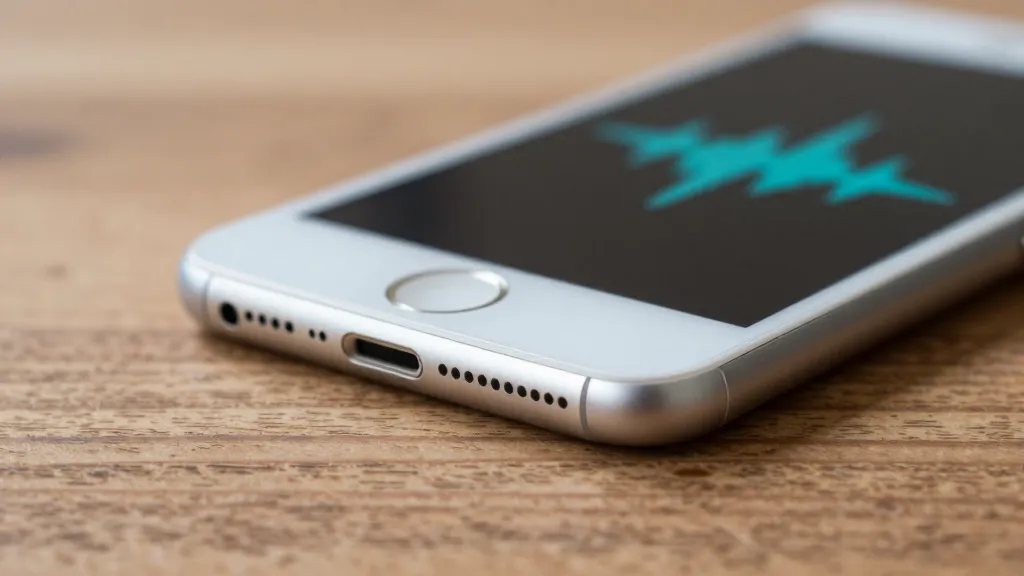
If your iPhone's speaker is producing muffled or too quiet sound during calls or media playback, it can be frustrating, especially when you're relying on your device for communication or entertainment. Whether you're a home user or a working professional, resolving this issue without professional help is possible with a few straightforward steps. This article provides a practical guide on how to fix iPhone speaker sound muffled or too quiet by addressing common causes such as physical blockages, volume settings, and software glitches. By following these solutions, you can restore clear audio output and improve your overall experience with your iPhone.
The first step in troubleshooting your iPhone's speaker issue is to check for physical obstructions that may be blocking the sound. Dust, debris, or earwax can accumulate in the speaker grille, leading to muffled audio. We'll show you how to safely inspect and clean your iPhone's speaker to ensure it's free from blockages.
In addition to physical cleaning, adjusting your iPhone's volume settings and verifying the correct audio output can also resolve sound issues. Sometimes, the problem lies in the settings rather than the hardware. This article will guide you through the necessary adjustments and help you determine if a software update or a simple reboot is the solution.
Check for Physical Obstructions and Clean the Speaker
A muffled or quiet iPhone speaker can often be caused by physical obstructions such as dirt, dust, or debris blocking the speaker grilles. Regular inspection and gentle cleaning can help restore clear audio output without the need for professional assistance.
How to Identify and Remove Blockages From the Speaker
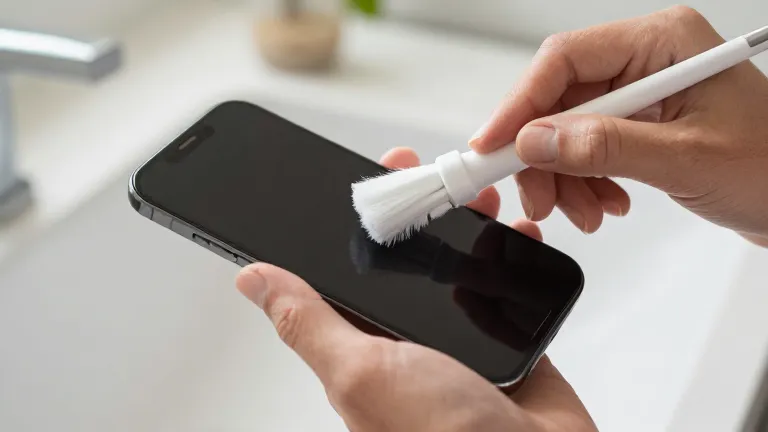
To identify blockages, visually inspect the speaker area located at the bottom edge of the iPhone. Look for any visible dirt, dust, or debris that might be lodged in the grille. If the speaker sounds muffled or quieter than usual, it may be partially blocked. Gently press around the edges of the grille to see if any debris dislodges. If you notice a reduction in volume or distorted sound, this is a strong indication of a physical obstruction.
Safe Cleaning Techniques for iPhone Speakers
Use a soft, dry cloth to wipe the speaker area, ensuring not to press too hard to avoid damaging the delicate components. Alternatively, you can use compressed air to blow away loose particles from the grille. Avoid using liquids, harsh chemicals, or abrasive materials, as these can damage the speaker or the phone’s casing. If the speaker is blocked, cleaning it with these methods can significantly improve sound quality. Always ensure the iPhone is powered off before cleaning to prevent any accidental damage.
Adjust Volume Settings and Check Call Audio
Before diagnosing more complex issues, start by verifying that your iPhone's volume settings are correctly configured. Both call and media audio can be affected by low volume or incorrect output selection, so it's essential to check these settings first.
How to Adjust Volume for Calls and Media Playback
To adjust volume for calls and media playback, locate the volume buttons on the side of your iPhone. Press the top button to increase volume and the bottom button to decrease it. During a call, ensure the volume is set to a comfortable level by holding the phone close to your ear and adjusting as needed. If the sound is still too quiet, check if the call volume is muted or set to a low level by swiping up from the bottom of the screen to access Control Center and tapping the volume slider.
Ensuring the Correct Audio Output Is Selected
Ensure that the speaker is the default audio output rather than the earpiece or a connected Bluetooth device. Go to Settings > General > Accessibility > Audio/Visual and confirm that 'Speaker' is selected as the default audio output. If you're using Bluetooth headphones or speakers, switch back to the speaker by selecting 'Speaker' in the same menu. Additionally, check for any active audio apps that might be using the earpiece or Bluetooth output instead of the main speaker.
Reset iPhone Settings to Restore Speaker Functionality
Resetting your iPhone settings can help resolve software-related issues that may be affecting your speaker's sound quality. This process restores system configurations to their default state, which can fix unexpected audio problems without impacting your personal data.
What Happens When You Reset iPhone Settings
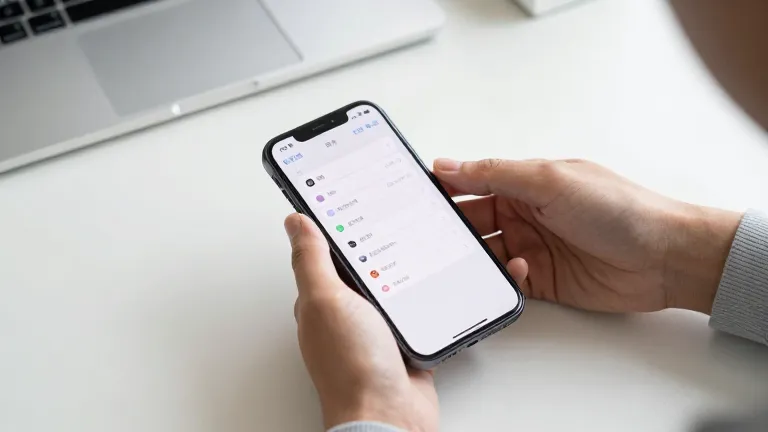
When you reset your iPhone settings, the device reverts to its original configuration, including system preferences, network settings, and app permissions. This process does not delete your data, messages, or app content, but it clears out any customized settings that might be interfering with audio output. It is a non-invasive way to address potential software glitches that could be causing the speaker to produce muffled or quiet sound.
When to Consider a Settings Reset for Speaker Issues
You should consider resetting your iPhone settings if other troubleshooting steps have not resolved the audio issue. This is particularly useful if the problem persists after cleaning the speaker, adjusting volume settings, and restarting the device. Resetting settings can also help if recent software updates or app installations have introduced conflicts affecting sound output. After resetting, it's important to test the speaker again to determine if the issue has been resolved.
Troubleshoot with iPhone Software Updates and Reboots
Software updates and reboots are essential steps in resolving audio issues on your iPhone. Outdated iOS versions can introduce bugs or performance problems that affect sound quality, while a simple restart can refresh system processes and resolve temporary glitches.
How to Update iOS for Better Audio Performance
To improve audio performance, check for available iOS updates through Settings > General > Software Update. Apple regularly releases updates that address bugs and enhance system stability, which can include fixes for audio-related issues. Ensure your device is connected to Wi-Fi and has sufficient battery before initiating the update process.
When to Restart Your iPhone for Speaker Issues
Restarting your iPhone can temporarily resolve speaker problems by clearing cached data and resetting system processes. If you notice muffled or quiet sound, try rebooting your device and test the audio again. If the issue persists after a reboot, it may be related to software bugs that require a future iOS update or further troubleshooting.
When to Seek Professional Help for Speaker Issues
If the iPhone speaker remains muffled or too quiet after completing all troubleshooting steps, it may indicate a hardware issue. Physical damage, wear and tear, or internal component failure can cause permanent sound quality problems that require professional intervention.
Signs That the Speaker Issue Is Hardware-Related
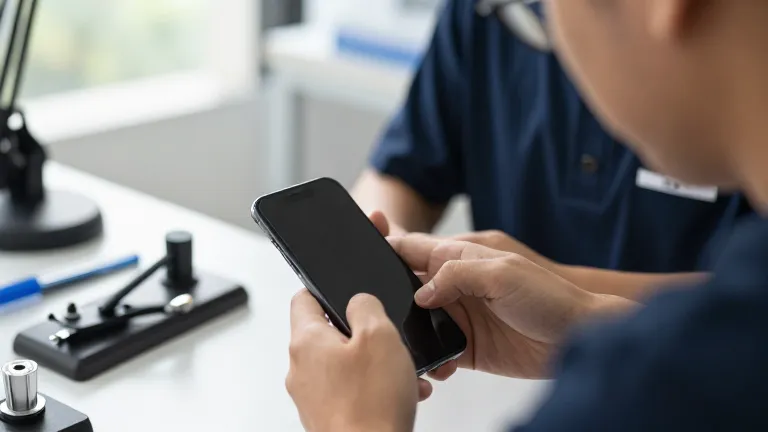
Signs that the speaker issue is hardware-related include persistent muffled sound, complete silence, or distorted audio even after software troubleshooting. If the speaker fails to produce sound during calls, media playback, or when using features like Voice Memos, it may be damaged. Additionally, if the speaker only works intermittently or under specific conditions, this could point to a hardware malfunction that cannot be resolved through software adjustments.
What to Expect When Visiting an Apple Service Center
When visiting an Apple Authorized Service Provider, technicians will perform a thorough diagnostic to determine the cause of the speaker issue. They may use specialized tools to test the speaker's functionality and identify whether the problem lies in the hardware, software, or a combination of both. If the speaker is damaged or needs replacement, the technician will provide options for repair or replacement, ensuring the device is restored to its original performance standards. It is important to avoid attempting to open the iPhone yourself, as this can void the warranty and potentially cause further damage to the device.
Frequently Asked Questions
What should I do if my iPhone speaker is too quiet during calls?
First, check the volume settings and ensure the speaker is not muted. If the issue persists, clean the speaker and restart your iPhone. If the problem remains, consider a settings reset or professional repair.
Can I clean my iPhone speaker with water or a cloth?
Avoid using water or cloth directly on the speaker. Instead, use a soft, dry cloth to gently wipe the area around the speaker. If debris is present, use compressed air to safely remove it.
How do I know if my iPhone speaker is damaged or just dirty?
If the speaker produces crackling, distortion, or no sound at all, it may be damaged. If the sound is muffled or quiet, it is likely due to dirt or blockage. Testing with different audio sources can help identify the issue.
Will resetting my iPhone fix the speaker sound issue?
Resetting your iPhone can resolve software-related speaker issues, such as misconfigured settings or temporary glitches. However, it may not fix hardware problems like a damaged speaker. If the issue persists after resetting, consider professional repair.
Next Steps for a Clearer Speaker
By following these steps, you can address most common iPhone speaker issues. Start with cleaning and settings adjustments before considering more advanced solutions.
If the problem continues, seek professional help to avoid further damage. Regular maintenance and timely troubleshooting can ensure your iPhone's audio quality remains optimal.





