
How to Fix Hard Drive Making Clicking Noise (Click of Death)
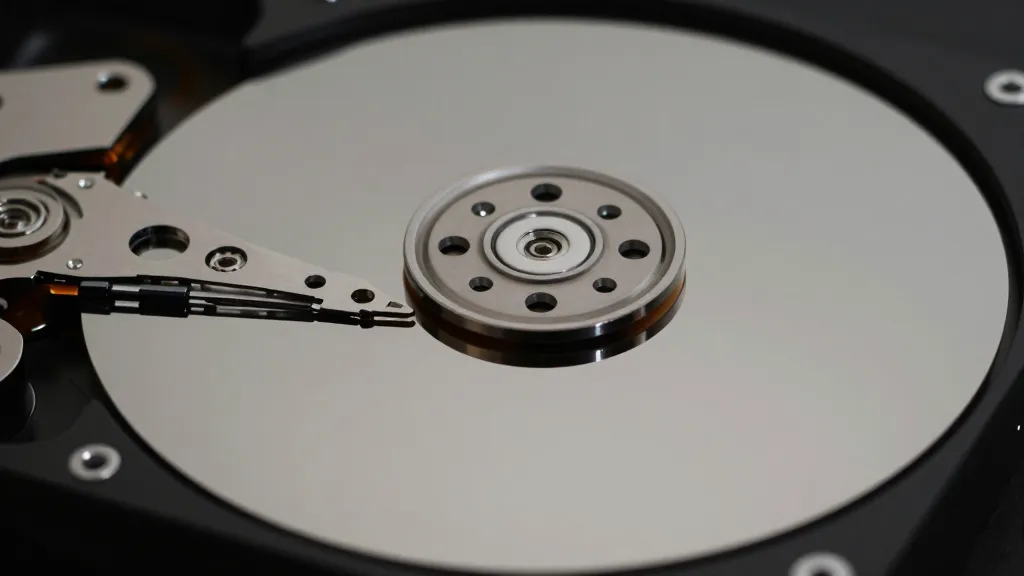
A hard drive making a clicking noise, often referred to as the 'Click of Death,' is a sign that something is seriously wrong with your storage device. This sound typically indicates that the read/write head is failing to access data properly, which can lead to data loss if not addressed quickly. If you're encountering this issue, you're likely in a critical situation where time is of the essence. This article will guide you through understanding the cause of the clicking noise, the immediate steps to take, and how to recover your data before it's too late. We'll also cover preventive measures to help you avoid similar problems in the future.
Understanding the Click of Death
The clicking noise from a hard drive, commonly known as the 'Click of Death,' is a critical sign of impending or ongoing drive failure. This sound is often accompanied by other symptoms such as slow performance, unexpected crashes, or error messages, and it typically indicates that the drive's internal mechanisms are failing. Understanding the causes and recognizing the signs early can help users take immediate action to protect their data and prevent further damage.
What Causes the Click of Death?
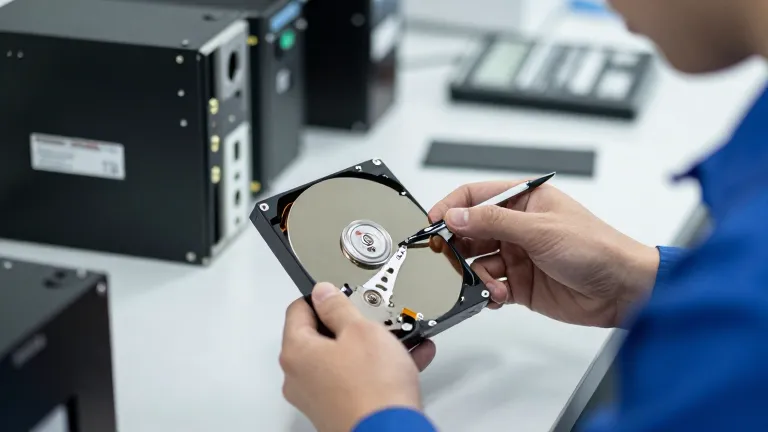
The Click of Death is primarily caused by physical damage to the hard drive's internal components, particularly the read/write head and the platters. When the drive's internal mechanisms are compromised, the read/write head may not align properly with the platters, leading to a series of rapid clicks as it attempts to access data. This can occur due to physical shocks, overheating, or wear and tear over time. In some cases, the failure of the drive's motor or the actuator arm can also contribute to the clicking sound, further signaling a critical failure.
How to Recognize the Click of Death
Recognizing the Click of Death involves paying close attention to the sound and accompanying symptoms. The clicking noise is often intermittent and may be accompanied by other signs such as the drive not being detected, data corruption, or the system freezing when accessing files. In some instances, the drive may still function partially, allowing users to access certain files before the failure becomes complete. However, even if the drive appears to work, the clicking sound is a strong indicator that the drive is on the verge of failure and requires immediate attention.
Immediate Steps to Take When Your Hard Drive Clicks
When your hard drive starts making a clicking noise, it's a clear sign of potential failure. Taking immediate action can help preserve data and prevent further damage. Here are the critical steps to follow.
- Stop Using the Drive Immediately
- Connect to Another Computer
- Check for Loose Power Cables or Connections
Stop Using the Drive Immediately
The first and most crucial step is to stop using the hard drive immediately. Continuing to access files or run programs can cause additional stress on the drive's internal components, potentially leading to complete failure. Even if the drive is still responding, it's best to cease all activity to avoid data loss.
Connect to Another Computer
Once you've stopped using the drive, connect it to another computer to attempt data recovery. This can be done via USB or SATA cable, depending on the drive's interface. The second computer may provide a more stable environment for the drive to function, allowing you to copy files before the drive becomes unresponsive. However, do not rely on this as a long-term solution.
How to Check the Power Cable and Connections
A faulty power cable or connection can often be the root cause of a hard drive making a clicking noise. Ensuring the power supply is stable and properly connected is a crucial first step in troubleshooting the issue.
- Inspect the Power Cable
- Try a Different Power Source
- Use a Surge Protector to Stabilize the Power Supply
Inspect the Power Cable
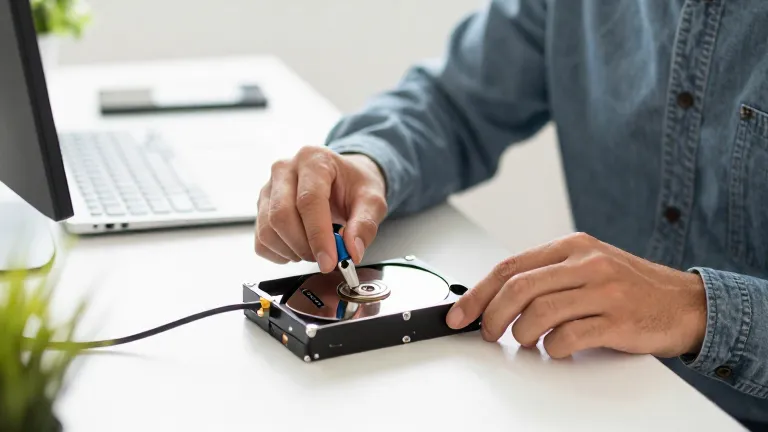
Begin by visually inspecting the power cable for any signs of damage, such as fraying, cuts, or exposed wires. A damaged cable can lead to inconsistent power delivery, which may cause the hard drive to malfunction or produce unusual noises. Check the connections at both ends of the cable to ensure they are secure and not loose. If the cable feels loose or shows signs of wear, it may need to be replaced.
Try a Different Power Source
If the power cable appears intact, try using a different cable or power supply to rule out any issues with the current one. Sometimes, a cable may seem fine but still have internal damage that affects its performance. Replace the cable with a known working one to see if the clicking noise stops. This step helps isolate whether the problem is with the cable or the drive itself.
In addition to a new cable, consider using a surge protector to stabilize the power supply. Power surges or voltage fluctuations can damage hard drives and contribute to the clicking noise. A surge protector acts as a buffer, absorbing unexpected electrical spikes and providing a consistent power source. This can help prevent further damage and potentially restore normal operation.
Data Recovery From a Failing Hard Drive
When your hard drive is making a clicking noise, the goal is to recover as much data as possible before the drive becomes completely inaccessible. Data recovery from a failing hard drive requires careful steps to avoid further damage and ensure the best chance of retrieving your files.
- Use data recovery software to copy files from the drive.
- Avoid writing new data to the drive to prevent overwriting existing files.
- Consider professional data recovery services if the drive is severely damaged.
- Keep the drive powered off until recovery is complete.
Use Data Recovery Software
Data recovery software can help retrieve files from a failing hard drive by scanning the drive’s file system and attempting to recover lost or inaccessible files. Tools like Recuva, EaseUS Data Recovery Wizard, and DiskDigger are commonly used for this purpose. These programs can often recover files that are still accessible, but they may not be able to retrieve data from a drive that has suffered severe physical damage.
When using data recovery software, it is important to connect the drive to a different computer and avoid using it on the original system. This reduces the risk of further data loss and prevents the operating system from attempting to write new data to the drive, which could overwrite existing files.
When to Seek Professional Help
If the drive is severely damaged or the clicking noise persists, it is best to seek professional data recovery services. These specialists have the tools and expertise to handle complex recovery cases, such as damaged platters or failed motor systems. Professional recovery services may also offer secure and encrypted data retrieval options for sensitive information.
Before contacting a professional, make sure to stop using the drive entirely. Continued use can lead to further damage and reduce the chances of successful recovery. Professional services often charge for their work, so it is important to research and choose a reputable provider with experience in hard drive recovery.
Preventing Future Hard Drive Failures
Preventing future hard drive failures is essential to avoid data loss and system downtime. By adopting proactive measures such as regular backups, power protection, and health monitoring, you can significantly reduce the risk of unexpected drive failure.
- Backup Your Data Regularly
- Use a UPS (Uninterruptible Power Supply)
- Monitor Hard Drive Health with SMART Tools
Backup Your Data Regularly
Regularly backing up your data is the most effective way to protect against hard drive failure. Use an external hard drive or a cloud storage service to store critical files. Aim to back up your data at least once a week, or more frequently if you work with sensitive or time-sensitive information. This ensures that even if your primary drive fails, you can recover your data without significant loss.
Use SMART Monitoring Tools
SMART (Self-Monitoring, Analysis, and Reporting Technology) is a built-in diagnostic tool that helps monitor the health of your hard drive. Most modern drives support SMART, allowing you to track metrics like temperature, read/write errors, and spindle motor performance. Use free SMART monitoring tools like CrystalDiskInfo or HD Tune to check your drive's status regularly. These tools can alert you to potential issues before they lead to a complete failure, giving you time to take preventive action.
Frequently Asked Questions
Can I fix a hard drive that's making a clicking noise?
A hard drive with a clicking noise is often a sign of severe internal failure. While minor issues like loose cables may be fixed, the drive is likely beyond repair. Professional data recovery may be needed to retrieve your data.
What should I do if my hard drive is clicking and not responding?
Stop using the drive immediately to prevent further damage. Connect it to another computer to check if it's recognized. If it's not, data recovery tools or professional help may be required.
Is it possible to recover data from a hard drive that's making a clicking noise?
Data recovery is possible in some cases, especially if the drive is still partially functional. Use recovery software or consult a professional data recovery service for the best chance of retrieving your files.
How can I prevent my hard drive from making a clicking noise?
Regularly back up your data and use SMART monitoring tools to track drive health. Avoid overloading the drive and ensure proper ventilation to prevent overheating.
Next Steps and Prevention
A clicking hard drive is often a sign of impending failure. Immediate action is crucial to protect your data. If the drive is not responding, connect it to another computer to check for recognition. If data is critical, consider professional recovery services.
Prevention is key. Regular backups and monitoring tools can help avoid data loss. If your drive fails, act quickly to minimize damage and increase the chances of data recovery.





