How to Fix Scanner Not Detected by Windows Fax and Scan
If your scanner isn't detected by Windows Fax and Scan, it can be frustrating, especially when you need to scan documents quickly. This issue can arise from a variety of causes, such as incorrect connections, outdated drivers, or system misconfigurations. The main keyword here is 'How to Fix Scanner Not Detected by Windows Fax and Scan,' which is exactly what this article will address. Whether you're a home user or an office worker, the steps outlined below will help you resolve the problem and get your scanner working seamlessly with your Windows system.
This guide covers essential troubleshooting steps to identify and fix the issue. We'll start by checking your physical connections and ensuring the scanner is properly powered. Then, we'll move on to restarting the Windows Fax and Scan service, which can often resolve temporary glitches. Installing or updating drivers is another critical step, as outdated or missing drivers are a common cause of detection failures.
For more advanced users, we'll explore options like reinstalling the Fax and Scan feature or repairing system files using DISM and SFC. If all else fails, we'll discuss hardware troubleshooters, system restore, and reset options. By following these steps, you'll be well on your way to resolving the 'How to Fix Scanner Not Detected by Windows Fax and Scan' issue and regaining full functionality of your scanner.
Check Basic Connections and Settings
Before diving into more complex solutions, it's essential to verify that your scanner is correctly connected and recognized by Windows. Many issues can be resolved simply by checking the basics, such as physical connections and system recognition.
Verify Physical Connections
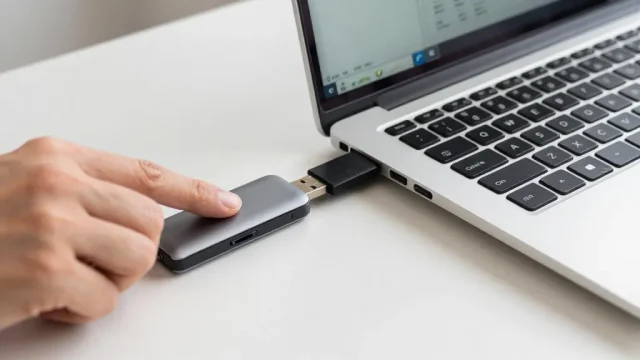
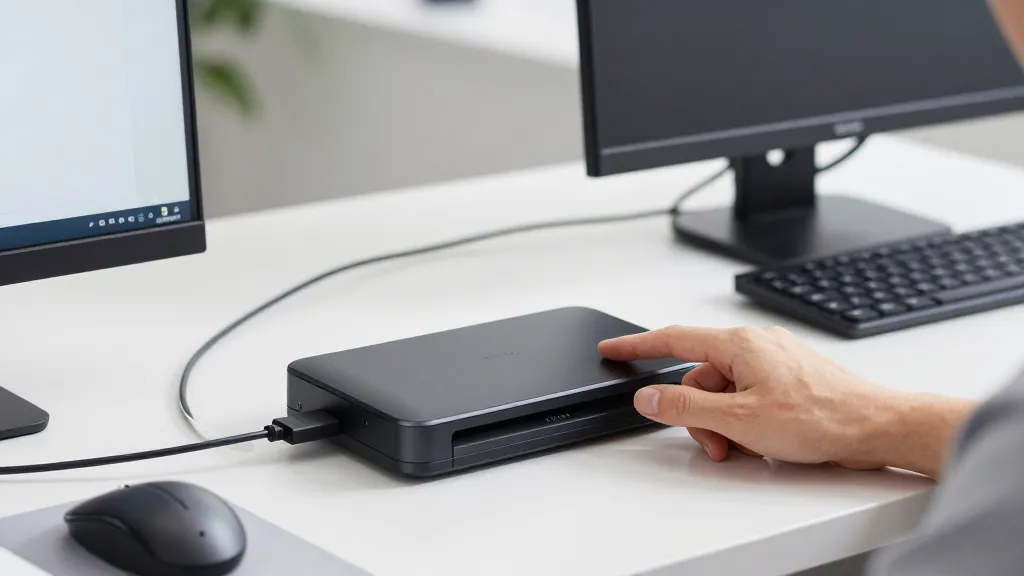
Ensure that your scanner is securely connected to your computer using a USB cable or, if it's a network scanner, that it's properly connected to your Wi-Fi or Ethernet network. Loose or damaged cables can prevent the scanner from being detected. If using a USB connection, try plugging the scanner into a different port to rule out port-specific issues. For network scanners, confirm that your computer is connected to the same network as the scanner and that there are no firewall or router settings blocking communication.
Confirm Scanner Power and Recognition
Power on your scanner and check if it's recognized by the operating system. Look for the scanner in the Device Manager under the Imaging Devices or Ports category. If the scanner appears as an unknown device or is missing, it may not be properly installed or recognized. If the scanner is not listed, try restarting your computer and the scanner to refresh the system's detection. If the device is still not visible, proceed to the next steps to troubleshoot driver or service-related issues.
Restart the Windows Fax and Scan Service
Restarting the Windows Fax and Scan service can resolve temporary connectivity issues between your scanner and the system. This process refreshes the service’s connection and may help the system recognize the scanner properly.
How to Access the Services Application
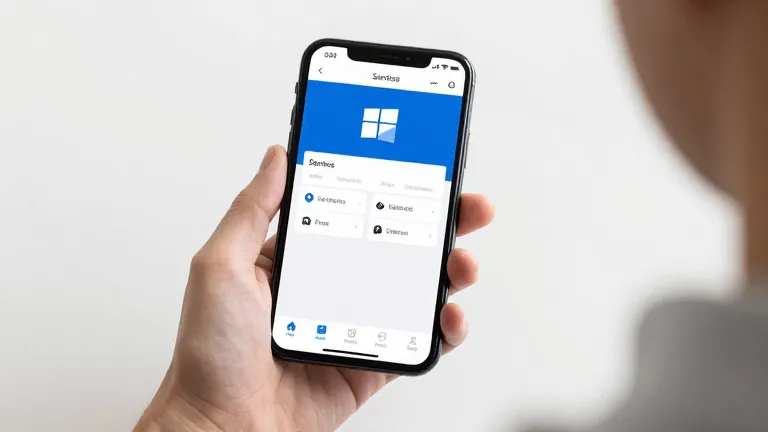
To access the Services application, press the Windows key and type 'services' in the search bar. Click on the 'Services' app from the results. This opens the Services window, where you can manage all system services, including the Windows Fax and Scan service.
Steps to Restart the Fax and Scan Service
In the Services window, locate the 'Windows Fax and Scan' service. Right-click on it and select 'Restart' from the context menu. This action stops and starts the service, which can help refresh its connection to the scanner. If the service is not running, ensure it is set to 'Automatic' to start automatically when the system boots. This setting ensures the service is always available to communicate with connected scanners.
Install or Update Scanner Drivers
Ensuring your scanner is properly recognized by Windows Fax and Scan often starts with verifying that the correct TWAIN driver is installed. TWAIN is a standard interface that allows Windows applications to communicate with imaging devices like scanners. If the driver is outdated, missing, or incompatible, the scanner may not function correctly. Checking and updating these drivers can resolve many detection issues.
Finding and Installing TWAIN Drivers
To find and install the correct TWAIN driver for your scanner, start by identifying the exact model of your device. Visit the manufacturer’s official website and navigate to the support or download section. Look for drivers specific to your scanner model and operating system. Download the TWAIN driver and follow the installation instructions provided. If the driver is not available, check for firmware updates or contact the manufacturer’s technical support for assistance.
Using Windows Update for Driver Updates
Windows Update can also help keep your scanner drivers up to date. Open the Settings app, go to Update & Security, and click Check for Updates. Windows will scan for any pending driver updates, including those for your scanner. If an update is found, install it and restart your computer to apply the changes. This method is particularly useful for ensuring that your system is running the latest compatible drivers without manually downloading them.
Reinstall or Repair the Fax and Scan Feature
If your scanner still isn't detected after checking basic connections and updating drivers, you may need to reinstall the Fax and Scan feature or repair system files. This process can resolve conflicts or missing components that prevent the scanner from being recognized by Windows.
Uninstall and Reinstall Fax and Scan
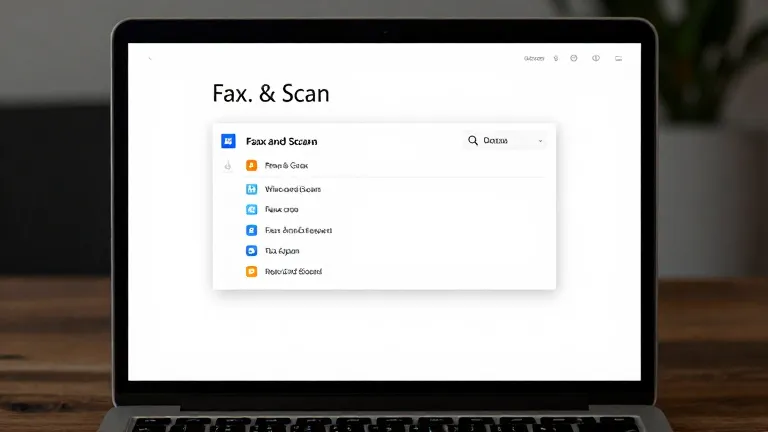
To uninstall the Fax and Scan feature, open the Control Panel and navigate to Programs > Turn Windows features on or off. Locate the Fax and Scan option and uncheck it. Confirm the changes and restart your computer. After the restart, go back to the same settings and recheck the Fax and Scan feature to reinstall it. This ensures that any corrupted or outdated components are replaced with the latest version.
Using DISM and SFC to Repair System Files
If the issue persists, use the DISM and SFC commands to repair system files that may be affecting the scanner's functionality. Open Command Prompt as an administrator and run 'DISM /Online /Cleanup-Image /RestoreHealth' to repair any system image issues. Next, execute 'sfc /scannow' to scan for and fix corrupted system files. These commands can resolve underlying system issues that might be preventing the Fax and Scan feature from operating correctly.
Advanced Troubleshooting and System Reset
If basic troubleshooting steps fail, advanced methods like the Windows Hardware Troubleshooter and system reset can address deeper issues with scanner detection. These tools are designed to identify and resolve conflicts that may prevent the scanner from being recognized by the system.
Using the Windows Hardware Troubleshooter
The Windows Hardware Troubleshooter is a built-in tool that can detect and fix problems with hardware devices, including scanners. To use it, open the Settings app, navigate to Update & Security, then select Troubleshoot. From there, choose 'Hardware and Devices' and run the troubleshooter. This process will scan for issues and attempt to resolve them automatically. If the troubleshooter finds a problem, follow its recommendations to fix it.
System Restore and PC Reset Options
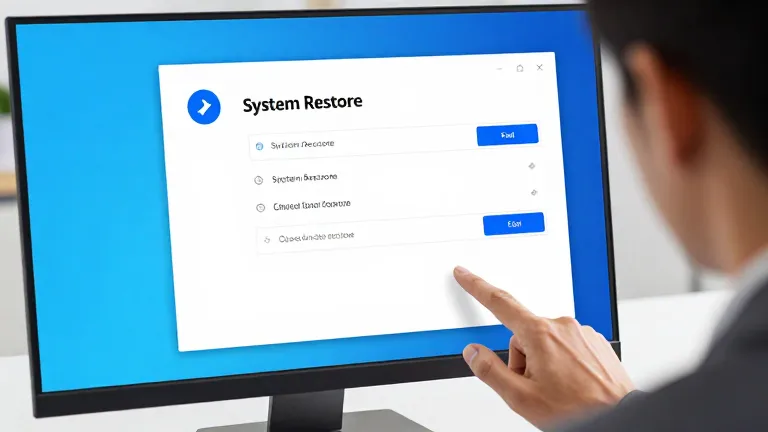
System restore can revert your PC to a previous state before the scanner stopped working, undoing recent changes that might have caused the issue. To do this, go to Settings > Recovery > System Restore, then select a restore point from before the problem began. Follow the prompts to complete the restoration. If system restore is not effective, a PC reset may be necessary. This will remove all apps and settings, returning the system to its original state. This is a last resort and should only be used if other methods have failed.
Frequently Asked Questions
What should I do if my scanner isn't showing up in the Device Manager?
Ensure the scanner is properly connected and powered on. If it's still missing, try updating or reinstalling the drivers through the Device Manager.
How can I tell if the Windows Fax and Scan service is running?
Open the Services application and look for 'Fax and Scan' in the list. Right-click it and select 'Properties' to check the status.
Can I use a TWAIN driver instead of a WIA driver for my scanner?
Yes, TWAIN drivers are often preferred for better compatibility. Ensure the TWAIN driver is correctly installed and configured.
What if all the basic steps fail and the scanner still isn't detected?
Try using the Windows Hardware Troubleshooter or consider a system restore. If these fail, a full PC reset may be necessary.
Final Steps for Scanner Detection
To resolve issues with your scanner not being detected, start by checking physical connections and ensuring the service is running. Updating drivers or reinstalling the Fax and Scan feature can also help. If all else fails, advanced troubleshooting steps like system restore or reset may be required.
Follow these steps to ensure your scanner is recognized by Windows Fax and Scan. If issues persist, consider contacting the scanner manufacturer for further assistance.