
How to Fix SD Card Locked or Write Protected Error

If you're trying to save photos, videos, or files to an SD card but keep getting the 'SD card locked or write protected' error, you're not alone. This common issue can frustrate users of cameras, phones, and other devices that rely on SD cards for storage. The error usually occurs when the card is set to read-only mode, either by design or due to accidental settings. Understanding the causes and practical solutions is key to resolving the problem without needing professional help.
This article covers the most effective ways to fix the 'SD card locked or write protected' error. We'll start by explaining what causes the write protection error and how to recognize it. Then, we'll explore physical and software-based solutions, including checking the slide lock switch, using DiskPart to remove the read-only attribute, and alternative methods like formatting. Each step is designed to be clear and actionable, so you can restore your SD card's functionality quickly.
Prevention is also important to avoid future issues. We'll share best practices for SD card maintenance and how to avoid accidental write protection. Whether you're a home user or an office worker, these steps will help you manage and protect your SD card data effectively.
Understanding the SD Card Write Protected Error
The SD card write-protected error prevents data from being written to the card, which can disrupt tasks like capturing photos, recording videos, or saving files. Understanding the root cause is essential to resolve the issue effectively, as different causes require distinct solutions.
What Causes an SD Card to Be Write Protected?
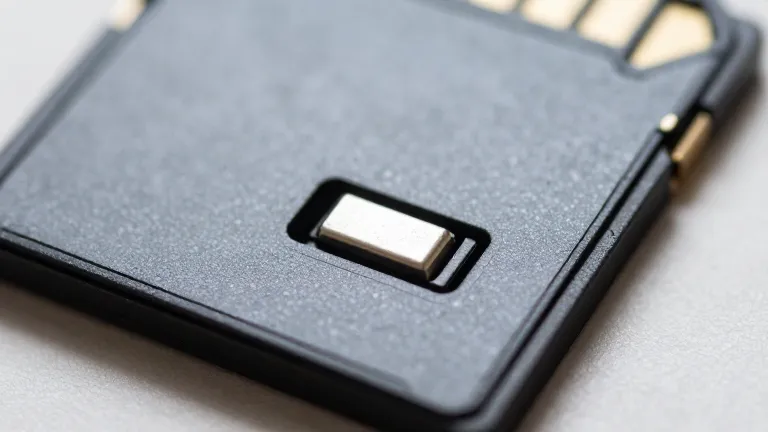
The primary cause of an SD card being write-protected is the physical slide lock switch, which is commonly found on older SDHC and SDXC cards. When this switch is engaged, the card becomes read-only, preventing any modifications. Other causes include file system corruption, which can occur due to improper ejection or sudden power loss, and software settings that may enforce read-only access on certain devices.
How to Recognize the Write Protected Error
Recognizing the write-protected error involves looking for specific symptoms, such as the device displaying a 'write protected' message, inability to save new files, or the card being readable but not writable. Some devices may also show a warning icon or a status bar indicating restricted access. If the card is not recognized at all, it might be a hardware issue rather than a write protection problem.
Physical Solutions: Checking the Slide Lock Switch
The slide lock switch is a physical mechanism that prevents data from being written to an SD card. This switch is commonly found on older SD cards and acts as a physical barrier to write protection. Before attempting any other fix, ensure the switch is in the unlocked position to rule out this simple cause.
- Locate the slide lock switch on the side of the SD card.
- Slide the switch to the unlocked position to allow writing.
- If the switch is broken or not functioning, consider replacing the SD card.
- Avoid using force to move the switch, as this may damage the card.
Locating the Slide Lock Switch on Your SD Card
Locating the slide lock switch on your SD card is the first step in addressing write protection issues. This small switch is typically found on the side of the card, near the edge. It may be labeled with a lock symbol or simply marked as 'Lock' or 'Unlock'.
What to Do If the Slide Lock Switch Is Broken
If the slide lock switch is broken or not functioning, you may need to replace the SD card. A damaged switch can prevent the card from being written to, even if the switch appears to be in the unlocked position. In such cases, attempting to repair the switch is not recommended, as it may lead to further damage. Replacing the card is often the most reliable solution.
Software-Based Fixes: Using DiskPart to Remove Read-Only Attribute
DiskPart is a command-line tool in Windows that can change file system attributes, making it a useful option for removing the read-only attribute from an SD card. This method can resolve the write protected error if the issue stems from a file system setting. However, it's important to approach this process with caution, as incorrect commands can lead to data loss or card damage.

How to Use DiskPart to Clear the Read-Only Attribute
To use DiskPart, open the Command Prompt as an administrator and type 'diskpart' to launch the tool. Next, input 'list disk' to identify your SD card, which will be listed as a removable disk. Select the SD card using 'select disk X' where X is the disk number, then type 'attributes disk clear read-only' to remove the read-only attribute. Finally, exit DiskPart and safely eject the SD card to apply the changes.
Safety Tips for Using DiskPart
Before using DiskPart, ensure that your SD card is not in use and that all important data has been backed up. This method can be risky if the disk number is misidentified, as it may affect other storage devices. Additionally, avoid using DiskPart on SD cards that are already damaged or corrupted, as this can worsen the issue. Always verify the disk number carefully and proceed with confidence to minimize potential errors.
Alternative Methods to Unlock an SD Card
In addition to physical and software-based fixes, there are alternative methods to unlock an SD card. These methods can help determine if the issue is with the card itself or the device it's connected to. They also offer a way to resolve corruption issues, though they may involve data loss.
- Check device settings for write protection options.
- Use a card reader to isolate the issue.
- Format the SD card to resolve corruption.
- Backup data before formatting.
Checking Device Settings for Write Protection
Some devices, particularly cameras and phones, have built-in settings that enable or disable write protection. To check these settings, navigate to the device's menu and look for options related to storage or memory card settings. Disabling write protection through the device's interface can resolve the issue without affecting the card physically.
Formatting the SD Card as a Last Resort
Formatting an SD card can resolve corruption issues that prevent it from being written to. However, this process will erase all data on the card, so it's important to back up any important files first. If the card is not recognized by the device, formatting through a card reader may help identify whether the problem lies with the card or the device.
Preventing Future Write Protection Issues
Preventing future write protection issues requires proactive care and awareness. By adopting simple yet effective habits, you can significantly reduce the risk of encountering this error and extend the lifespan of your SD card.

Best Practices for SD Card Maintenance
Regular SD card maintenance is essential to avoid unexpected write protection. Keep your card clean by gently wiping the metal contacts with a soft, dry cloth to remove dust and debris. Avoid exposing the card to extreme temperatures or moisture, as these can damage internal components. It's also wise to store the card in a protective case when not in use, especially if you frequently insert or remove it from devices.
How to Avoid Accidental Write Protection
To avoid accidental write protection, always check device settings before attempting to write data. Some cameras and phones have built-in options to disable write protection, which can be enabled inadvertently during setup or updates. If you're using a card reader, ensure it's compatible with your SD card and that the connection is stable. Additionally, avoid using third-party software that may alter the card's attributes without your knowledge. By being mindful of these factors, you can prevent many common causes of write protection issues.
Frequently Asked Questions
What should I do if my SD card is write protected and the slide lock switch is in the correct position?
If the slide lock switch is correctly positioned and the card remains write protected, try using DiskPart or check device settings. If these methods fail, consider formatting the card as a last resort.
Can I use DiskPart on a Mac or Linux device to fix the write protected error?
DiskPart is only available on Windows. On Mac or Linux, use the terminal with commands like 'diskutil' or 'mount' to remove write protection.
What if none of the methods work to unlock my SD card?
If all methods fail, the SD card might be physically damaged or corrupted. In such cases, consult a professional data recovery service or replace the card.
Is it safe to format my SD card to fix the write protected error?
Formatting an SD card can resolve write protection issues, but it will erase all data. Ensure you have backed up important files before proceeding.
Final Thoughts
Regular maintenance and careful handling can prevent most write protection issues. Always verify the physical switch and use trusted software tools before attempting more drastic measures.
If you're unsure how to proceed, seek guidance from a professional. Safeguard your data by regularly backing up files and using reliable storage solutions.





