
How to Fix Not Working Keyboard: Troubleshooting Guide

If your keyboard is not working, it can be frustrating, especially when you're trying to type or work efficiently. Whether you're using a laptop, desktop, or mobile device, a malfunctioning keyboard can disrupt your workflow. The main keyword here is how to fix not working keyboard, and this guide is designed to help you resolve the issue quickly without needing professional assistance. From simple checks to more advanced troubleshooting steps, we'll walk you through practical solutions that are easy to follow.
The article begins by helping you diagnose the problem, such as checking for physical damage or blockages and testing the keyboard on another device. These initial steps can often uncover the root cause of the issue. If the problem persists, we'll move on to basic fixes like restarting your device or using an on-screen keyboard, which are quick and effective for many users.
For more complex issues, we'll guide you through advanced troubleshooting, including updating drivers and running system checks. We also cover specific solutions for mobile devices, such as updating or changing the keyboard app. If all else fails, we'll let you know when it's time to seek professional help. With this guide, you can take control of your keyboard issues and get back to work efficiently.
Diagnose the Problem with Your Keyboard
Before attempting fixes, it's crucial to accurately diagnose the issue with your keyboard. Identifying whether the problem is physical, software-related, or device-specific can save time and prevent unnecessary troubleshooting steps.
Check for Physical Damage or Blockages
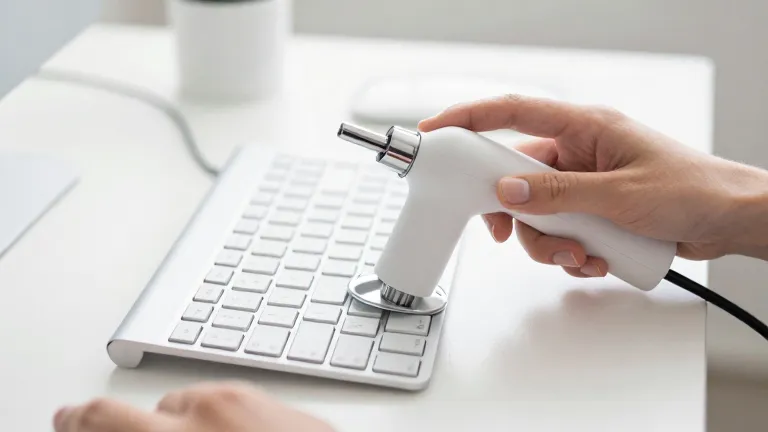
Start by inspecting the keyboard for visible signs of damage, such as broken keys, liquid spills, or cracks. Check if any keys are stuck, repeatedly pressed, or not responding at all. Physical damage can often cause intermittent or complete failure of certain keys. If the keyboard is wireless, ensure the connection is secure and the batteries are not depleted.
Test the Keyboard on Another Device
To determine if the issue is isolated to your current device, try connecting the keyboard to another computer or laptop. If the keyboard works on another device, the problem is likely with your original device's settings, drivers, or software. If the keyboard fails to function on multiple devices, the issue may be with the keyboard itself. For mobile users, test the keyboard on a different phone or tablet to rule out device-specific problems.
Basic Fixes for a Not Working Keyboard
Basic fixes for a not working keyboard often involve simple steps that can resolve temporary glitches or misconfigurations. These methods are ideal for users who want to quickly address the issue without diving into complex troubleshooting.
- Restart Your Device
- Use On-Screen Keyboard
- Ensure the device is not in a low-power state or sleep mode
Restart Your Device
Restarting your device is one of the most effective ways to resolve temporary software glitches that may be causing the keyboard to malfunction. When you restart your computer or phone, it clears out any corrupted processes or memory leaks that could be interfering with keyboard input. This step is especially useful if the issue started recently or after a software update.
Use On-Screen Keyboard
Using the on-screen keyboard can help determine whether the problem lies with the physical keyboard or the system's recognition of input. If the on-screen keyboard works, it indicates that the issue is likely with the physical keyboard or its drivers. This method is particularly helpful for users who are unsure about the exact cause of the problem and want to isolate the issue quickly.
Advanced Troubleshooting for Keyboard Issues
Advanced troubleshooting for keyboard issues often involves addressing software conflicts and system errors that may be preventing the keyboard from functioning properly. These steps are particularly useful for users who have already tried basic solutions and are looking for more in-depth fixes.

Update or Reinstall Keyboard Drivers
On Windows, keyboard issues can often be resolved by updating or reinstalling the keyboard drivers. To update drivers, open Device Manager, locate the keyboard device, right-click it, and select 'Update driver.' If the issue persists, try uninstalling the driver and restarting the computer to allow Windows to reinstall it automatically. This process can resolve conflicts caused by outdated or corrupted drivers.
Run System File Checker
If driver updates don't resolve the issue, running the System File Checker can help fix underlying software problems that may be affecting keyboard functionality. To do this, open Command Prompt as an administrator and enter 'sfc /scannow' followed by pressing Enter. The scan will check for and repair corrupted system files that could be interfering with the keyboard. This step is especially useful if the problem is related to system-wide software errors.
Fixing Keyboard Issues on Mobile Devices
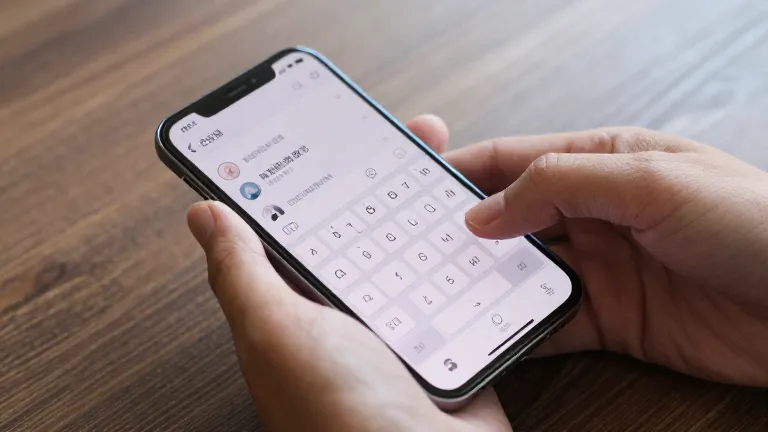
If your keyboard isn't working on a mobile device, the issue could be related to the keyboard app itself. Both Android and iOS offer built-in keyboards, but third-party options are also available. Ensuring your keyboard app is up to date or switching to a different one can often resolve the problem.
- Check for keyboard app updates on Android or iOS.
- Reset keyboard settings or switch to a different keyboard app.
- Ensure that the keyboard is not locked or in a disabled state.
Update or Change Keyboard App
On Android, open the Google Play Store and check for updates to your current keyboard app. If no update is available, consider switching to a different keyboard like Gboard or SwiftKey. On iOS, go to the App Store and check for updates. If you're using a third-party keyboard, ensure it's compatible with your device and has the latest features.
Reset Keyboard Settings
To reset keyboard settings on Android, go to Settings > System > Languages & input > Keyboard > Advanced > Reset keyboard settings. On iOS, navigate to Settings > General > Reset > Reset Keyboard Dictionary. If the problem persists, try removing the keyboard app and reinstalling it. This can help eliminate any corrupted data or settings that might be causing the issue.
When to Seek Professional Help
If all troubleshooting steps fail and your keyboard still doesn't work, it may require hardware repair. Physical damage, such as broken keys or internal wiring issues, can prevent the keyboard from functioning properly. In such cases, attempting to fix the problem yourself could worsen the damage. A professional technician can assess the keyboard’s condition and determine whether it can be repaired or needs replacement.
Replacing the keyboard is a viable option if the damage is extensive or if the device is no longer under warranty. Some keyboards, especially those with complex internal structures or high-end features, may not be worth repairing. If the keyboard is integral to your work or daily tasks, investing in a new one might be the most practical solution. Consider the cost of repairs versus the value of the device when making this decision.
If the keyboard issue is linked to a recent software update or system change, consulting a technician can help identify and resolve the problem. Software conflicts or compatibility issues can sometimes cause unexpected behavior, and a professional can check for hidden errors or misconfigurations. In some cases, a technician may need to reflash the system firmware or replace the keyboard entirely to restore full functionality.
Frequently Asked Questions
What should I do if my keyboard is not working at all?
Start by checking for physical damage or blockages. If the keyboard isn't responding, try using an on-screen keyboard or testing it on another device to determine if the issue is hardware or software-related.
How can I tell if my keyboard is physically damaged?
Look for signs such as broken keys, liquid spills, or debris under the keys. You can also test the keyboard on another device to see if the issue is with the hardware itself.
Can a software update cause my keyboard to stop working?
Yes, software updates can sometimes introduce compatibility issues with hardware. If your keyboard stops working after an update, try rolling back the update or reinstalling the drivers.
What if all keyboard troubleshooting steps fail?
If all steps fail, the keyboard may be faulty or incompatible with your device. Consider replacing it or seeking professional repair services.
Final Thoughts
A non-working keyboard can be caused by both hardware and software issues. Following a structured troubleshooting process helps identify the root cause efficiently.
If basic steps don't resolve the issue, consider advanced options like driver updates or system file checks. For persistent problems, professional help is recommended.





