
Why Error Code on Netflix: How to Fix It
Encountering an error code on Netflix can be frustrating, especially when you're eager to watch your favorite show. These codes often appear during playback or when trying to log in, signaling something is wrong with your connection or account. While they can be confusing, most issues can be resolved with simple troubleshooting steps. This article will guide you through understanding Netflix error codes, identifying them, and fixing common ones like 1001 and 400. Whether you're at home or in the office, you'll find practical solutions to get your streaming back on track without needing professional help.
Understanding Netflix Error Codes
Error codes on Netflix are a common occurrence that can disrupt the streaming experience. These codes typically appear when there is an issue with the service, such as connectivity problems, server errors, or playback issues. Understanding what these codes mean and how to resolve them can help users quickly get back to watching their favorite content.
What Are Netflix Error Codes?
Netflix error codes are numerical indicators that provide specific information about the nature of a technical issue. These codes are generated by the platform to help users and support teams identify the root cause of a problem. Common codes such as 1001, 400, 500, and 3002 correspond to different types of errors, ranging from playback issues to connectivity problems. Each code serves as a diagnostic tool, offering insights into what might be preventing the service from functioning correctly.
Why Do Error Codes Appear on Netflix?
Error codes appear on Netflix due to a variety of technical issues that can affect the streaming experience. These may include problems with the internet connection, issues with the Netflix server, or difficulties with the device being used. For instance, error code 1001 often relates to playback issues, while code 400 is typically associated with connectivity problems. The appearance of these codes is a signal that something is wrong, prompting users to take action to resolve the issue. By recognizing these codes, users can apply targeted troubleshooting steps to address the specific problem they are facing.
How to Identify the Error Code
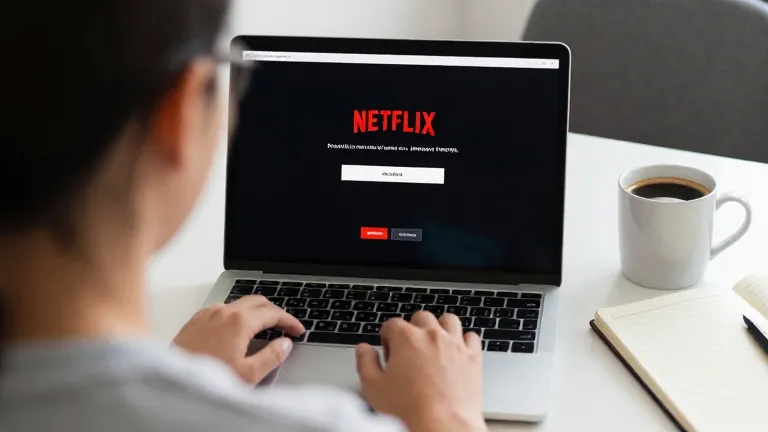
When you encounter an issue while streaming on Netflix, the service typically displays an error code on your screen. This code appears in a box and is accompanied by a brief message that explains the nature of the problem. The error code is designed to help users identify the specific issue they are facing, making it easier to troubleshoot without professional assistance. It is important to note that the exact code and any additional error message will vary depending on the type of problem you are experiencing.
The error code is usually located in the center or near the top of the screen, making it easy to spot. Alongside the code, there may be a description that provides more context about the error, such as a connection problem or an issue with the content being streamed. Taking a screenshot of the error message can be helpful, especially if you need to refer back to it later or provide it to someone else for assistance. This visual record ensures you have accurate information to work with when attempting to resolve the issue.
To effectively troubleshoot, you should take note of the exact code and any additional details provided in the message. For example, some error codes may include a number followed by a letter or another number, which can indicate different types of problems. If the error message includes a link or a suggestion, it is worth following those instructions as they may offer a quick fix. Keeping this information organized will help you proceed confidently when addressing the issue.
Troubleshooting Common Netflix Error Codes
Troubleshooting common Netflix error codes involves identifying the specific issue and applying targeted solutions. While error codes can vary in cause, many can be resolved by checking your internet connection, restarting your device, or clearing the app cache. Following the steps below can help you address the most frequent error codes and restore your streaming experience.
- Restart your device or streaming app to resolve minor glitches that may be causing the error.
- Check your internet connection and ensure it is stable and meets Netflix's recommended speed requirements.
- Clear the cache and cookies of the Netflix app to eliminate corrupted data that may be triggering the error.
- Verify that your account is active and that there are no billing or subscription issues preventing access.
How to Fix Netflix Error Code 1001
Netflix Error Code 1001 typically indicates a problem with your internet connection. This error often occurs when the connection is too slow or unstable to stream content. To resolve this, start by restarting your router or modem. If that doesn’t work, try switching to a wired connection or a different Wi-Fi network. You can also check your internet speed using a speed test tool to ensure it meets Netflix’s minimum requirements.
How to Fix Netflix Error Code 400
Netflix Error Code 400 usually points to an issue with the app or account settings. This can include problems with the app’s cache, incorrect login details, or regional restrictions. To fix this, restart the Netflix app and ensure you are logged in with the correct account. If the issue persists, try clearing the app’s cache and cookies. Additionally, check if your account is set to the correct region, as some content may not be available in certain locations.
General Fixes for Netflix Streaming Issues
If you're experiencing issues with Netflix beyond specific error codes, start by restarting your device and the Netflix app. A simple reboot can clear temporary glitches that may be interfering with the service. On smartphones, tablets, or smart TVs, closing the app completely and reopening it can help refresh the connection and resolve minor software hiccups. This step is especially useful if the problem seems to occur after an update or during peak usage times.
Clearing the app cache and data can resolve persistent streaming issues. On Android devices, you can do this through the Settings menu by navigating to Apps > Netflix > Storage > Clear Cache and Clear Data. For iOS users, removing the app and reinstalling it can help eliminate corrupted files that may be causing the problem. This method is effective for addressing recurring errors that aren't tied to a specific code.
A stable internet connection is essential for smooth Netflix streaming. Check your Wi-Fi signal strength and ensure you're connected to the correct network. If you're using a router, try restarting it to refresh the connection. For optimal performance, maintain a download speed of at least 5 Mbps, though higher speeds will improve video quality. If you're using a wired connection, ensure the cable is securely connected and free from damage.
When to Contact Netflix Support
If you've exhausted all troubleshooting steps and the issue still persists, it may indicate a service-wide problem affecting Netflix's availability. In such cases, contacting Netflix support can provide clarity and help resolve the issue more efficiently. Support teams are equipped to address broader technical problems that may not be resolved through standard troubleshooting methods.

Netflix support can assist with more complex issues, such as account-related problems, billing inquiries, or difficulties accessing specific content. They can also provide guidance for users experiencing persistent errors that are not covered by general troubleshooting solutions. If you're encountering an error that prevents you from logging in or accessing your account, reaching out to support is a logical next step.
When contacting Netflix support, it's essential to provide the exact error code and detailed information about the issue you're facing. This includes the time the error occurred, the device you're using, and any steps you've already tried to resolve the problem. Including this information helps support teams quickly identify the root cause and offer a targeted solution.
While many issues can be resolved through self-troubleshooting, some problems require expert assistance. If you're unsure whether your issue is isolated or part of a larger problem, contacting Netflix support ensures you receive the appropriate help. They can also provide updates on service status and guide you through advanced troubleshooting or account management options.
Frequently Asked Questions
What does Netflix error code 1001 mean?
Netflix error code 1001 typically indicates an issue with your internet connection or the Netflix server. It may also suggest a problem with your account or device compatibility.
How do I fix Netflix error code 400?
Netflix error code 400 is often related to a problem with your internet connection or the server. Try restarting your router, checking your internet speed, and clearing the app cache.
Can I fix Netflix error codes without contacting support?
Most Netflix error codes can be resolved through basic troubleshooting steps like restarting your device, checking your internet, or clearing the app cache. Contacting support is usually only necessary for persistent issues.
What should I do if Netflix error codes keep appearing?
If error codes keep appearing, try a full device reboot, check for app updates, or use a different network. If the issue persists, contact Netflix support for further assistance.
Final Thoughts
Understanding and resolving Netflix error codes is essential for uninterrupted streaming. By following the troubleshooting steps and addressing common issues, you can often resolve these errors without needing to contact support.
If you continue to encounter issues, reaching out to Netflix support is the best course of action. Stay proactive with your device and network settings to avoid future errors.





