How to Fix Bluetooth Keyboard Not Pairing with iPad or PC
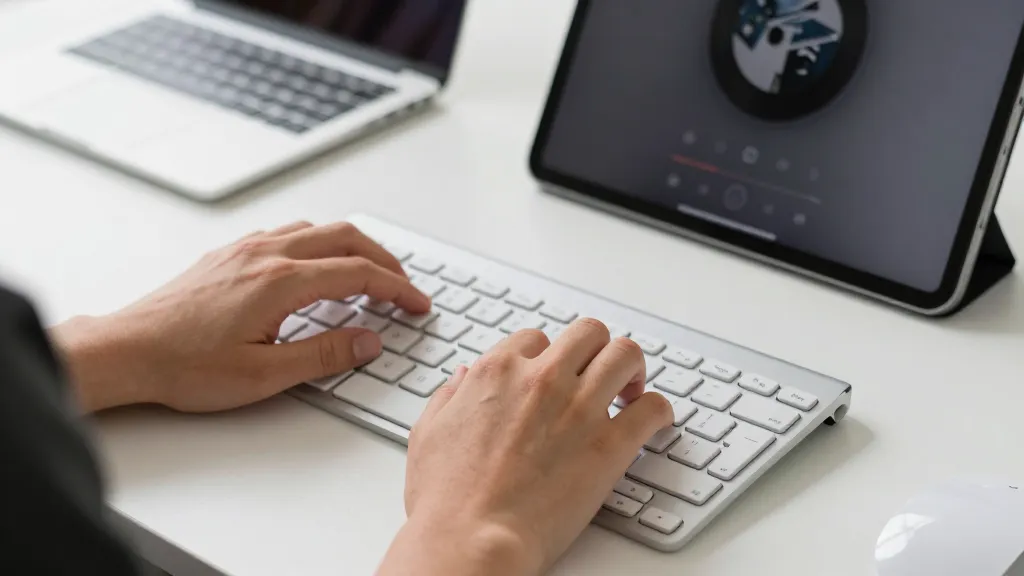
If you're struggling to pair your Bluetooth keyboard with your iPad or PC, you're not alone. Many users face this issue, especially when the keyboard fails to connect or disconnects unexpectedly. The main keyword in this article, How to Fix Bluetooth Keyboard Not Pairing with iPad or PC, will guide you through a series of practical solutions to resolve these problems. Whether you're a home user or an office worker, this guide is designed to help you troubleshoot and fix the issue without needing professional assistance. By following the steps outlined, you can identify and resolve common pairing issues efficiently.
The article begins by explaining what Bluetooth pairing is and why it might fail, covering common causes such as interference or incorrect settings. Next, it provides basic checks and troubleshooting steps, including verifying the keyboard's battery and putting it into pairing mode. These simple actions can often resolve the problem quickly.
For more persistent issues, the article moves on to advanced troubleshooting techniques, such as forgetting the device and resetting the keyboard. It also explores alternative connection methods, like using a wired connection or testing on another device, which can help pinpoint the problem. Finally, it outlines when to seek professional help if all else fails. With this guide, you'll have a clear path to resolving Bluetooth keyboard pairing problems on your iPad or PC.
Understanding Bluetooth Keyboard Pairing Issues
Bluetooth keyboard pairing issues can be frustrating, but they are often resolved with a few simple steps. Understanding the basics of Bluetooth pairing and the common reasons it might fail can help you troubleshoot effectively without needing professional assistance.
What Is Bluetooth Pairing?
Bluetooth pairing is the process by which two devices establish a wireless connection to communicate with each other. When you pair a Bluetooth keyboard with your iPad or PC, the devices exchange information to create a secure link. This connection allows the keyboard to send keystrokes to the device, enabling you to type without a physical connection. However, successful pairing requires both devices to be in the correct mode and within range.
Common Causes of Bluetooth Keyboard Pairing Failures
Common causes of Bluetooth keyboard pairing failures include the keyboard not being in pairing mode, which is a state where the device is ready to connect to a new device. If the keyboard is already paired with another device, it may not respond to new connections. Additionally, other Bluetooth devices on the same network can interfere with the pairing process, causing connection drops or failed attempts. Outdated software or firmware on either the keyboard or the device can also prevent a proper connection, as updates often include bug fixes and compatibility improvements. Ensuring both devices are up to date is a crucial step in resolving pairing issues.
Basic Checks and Troubleshooting Steps
Before attempting advanced troubleshooting, start with basic checks to identify and resolve common issues that prevent your Bluetooth keyboard from pairing with your iPad or PC.
- Ensure the keyboard is powered on and has fresh batteries.
- Put the keyboard into pairing mode by pressing and holding the Bluetooth button.
- Turn off Bluetooth on the iPad or PC and then restart the device.
- Check for any physical damage or issues with the keyboard’s Bluetooth antenna.
Check for Physical Damage or Battery Issues
Start by confirming that your Bluetooth keyboard is powered on and has sufficient battery life. A low battery can prevent the device from being detected by your iPad or PC. If the keyboard uses replaceable batteries, replace them with fresh ones. If it’s rechargeable, connect it to a power source and wait a few minutes before trying to pair again.
Put the Keyboard Into Pairing Mode
To put your keyboard into pairing mode, locate the Bluetooth button on the device. Press and hold it for about 5 to 10 seconds until the keyboard enters pairing mode. This usually turns on the LED light or emits a tone to indicate it’s ready to connect. If the keyboard doesn’t respond, check the manual for specific instructions on entering pairing mode for your model.
Advanced Troubleshooting Techniques
Advanced troubleshooting techniques can resolve persistent Bluetooth pairing issues by addressing software conflicts and hardware malfunctions. These steps help clear existing connections and refresh the device's settings for a successful re-pairing.

- Forget the device on the iPad or PC and attempt to pair it again.
- Reset the keyboard by holding the power button for 10 seconds.
- Update the operating system and Bluetooth drivers on the iPad or PC.
- Use a different Bluetooth device to see if the issue is specific to the keyboard.
Forget the Device and Re-Pair
On the iPad, go to Settings > Bluetooth and tap the 'i' icon next to the keyboard. Select 'Forget This Device' to remove the connection. On a PC, right-click the Bluetooth icon in the system tray, select 'Devices', and choose 'Forget' for the keyboard. After removing the device, turn off the keyboard and try pairing it again. This clears any corrupted data that might be causing the pairing failure.
Reset the Keyboard and Re-Pair
To reset the keyboard, locate the power button and hold it for 10 seconds until the LED light turns off or the keyboard powers down. This action clears any temporary glitches or software conflicts that may be preventing a stable connection. Once the keyboard is powered off, turn it back on and place it in pairing mode. This ensures the keyboard starts fresh and is recognized by the device without previous connection issues.
Alternative Connection Methods
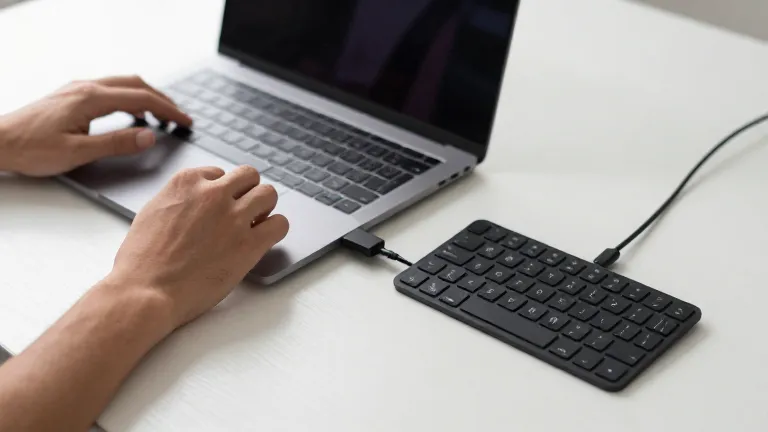
If Bluetooth pairing continues to fail, consider using alternative connection methods to bypass the issue. A wired USB connection can serve as a temporary solution while you troubleshoot the Bluetooth problem. Testing the keyboard on another device can help determine whether the issue lies with the keyboard itself or the target device.
- Use a wired USB connection as a temporary workaround.
- Test the keyboard on a different device to isolate the problem.
- Check if the keyboard works with other Bluetooth devices.
- Ensure the keyboard is compatible with the iPad or PC model.
Try a Wired Connection
Connecting the keyboard via USB can provide a stable connection and allow you to use it immediately without waiting for Bluetooth pairing. This method is especially useful if you need to work while resolving the Bluetooth issue. Most Bluetooth keyboards have a USB connector that can be used for both charging and data transfer, making it a convenient alternative.
If the keyboard works when connected via USB but not through Bluetooth, the issue is likely with the Bluetooth settings or hardware on the target device. This can help you determine if the problem is isolated to the iPad or PC or if the keyboard itself is faulty.
Test on Another Device
Testing the keyboard on a different iPad or PC can help identify whether the issue is specific to the current device. If the keyboard pairs successfully with another device, the problem may be with the original iPad or PC’s Bluetooth settings, drivers, or hardware. This can save time by narrowing down the source of the issue.
If the keyboard fails to connect to any device, the problem may lie with the keyboard itself. Try connecting it to other Bluetooth devices such as a smartphone or laptop to see if it functions correctly. If it works with other devices, the issue is likely with the original iPad or PC.
When to Seek Professional Help
If your Bluetooth keyboard still fails to connect after following all the troubleshooting steps outlined in this guide, it may be time to seek professional help. Persistent pairing issues could indicate a deeper technical problem, such as a faulty Bluetooth module or software conflict, which may require expert diagnosis. Additionally, if the keyboard is under warranty, attempting advanced repairs or modifications could void the warranty, so it’s best to consult an authorized service center or manufacturer support before proceeding further.
Compatibility issues can also necessitate professional assistance. Some Bluetooth keyboards may not be fully compatible with specific iPad or PC models, especially if they use proprietary Bluetooth protocols or require additional drivers. If you’re unsure whether your keyboard is compatible, checking with the manufacturer or a technical support representative can help avoid unnecessary frustration and potential damage to your devices.
If you’re uncertain about the correct pairing process or uncomfortable performing complex troubleshooting steps, it’s wise to seek professional help. Incorrect actions, such as forcing a connection or improperly resetting the keyboard, could lead to permanent damage or data loss. A qualified technician can safely diagnose and resolve the issue without risking the integrity of your devices. Always consider reaching out to support teams or authorized repair centers if the problem persists or if you lack confidence in handling technical issues independently.
Frequently Asked Questions
Why is my Bluetooth keyboard not detected by my iPad?
Your Bluetooth keyboard may not be detected if it's out of range, not in pairing mode, or the iPad's Bluetooth is off. Ensure the keyboard is in pairing mode and check that Bluetooth is enabled on your iPad.
How do I reset my Bluetooth keyboard to fix pairing issues?
To reset your Bluetooth keyboard, locate the reset button (usually on the back or bottom), press and hold it for 10-15 seconds until it restarts. Then attempt to pair it again with your device.
Can I use a Bluetooth keyboard with an older iPad or PC?
Yes, most Bluetooth keyboards are compatible with older iPads and PCs, provided they support Bluetooth connectivity. Check the keyboard's specifications for compatibility and ensure your device has the latest Bluetooth drivers or firmware.
What should I do if my Bluetooth keyboard keeps disconnecting?
If your Bluetooth keyboard keeps disconnecting, try moving closer to your device, reducing interference from other devices, or updating your device's operating system. Also, ensure the keyboard has sufficient battery power.
Final Steps and Support
Bluetooth keyboard pairing issues can often be resolved with basic troubleshooting steps such as checking battery life, ensuring the keyboard is in pairing mode, and resetting the device. If these steps fail, consider alternative connection methods or testing on another device.
If persistent issues remain, it may be necessary to seek professional help. Always ensure your device's Bluetooth settings are correctly configured and that your keyboard is compatible with your device.