
How to Fix Port Forwarding Not Working on Home Router
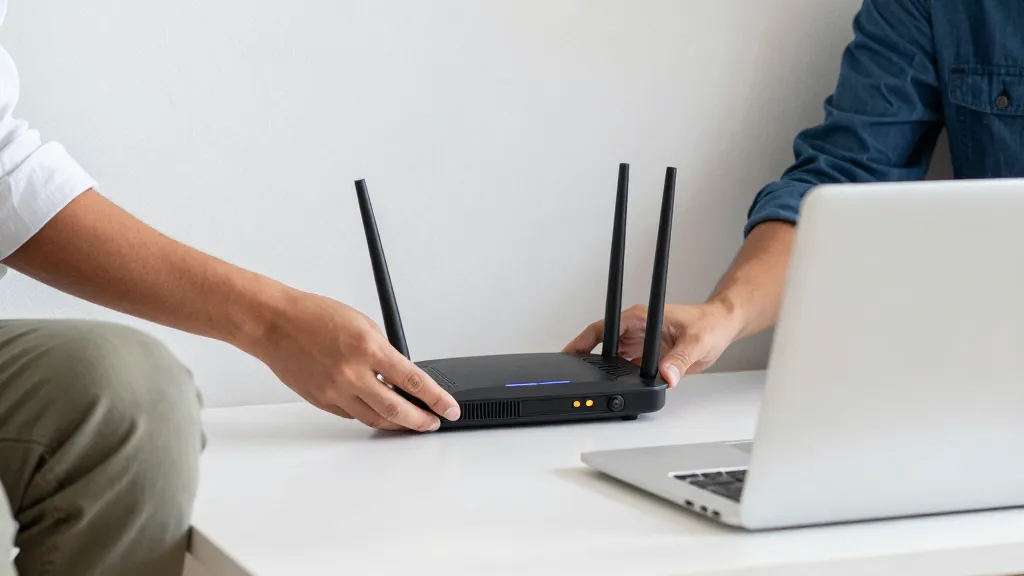
If you're trying to access a local service or device from the internet—whether it's a gaming console, remote server, or security camera—port forwarding is often the key to success. However, when it's not working, it can be frustrating to figure out what's gone wrong. This article will guide you through understanding port forwarding, identifying why it might fail, and how to fix it step by step. We'll cover everything from basic troubleshooting to advanced setup tips, ensuring you can resolve connectivity issues effectively. Whether you're a home user or someone setting up a local network, this guide will help you get your port forwarding working reliably.
Port forwarding allows external traffic to reach devices on your local network by directing traffic through specific ports on your router. But even with the right settings, issues like dynamic IP addresses or double NAT can prevent it from functioning as expected. Our step-by-step guide will walk you through verifying your settings and resolving common problems, making it easier to establish the connections you need. By the end of this article, you'll have the knowledge to troubleshoot and fix port forwarding issues on your home router.
In addition to basic fixes, we'll explore advanced techniques such as using port forwarding tools for verification and monitoring router logs to detect potential issues. These methods can help you maintain a stable and secure connection for your local devices. Whether you're dealing with a simple misconfiguration or a more complex networking setup, this guide provides practical solutions tailored to your needs. With the right approach, you can ensure that your port forwarding setup is both effective and reliable.
Understanding Port Forwarding and Its Role in Home Networks
Port forwarding is a critical feature in home networking that allows external traffic to reach a device on your local network. This process is essential for applications such as online gaming, remote desktop access, and hosting services. Understanding how port forwarding works and why it might fail can help users troubleshoot and resolve connectivity issues effectively.
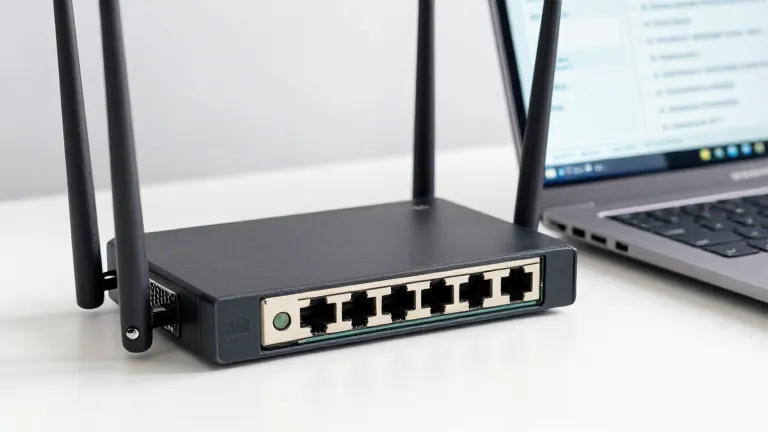
What Is Port Forwarding?
Port forwarding operates by directing incoming traffic from the internet to a specific device on your local network. When a device is assigned a public IP address, it can receive data from the internet. However, most home routers assign private IP addresses to devices, which are not accessible from outside the local network. To enable external access, the router must be configured to forward traffic on specific ports to the correct device's local IP address.
Why Port Forwarding Might Fail
Port forwarding might fail due to incorrect settings or configuration errors. Common issues include dynamic IP addresses, which change over time and make it difficult to maintain consistent port forwarding. Additionally, double NAT (Network Address Translation) can prevent port forwarding from working properly, as multiple layers of NAT can obscure the local network's IP address. Ensuring that the device has a static local IP address is crucial for reliable port forwarding, as it prevents the IP address from changing and ensures that the router can consistently direct traffic to the correct device.
Step-by-Step Guide to Fix Port Forwarding Not Working
Begin by accessing your router's firewall settings to ensure the port you're trying to forward is not blocked. Many routers have a built-in firewall that can interfere with port forwarding. Navigate to the firewall or security section of your router's admin panel and check if the specific port is allowed through. If it's blocked, disable or adjust the firewall settings to permit traffic on that port.
- Check the router's firewall settings to ensure the port is not blocked.
- Confirm the local IP address is static to prevent changes that could disrupt port forwarding.
- Verify the port number is correct and matches the service being used.
- Restart the router and the device to resolve temporary software glitches.
Next, confirm that the local IP address assigned to the device you're trying to forward is static. Dynamic IP addresses can change over time, which may prevent port forwarding from working consistently. To fix this, log into your router's admin panel and assign a static IP address to the device. This ensures the device always has the same IP, making it easier for external traffic to reach it.
Verify that the port number you're using is correct and matches the service you're trying to access. For example, if you're setting up a gaming console, ensure the port number aligns with the game's requirements. Incorrect port numbers can lead to failed connections. Cross-check the port details with the service documentation or manufacturer guidelines to avoid errors.
Finally, restart both your router and the device you're trying to connect. Temporary software glitches or configuration errors can sometimes disrupt port forwarding. Power cycling your router can refresh its settings and resolve minor issues. Similarly, restarting the device ensures it reconnects with the updated port forwarding rules.
Common Causes of Port Forwarding Failure and How to Resolve Them
Port forwarding issues often stem from underlying network configuration problems. Identifying and resolving these common causes can restore connectivity for devices such as gaming consoles, security cameras, or remote servers. Understanding how dynamic IP addresses and double NAT affect port forwarding is essential for troubleshooting effectively.
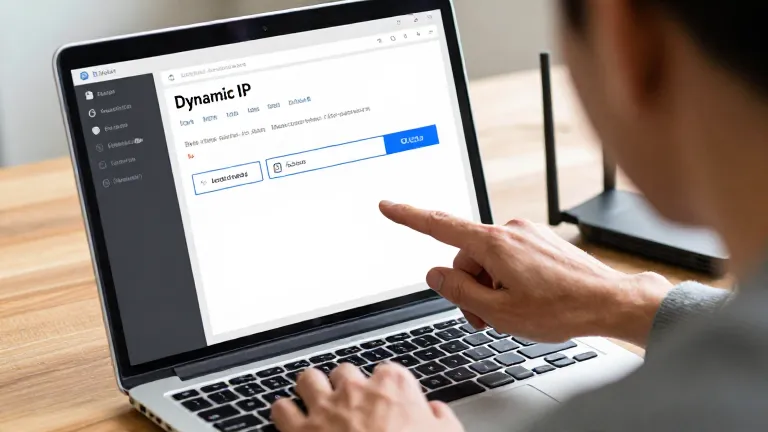
Troubleshooting Dynamic IP Addresses
Dynamic IP addresses can prevent port forwarding from working reliably. Many home routers assign IP addresses dynamically through DHCP, which means the local IP address of your device can change over time. If your port forwarding rules are based on a dynamic IP, they may no longer apply once the IP changes. To resolve this, assign a static local IP address to the device using your router's DHCP settings. This ensures the port forwarding rules remain valid, even if other devices on the network receive dynamic IPs.
Fixing Double NAT Issues
Double NAT occurs when multiple routers are involved in the network, which can prevent port forwarding from functioning correctly. This is common in setups where a router is connected to another router, such as when using a modem-router combo or a secondary router for a guest network. The second router may assign its own local IP address, overriding the first router's port forwarding settings. To fix this, disable the DHCP server on the secondary router or connect it directly to the main router's LAN port. This eliminates the second NAT layer and ensures port forwarding rules are applied correctly.
How to Set Up Port Forwarding Correctly on Your Router
Setting up port forwarding correctly on your router is essential for ensuring that external traffic reaches the right device on your network. This section guides you through the key steps to configure port forwarding properly, including accessing your router's admin panel and assigning a static IP address to the target device.
- Access your router's admin panel by entering its IP address in a web browser, typically 192.168.1.1 or 192.168.0.1.
- Navigate to the port forwarding section, often labeled as 'Port Forwarding,' 'NAT,' or 'Port Mapping.'
- Enter the specific port number you want to forward and select the appropriate protocol (TCP, UDP, or both).
- Assign a static local IP address to the device you want to forward traffic to, ensuring it remains consistent.
Navigating Your Router's Admin Panel
To access your router's admin panel, open a web browser and type the router's default IP address into the address bar. This IP is usually found on the router's label or in its user manual. Log in using the default username and password, which are often 'admin' for both fields. Once logged in, locate the port forwarding section, which may be under a menu like 'Advanced Settings' or 'NAT.' This section allows you to define the rules for forwarding traffic to specific devices on your network.
Assigning a Static Local IP Address
Assigning a static local IP address to your device ensures it always has the same network address, making it easier for port forwarding rules to direct traffic correctly. To do this, log into your router's admin panel and find the DHCP settings or the device list. Identify the device you want to assign a static IP to and manually set its IP address, subnet mask, and gateway. This prevents the device's IP from changing, which could disrupt port forwarding if the IP is reassigned.
Advanced Tips for Ensuring Port Forwarding Works Reliably
Once basic port forwarding setup is complete, maintaining reliable connectivity requires proactive monitoring and advanced techniques. These methods help identify and resolve issues before they disrupt service, ensuring consistent performance for devices like gaming consoles or remote servers.
Using Port Forwarding Tools for Verification
Using a port forwarding tool or app can provide real-time verification of whether a specific port is open and accessible from the internet. Tools like CanYouSeeMe.com or PortChecker.org allow users to test connectivity by sending a request to the specified port and reporting the result. These tools are especially useful for troubleshooting after setup or when changes to the network configuration might have inadvertently closed the port.
Monitoring Router Logs for Port Forwarding Issues
Monitoring your router's logs is another essential step in maintaining stable port forwarding. Most modern routers keep a record of network activity, including attempts to access specific ports. By reviewing these logs, users can detect patterns, identify failed connection attempts, or spot potential security threats. Regular log checks also help in diagnosing intermittent issues that might not be apparent during routine testing.
Frequently Asked Questions
Why is my port forwarding not working even after following the steps?
Port forwarding may still fail due to dynamic IP changes, incorrect port numbers, or firewall restrictions. Check your local IP address, ensure the ports are open, and verify your router settings.
Can port forwarding be affected by my ISP or router type?
Yes, some ISPs block port forwarding, and certain router models may have limited or different port forwarding options. Check your ISP's policies and router documentation.
How do I know if my local IP address is static or dynamic?
Check your router's admin panel or use the command prompt (Windows) or terminal (Mac/Linux) to run 'ipconfig' or 'ifconfig'. A static IP is usually assigned manually.
What should I do if my router doesn't have a port forwarding option?
Some routers may not support port forwarding directly. Try using third-party tools like UPnP or check if your ISP provides a port forwarding service. Contact your router manufacturer for support.
Final Steps for Successful Port Forwarding
Port forwarding requires careful setup, including a static local IP and open ports. Regularly check your router settings and logs to ensure everything is functioning correctly.
If issues persist, consider using port forwarding tools or contacting your ISP for further assistance. Proper configuration ensures reliable connectivity for local and remote access.





