
How to Fix TP-Link Router Admin Login Page Not Loading
If you're unable to access the TP-Link router admin login page, it can be frustrating, especially when you need to adjust settings or troubleshoot network issues. This problem can occur due to a variety of reasons, from simple connectivity issues to more complex configuration errors. The main keyword in this article is 'How to Fix TP-Link Router Admin Login Page Not Loading,' and we'll guide you through practical steps to resolve the issue without professional help.
This article covers several methods to help you regain access to your TP-Link router's admin panel. We'll start with basic checks, such as verifying your internet connection and router status, and then move on to more advanced troubleshooting steps. Whether you're a home user or an office worker, these solutions are designed to be easy to follow and effective.
By following the steps outlined here, you can address common issues that prevent the admin login page from loading. We'll also cover firmware updates and network settings to ensure your router is running smoothly. With the right approach, you can fix the problem and regain control of your network without needing technical support.
Check Your Internet Connection and Router Status
Before attempting advanced troubleshooting steps, it's essential to confirm that your TP-Link router is receiving power and maintaining a stable internet connection. A simple power failure or unstable connection can prevent the admin login page from loading, so start by verifying the router's basic functionality.
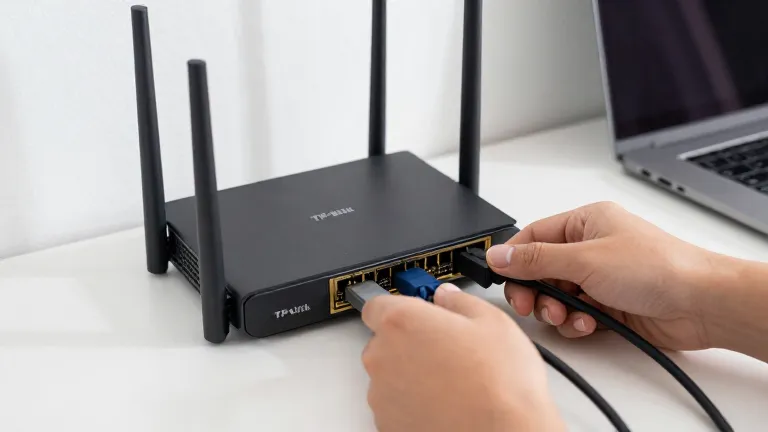
Verify Router Power and Connectivity
Ensure that the router is properly connected to the power source. Check the power cable for any signs of damage or looseness, and confirm that the power outlet is functioning. If the router is not receiving power, plug it in again or try a different outlet. Some routers also have a power indicator light, which should be on if the device is operational.
Check for Physical Damage or Obstructions
Verify that the router has a stable internet connection. If you're using a modem, ensure it is also connected and functioning correctly. Look for blinking lights or error indicators on the router's front panel. These can signal issues such as no internet connectivity, a failed connection, or a hardware malfunction. If the lights are not behaving as expected, try restarting the router by unplugging it for 30 seconds and plugging it back in.
Try Accessing the Admin Login Page From a Different Device
If the TP-Link router admin login page isn't loading, one common solution is to try accessing it from a different device. This helps determine if the issue is specific to your current device or a broader network problem. Ensure the new device is connected to the same Wi-Fi or Ethernet network as the router before proceeding.
Use a Different Device or Browser
Use a different computer, smartphone, or tablet to access the login page. Some devices may have browser-specific issues or outdated settings that prevent proper access. Open a web browser and type the router's default IP address, such as 192.168.0.1 or 192.160.1.1, into the address bar. If the login page appears, the problem may be with your original device's configuration or browser cache.
Test on Mobile or Laptop
Testing on a mobile device can be especially helpful, as some mobile browsers handle network requests differently from desktop browsers. Ensure your mobile device is connected to the same Wi-Fi network as the router and open a browser like Chrome or Safari. If the login page still doesn't load, try switching to a laptop or another device to isolate the issue. If the login page works on one device but not another, the problem likely lies with the original device's network settings or browser.
Reset the Router to Factory Settings
Resetting your TP-Link router to factory settings can resolve login issues by restoring default configurations. This process will erase all custom settings, so it should be used as a last resort after other troubleshooting steps have failed.
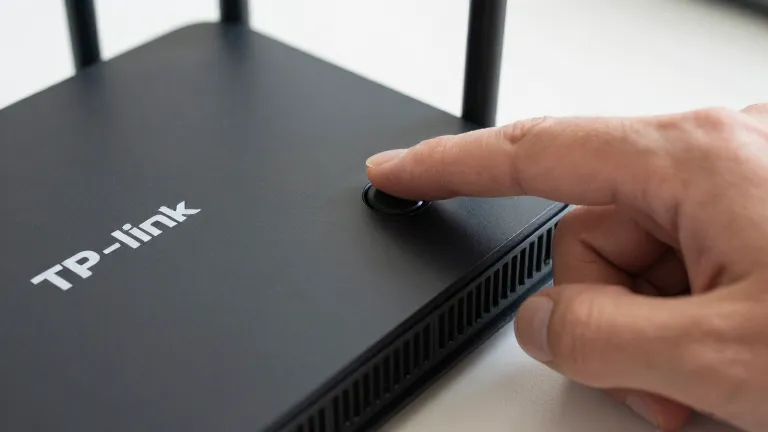
Locate and Press the Reset Button
To reset your TP-Link router, locate the reset button, typically found on the back or bottom of the device. Press and hold the button for 10 to 30 seconds until the router’s lights start blinking or the power light turns off. This action will initiate the factory reset process, which may take a few minutes to complete.
Reboot and Reconfigure Settings
Once the router has rebooted, it will revert to its original factory settings. Allow it to fully restart before attempting to access the admin login page again. If the login page still does not load, ensure you are using the correct IP address, such as 192.168.0.1 or 192.168.1.1, which is typically used for TP-Link routers. After logging in, you will need to reconfigure your network settings, including Wi-Fi name, password, and port forwarding rules.
Troubleshoot IP Address and Network Settings
If the TP-Link router login page isn't loading, it's essential to confirm that you're accessing the correct IP address. Most TP-Link routers use 192.168.0.1 or 19.2.1.1 as the default gateway. If you're using a different IP, it may prevent you from reaching the admin panel. Make sure you're entering the right address and that your device is connected to the same network as the router.
Verify the Correct IP Address
Begin by checking the router's manual or the manufacturer's website for the correct IP address. Some models may use different defaults, especially if the router has been customized or updated. If you're unsure, you can also check your router's status page or use a network scanning tool to locate the correct IP. Typing the wrong IP is a common cause of login issues, so verifying it is crucial.
Check Your Device's Network Settings
Next, ensure your device is assigned a valid IP address by the router. If your device is using a different IP, such as 169.254.x.x, it means it cannot communicate with the router, which could prevent access to the admin login page. To renew your IP, go to your device's network settings and release or renew the IP address. This action forces your device to request a new IP from the router, improving connectivity.
Update the Router Firmware and Settings
Updating the firmware on your TP-Link router can resolve login issues and improve overall performance. Firmware updates often include bug fixes, security patches, and new features that ensure your router operates smoothly. Before proceeding, make sure you have a stable internet connection and access to the router's admin panel.
Find and Download the Latest Firmware
To find the latest firmware, visit the official TP-Link website and locate the support section for your specific router model. Enter your model number to retrieve the correct firmware file. Download the file to a computer connected to the router’s network, ensuring it is saved in a safe location.
Perform a Firmware Update Safely
Once the firmware file is downloaded, log in to the router’s admin panel using the default IP address, typically 192.168.0.1 or 192.160.1.1. Navigate to the firmware update section, usually found under System Tools or Administration. Upload the firmware file and follow the on-screen instructions. Avoid interrupting the process, as a failed update may render the router unusable.
Frequently Asked Questions
What should I do if the TP-Link login page is not loading?
If the TP-Link login page is not loading, first check your internet connection and ensure the router is powered on. Try accessing the login page from a different device or browser. If the issue persists, reset the router to factory settings and reconfigure the settings.
Can I access the router's admin panel from a mobile device?
Yes, you can access the TP-Link router's admin panel from a mobile device. Ensure the device is connected to the router's network and use a browser to enter the login page address, such as 192.168.0.1.
How do I reset my TP-Link router to factory settings?
To reset your TP-Link router, locate the reset button, usually found on the back or bottom of the router. Press and hold the button for 30 seconds to restore the router to its factory settings.
What if the firmware update still doesn't fix the login issue?
If the firmware update doesn't resolve the login issue, try reconfiguring the router's network settings or contacting TP-Link customer support for further assistance.
Final Steps for Resolution
By following the steps outlined, you can effectively resolve issues with the TP-Link router admin login page not loading. Start by checking your network connection and device compatibility before proceeding to advanced troubleshooting steps.
If you're still experiencing issues after trying these solutions, consider reaching out to TP-Link support for additional help. Regularly updating your router's firmware can also help prevent future login problems.





