
How to Fix Router Blinking Orange or Red Internet Light
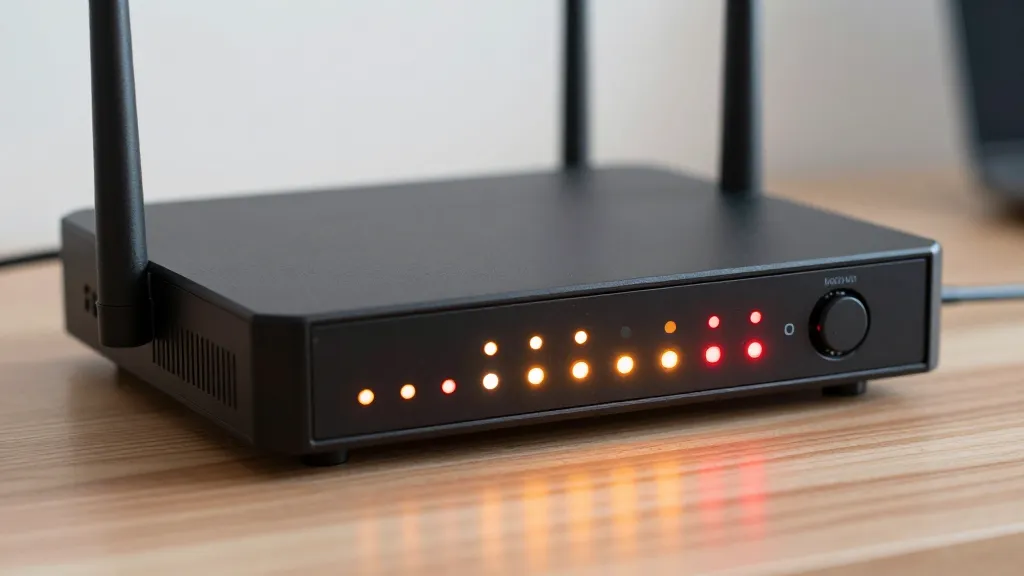
If your router's internet light is blinking orange or red, it can be a frustrating sign that your connection is unstable or down. This issue can disrupt your online activities, whether you're at home or running a small business. Understanding what these light colors mean is the first step in diagnosing and fixing the problem. The article 'How to Fix Router Blinking Orange or Red Internet Light' provides clear, actionable steps to help you restore your connection. From basic checks to advanced troubleshooting, this guide covers everything you need to know to resolve the issue efficiently. By following these steps, you can identify the root cause and take the right action to get your internet back online.
Understanding the Meaning of Blinking Internet Lights
Understanding the meaning of blinking internet lights is essential for diagnosing and resolving connection issues. Routers use light colors and blinking patterns to communicate their status, helping users identify potential problems without technical jargon. Knowing what each light signifies can save time and prevent unnecessary troubleshooting.
What Do Different Router Light Colors Mean?
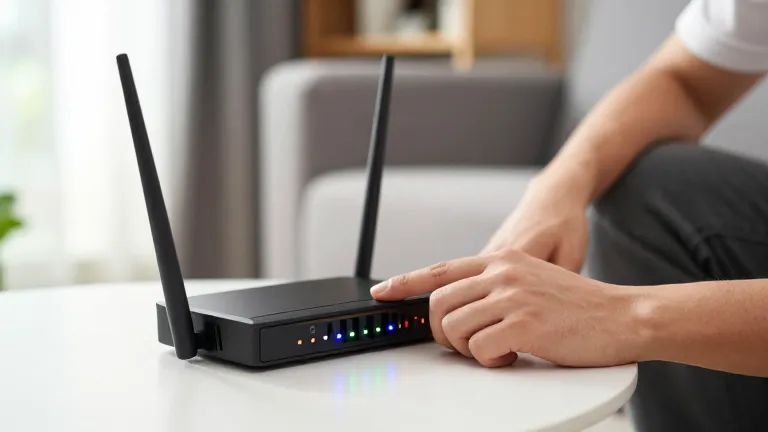
Different router models use light colors and patterns to indicate connection status. Typically, a solid green light means the connection is stable, while a blinking green light suggests activity on the network. A solid orange or red light often indicates a problem with the connection, such as a faulty cable, incorrect settings, or an issue with the modem or router itself. Some routers use multiple lights to differentiate between internet, Wi-Fi, and LAN connections, making it important to check all relevant indicators.
Interpreting Blinking Patterns on Router Lights
Interpreting blinking patterns on router lights can provide insight into the nature of the issue. A blinking orange or red light usually means that the router is trying to establish a connection but is encountering an error. This could be due to incorrect settings, such as an improperly configured IP address or DNS server. In some cases, the light may blink rapidly, signaling a more serious issue like a power surge or hardware malfunction. If the light remains blinking without stabilizing, it's a strong indicator that further troubleshooting or professional assistance is needed.
Basic Checks Before Troubleshooting
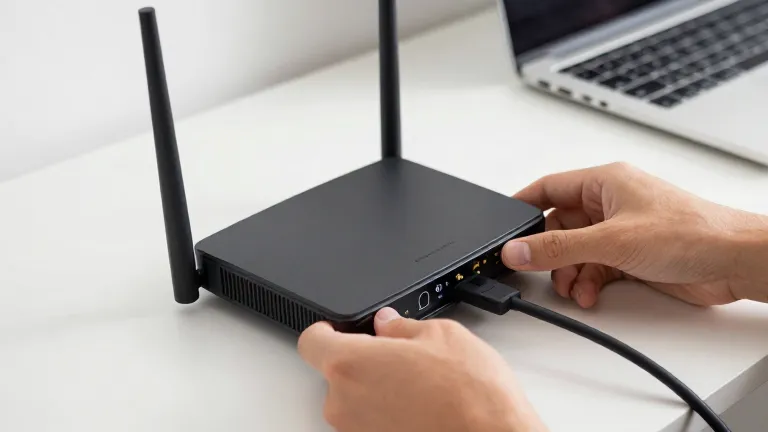
Before diving into complex troubleshooting, start with simple, essential checks. Ensure the router and modem are properly connected to power and each other. A loose power cable or a disconnected Ethernet link can cause the internet light to blink. If the power adapter is not securely plugged in, the router may not receive enough power to function correctly. Similarly, if the Ethernet cable between the modem and router is unplugged, the connection will be interrupted. Always double-check these connections before proceeding.
- Ensure the router and modem are properly connected to power and each other.
- Check for loose or damaged cables between the modem and router.
- Verify that the modem and router are set to the correct ports and settings.
- Restart the router and modem if they are not responding.
Troubleshooting the Internet Connection
Troubleshooting the internet connection involves a series of practical steps to isolate and resolve issues that may be causing the router's internet light to blink orange or red. These steps help identify whether the problem lies with the router, the modem, or the service provider.
How to Test Your Internet Connection
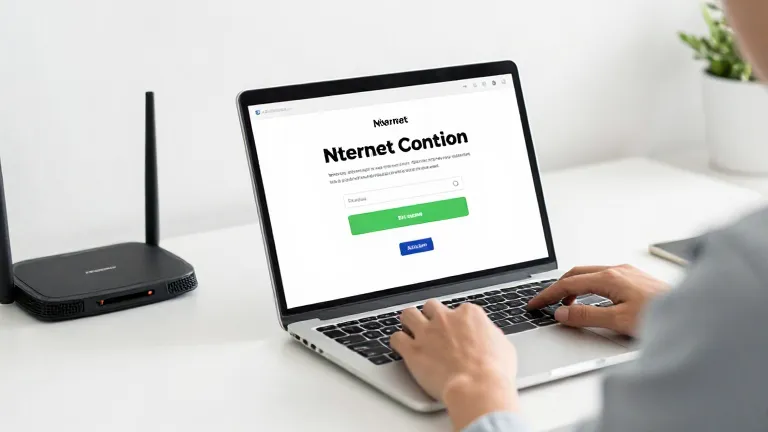
To determine if the issue is widespread, check if other devices on the same network are also experiencing connectivity problems. If multiple devices are affected, the problem is likely with the router or the modem rather than a single device. This step helps narrow down the source of the issue and avoids unnecessary troubleshooting of individual devices.
When to Contact Your ISP
Restarting the router and modem can resolve temporary glitches that may be causing the blinking light. Unplug both devices for about 30 seconds, then plug them back in and wait for the lights to stabilize. This process resets the connection and can often restore internet access. If the issue persists, move on to more advanced troubleshooting steps.
Advanced Steps to Fix Router Issues
Advanced steps can help resolve persistent router issues by addressing software and configuration problems. These actions include accessing the router's admin panel, updating firmware, and adjusting security settings. Each step is designed to systematically eliminate potential causes of the blinking internet light.
- Access the router's admin panel to check for firmware updates.
- Reset the router to factory settings if the issue persists.
- Change the Wi-Fi password to rule out security-related connection problems.
- Update the router's firmware if it's outdated.
How to Access Your Router's Admin Panel
To access your router's admin panel, locate the default IP address on the router's label or in its documentation. Open a web browser and enter the IP address, then log in using the default username and password, usually 'admin' for both. Once logged in, navigate to the firmware update section to check for available updates.
Updating Router Firmware
Updating router firmware can resolve bugs, improve performance, and fix compatibility issues. If an update is available, download it from the manufacturer's website and follow the on-screen instructions to install it. After the update, restart the router to ensure the changes take effect.
When to Replace or Upgrade Your Router
Replacing or upgrading your router is a final step when troubleshooting blinking internet lights fails to restore connectivity. If your router is outdated, incompatible, or unable to support modern networking demands, it may be time to consider a replacement.
Signs Your Router Is No Longer Suitable
Signs your router is no longer suitable include frequent disconnections, slow speeds, and blinking lights that don’t resolve with basic troubleshooting. If your router is more than five years old, it may lack support for newer Wi-Fi standards like Wi-Fi 6 or Wi-Fi 5, which are essential for modern devices and faster internet speeds. Additionally, if your ISP has upgraded its network to newer technologies, such as fiber or advanced broadband, your current router might not be able to handle the increased bandwidth and performance requirements.
Choosing the Right Router for Your Needs
When choosing a new router, prioritize models that support the latest Wi-Fi standards and offer dual-band capabilities. Dual-band routers operate on both 2.4 GHz and 5 GHz frequencies, reducing interference and improving performance, especially in homes with multiple devices. For larger spaces or complex layouts, a mesh network system is ideal, as it provides seamless coverage and maintains a stable connection throughout your home. Before purchasing, check compatibility with your ISP’s service and ensure the router meets your specific needs, whether for home use or small business operations.
Frequently Asked Questions
What should I do if my router's internet light is blinking red but the modem is working?
A blinking red internet light may indicate a connection problem. First, restart the router. If the issue persists, check the cables and contact your ISP for further assistance.
Can a faulty cable cause the router's internet light to blink orange?
Yes, a faulty or loose cable can cause the internet light to blink orange. Inspect all cables, including the Ethernet connection between the modem and router, and replace any damaged ones.
Is there a way to tell if the issue is with the router or the modem?
Check the modem's lights for any issues. If the modem light is normal but the router's internet light is blinking, the problem is likely with the router or its connection.
How often should I update my router's firmware?
Update your router's firmware every few months or when a new update is released. Regular updates improve security and performance, reducing the chance of connection issues.
Next Steps for a Stable Internet Connection
Understanding your router's light indicators is the first step in diagnosing issues. By following basic checks and advanced troubleshooting steps, you can often resolve blinking internet lights. If problems persist, contacting your ISP or replacing the router may be necessary.
Take the time to monitor your router's status lights and maintain regular firmware updates. With the right approach, you can keep your internet connection stable and secure.





