
How to Fix WiFi Connected But No Internet Access on All Devices

You're connected to WiFi, but your devices can't access the internet. This frustrating situation can happen to anyone, whether you're at home or in the office. The main keyword for this issue is 'How to Fix WiFi Connected But No Internet Access on All Devices.' If you're experiencing this, you're not alone, and there are practical steps to resolve it. This guide covers the most common troubleshooting methods to restore your internet connection. From checking your ISP connection to running a speed test, we'll walk you through the process step by step. The goal is to help you regain internet access without unnecessary delays. Let's dive into the solutions and get your devices back online.
Check Your Internet Service Provider Connection
Before troubleshooting WiFi connectivity issues, it's essential to determine if the problem lies with your internet service provider (ISP) or your local network. A working WiFi connection doesn't always mean the internet is accessible, so start by confirming whether the ISP is providing service and whether the modem/router is functioning correctly.
Verify Internet Connectivity
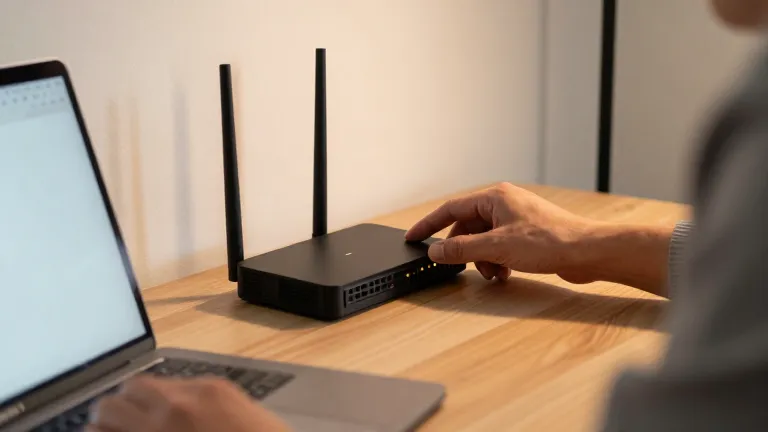
To verify internet connectivity, check if other devices connected to the same network can access the internet. Try opening a website or using an online service like Google or a speed test tool. If other devices also face the same issue, the problem is likely with the ISP or your modem/router rather than individual devices. If only one device is affected, the issue may be with that specific device's settings or hardware.
Restart Your Modem and Router
If you suspect the ISP is at fault, contact them directly to confirm if there are known outages or service disruptions in your area. Many ISPs provide online status tools or social media updates that can help you determine if there’s a widespread issue. If the ISP confirms service is active, proceed to restart your modem and router to refresh the connection. If you're unsure how to restart your equipment, refer to the manufacturer’s instructions or look for a power button on the modem/router.
Restart Your Modem and Router
Restarting your modem and router is a simple yet effective step to resolve connectivity issues. A brief power cycle can clear temporary glitches and restore internet access. Follow the steps below to safely restart your network equipment and troubleshoot further if needed.
How to Safely Restart Your Router
To safely restart your router, first locate the power button or unplugging port. Turn off the router and modem for at least 30 seconds. This allows the devices to fully power down and reset their internal systems. After the waiting period, reconnect the power and wait for the lights to stabilize. This process ensures that any minor software glitches are cleared, and the network can re-establish a stable connection.
Factory Reset Your Router
If restarting does not resolve the issue, consider performing a factory reset on your router. This will restore the device to its original settings, which can eliminate configuration errors or conflicts. Locate the reset button, usually a small hole on the back or bottom of the router, and press and hold it for about 30 seconds. Once the router reboots, you may need to reconfigure the settings, including the Wi-Fi name and password. Factory resetting is a more involved step, so it should be used when other troubleshooting methods have failed.
Test Your WiFi Network
Testing your WiFi network is a crucial step in diagnosing why you're connected but unable to access the internet. This process helps identify whether the issue lies with your network configuration, signal strength, or external factors affecting connectivity.
Verify Device Connection
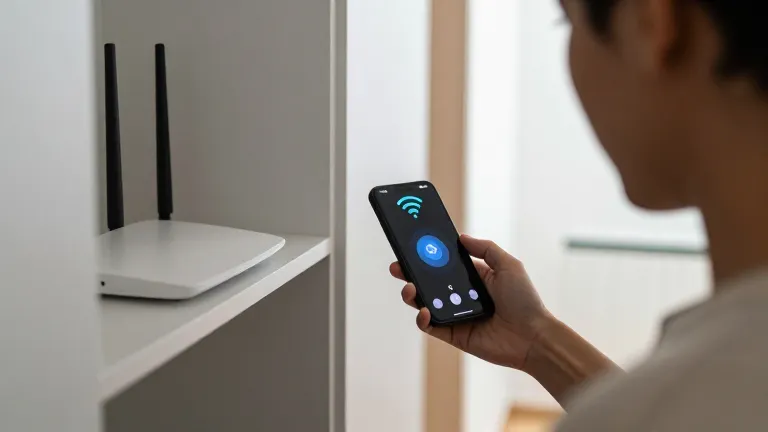
Begin by ensuring all devices are connected to the correct WiFi network. Sometimes, devices may accidentally connect to a different network, such as a neighbor's or a guest network, which might not provide internet access. Check the network name (SSID) on each device to confirm they are linked to the intended network. If a device is connected to the wrong network, manually switch it back to the correct one.
Check for Signal Strength
Next, assess the signal strength across your devices. A weak signal can result in intermittent connectivity or complete disconnection, even if the device shows a connection. Use your phone or laptop to check the WiFi signal strength indicator; a low signal (e.g., one or two bars) may indicate distance from the router or physical obstructions. Additionally, interference from other electronic devices, such as microwaves, cordless phones, or Bluetooth devices, can degrade WiFi performance. Move closer to the router or reduce the number of devices using the network to see if this improves connectivity.
Run a Speed Test and Diagnose Issues
Running a speed test is a crucial step in diagnosing internet issues. It helps identify whether your connection meets your ISP’s promised speeds and reveals potential problems like latency or packet loss that could be disrupting your internet access.
How to Run an Internet Speed Test
To run an internet speed test, open a web browser and visit a reliable speed test website such as SpeedTest.net or Fast.com. These tools automatically measure your download and upload speeds, as well as latency and packet loss. Ensure you're connected to the same WiFi network you're experiencing issues with for accurate results. Avoid using bandwidth-intensive applications during the test to prevent skewed data.
Interpret Your Speed Test Results
Once the test completes, compare the download and upload speeds with your ISP’s advertised rates. If your speeds are significantly lower than expected, it could indicate a problem with your connection, such as congestion or a faulty modem. Look for high latency or packet loss, which can cause delays or dropped connections. If the results are abnormal, it may be necessary to contact your ISP for further investigation or to request a service check.
Contact Your ISP for Further Assistance
When self-troubleshooting fails to resolve the issue, contacting your internet service provider (ISP) is the next logical step. Your ISP can offer insights into potential service disruptions, check for outages in your area, and provide technical support to restore your internet connection.
What to Say When Contacting Your ISP
When reaching out to your ISP, be prepared to describe the problem clearly. Mention that your devices are connected to WiFi but unable to access the internet. Include details such as when the issue started, whether other devices are affected, and any troubleshooting steps you've already tried. This helps the ISP quickly assess the situation and identify potential causes, such as a service outage or configuration error.
When to Seek Professional Help
If your ISP confirms there are no service disruptions and the issue remains unresolved, request technical support. Many ISPs offer live chat, phone support, or remote diagnostics to troubleshoot connectivity problems. Be ready to provide login credentials for your router or modem if remote access is required. If the problem persists despite these efforts, consider seeking professional help from a network technician or IT support team for a deeper investigation into your network setup.
Frequently Asked Questions
What should I do if my WiFi is connected but I can't access the internet?
First, check your ISP connection by testing another device or using a wired connection. If that fails, restart your modem and router. If the issue persists, contact your ISP for further troubleshooting.
How can I tell if my modem or router is the cause of the problem?
Try connecting a device directly to the modem via Ethernet. If the internet works, the router may be faulty. Also, check for firmware updates or perform a factory reset if needed.
Why is my internet working on some devices but not others?
This could be due to device-specific settings, IP address conflicts, or router limitations. Try restarting the affected device, checking its network settings, or isolating the issue by testing with a different device.
What should I do if restarting my router doesn't fix the issue?
Run an internet speed test to identify potential bandwidth issues. If the results are poor, contact your ISP. If the problem persists, consider contacting a technician for a deeper investigation.
Next Steps for Resolving WiFi Issues
When facing WiFi connected but no internet access, start with the basics: check your ISP, restart your modem and router, and test your connection. If these steps fail, it's time to reach out to your service provider for further assistance.
By following these steps, you can efficiently troubleshoot and resolve most WiFi connectivity issues. Always begin with the simplest solutions before escalating to professional help.





