
How to Fix Android WiFi Connected Without Internet Access
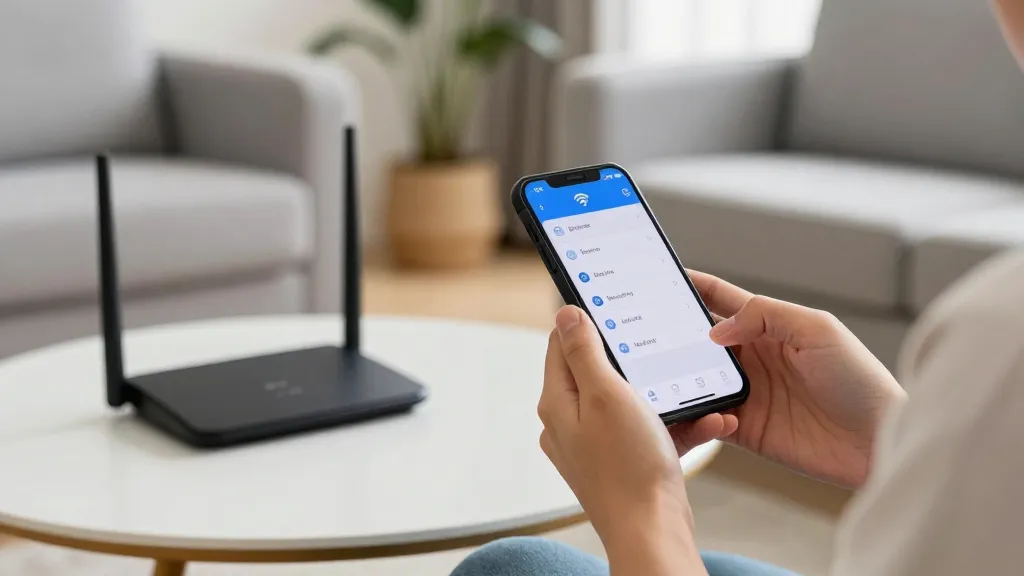
You're connected to WiFi on your Android device, but you can't access the internet. This frustrating situation—where your phone or tablet shows a WiFi connection but no internet access—can disrupt your work or personal tasks. If you're struggling with this issue, you're not alone. Many Android users face this problem, and there are practical steps you can take to resolve it without needing technical expertise. This article will guide you through a series of troubleshooting methods to restore your internet connection.
Starting with basic checks, we'll explore how to verify your WiFi connection status and restart your router and phone. Sometimes, a simple reboot can fix connectivity issues. Next, we'll look at adjusting WiFi settings on your Android device, such as forgetting the network and reconnecting, which can resolve hidden configuration errors.
If basic steps don’t work, we’ll move on to more advanced solutions, like updating your Android system or performing a factory reset. We'll also test with mobile data to determine if the problem lies with your WiFi network or your device. These steps will help you identify and fix the root cause of your WiFi no internet issue.
Check Your WiFi Connection and Network Settings
Before diving into advanced troubleshooting, start by confirming your Android device is properly connected to the WiFi network. Many users assume their device is connected when it's actually only linked to the network but not receiving internet access. Simple checks and resets can often resolve this issue without requiring deeper intervention.
Verify WiFi Connection Status
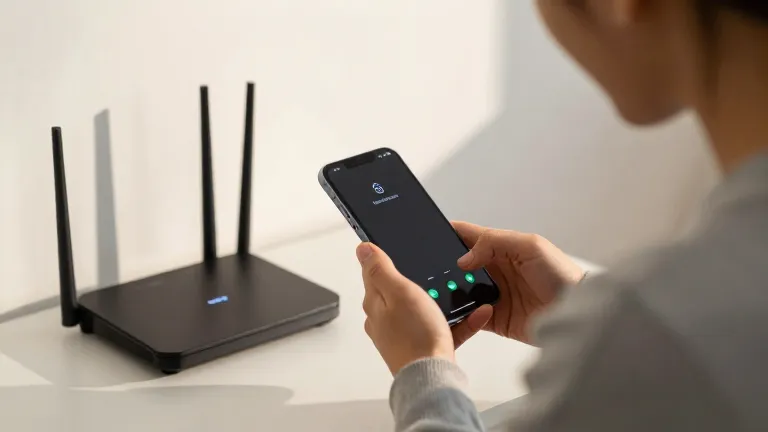
Open the Settings app and navigate to the WiFi section to verify your device is connected to the correct network. Look for a connected icon next to the network name, and ensure the signal strength is sufficient. If your device shows 'Connected' but no internet access, the issue may lie with the router or network configuration. Some networks operate in hidden mode, which means your device must manually enter the network name (SSID) to connect. If your network is hidden, make sure you've entered the correct SSID and password, and that the network is not set to 'Hidden' in your router's settings.
Restart Router and Phone
Restarting your router and Android device can resolve temporary connectivity glitches. Power off your router for about 30 seconds, then turn it back on to refresh its connection. This process can clear minor software glitches or reset the router's internal state. Similarly, restart your Android phone by holding the power button and selecting 'Restart.' A reboot can refresh the device's network settings and re-establish a stable connection. If the problem persists after restarting, proceed to the next steps to troubleshoot your device's WiFi settings.
Troubleshoot WiFi Settings on Your Android Device
Troubleshooting WiFi settings on your Android device is a crucial step in resolving connectivity issues. Even if your phone shows a connected WiFi signal, misconfigured settings can prevent internet access. By reviewing and adjusting these settings, you can often restore full functionality without needing technical support.
- Go to the WiFi settings and check if the network is selected correctly.
- Forget the network and reconnect to re-authenticate.
- Ensure that the WiFi is not set to 'Metered' mode, which may limit data usage.
- Restart your Android device to apply changes and refresh the connection.
Forget and Reconnect to WiFi
If your Android device is connected to a WiFi network but not accessing the internet, start by checking if the correct network is selected. Sometimes, your phone may be connected to a WiFi signal but not the intended network. Look for the network name (SSID) in the list of connected devices and confirm it matches the one you're trying to use. If it's not the correct network, tap the three-dot menu and select 'Forget' to remove it before reconnecting.
Check WiFi Metered Settings
Some Android devices have a 'Metered' WiFi setting that restricts background data usage to conserve bandwidth. This setting is often enabled on public or restricted networks. To check, go to WiFi settings, tap the network name, and look for an option labeled 'Metered' or 'Data Saver.' If it's enabled, disable it to allow full internet access. Note that this setting may not be available on all devices or network types.
Ensure Your WiFi Router Is Functioning Properly
If your Android device is connected to WiFi but lacks internet access, the issue might not be with your phone. Start by confirming that your WiFi router is working correctly. This step helps isolate the problem and determines whether the issue is with your device or the network itself.
Test WiFi on Another Device
To check if the router is the source of the problem, connect another device—such as a laptop, smart TV, or another smartphone—to the same WiFi network. If the other device also cannot access the internet, the issue likely lies with the router or the network provider. If the other device works fine, the problem is likely specific to your Android device.
Restart Your Router
If the router is the issue, a simple restart can often resolve temporary glitches. Unplug the router from the power source for about 30 seconds, then plug it back in. Wait for the router to fully reboot before testing your connection again. This process clears any cached data or temporary errors that might be affecting the network performance.
Fix Android WiFi Issues via System Settings and Updates
System updates and reconfiguration can resolve underlying issues that prevent your Android device from accessing the internet via WiFi. These steps address software bugs, outdated settings, and potential conflicts that might be affecting your connection.
- Check for system updates on your Android device, as bugs may cause connectivity issues.
- Go to the Settings > Network & Internet > WiFi section to reconfigure the network.
- Ensure that the WiFi is not blocked by any app or system setting.
- Restart your Android device after making any changes to WiFi settings.
Update Your Android System
Updating your Android system is a critical step in resolving WiFi connectivity issues. Manufacturers often release updates that fix bugs and improve network performance. To check for updates, go to Settings > System > Software Update. If an update is available, download and install it. This ensures your device is running the latest version of the operating system, which may include fixes for known WiFi-related problems.
Reconfigure WiFi Settings
Reconfiguring WiFi settings can resolve misconfigurations that prevent internet access. Navigate to Settings > Network & Internet > WiFi, then tap on the network you're connected to. Select 'Forget' to remove the network and then reconnect. This process clears any corrupted data associated with the network. Additionally, verify that WiFi is enabled and that no restrictions are in place. If your device is set to 'Metered' mode, change it to 'Unlimited' to allow full internet access.
Advanced Fixes for Persistent WiFi No Internet Issues
When standard troubleshooting fails and your Android device remains connected to WiFi without internet access, advanced solutions are necessary. These steps focus on deeper system resets and alternative connectivity checks to isolate the issue. A factory reset can resolve hidden software conflicts, while testing with mobile data helps determine if the problem is network-specific.
Factory Reset Your Android Device
A factory reset can eliminate deep-seated software issues that may be preventing internet access. Before proceeding, ensure you back up important data, as this process will erase all personal information and settings. To reset your device, go to Settings > System > Reset Options > Erase All Data. Once the reset is complete, set up your device again and test WiFi connectivity. This method is particularly effective if the issue persists across multiple networks or after other troubleshooting steps.
Test with Mobile Data
Switching to mobile data can help identify if the problem is specific to WiFi. Enable mobile data in Settings > Network & Internet > Mobile Network and check if internet access is restored. If mobile data works, the issue likely lies with your WiFi settings, router, or network configuration. This test is useful for confirming whether the problem is localized to WiFi or affects all internet connections. If mobile data also fails, the issue may involve your device's overall network capabilities or carrier settings.
Frequently Asked Questions
Why is my Android phone connected to WiFi but no internet?
Your Android phone might be connected to WiFi but not accessing the internet due to issues like router problems, incorrect settings, or software glitches. Ensure the router is working and your device is properly connected to the network.
How can I fix WiFi on my Android without internet access?
To fix WiFi on your Android without internet, try forgetting the network and reconnecting, checking metered settings, or restarting both your phone and router. These steps can resolve connectivity issues.
What should I do if my Android device is connected to WiFi but not working?
If your Android device is connected to WiFi but not working, test the network on another device to confirm the issue. Restart your phone and router, and ensure your device is updated to the latest software version.
Is there a way to get internet on my Android if WiFi is not working?
If WiFi is not working on your Android, try switching to mobile data. If mobile data is also unavailable, a factory reset or checking for system updates might resolve the issue.
Final Steps for WiFi Connectivity
To resolve issues with your Android device connected to WiFi but lacking internet access, start with basic checks like restarting your router and phone. Ensure your WiFi settings are correct and your device is updated. If problems persist, consider advanced solutions like reconfiguring settings or performing a factory reset.
If you're still unable to access the internet, consider testing with mobile data as an alternative. These steps should help you identify and fix the problem with your WiFi connection.





