
How to Fix WiFi Doesn’t Have a Valid IP Configuration Error
If you're struggling with the How to Fix 'WiFi Doesn't Have a Valid IP Configuration' Error, you're not alone. This frustrating issue can prevent your device from connecting to the internet, leaving you unable to access essential services. The error typically occurs when your device can't assign a valid IP address, which is necessary for network communication. Understanding what causes this error and how to resolve it can save you time and frustration.
This article explains the basics of IP addresses and the common reasons behind this error. You'll find clear, easy-to-follow steps to fix the issue without needing technical expertise. From simple restarts to advanced troubleshooting, we cover all the options you need to restore your WiFi connection.
Whether you're at home or in the office, these practical solutions will help you regain internet access quickly. By following the guidance here, you can avoid common pitfalls and ensure your network stays stable and reliable.
Understanding the Error: Why This Happens
The 'WiFi Doesn't Have a Valid IP Configuration' error indicates that your device is unable to connect to the internet because it can't receive a proper IP address from your router. This issue is common across different operating systems and can disrupt your online activities. Understanding the underlying reasons for this error can help you address it more effectively.
What Is an IP Address and Why It Matters
An IP address is a unique numerical identifier assigned to each device on a network, allowing it to communicate with other devices. It serves as the device's address on the internet, enabling data to be sent and received correctly. Without a valid IP address, your device cannot access online services or communicate with other devices on the network.
Common Causes of the Error
Several factors can lead to this error, including router malfunctions, incorrect network settings, or interference from other devices. A router that is not functioning properly may fail to assign IP addresses to connected devices. Incorrect IP configuration, such as static IP settings that conflict with the network, can also cause this issue. Additionally, network congestion or interference from other wireless devices can disrupt the IP assignment process. These problems can occur on both Windows and macOS systems, making it essential to identify and resolve the root cause.
Basic Troubleshooting: Start Simple
Before diving into complex solutions, try these simple steps to resolve the 'WiFi Doesn't Have a Valid IP Configuration' error. Many connectivity issues can be resolved with basic troubleshooting, saving time and effort.
- Restart Your Router and Modem
- Check if Other Devices Are Also Affected
- Ensure Your WiFi is Connected to the Correct Network
- Verify Airplane Mode is Disabled
Restart Your Router and Modem
Restarting your router and modem is a fundamental step in resolving network issues. Power cycles can clear temporary glitches in the network connection and refresh the IP configuration. To do this, unplug both devices from the power source, wait for about 30 seconds, and then plug them back in. Allow them to fully reboot before testing your WiFi connection again.
Test with Other Devices
If multiple devices are experiencing the same error, the problem likely lies with your router or modem rather than individual devices. This helps you isolate the issue and avoid unnecessary troubleshooting on specific devices. Try connecting another device, such as a smartphone or tablet, to the same WiFi network to see if the error persists. If it does, the problem is likely on the network side rather than with your computer.
Fixing the Error: Step-by-Step Solutions
When your WiFi connection fails due to an invalid IP configuration, resolving this often involves correcting network settings on your device. Windows provides built-in tools to release and renew IP addresses, while resetting TCP/IP settings can fix deeper configuration issues. These methods are effective for most users and should be tried before moving to more advanced troubleshooting.
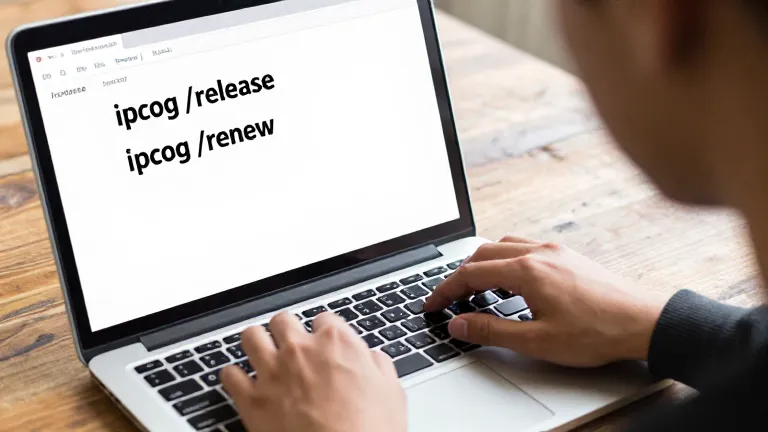
- Open Command Prompt as administrator and type 'ipconfig /release' to release your current IP address. Then, type 'ipconfig /renew' to request a new IP from your router. This process can resolve temporary IP conflicts.
- If the above doesn't work, reset TCP/IP settings by running 'netsh int ip reset' in Command Prompt. This command clears and rebuilds your network configuration, which can fix persistent IP assignment errors.
- If automatic IP renewal fails, manually renew your IP by checking your router's settings or using the 'ipconfig /all' command to verify your current configuration. This helps identify if the issue is with your device or the network.
- Ensure your device is connected to the correct WiFi network and that no IP address is manually assigned. If you've previously set a static IP, switch back to automatic mode to let the router assign an IP.
Release and Renew IP Address on Windows
To release and renew your IP address, open the Command Prompt with administrative privileges. Type 'ipconfig /release' to remove the current IP address assigned by your router. This step is essential if your device is holding onto an outdated or incorrect IP. After releasing, type 'ipconfig /renew' to request a new IP address. This process ensures your device gets a valid IP from the router, restoring connectivity.
Reset TCP/IP Settings
Resetting TCP/IP settings is a more thorough method to resolve configuration errors. Open Command Prompt as an administrator and enter 'netsh int ip reset' to clear and rebuild your network settings. This command can fix issues caused by corrupted or misconfigured TCP/IP parameters. After running this command, restart your device to apply the changes. This step is useful if the IP renewal method doesn't resolve the issue.
Advanced Fixes: When Basic Steps Fail
When basic troubleshooting steps fail to resolve the 'WiFi Doesn't Have a Valid IP Configuration' error, it's time to explore more advanced solutions. These include updating or reinstalling network drivers, adjusting router settings, and using built-in troubleshooting tools. These methods address deeper system or network configuration issues that may be causing the problem.
- Reinstall Network Adapter Drivers
- Change Router IP Address or Reset It
- Use the Network Troubleshooter
Reinstall Network Adapter Drivers
Reinstalling or updating your network adapter drivers can resolve compatibility or corruption issues that prevent your device from obtaining a valid IP address. To do this, open Device Manager, expand the Network Adapters section, right-click the adapter, and select 'Uninstall device'. Restart your computer to allow Windows to reinstall the driver. If the issue persists, download the latest driver from the manufacturer’s website and install it manually.
Change Router IP Address or Reset It
Changing your router's IP address to a static configuration or resetting it can resolve conflicts in network settings. Log in to your router's admin panel, navigate to the LAN settings, and assign a static IP address to your device. Alternatively, reset the router to its default settings by pressing the reset button for 30 seconds. This will restore factory defaults and may resolve misconfigurations causing the error.
Preventative Tips: Avoid the Error in the Future
Preventing the 'WiFi Doesn't Have a Valid IP Configuration' error involves proactive steps to maintain stable network connections. By avoiding manual IP settings, keeping systems updated, and using reliable connections, users can reduce the chances of encountering this issue.
- Avoid manually setting IP addresses unless necessary.
- Keep your operating system and router firmware updated.
- Use a wired Ethernet connection for critical tasks to ensure stability.
Avoid Manual IP Configuration
Manually configuring IP addresses can lead to conflicts or incorrect settings, which may cause the error. Most modern devices can automatically obtain a valid IP address through DHCP. Unless you have a specific reason to assign a static IP, let the network handle this process. If you must set a static IP, ensure it does not overlap with existing network ranges and that the subnet mask and gateway settings are correct.
Update Your System and Router Firmware
Regular updates to your operating system and router firmware can resolve bugs and security vulnerabilities that might affect network performance. Manufacturers often release updates to improve connectivity and fix issues that could lead to IP configuration errors. Enable automatic updates where possible, or check for updates manually on a regular basis. For routers, consult the manufacturer's website for firmware updates and follow the installation instructions carefully.
Frequently Asked Questions
What does 'WiFi Doesn't Have a Valid IP Configuration' mean?
'WiFi Doesn't Have a Valid IP Configuration' means your device cannot obtain a valid IP address from your router, preventing internet access.
Can a router issue cause this error, and how can I fix it?
Yes, router issues like incorrect settings or firmware problems can cause this error. Restarting the router or resetting it can often resolve the issue.
How do I manually renew my IP address on Windows?
On Windows, open Command Prompt and type 'ipconfig /release' followed by 'ipconfig /renew' to manually renew your IP address.
What should I do if my IP address isn't assigned properly?
If your IP address isn't assigned properly, try resetting TCP/IP settings or reinstalling network adapter drivers to fix the issue.
Next Steps and Prevention
Fixing the 'WiFi Doesn't Have a Valid IP Configuration' error typically involves basic troubleshooting steps like restarting your router or renewing your IP address. If these don't work, advanced solutions such as resetting TCP/IP settings or updating firmware may be needed.
To avoid future issues, ensure your system and router firmware are up to date, and avoid manually configuring IP settings unless necessary. If the error persists, contacting your ISP or a professional technician is the next step.





