
How to Fix LG Smart TV WiFi Turning Off Automatically
If your LG Smart TV keeps losing its WiFi connection, it can be frustrating, especially when you're trying to stream your favorite shows or access smart features. This issue often happens due to interference, outdated settings, or network conflicts. The article 'How to Fix LG Smart TV WiFi Turning Off Automatically' provides practical steps to diagnose and resolve the problem without needing professional help. You'll learn how to reset your TV's WiFi settings, update firmware, and even optimize your router for better performance. Whether you're a home user or tech-savvy individual, these solutions are designed to help you regain stable connectivity and enjoy uninterrupted viewing.
Understanding Why Your LG Smart TV Loses WiFi Connection
Understanding why your LG Smart TV loses its WiFi connection is the first step in troubleshooting the issue. Automatic disconnections can be frustrating, but they often stem from a few common causes. By identifying the root problem, you can take the right steps to restore stable connectivity.
Common Causes of WiFi Disconnection
Common causes of WiFi disconnection on LG Smart TVs include interference from other devices, outdated firmware, and incorrect network settings. WiFi signals can be disrupted by physical obstacles, such as walls or metal objects, and by other electronic devices operating on the same frequency. Additionally, if your TV's firmware is not up to date, it may have bugs or compatibility issues that affect WiFi performance. Incorrect settings, such as a wrong password or an improperly configured network, can also lead to intermittent or complete loss of connection.
Differentiating TV-Specific Vs. Network-Wide Issues
To determine whether the issue is specific to your LG Smart TV or affects the entire network, test WiFi connectivity with other devices. If your phone, laptop, or another smart device also experiences disconnections, the problem likely lies with your router or internet service provider. However, if only your TV loses connection, the issue is more likely related to the TV's settings or hardware. Checking for recent changes, such as firmware updates or new devices connected to your network, can also help pinpoint the cause. These changes can sometimes interfere with existing connections or introduce compatibility issues.
Resetting Your LG Smart TV WiFi Settings
Resetting your LG Smart TV’s WiFi settings can resolve persistent disconnection issues by restoring default configurations. This process removes any corrupted settings and allows you to reconnect to your WiFi network from scratch.
- Navigate to the TV’s settings menu and select General or System Settings.
- Locate the Reset option and choose Factory Reset. Confirm the action to proceed.
- Wait for the TV to restart and return to the initial setup screen.
- Access the WiFi settings menu and select your network from the list of available networks.
How to Factory Reset Your LG Smart TV
Performing a factory reset on your LG Smart TV will erase all custom settings, including WiFi configurations. This is particularly useful if previous attempts to connect have failed or if the TV is experiencing erratic behavior. Before proceeding, ensure you have the WiFi password ready, as the TV will need to reconnect afterward.
Reconnecting to WiFi After Reset
After the factory reset, the TV will prompt you to set up the device again. Navigate to the WiFi settings section and select your network from the list. Enter the WiFi password carefully to avoid connection errors. If your network is not visible, ensure the TV is within range of the router and that WiFi is enabled on the router itself.
Troubleshooting LG Smart TV WiFi Connection Issues
Troubleshooting LG Smart TV WiFi connection issues often requires a methodical approach to identify whether the problem stems from the TV itself or the network environment. Starting with firmware updates ensures the TV's software is compatible with your router and network, while testing other devices helps isolate the issue. Additionally, adjusting WiFi channels can resolve interference problems that affect connectivity.
Checking for Firmware Updates
Updating the firmware on your LG Smart TV is essential for maintaining stable WiFi performance. Navigate to the TV's settings menu, select 'Support,' and then 'Software Update.' If an update is available, follow the on-screen instructions to install it. Firmware updates often address bugs, improve compatibility, and enhance security, which can resolve intermittent disconnections.
Testing WiFi Connectivity with Other Devices
To determine if the WiFi issue is specific to your LG Smart TV or affects the entire network, test the connection with other devices. Use a smartphone, laptop, or another smart home device to connect to the same WiFi network. If these devices experience similar disconnections, the issue likely lies with the router or network settings. If only the TV is affected, the problem is likely with the TV's WiFi adapter or settings.
Fixing Quick Start or WiFi Auto-Connection Problems
Quick Start and auto-connection features on LG Smart TVs can sometimes cause unexpected WiFi disconnections. If your TV is losing its connection, adjusting these settings can help stabilize the network link.
- Go to Settings > General > Quick Start and disable the feature.
- After disabling Quick Start, navigate to Network > WiFi and ensure the TV is not set to automatically connect if the signal is weak.
- If the issue persists, manually reconnect to your WiFi network by selecting it from the list and entering the password again.
- Once connected, test the stability by streaming content or using apps to ensure the connection remains active.
Disabling and Re-enabling Quick Start
Disabling Quick Start can prevent your LG Smart TV from attempting to connect to WiFi when the signal is unstable. This feature is designed to automatically connect to a known network, but it may cause disconnections if the signal fluctuates. To disable it, go to Settings > General > Quick Start and toggle it off. This action will stop the TV from trying to connect automatically, which can help reduce unexpected disconnections.
Manually Connecting to WiFi
Manually reconnecting to WiFi ensures your TV uses a stable connection instead of relying on auto-connection features. After disabling Quick Start, navigate to Network > WiFi and select your network from the list. Enter the password carefully, ensuring there are no typos. Once connected, test the stability by using apps or streaming content to confirm the connection remains active. This method bypasses any potential issues with the auto-connection feature and provides a more reliable link.
Advanced Tips for Stable LG Smart TV WiFi Connection
For users seeking a more reliable WiFi connection for their LG Smart TV, advanced strategies can significantly improve performance. These include using a wired Ethernet connection, positioning the TV closer to the router, and optimizing router settings. These steps can reduce interference, enhance signal strength, and provide a more stable network environment for your TV.
Using Ethernet for Stability
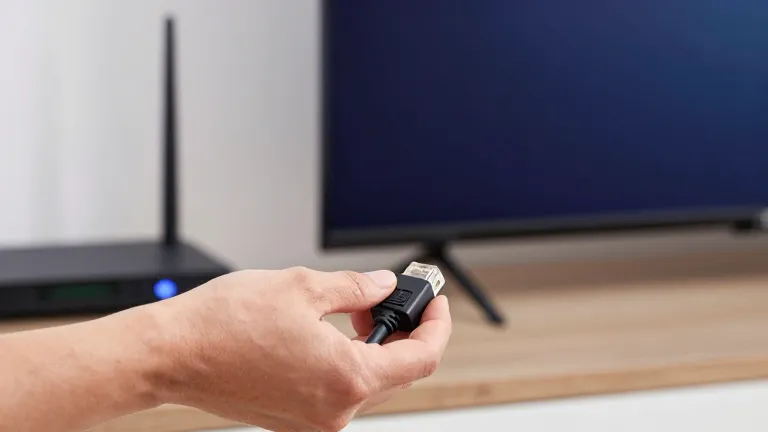
Using a wired Ethernet connection is one of the most effective ways to ensure a stable and high-speed internet connection for your LG Smart TV. While WiFi is convenient, it can be affected by interference, distance, and network congestion. By connecting your TV directly to your router via an Ethernet cable, you eliminate these variables and enjoy a more consistent connection. This is particularly beneficial for streaming high-definition content or playing online games, where a stable connection is crucial.
Optimizing Router Settings for Better Signal
Optimizing your router settings can also enhance WiFi performance for your LG Smart TV. Adjusting the WiFi channel can help avoid interference from neighboring networks, especially in densely populated areas. Using a less congested channel can reduce latency and improve overall connectivity. Additionally, increasing the router’s power output can extend the range of your WiFi signal, making it easier for your TV to maintain a stable connection. Many routers allow these settings to be adjusted through their web interface or mobile app, so consult your router’s manual for specific instructions.
Frequently Asked Questions
Why does my LG Smart TV keep disconnecting from WiFi even when it's close to the router?
WiFi disconnection can occur due to interference, router settings, or TV-specific issues. Check for other devices on the same network and ensure the router isn't overloaded. If the problem persists, consider a firmware update or a factory reset.
How can I manually reconnect my LG Smart TV to WiFi if Quick Start is disabled?
Navigate to the TV's settings, go to Network, and select WiFi. Choose your network and enter the password manually. Ensure the TV is within range and the router is functioning correctly.
What should I do if my LG Smart TV WiFi turns off after a firmware update?
A firmware update can sometimes reset network settings. Try reconnecting to WiFi through the TV's settings. If the issue continues, a factory reset or contacting LG support may be necessary.
Can a weak WiFi signal cause my LG Smart TV to lose connection automatically?
Yes, a weak signal can lead to frequent disconnections. Ensure the TV is within range of the router and consider using a WiFi extender or switching to a wired connection for better stability.
Final Thoughts on LG Smart TV WiFi
Stability in WiFi connectivity for your LG Smart TV often requires a combination of proper settings, firmware updates, and network optimization. Addressing common issues like Quick Start, signal strength, and router configurations can significantly improve the experience.
If you're still experiencing connectivity problems, consider a factory reset or contacting LG support for further assistance. A stable WiFi connection ensures seamless access to streaming services and smart features.





