How to Fix Windows 11 Not Detecting USB Devices: Step-by-Step Guide
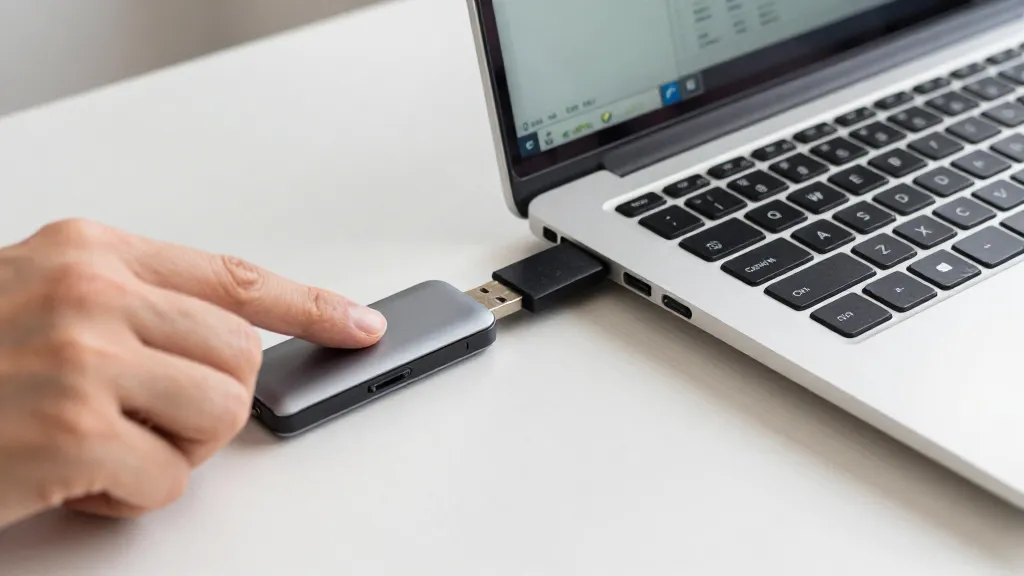
If your Windows 11 system isn't detecting USB devices, it can be frustrating, especially when you need to connect peripherals like flash drives, printers, or external hard drives. This issue can stem from a variety of causes, including faulty connections, outdated drivers, or system configuration problems. The main keyword here is How to Fix Windows 11 Not Detecting USB Devices. This guide provides a clear, step-by-step solution to help you resolve the issue without needing professional assistance. Whether you're a tech-savvy user or someone encountering this problem for the first time, the following steps will walk you through the most effective troubleshooting methods to get your USB devices recognized again.
Check Physical Connections and Device Compatibility
Before diving into software solutions, it's essential to ensure that the physical connection between the USB device and the computer is secure and functional. Many USB detection issues stem from simple problems like loose cables, faulty ports, or incompatible hardware. This section outlines the basic steps to verify the physical setup and device compatibility, helping to rule out hardware-related causes.
Verify USB Port and Cable Functionality
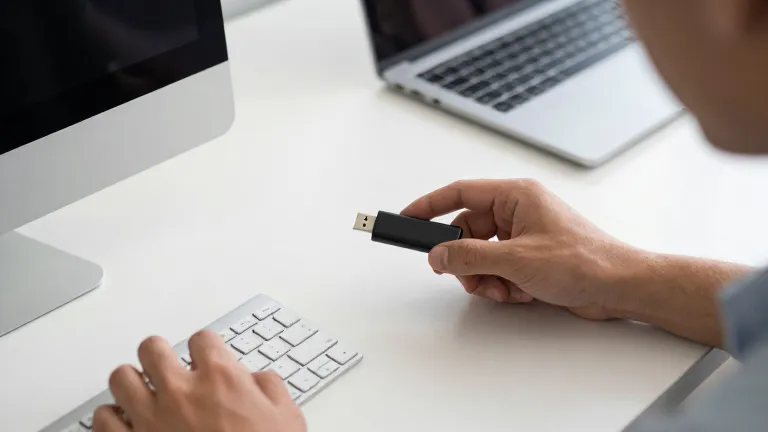
Start by checking that the USB device is fully inserted into the port. Ensure that the connection is snug and that the device is not loose. If the port feels stiff or the device wiggles, it might be a sign of a damaged port. Try using a different USB port on the same computer to see if the issue persists. If the device still isn't detected, try a different USB cable, as a faulty cable can prevent communication between the device and the system.
Test the Device on Another Computer
If the device is still not recognized, test it on another computer to determine if the issue is with the device itself or the current system. If the device works on another machine, the problem likely lies with the Windows 11 setup or drivers. Conversely, if the device fails to work on multiple systems, it may be a hardware issue. Always ensure that the device is compatible with Windows 11, as some older or specialized devices may not function properly on newer operating systems.
Update or Reinstall USB Drivers
Updating or reinstalling USB drivers is a fundamental step in resolving Windows 11's inability to detect USB devices. Outdated or corrupted drivers can cause communication issues between the operating system and external hardware. This section provides straightforward methods to update or reinstall USB drivers, ensuring compatibility and proper functionality.
How to Update USB Drivers in Device Manager
To update USB drivers, open Device Manager and expand the 'Universal Serial Bus controllers' section. Right-click on each USB controller and select 'Update driver.' Choose the option to search automatically for updated drivers. This process ensures that the latest firmware and driver versions are installed, which can resolve detection issues.
Reinstalling USB Drivers Through Device Manager
If updating drivers doesn't work, try reinstalling them through Device Manager. Right-click on each USB controller and select 'Uninstall device.' Confirm the action and restart your computer. Upon reboot, Windows will automatically reinstall the drivers, which can refresh the connection and fix any software conflicts. This method is particularly useful for devices that stop working after a system update or driver change.
Troubleshoot USB Device Detection via Settings
Troubleshooting USB device detection via Windows 11 settings is a straightforward way to identify and resolve recognition issues. By accessing the system's built-in configuration tools, users can check for device-specific settings, verify USB port functionality, and ensure the operating system is properly communicating with connected peripherals.
Accessing USB Settings in Windows 11
To access USB settings in Windows 11, click the Start menu and select 'Settings'. Navigate to 'System' and then 'USB settings'. This menu allows users to manage how the system interacts with USB devices, including enabling or disabling specific ports. If a device is not detected, it may appear as 'Not Connected' or 'Unknown Device', which can be resolved by toggling the port or restarting the system.
Checking for Device-Specific Settings
Once in the USB settings, users should check for any device-specific configurations. Right-clicking the device icon in the taskbar or within the 'Devices' section of the Settings menu provides access to 'Device Properties'. Here, users can view error messages, check for driver updates, or adjust advanced settings such as power management. If the device is listed with an error, it may indicate a compatibility issue or a need for further driver updates.
Run Windows Troubleshooters for USB Issues
Windows 11 includes built-in troubleshooters that can automatically detect and resolve USB detection issues. These tools are designed to identify common problems such as driver conflicts, system compatibility, or misconfigured settings. By running the appropriate troubleshooters, you can save time and avoid manual configuration. This section outlines how to use the Hardware and Devices troubleshooter and check for system updates that may address USB-related problems.
Using the Windows 11 Hardware and Devices Troubleshooter
To use the Windows 11 Hardware and Devices troubleshooter, open the Settings app and navigate to System > Troubleshoot. Scroll down and select 'Hardware and Devices' under the 'Other troubleshooters' section. Click 'Run the troubleshooter' to start the process. The tool will automatically scan for issues and attempt to resolve them. If it finds a problem, it will provide a solution or suggest manual steps to fix the issue.
Checking for Windows Updates
Keeping your Windows 11 system up to date is essential for resolving compatibility issues with USB devices. Go to Settings > Windows Update and check for available updates. If updates are found, install them and restart your computer. These updates often include bug fixes and improvements that can enhance USB functionality. Ensure your system is running the latest version of Windows 11 to benefit from the most recent fixes and optimizations.
Advanced Fixes for Persistent USB Detection Problems
For persistent USB detection issues, advanced troubleshooting methods can resolve underlying system or configuration problems. These steps involve repairing system files, adjusting registry settings, and using third-party tools to ensure proper device recognition.
Running the System File Checker Tool
The System File Checker (SFC) tool can repair corrupted system files that may interfere with USB device detection. Open Command Prompt as an administrator and run the command 'sfc /scannow' to initiate the scan. This process may take some time, but it can fix critical file issues that affect hardware communication.
Modifying USB Settings in the Windows Registry
Modifying USB settings in the Windows Registry can help resolve specific recognition issues. Navigate to 'HKEY_LOCAL_MACHINE\SYSTEM\CurrentControlSet\Services\USBSTOR' and ensure the 'Start' value is set to 3. If the entry is missing, create a new DWORD value named 'Start' with a hexadecimal value of 3. Exercise caution when editing the registry to avoid unintended system changes.
Frequently Asked Questions
What should I do if my USB device still doesn't show up after trying the steps?
If the device still doesn't show up, try removing and reinserting it. If that doesn't work, check for hardware issues or consider advanced troubleshooting methods like the System File Checker or registry modifications.
Can I use third-party software to fix USB detection issues on Windows 11?
Third-party software can sometimes help, but it's recommended to first try built-in Windows tools. Use caution with unknown software to avoid security risks or system instability.
Why does my USB device work on other computers but not on Windows 11?
This could be due to driver issues, outdated system updates, or compatibility problems. Ensure the device is compatible with Windows 11 and check for any specific settings affecting USB recognition.
Is there a way to force Windows 11 to recognize a USB device without restarting?
You can try using the 'USB Selection' tool or manually updating drivers. If these don't work, a system restart is often necessary for changes to take effect.
Next Steps for USB Recognition
Fixing USB detection issues on Windows 11 often involves checking physical connections, updating drivers, and running built-in troubleshooters. If these steps fail, advanced tools like the System File Checker or registry adjustments may be needed.
To ensure optimal performance, always keep your system updated and test devices on other computers to rule out hardware problems. If issues persist, consider contacting technical support for further assistance.