
How to Fix the Windows Key Not Working on Your PC

If your Windows key isn't working, it can disrupt your productivity, whether you're at home or in the office. The how to fix not working windows key issue can be frustrating, especially when you rely on it for quick access to menus, search, or multitasking. This problem can stem from various causes, including physical damage, driver issues, or system conflicts. Fortunately, there are several practical steps you can take to diagnose and resolve the issue without needing professional help. In this article, we'll walk you through the most effective methods to troubleshoot and fix the Windows key, from basic checks to more advanced solutions. You'll also learn when it's time to seek expert assistance if the problem persists. By following these steps, you can restore the functionality of your Windows key and get back to work efficiently.
Understanding the Issue with the Windows Key
The Windows key is a vital component for navigating Windows, and when it stops working, it can disrupt productivity. Understanding the root cause of the issue is the first step in resolving it. Whether the problem stems from physical damage, software conflicts, or outdated drivers, identifying the exact cause helps in applying the right solution.

Physical Damage to the Windows Key
Before assuming the problem is software-related, inspect the Windows key for physical damage. Check if the key is stuck, cracked, or unresponsive to clicks. If the key feels loose, sticky, or doesn't register input, it might be a hardware issue. Clean the key area with compressed air or a soft cloth to remove debris that might be causing the malfunction.
Keyboard Driver Issues
Keyboard driver issues can also prevent the Windows key from functioning properly. Outdated, corrupted, or incompatible drivers can lead to input recognition problems. If you recently updated your system or installed new software, it's possible that a driver conflict is the culprit. Checking the Device Manager for any warning icons or errors related to your keyboard can help identify driver-related issues.
Operating System Conflicts
Operating system conflicts can interfere with the Windows key's functionality. System updates, new applications, or changes in settings might inadvertently affect keyboard behavior. If the key works intermittently or only under specific conditions, it might be related to how the OS handles input. Reviewing recent changes to your system or software can help pinpoint if an update or configuration change is responsible for the issue.
Basic Troubleshooting Steps for the Windows Key
Before diving into advanced fixes, start with simple troubleshooting steps that can quickly resolve the issue. These basic checks are designed to identify if the problem is temporary or related to software, hardware, or settings.
- Press the Windows key repeatedly to see if it starts working after a few attempts.
- Check for any pending system updates that may have resolved the issue.
- Use the on-screen keyboard to confirm if the key is functioning properly.
- Restart your PC to refresh system resources and potentially fix the issue.
Test the Key Manually
Begin by pressing the Windows key repeatedly. Sometimes, the key may be temporarily unresponsive due to system glitches or interference from background processes. If it starts working after a few presses, the issue is likely temporary and can be resolved by restarting your PC or closing unnecessary programs.
Check for System Updates
Ensure your Windows system is up to date. Microsoft frequently releases updates that fix bugs and improve compatibility with hardware. Go to Settings > Update & Security > Windows Update and check for available updates. Installing the latest patches can resolve issues related to keyboard drivers or system conflicts.
Use On-Screen Keyboard
Open the on-screen keyboard to test if the Windows key is functioning. Go to Settings > Accessibility > Keyboard and enable the On-Screen Keyboard. Click the Windows key on the virtual keyboard to see if it responds. If it works here but not on the physical keyboard, the issue may be with the hardware or its drivers.
Advanced Fixes for the Windows Key Not Working
Advanced fixes for the Windows key not working often involve deeper system adjustments. These steps address potential driver issues, system conflicts, and software interference that basic troubleshooting may miss.
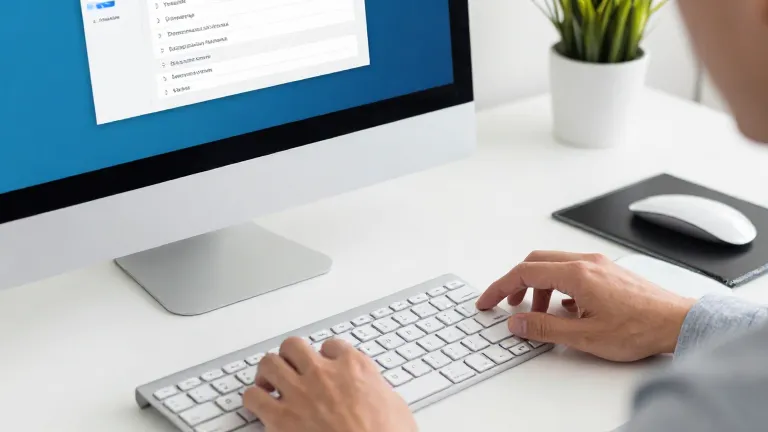
- Reinstall or update the keyboard drivers through Device Manager.
- Use the Windows Troubleshooter for keyboard issues.
- Check for conflicts with third-party software or keyboard shortcuts.
Reinstall Keyboard Drivers
Reinstalling or updating keyboard drivers can resolve issues caused by outdated or corrupted software. Open Device Manager, locate the keyboard device, right-click it, and select 'Uninstall device'. Restart your PC to allow Windows to reinstall the drivers automatically. If the issue persists, visit the manufacturer's website to download the latest drivers for your specific keyboard model.
Run Windows Troubleshooter
The Windows Troubleshooter is a built-in tool that can automatically detect and fix common keyboard problems. Access it by searching for 'Troubleshoot settings' in the Start menu, then navigate to 'Other troubleshooters' and select 'Keyboard'. Follow the on-screen instructions to identify and resolve any detected issues. If no problems are found, consider running the 'Hardware and Devices' troubleshooter as a secondary check.
Check for Software Conflicts
Third-party software and custom keyboard shortcuts can interfere with the Windows key's functionality. Check for recently installed programs that might be blocking the key, especially those related to gaming, productivity, or automation. Disable or uninstall these programs temporarily to see if the issue resolves. Additionally, review the keyboard shortcuts in your operating system and third-party apps to ensure none are conflicting with the Windows key's default actions.
Testing the Windows Key with External Devices
Testing the Windows key with external devices is a practical way to identify whether the issue lies with the built-in keyboard or the system itself. By using an external keyboard, testing on a different device, and employing dedicated testing tools, you can determine the source of the problem and take appropriate action.
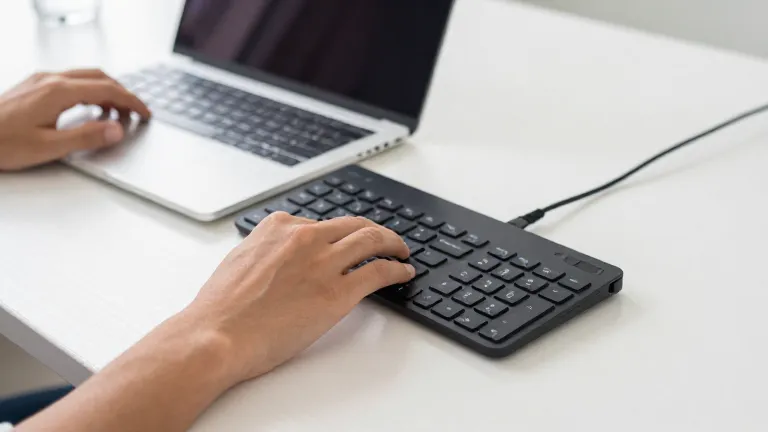
- Try using an external keyboard to see if the issue is with the built-in keyboard.
- Test the Windows key on a different PC or laptop to isolate the problem.
- Use keyboard testing tools to verify functionality.
Use an External Keyboard
If the Windows key is not working on your current device, try connecting an external keyboard to see if the issue persists. This simple step can help determine if the problem is with the built-in keyboard or the system settings. If the external keyboard works, it confirms that the issue is likely with the internal keyboard or its drivers.
Test on Another Device
To isolate the problem, test the Windows key on a different PC or laptop. If the key works on another device, it suggests that the issue is specific to your current system. This can help rule out software conflicts or system-wide configuration issues that may be affecting the key's functionality.
Use Keyboard Testing Tools
Keyboard testing tools can provide a more detailed analysis of your keyboard's functionality. These tools often simulate key presses and check for responsiveness, helping you identify any unresponsive keys or software conflicts. Using such tools can be especially useful if you're not sure whether the issue is hardware or software-related.
When to Seek Professional Help
If all troubleshooting steps fail to restore the functionality of the Windows key, it may be time to consider professional help. Persistent issues could indicate hardware damage or deeper system problems that require expert intervention.
When to Stop Troubleshooting
Continue troubleshooting only if you have tried all basic and advanced solutions without success. If the Windows key remains unresponsive despite these efforts, it may be necessary to seek professional assistance. At this point, the problem may be beyond your ability to resolve through standard methods.
Cost Vs. Repair Options
Evaluating the cost-effectiveness of repair versus replacement is crucial when deciding on next steps. If the keyboard is old or the repair cost exceeds the price of a new one, replacement may be the more practical option. Additionally, if the issue is related to a damaged physical key, the cost of repair might not justify the benefit.
Contacting Support
To get further assistance, contact the manufacturer or a certified technician. They can provide accurate diagnostics and recommend the best course of action. For laptop users, contacting the laptop brand's support is especially important, as built-in keyboards may require specialized tools or parts. Always ensure that any service provider you choose is authorized to avoid potential damage or voided warranties.
Frequently Asked Questions
What should I do if the Windows key is not responding?
Start by checking for physical damage or dirt on the key. If that doesn't work, try updating your system or reinstalling keyboard drivers. If the issue persists, consider using an external keyboard or contacting support.
Can a software update fix the Windows key not working issue?
Yes, a software update may resolve the issue by fixing bugs or compatibility problems. Always check for updates after the key stops working, especially if the problem started after a recent system change.
Is it possible to fix the Windows key without replacing the keyboard?
Yes, many issues can be resolved through software troubleshooting, such as updating drivers or checking for conflicts. Physical damage may require hardware repair, but it's not always necessary to replace the entire keyboard.
How do I know if the problem is with the keyboard or the operating system?
Test the key on another device to determine if the issue is hardware-related. If it works elsewhere, the problem is likely with your system. If it fails on all devices, the keyboard is probably faulty.
Next Steps and Final Advice
The Windows key not working can often be resolved through basic troubleshooting and advanced fixes. Ensure you check for physical damage, software conflicts, and system updates before considering hardware replacement.
If the issue persists, consider professional help for a more in-depth diagnosis. Always start with simple solutions to avoid unnecessary costs and ensure the best outcome for your device.





